Last Updated: October 18, 2026
If you stream for a living, your laptop is not really a webcam. It’s an encoder, a lighting controller, a chat machine, and a backup recorder all at once. The built-in camera almost doesn’t matter — you will replace it with an external 1080p or 4K webcam anyway. What matters is sustained CPU performance, 16GB of RAM minimum, good cooling, and enough ports that you aren’t running your whole setup through one flaky dongle.
I have tested this workflow on both Mac and Windows: OBS open, Chrome with 6-10 tabs for your platforms and chat bots, Spotify, and an external camera + USB mic + ring light plugged in. Cheap 8GB ultrabooks will do it for 20 minutes, then the fans scream, frames drop, and autofocus hunts. Here is what actually holds up in 2026.
📄 In This Review
What to prioritize for cam work
CPU first, then RAM, then ports and cooling. Look for a recent 8-core chip — Apple M-series or Intel Core Ultra 7 / AMD Ryzen 7 8840-class or newer — and 16GB RAM as your floor. 32GB is worth it if you run OBS + multiple 1080p browser sources + Photoshop or video editing in the background, but most full-time streamers are fine at 16GB if nothing else is eating memory.
Storage: 512GB SSD minimum. You will accumulate local recordings, overlays, and clips fast, and 256GB drives fill up in two months. Ports matter more than people expect. One or two USB-C only is a failure mode. You want at least 2x USB-C / Thunderbolt plus 1x USB-A and full-size HDMI if you use an external monitor or capture card. If you fall in love with a thin Air-style machine, budget for a powered USB hub from day one.
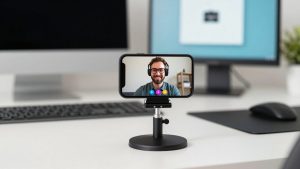
Do not buy for the built-in webcam. Even the best 1080p laptop cameras in 2026 have tiny sensors and aggressive noise reduction. They are fine for a Zoom call, but they smear skin tones and fall apart in warm room lighting. Plan on a separate 4K webcam for streaming and use the laptop for what it is good at: clean encoding.
Quick comparison
See also: Best Monitor for MacBook Air: Two USB-C 4K Screens and Six Adapter-Dependent Alternatives • Best Monitor for MacBook Pro: Eight Listings Sorted by Cable, Sharpness and Scaling
| Category | Typical specs | Battery / Heat | Best for |
|---|---|---|---|
| MacBook Air 13/15 (M3/M4) | 8-10 core CPU, 16GB RAM, 512GB SSD | 14-18 hrs, silent, cool | Browser-based platforms, long shifts, quiet room |
| Windows creator 14-16in (RTX 4050/4060) | Core Ultra 7 / Ryzen 7, 16-32GB RAM, RTX GPU | 6-10 hrs, fans under load | OBS with effects, overlays, multicam, recording + streaming |
| Budget workhorse 15-16in | Ryzen 7 / Core i7, 16GB RAM, integrated graphics | 7-9 hrs, warm under load | Starting out, one site + external webcam |
| 2-in-1 OLED convertible | Core Ultra 7, 16GB RAM, OLED touch | 6-8 hrs, warm | Previewing your own image, close-up angle checks |
Best overall: MacBook Air 13 or 15 with 16GB RAM
For most webcam models in 2026, this is the safe pick. The M3 and M4 Air encode 1080p in OBS or in-browser without breaking a sweat, stay silent for a 4-6 hour shift, and do not thermally throttle on a bed or couch like thin Windows ultrabooks do. Battery life is real — you can do a full shift unplugged if your lights and camera are powered separately.
Trade-offs: ports are thin with just 2x Thunderbolt and MagSafe, so you will need a powered dock for camera, mic, Ethernet, and external drive. External monitor support on the base 13-inch is still limited compared to Pro models. And if you rely on Windows-only plugins, virtual camera tweaks, or ManyCam-style effects, MacOS will frustrate you. Buy the 16GB / 512GB configuration, not the base 8GB model. The 8GB model will stutter when you have OBS + Chrome + preview open, and macOS swap will wear the SSD faster.
Who suits: solo streamers on browser-based sites like Streamate, Chaturbate, or OnlyFans Live, who want reliability over tinkering. Check current pricing on a MacBook Air M3 16GB laptop — sales often drop the 15-inch close to the 13-inch price.
Best for OBS power users: 14-16 inch RTX creator laptop
If you run OBS with background blur/removal, LUTs, animated overlays, dual 1080p60 sources, and record locally while you stream, get a Windows machine with a discrete GPU. NVENC encoding on an RTX 4050 or 4060 takes the load off the CPU and gives you noticeably fewer dropped frames than integrated graphics when things get busy. You also get full-size HDMI, USB-A, and SD readers without dongles.
Failure modes are real: these machines are heavier (4-4.5 lbs), fans are audible in a quiet bedroom, and battery life drops to 3-4 hours when encoding. Do not stream on a bed comforter — intakes clog and you will see 90C+ temps and stutter. Use a $20 laptop stand for airflow. Also turn off automatic iGPU/dGPU switching in your streaming app settings; auto-switching is a common cause of black camera previews mid-show.
Who suits: multicam setups, couples accounts, or anyone editing clips in Premiere/DaVinci between shows. Look at an RTX creator laptop with 16GB RAM if this is you — 32GB is only needed if you edit 4K daily.
Best budget starting point: Ryzen 7 / Core Ultra 5 with 16GB RAM
Here is the honest part: you do not need a $1,800 laptop to start. A $650-$850 Windows 15-inch with a Ryzen 7 7735U/8840U or Core Ultra 5, 16GB RAM, and 512GB SSD will handle one platform in Chrome, an external 1080p webcam, and a USB mic without issues. Put the $500 you save toward lighting and a better external camera — that improves image quality 10x more than a faster CPU.
Where budget laptops fail: dim 250-nit screens you cannot judge exposure on, single-fan cooling that gets loud after an hour, and mushy keyboards/trackpads if you type to chat all night. Also check the Wi-Fi card. Many budget models still ship with older Wi-Fi 5 cards that jitter on upload. If you cannot run wired Ethernet, at least get Wi-Fi 6/6E and sit in the same room as your router. Upload stability matters more than download speed for cam work.
Setup tips that matter more than specs
Use wired Ethernet if you can. Wi-Fi frame drops look like a bad camera but are really network. Record locally in OBS while you stream for the first two weeks so you can see if drops are encoding or network. Set your external webcam to manual focus and manual white balance at 5600K if you use daylight LEDs, otherwise autofocus will breathe every time you move.
Keep your laptop elevated and plugged into a powered hub, not a passive dongle. Passive dongles overheating is one of the most common causes of USB mics and webcams disconnecting mid-shift. And turn on Do Not Disturb, disable automatic updates during show hours, and close Dropbox/OneDrive sync while live — background uploads steal the exact upload bandwidth you need.
FAQ
Is 8GB RAM enough for webcam modeling?
Not in 2026 if you stream full-time. 8GB is okay for casual 30-minute sessions with one tab open, but OBS + Chrome + chat bots will use 10-12GB quickly. Get 16GB minimum to avoid stutter and dropped frames.
Mac or Windows for cam sites?
Mac is quieter, cooler, and more reliable for browser-based streaming. Windows is better if you use OBS plugins, virtual cameras, animated overlays, or need NVENC encoding and more ports. Both work — pick based on your software, not the logo.
Do I need a 4K laptop screen?
No. 4K on the laptop drains battery and does not improve your stream if you output at 1080p. A bright, color-accurate 1080p or 1600p screen is easier to judge lighting on and cheaper. Spend on room lighting instead.
Can I just use my laptop’s built-in webcam?
You can to start, but you will outgrow it fast. A $120-$200 external 1080p60 webcam with manual focus looks dramatically better in low/warm light and lets you frame properly without stacking your laptop on books.
Related Reviews & Guides
Best Laptop Camera for Video Conferencing
Best Full HD Web Camera