Last Updated: October 18, 2026
If you use a modern laptop, especially a MacBook, a USB-C webcam just makes sense. No dongle, no loose adapter hanging off the side, and one less point of failure before a client call. The problem is that a lot of webcams labeled USB-C still ship with a USB-A plug and a cheap adapter in the box.
For work calls, native USB-C connection matters less for image quality and more for reliability and desk setup. This guide focuses on what actually affects how you look and sound on Zoom, Teams, and Meet.
📄 In This Review
Why USB-C still matters for a work webcam
Video bandwidth is not the issue. Even 4K at 30fps fits fine over USB-A. The real benefit is practical: newer ThinkPads, Dell XPS machines, MacBook Air and Pro models only have USB-C / Thunderbolt ports. Running a webcam through a hub or multi-adapter can cause disconnects, especially if the hub is also powering a monitor and charging the laptop.
A native USB-C webcam with a detachable USB-C to C cable lets you plug straight into the laptop or a powered dock. Fewer dropouts, cleaner cable routing, and you keep a USB-A port free if you still have one. If you already live on a dock, check what the dock passes through. Some cheap USB-C hubs only do USB 2.0 on certain ports, which can limit resolution or cause stutter in 4K mode.
What to check before you buy
See also: Best Monitor for MacBook Air: Two USB-C 4K Screens and Six Adapter-Dependent Alternatives • Best Monitor for MacBook Pro: Eight Listings Sorted by Cable, Sharpness and Scaling
Ignore most of the box specs and look at these four things. First, true connector type: is the cable USB-C on the camera end and the computer end, or is it USB-A with an adapter? Second, focus type: fixed focus is fine if you sit still at a desk, autofocus is better if you move, whiteboard, or lean in and out.
Third, field of view. For home office work, 65 to 78 degrees looks natural and avoids showing your whole room. Wider 90-degree views are useful for two people sharing one desk but make you look small. Fourth, microphone and OS support. Most webcam mics are usable for backup only. On Macs, also check that zoom, pan, and background effects work without Windows-only software. Many makers gate full settings behind a Windows app, leaving Mac users stuck on defaults.
The three types worth buying
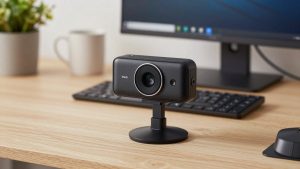
For most office work, a basic 1080p USB-C webcam with fixed focus is enough. It handles Zoom and Teams well, performs predictably in decent light, and costs much less than 4K options. Failure mode is low light: small sensor, noisy image, soft face when your only light is a monitor at night. Who it suits: laptop workers who want a step up from the built-in camera without thinking about settings.
The middle ground is a 1440p or 4K webcam with autofocus and a larger sensor. That extra resolution is not really about sending 4K to Zoom – most calls compress to 720p or 1080p anyway. It is about sharper downscaled 1080p, better auto-exposure, and the ability to crop in for head-and-shoulders framing. Trade-off: autofocus can hunt in low light or focus on your background bookshelf. Look for models with face tracking you can turn off. Who it suits: managers, teachers, and freelancers on camera all day.
The third type is a premium 4K business webcam with a bigger sensor, good low-light processing, and a physical privacy shutter. On paper the difference from mid-range is small. In a dark home office it is visible: less grain, more even skin tones, fewer blown-out windows behind you. You pay for consistency, not sharpness. Failure mode is heat and price. Some run warm after two hours and will soften focus slightly. Who it suits: people who record calls, present to clients, or cannot control their lighting.
Quick comparison
Use this to match your setup, not to chase the highest resolution.
| Type | Typical resolution | Connection to check | Best for | Common problem |
|---|---|---|---|---|
| Basic 1080p USB-C | 1080p/30 | Native USB-C to C, detachable | Daily standups, laptop upgrade | Noisy image in dim rooms |
| Mid-range 1440p/4K autofocus | 1440p or 4K/30 | USB-C with long cable, works direct or via dock | All-day calls, small team rooms | Autofocus hunting, Windows-only tweaks |
| High-end 4K low-light | 4K/30 | USB-C to C, often includes USB-A adapter | Client-facing video, recording | Runs warm, overkill if lighting is good |
| Laptop built-in camera | 1080p | None | Travel, backup | Unflattering low angle, poor backlight handling |
Mac and thin-laptop notes
MacBooks are where USB-C webcams pay off most, but also where software limits show up. macOS handles UVC webcams well for basic video, so you will get an image immediately. What you often do not get is the maker’s control app for field-of-view, autofocus sensitivity, or firmware updates. If you need to change defaults, borrow a Windows PC once or buy from a brand with a real Mac utility.
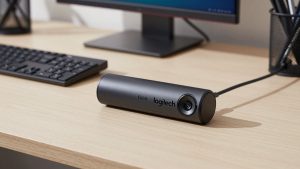
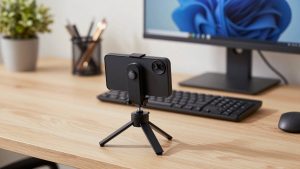
Also mind mounting. Thin lids and angled screens mean big clamp bases can wobble or cover the built-in camera awkwardly. A lighter webcam with a tripod thread is more flexible – you can put it on a small desktop tripod at eye level, which looks far better than a low laptop angle. For Windows ultrabooks, the same applies: if your laptop only has two USB-C ports, a direct-connect webcam saves you from buying a larger dock just for one USB-A camera.
Lighting and audio matter more than 4K
In testing home setups, a USD 60 webcam with a USD 25 lamp beats a USD 200 webcam in a dark room. You do not need studio lights. A window in front of you, or a cheap LED panel behind the monitor at 4000-5000K, fixes most grain and color issues. Avoid sitting with a bright window directly behind you unless the webcam has strong HDR; most will turn your face into a silhouette.
For audio, do not judge a webcam by its stereo mic claims. Even good ones pick up keyboard noise and room echo because they sit a meter from your mouth. They are fine as a backup when AirPods die. If you present often, a dedicated USB mic or headset will improve intelligibility more than any camera upgrade. When you shop, a practical bundle to search is a USB-C webcam with microphone and privacy shutter for shared desks, just do not expect it to replace a real mic.
Who should buy what
If you take two to four calls a day from a reasonably lit room, buy the cheaper 1080p option and spend the savings on a light or stand. The picture clients see will be essentially identical to 4K after Zoom compression. Be honest about your patience for settings: if you will never open a tuning app, fixed focus and auto exposure will cause fewer surprises.
Upgrade to mid-range or high-end 4K only if you meet one of these: you sit in poor light and cannot change it, you record training videos locally at full resolution, or you need wider framing without obvious softness. In that case look for a 4K USB-C webcam with autofocus with a detachable cable, so you can swap a longer USB-C cable later without replacing the whole camera. Avoid models with captive short cables; they force awkward laptop placement.
Do not buy a webcam for better night security monitoring, for use 3 meters away in a living room, or to fix a failing USB port. Those are different problems. A webcam will hunt for focus at distance, and a loose USB-C port will still drop any camera you attach.
FAQ
Is USB-C video quality better than USB-A?
No. The sensor and lens set quality. USB-C is better for fit with new laptops, fewer adapters, and cleaner dock setups, not for sharpness by itself.
Will a USB-C webcam work with a USB-A port?
Usually yes if it includes a C-to-A cable or adapter, but check the box. Some 4K modes need USB 3.0 speeds, so a USB 2.0 adapter or old hub can force the camera down to 1080p or cause lag.
Do I need 4K for Zoom and Teams?
For most calls, no. Platforms compress heavily. 4K helps if you record locally, crop in, or have bad lighting where a larger sensor helps. Otherwise a good 1080p camera looks the same to other people.
Why does my new webcam look worse on Mac?
Often because the default settings are tuned for Windows software you cannot install. Try improving front lighting, setting the call app to 16:9 HD, and mounting the camera at eye level before returning it.