Last Updated: October 18, 2026
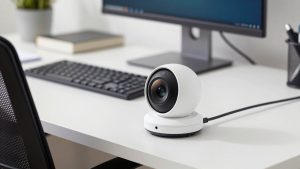
4K on a PC webcam sounds simple: sharper image, better calls. In practice, most work calls never show you in full 4K. Zoom, Teams, and Meet compress video heavily, and your office upload speed matters more than the sensor. What a good 4K camera actually gives you is a cleaner 1080p image, better cropping, and more headroom in bad light.
I have tested 4K webcams in real home offices — cluttered desks, backlit windows, cheap LED ceiling lights, MacBooks and Windows desktops. The difference between a usable one and a frustrating one is rarely the sensor. It is autofocus hunting, tinny mics, overheating, and software that fights with Teams.
📄 In This Review
Do you actually need 4K for work calls?
Sometimes yes. If you present, teach, do telehealth admin, record Loom-style videos, or sit back from the desk and want to crop in without going soft, 4K helps. If you stream your screen and put your face in a small corner, it also holds up better after compression.
Often no. If you only do 30-minute internal check-ins on a laptop at arm’s length, a good 1080p webcam looks identical to everyone else once Zoom compresses it. A cheaper option is fine there, especially if your lighting is decent and your Wi-Fi upload is under 10 Mbps. Do not buy 4K to fix a dark room. Buy a $25 lamp first and put it behind your monitor, facing you.
The other honest limit: full 4K calls require USB 3.0, a modern CPU, and meeting settings that allow HD. Many company laptops lock Teams to 720p or 1080p. You will still look better, but you will not be “broadcasting in 4K.”
What to look for in a 4K PC camera
See also: Best Monitor for MacBook Air: Two USB-C 4K Screens and Six Adapter-Dependent Alternatives • Best Monitor for MacBook Pro: Eight Listings Sorted by Cable, Sharpness and Scaling
Sensor size and lens matter more than the “4K” badge. Look for a 1/2.5-inch sensor or larger, f/2.0 or faster lens, and 30fps at 4K. Avoid cameras that only do 4K at 15fps — motion looks stuttery and you will drop to 1080p anyway.
Focus type is the biggest trade-off. Fixed-focus 4K webcams are sharp from about 40cm to 2 meters and never hunt. Good if you sit still. Autofocus models stay sharp if you lean in to show documents, but cheap ones pulse and breathe every time you move your hands. If you gesture a lot, autofocus hunting is more distracting than slightly soft focus.
Field of view: 65-75 degrees is best for one person at a desk. It keeps you natural size without showing the whole room. 90 degrees and wider is for two people or a small huddle space, but it makes you look small and reveals clutter. Digital zoom to narrow it costs sharpness.
Other failure modes I see constantly: mics that pick up keyboard and fan noise, auto-exposure that blows out your face when a window is behind you, cameras that run hot after 60 minutes and throttle to grainy video, and Windows Hello claims that only work on specific Windows builds. On Macs, check that the vendor’s settings app actually runs on macOS — several only offer Windows software for background blur, firmware updates, and field-of-view control.
Quick comparison: which type suits you
| Type | Video and lens | Focus and audio | Best for | Watch out for |
|---|---|---|---|---|
| Entry 4K fixed-focus | 4K30 / 1080p60, ~70-degree view | Fixed focus, dual mics | Solo desk work, laptop dock setups | Soft if you sit very close; weak in dim rooms |
| Mid-range 4K autofocus | 4K30, 65-90-degree adjustable view | Fast autofocus, noise-reducing mics | Presenters, teachers, frequent sharers | Focus hunting on budget models; needs USB 3.0 |
| Premium 4K with large sensor | 4K30, f/2.0 or faster, HDR | Autofocus + privacy shutter | Mixed light, backlit offices, recording | Price; runs warm; overkill for basic calls |
| 4K all-in-one bar | 4K, wide view with auto-framing | Autofocus, speaker + mic array | Small rooms, shared home office | Bulky on laptop; framing can wander |
What to buy for a PC setup
Best for most solo workers: entry-level 4K fixed-focus. If you sit 60-80cm from the screen, this is the sweet spot. No focus motor to go wrong, lower CPU load, and usually better compatibility with work laptops that only have USB 2.0 docks. Image looks crisp in Teams because downscaled 4K-to-1080p is cleaner than native 1080p. Look through current 4K webcam options for PC and filter for 4K at 30fps, not 15fps, plus a physical privacy shutter.
Who should skip it: if your room is very dark or you move back and forth to a whiteboard, fixed focus will frustrate you. Also skip if you rely on the webcam mic from 2 meters away — small dual mics are tuned for desk distance and sound hollow beyond that.
Best for presenters and movers: mid-range 4K autofocus. The useful upgrade here is not more pixels, it is better autofocus logic and larger pixels for low light. Good models lock once and hold, handle leaning in to sign paper, and have usable digital zoom for head-and-shoulders framing. When browsing, search for 4K autofocus webcams with dual mics and read 2-star and 3-star reviews specifically for “focus hunting,” “overheating,” and “Teams.”
Failure mode to know: many autofocus webcams default to 90-degree wide view. You look tiny and the autofocus has more background to get confused by. Install the vendor utility once, set 65- or 78-degree view, turn off auto-framing for one-on-ones, and lock exposure. That one-time setup fixes 80% of complaints.
Best for difficult light: premium 4K with HDR and larger sensor. If you face a window, work under warm downlights, or record training videos you will rewatch, pay more for sensor size and HDR, not for extra software effects. These hold skin tone without blowing out the window behind you. Expect more heat and a short USB-C to USB-A 3.0 cable in the box — use it, do not substitute a long USB 2.0 extension.
Best for a shared desk or tiny room: 4K auto-framing bar. Only worth it if two people regularly share one PC, or you pace. Auto-framing follows you, which is nice for stand-up coaching or demos. For solo laptop calls it is bulky, and the camera wandering to follow your cat is not professional. If you go this route, choose one with a remote or app toggle to lock framing.
PC and Mac setup that actually matters
Plug directly into a USB 3.0 port on the PC or Mac, not into a monitor hub, for your first test. Open the native Camera app and confirm 3840×2160 at 30fps. Then test in Teams or Zoom, because those apps will often downscale to 1080p by policy.
Mount at eye level. Laptop users: put the laptop on a stand and use an external camera on top of the monitor. Looking up your nose in 4K is worse than 720p at eye level. Keep a window to your side, not behind you. If you must sit with your back to a window, turn on HDR or backlight compensation and close blinds halfway.
Audio will make or break you more than resolution. 4K webcam mics are fine for quiet rooms at desk distance. In noisy homes, use a headset or a cheap USB mic and disable the webcam mic in your meeting app to avoid echo. If you buy a model advertised with a long-range mic, still assume 1 meter is the realistic limit.
Privacy and work compliance: prefer a physical shutter over a software toggle, especially on shared PCs. For Windows Hello, verify infrared support on the exact listing — many 4K cameras do not include it. For Macs, verify UVC compliance so it works without drivers in FaceTime, Zoom, and QuickTime. If the vendor requires an unsigned driver for 4K on Mac, return it.
FAQ
Will a 4K webcam make me look better on Zoom and Teams?
Slightly, but not because others see 4K. Most calls are delivered at 720p to 1080p. You look better because the source is sharper and cleaner before compression. Lighting, lens position, and stable internet help more than paying extra for the highest-end 4K model.
Do I need USB 3.0 for 4K?
Yes for full 4K30. USB 2.0 does not have enough bandwidth, so the camera will drop to 1080p or to choppy 4K15. Use the included short USB 3.0 cable plugged directly into the computer. Long extensions and old docks are a common cause of black screens and freezing.
Does 4K work on MacBooks?
Usually yes over USB-C with a UVC-compatible camera in Zoom, Teams, FaceTime, and OBS. What often does not work on Mac is the vendor’s tuning app for field of view, blur, and firmware updates. If you use a Mac, check recent reviews for macOS support or look for Mac-compatible 4K models with privacy shutter that store settings on the device.
Why does my 4K video look grainy at night?
Small sensors struggle in low light, and auto-exposure boosts gain, which adds grain. Add a soft light in front of you, set exposure to manual if possible, and drop to 1080p60 in dark rooms — it often looks cleaner than noisy 4K. Also wipe the lens; office dust softens 4K fast.