Last Updated: October 18, 2026
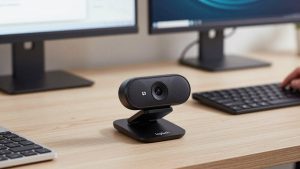
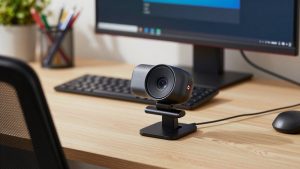
The MacBook Pro M1 still has a 720p FaceTime camera. It is usable, but it looks soft and noisy in anything other than bright daylight, and you cannot reposition it. If you take video calls for work, an external webcam is one of the cheapest visible upgrades you can make. The good news: the M1 does not need anything special, but macOS compatibility and USB-C connections do matter.
📄 In This Review
What actually matters on an M1 MacBook Pro
First, plug-and-play UVC support. Most modern webcams are UVC-compliant, which means macOS sees them in FaceTime, Zoom, Teams, Meet, and Webex with no driver. Avoid anything that requires a Windows-only app to unlock basic features like autofocus or 1080p. Some older business cameras from Poly, older Logitech conference models, and no-name 4K cameras fall into this trap. You get a picture, but you cannot update firmware or turn off the aggressive beauty filter.
Second, USB connection. The M1 Pro and M1 Max models have HDMI and SD slots, but for webcams you are using USB-C Thunderbolt ports. Almost all webcams still ship with USB-A cables. That is fine if you already use a dock or hub, but if you want a direct connection, look for a webcam with a removable USB-C to USB-C cable or budget for a reliable adapter. Do not use a cheap USB-C to USB-A dongle that wiggles loose. That is the most common failure mode we see: frozen video mid-call because the adapter lost contact.
Third, microphone and CPU load. The M1 handles 1080p and 4K webcam processing easily, but 4K cameras paired with background blur in Teams or Zoom will still spin the fans and drain battery faster. If you are usually on battery, a good 1080p camera often makes more sense than 4K.
Check Continuity Camera before you buy
See also: Best Monitor for MacBook Air: Two USB-C 4K Screens and Six Adapter-Dependent Alternatives • Best Monitor for MacBook Pro: Eight Listings Sorted by Cable, Sharpness and Scaling
If you own a relatively recent iPhone (iPhone 11 or newer running iOS 16+), try Continuity Camera first. Mount your iPhone on top of your MacBook and macOS lets you use it as a wireless or wired webcam. Image quality beats every sub-$150 dedicated webcam for detail and low light, and you get Center Stage auto-framing and Desk View for free.
The trade-offs are real for daily work, though. It ties up your phone, notifications can interrupt calls, the phone gets hot after 45-60 minutes, and mounting it is fiddly if you open and close your laptop often. For occasional calls, it is the best free option. For 4-6 hours of calls per day, a dedicated webcam that is always plugged in and always aimed correctly wins on convenience.
Comparison: what to get for different work styles
There is no single best webcam for every M1 user. Remote workers who sit in one home office need something different from hybrid workers who carry their setup.
| Use case | What to buy | Resolution | Mac-specific note |
|---|---|---|---|
| Daily Zoom/Teams from a desk | Logitech C920s Pro HD | 1080p/30 | True plug-and-play, Logi Tune for Mac works for zoom and firmware |
| Sharper image + better mics | Logitech Brio 500 | 1080p/30 with HDR | USB-C in box, Show Mode for whiteboard, good auto-light correction |
| Streaming, recording, detail work | Elgato Facecam MK.2 or Logitech MX Brio | 1080p/60 or 4K/30 | Needs good light to shine, Camera Hub app has Mac version |
| Travel / hot-desking | Anker PowerConf C200 or Opal Tadpole | 2K or 1080p | Small clip fits M1 lid, USB-C cable included on Tadpole |
Best for most M1 desk setups: solid 1080p
For most people, a proven budget 1080p webcam like the Logitech C920s is enough. It is not exciting, but it is sharp in good light, skin tones look normal on Macs, the dual mics are acceptable for a quiet room, and the privacy shutter is physical. It just works when you plug it into a dock.
Failure mode: low light. In a dim room at night, it gets grainy and autofocus hunts if you lean in and out. Fix it with a $20 desk lamp bounced off a wall in front of you, not with a more expensive camera. Also, the fixed 78-degree field of view is tight if you want to show a whiteboard. It is ideal for head-and-shoulders calls.
Step up to the Brio 500 if you are on calls all day and want better auto-exposure, a wider 90-degree option, and much better built-in mics with noise reduction. It ships with both USB-C to USB-C and USB-C to USB-A cables, which is rare and genuinely useful for M1 MacBooks. The RightSight auto-framing keeps you centered if you fidget. Who it suits: managers, teachers, therapists, anyone who cannot fuss with settings before each call.
When 4K makes sense – and when it does not
A 4K webcam for MacBook Pro like the Logitech MX Brio or Elgato Facecam MK.2 gives you more detail and the ability to crop/zoom without turning to mush. That helps if you record Loom videos, teach, demo products, or stream.
For live Zoom and Meet, be honest about bandwidth: most platforms compress you to 720p or 1080p anyway. Your colleagues will see better low-light handling and better lenses, not true 4K. You also need good front lighting. In a dark home office, a 4K sensor can actually look noisier than a good 1080p sensor because the pixels are smaller.
Failure modes to know: MX Brio runs warm and its extra features live in Logi Options+ / G Hub, which is fine on M1 but adds background processes. Elgato Facecam MK.2 has no built-in autofocus in the traditional sense – it uses a fixed-focus lens optimized for 30-120cm. If you constantly hold objects up close to the camera, it will frustrate you. Choose the Elgato if you sit at a fixed distance and want 60 fps smoothness; choose the MX Brio if you want autofocus, HDR, and better mics.
For hybrid and travel: small and USB-C native
If you carry your M1 to the office or cafes, mounting weight matters. The M1 lid is thin and a heavy webcam with a stiff cable will tilt the screen back. The Anker PowerConf C200 is a good cheap travel option because it is light, does 2K, and has decent AI noise-canceling mics for noisy rooms. Image quality is a step below Logitech in mixed light – faces can look a bit contrasty – but it is half the bulk.
The Opal Tadpole is built specifically for laptop lids. It is tiny, has a USB-C plug with a short cable, and the directional mic is surprisingly good at rejecting keyboard clatter. Trade-off: 1080p only, no 60 fps, and you pay more for the size. Who it suits: consultants and students who take calls from different desks daily. If you mostly work from one desk, do not pay the portability premium.
Whatever you buy for travel, get a USB-C webcam with laptop mount that clamps securely and folds flat. A camera that falls off mid-call is worse than the built-in 720p camera.
Setup tips that matter more than specs
Place the camera at eye level, about an arm’s length away. Stack your MacBook on a stand and use an external keyboard, or put the webcam on a separate tripod behind the laptop. Looking down at a webcam is what makes people look tired.
Face a window or lamp. Put light in front of you, not behind you. On M1 Macs, go to System Settings then Sound and manually select your webcam mic or your AirPods – macOS sometimes sticks to the MacBook mic after sleep, which causes echo complaints.
In Zoom and Teams, turn off HD only if your connection stutters. Turn off Touch Up and background blur unless you need them. Both soften detail and increase CPU use. If you use a hub, plug the webcam directly into the hub’s USB-A 3.0 port, not through a daisy-chained adapter.
FAQ
Do I need drivers for a webcam on M1 MacBook Pro?
No for basic video. Any UVC webcam works natively in FaceTime, Zoom, Teams, and Meet. You only need the vendor’s Mac app for firmware updates, zoom presets, or HDR tweaks. Avoid cameras that require Windows software for core functions.
Is the iPhone Continuity Camera better than a dedicated webcam?
For pure image quality, yes, especially in low light. For daily work convenience, often no. A dedicated webcam is always mounted, does not overheat, does not drain your phone, and does not interrupt calls with phone calls. Try Continuity Camera for a week before spending money.
Is 4K worth it for Zoom and Teams?
Usually not for live calls alone, because platforms compress video heavily. Buy 4K if you record content, crop in, or want the best lens and low-light processing. If you just need to look clear on daily standups, a good 1080p camera plus a lamp looks better.
Why does my external webcam freeze or go black on M1?
Almost always power or adapter issues. Use a direct USB-C cable or a quality powered hub, avoid stacking multiple adapters, and quit apps that lock the camera like old versions of OBS, Photo Booth, or browser tabs. If it persists, unplug for 10 seconds and check for firmware updates in the vendor’s Mac app.
Related Reviews & Guides
Docsis 4.0 Modems (2026 Guide)
6 Best HP Elitebook Laptop Docking Stations 2026