Last Updated: October 18, 2026
Best camera for live means something specific if you work from home: a camera that stays sharp for an hour, doesn’t overheat, handles bad office light, and works every time you join without fiddling with settings. That is different from a camera for YouTube or travel vlogs.
For live calls, webinars, teaching, coaching, and live selling from a desk, reliability beats specs. A stable 1080p image with good autofocus and clean audio sync will earn you more trust than a glitchy 4K image that drops frames.
📄 In This Review
What live video actually demands
Live is unforgiving because there is no edit. The three failure modes I see most are focus hunting, exposure pumping, and overheating or USB dropouts. Focus hunting is when the camera constantly blurs and sharpens because someone moves or holds up a product. Exposure pumping is when a window behind you makes your face go dark, then bright, then dark again.
For desk work, prioritize autofocus that locks on a face and stays there, auto white balance that doesn’t shift orange to blue, and a wide enough field of view to show you and your desk without showing your whole room. 65 to 78 degrees is the sweet spot for most home offices. Wider than 90 degrees looks impressive at first but makes you small and reveals clutter.
Microphone matters too. Even if you plan to use a headset or USB mic, the camera mic is your backup when that mic disconnects mid-live. Test it before you need it.
Your three real options
See also: Best Monitor for MacBook Air: Two USB-C 4K Screens and Six Adapter-Dependent Alternatives • Best Monitor for MacBook Pro: Eight Listings Sorted by Cable, Sharpness and Scaling
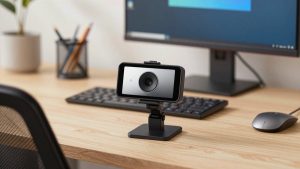
Most people are choosing between a good 1080p webcam, a higher-end 4K webcam, or using a mirrorless camera as a webcam. A phone as a webcam is a fourth option, but it is best as a temporary fix, not a daily driver, because calls drain the battery and overheat the phone.
| Option | Best for | Strengths | Weaknesses |
|---|---|---|---|
| 1080p business webcam | Daily Zoom, Teams, Meet, coaching | Plug-and-play, stable focus, low CPU use, works with Mac and PC | Softer image if you crop or zoom, struggles in very dim rooms |
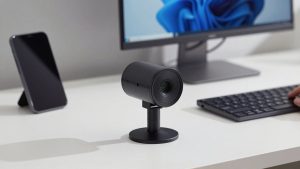
| 4K USB webcam | Webinars, courses, live selling with product demos | Sharper detail, digital zoom without as much loss, better lenses | Needs good light and USB 3.0, can tax older laptops, more settings to get wrong |
| Mirrorless / DSLR as webcam | Full-time creators, studios, multi-hour lives | Best background blur, low-light, and color; interchangeable lenses | Expensive, needs capture card or USB streaming mode, power and heat management |
| Built-in laptop camera | Travel, backup only | Always there, no setup | Small sensor, noisy in low light, unflattering top-down angle |
Best for most people: a solid 1080p webcam
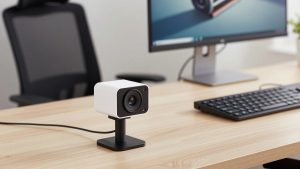
If you do live calls 3 to 8 hours a day, buy a proven 1080p webcam with autofocus and dual mics and stop there. The cheaper option is genuinely fine here. On a laptop screen or in a Zoom grid, no one can tell 1080p from 4K. What they notice is whether your face is well lit and in focus.
Look for autofocus, not fixed focus, if you move, whiteboard, or hold products up to the lens. Look for 30fps at minimum; 60fps is nicer for hand movement but doubles bandwidth and is not required for talking-head work. A privacy shutter is useful if you work in a shared space.
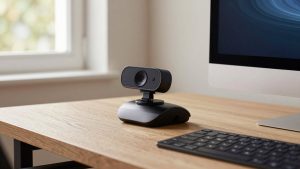
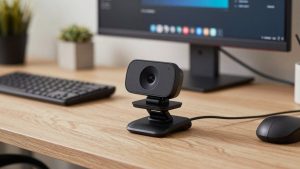
Where people go wrong is mounting. Clipped to a 15-inch laptop on a low desk, any webcam will shoot up your nose. Put the laptop on a stand or use a separate 1080p autofocus webcam for work on a small tripod at eye level. That one change improves perceived quality more than spending another $150.
Who it suits: employees, managers, therapists, tutors, and freelancers who need to join fast and look professional without thinking about gear.
When 4K is worth it
4K helps when you are the host and the video is full-screen: webinars, live workshops, product demos, fitness or music instruction. The benefit is not really delivering 4K to viewers – Zoom and YouTube Live often compress you to 1080p anyway – it is having extra pixels to crop. You can frame wide, then digitally zoom to your face or hands, and still look sharp.
The trade-off is light and computer load. 4K sensors need more light to stay clean. In a dim spare bedroom at 7pm, a 4K webcam can look noisier than a good 1080p webcam unless you add a key light. It also wants a direct USB 3.0 port, not a cheap hub, and a reasonably modern Mac or PC. On older MacBook Airs and budget Windows laptops, running 4K plus screen share plus recording can cause fan noise and dropped frames.
If you go this route, shop for a 4K webcam for streaming with autofocus that lets you turn off auto-framing and set exposure manually. Auto-framing that constantly pans and zooms is distracting on live training. Set a fixed frame, lock exposure, and leave it alone.
Who it suits: creators, sellers, and teachers who present full-screen and hold up detail – fabric texture, documents, small parts, makeup, food.
Mirrorless as a live camera: best image, most hassle
A mirrorless camera with a clean HDMI or USB webcam mode gives you the look everyone wants for live: sharp eyes, soft background, natural skin tones in mixed light. If you already own one, it can be the best camera for live without buying another webcam.
But do not buy one just for Zoom unless live video is your income. You will need continuous power with a dummy battery or USB-PD that actually keeps up, a tripod or arm that holds weight safely, and a way to get video into the computer that does not overheat or sleep after 30 minutes. Many cameras have 30-minute recording limits in video mode, though USB streaming modes often bypass this – check the manual for your exact model.
Failure modes are specific: overheating on long 4K lives, autofocus set to the wrong mode so it focuses on your hands instead of your eyes, and audio drift if you run video through one device and audio through another. Run a 60-minute test recording before your first paid live. If you go mirrorless, keep a simple USB webcam plugged in as a one-click backup.
Who it suits: podcasters, course creators, houses of worship, and small studios where one person can manage the setup.
Mac and laptop setup that prevents dropouts
Most live failures are not the camera, they are power, USB, and Wi-Fi. On Macs, especially with USB-C hubs, plug the camera directly into the Mac or into a powered hub rated for USB 3.0. Avoid chaining a camera through a monitor hub plus an adapter. On Windows, do the same and disable USB selective suspend if the camera disconnects when idle.
Use 5GHz Wi-Fi or Ethernet for hosting. Close cloud backup and pause large uploads during a live. If your fan screams, lower the camera to 1080p30, turn off virtual background blur, and use a plain background instead. Blur and 4K together are what kill older laptops.
Light beats lens. A $40 LED panel at 45 degrees, plus turning off a bright window behind you, will do more than any upgrade. Face the window if you have one; never sit with your back to it unless you have blackout curtains. If you wear glasses, move the light higher and to the side to avoid a hotspot.
For audio on a budget, a wired headset is more reliable for live than Bluetooth. If you want a desk mic for a warmer voice, pair it with a basic webcam tripod mount and LED light kit so your framing and light stay consistent day to day.
What I would buy
For a home office that lives on calls: a midrange 1080p autofocus webcam, eye-level mount, and one soft key light. Total cost stays low, setup time is five minutes, and it works with Teams, Zoom, Meet, and Webex on Mac and PC.
For hosting paid lives: a 4K webcam with manual controls plus a dedicated USB mic. You get room to crop for demos without the daily overhead of a mirrorless rig.
Skip the mirrorless rig unless you already own the camera or you produce video weekly. The image is better, but only if someone will maintain batteries, focus settings, and framing.
FAQ
Do I need 4K for live calls?
No, for most work calls. In a small video tile, well-lit 1080p looks the same as 4K. Buy 4K only if you host full-screen webinars or need to zoom in on products.
Why does my live video look fine for 10 minutes then get blurry?
Usually autofocus hunting, overheating, or a USB hub dropping bandwidth. Lock focus if your software allows it, plug directly into USB 3.0, and keep the camera out of direct sun.
Will these webcams work with Mac?
Most UVC-compliant USB webcams work with Mac without drivers for Zoom, Teams, and Meet. Advanced features like digital zoom or firmware updates may need the maker’s app, which is sometimes Windows-only, so set those once on a PC if needed.
Is my phone good enough for going live?
Yes as a backup. Image quality can be excellent, but phones heat up and notifications interrupt. For daily lives, a dedicated webcam is more stable and leaves your phone free.