Last Updated: October 18, 2026
- What teaching actually requires from a webcam
- Best all-around for most teachers: 1080p business webcam
- Best for whiteboard and moving around: 4K with zoom and tracking
- Best for desk demos, documents, and art: overhead setup
- Quick comparison: which type fits your teaching
- Setup matters more than specs
- What to buy by situation
- FAQ
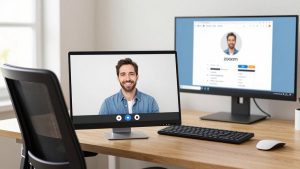
If you teach over Zoom, Google Meet, or Teams all day, your webcam is not just for looking presentable. It has to hold focus for 45 minutes, handle a whiteboard or desk demo, and survive bad classroom lighting without turning you into a blur. I have tested a lot of work webcams in home offices, and teaching is one of the few cases where the upgrade from a laptop camera is immediately worth it.
Students notice the difference. A sharp, stable image with clean audio means less “can you repeat that?” and less fatigue for everyone. You do not need the most expensive camera, but you do need the right type for how you teach.
📄 In This Review
- What teaching actually requires from a webcam
- Best all-around for most teachers: 1080p business webcam
- Best for whiteboard and moving around: 4K with zoom and tracking
- Best for desk demos, documents, and art: overhead setup
- Quick comparison: which type fits your teaching
- Setup matters more than specs
- What to buy by situation
- FAQ
What teaching actually requires from a webcam
Most office work is just talking head video. Teaching adds three harder jobs: showing detail, moving around, and long sessions. If you lecture from your desk, priorities are autofocus that does not hunt, good low-light performance, and a microphone that does not pick up every keyboard click. If you demo on paper, a whiteboard, or lab equipment, you need a wider field of view or a second overhead angle.
The two most common failure modes I see with teachers are autofocus hunting during writing demos and overheating or focus drift on cheap 4K cameras left on for 3-4 hours. A solid 1080p camera with good lenses will beat a cheap 4K sensor in both cases. Resolution matters less than stability, color accuracy, and how it handles backlight from a window.
Best all-around for most teachers: 1080p business webcam
See also: Best Monitor for MacBook Air: Two USB-C 4K Screens and Six Adapter-Dependent Alternatives • Best Monitor for MacBook Pro: Eight Listings Sorted by Cable, Sharpness and Scaling
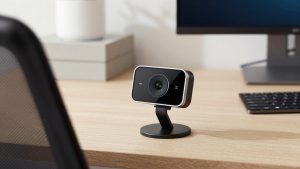
For live classes, tutoring, and office hours, a proven 1080p camera like the Logitech C920s / C925e family is still the sensible default. It is sharp enough for facial expression, it stays in focus without pulsing, and every meeting app recognizes it instantly on Windows and Mac. The built-in dual mics are usable for a quiet room, though a dedicated USB headset or mic is better if you have echo.
Who it suits: K-12 teachers, adjuncts, language tutors, and anyone teaching 5-20 hours per week from a laptop or desktop. Be honest about limits: fixed focus range means if you hold a book 6 inches from the lens, it will go soft. White text on whiteboards also tends to bloom. But for talking, screen share, and occasional show-and-tell, the cheaper option is fine. You do not need 4K to teach algebra.
If you are buying new now, look for a budget 1080p autofocus webcam with a privacy shutter, tripod thread, and 78-90 degree field of view. Skip gimmicky beauty filters and software-only background blur that taxes older laptops.
Best for whiteboard and moving around: 4K with zoom and tracking
If you stand, pace, or teach at a whiteboard, get a camera with a larger sensor and digital zoom. Models like the Logitech Brio 500 / Brio 505 or Elgato Facecam MK.2 let you crop in without going blocky, and they hold exposure better when you walk in front of a bright projector screen or window.
Trade-off: 4K sounds better but creates more heat and more CPU load. On a 4-year-old MacBook Air or Chromebook, running 4K + virtual background + screen share can cause dropped frames. The fix is simple: set the camera to 1080p in the app settings and use the 4K sensor for cleaner zoom and better color, not for streaming full 4K. Most schools and districts cap video at 720p-1080p anyway.
Auto-tracking is useful if you teach alone and move side to side, but it can be distracting for math or science where students need a stable frame to read. If you buy a tracking camera, test it with actual writing before you use it live. Turn tracking off for desk demos.
Best for desk demos, documents, and art: overhead setup
No front-facing webcam is good at showing your hands writing on paper. For that, you need a second angle. The practical teacher setup is a normal webcam for your face plus a cheap second camera overhead on an arm or tripod. That can be an older 1080p webcam, a phone as webcam via USB, or a dedicated document camera.
This is where teachers waste money. You do not need two expensive cameras. Spend on the face camera, save on the overhead. Mounting matters more than sensor: a $25 desk arm that holds position without sagging will improve legibility more than jumping from 1080p to 4K. Add a $15 daylight LED desk lamp to kill shadows from your hands.
For art, music, science labs, and early elementary where you show manipulatives, look for a document camera for overhead demos or just a flexible-mount 1080p camera you can point down. Check that your meeting app allows camera switching without dropping the call. Zoom and Meet do, but practice the switch once before class.
Quick comparison: which type fits your teaching
| Type | Best for | Strength | Weakness to know |
|---|---|---|---|
| Proven 1080p (e.g. C920 class) | Lecture, tutoring, office hours | Reliable focus, low CPU load, plug-and-play | Soft close-ups, whiteboard glare |
| 4K business cam (e.g. Brio / Facecam class) | Whiteboard, larger room, poor light | Cleaner zoom, better color and low light | Runs hot, can stutter on old laptops if set to 4K |
| Face cam + overhead second cam | Writing, art, science, math demos | Students can read your work | More cables, need to switch cameras live |
| Laptop built-in | Backup only | Always there | Bad angle, noisy in low light, no zoom |
Setup matters more than specs
Before you return a camera as blurry, fix placement. Put the lens at eye level, about arm’s length away. Face a window or lamp, do not sit with a bright window behind you. If your background blows out, turn on backlight compensation in the camera app, or close blinds and use a front light. That one change improves $40 cameras dramatically.
Audio will end a class faster than video. Built-in webcam mics sound hollow beyond 3-4 feet. If you stand to teach, use a USB headset, lapel mic, or a speakerphone puck. Also lock focus and exposure if your software allows it. Teachers who write under a lamp often get pulsing brightness as auto-exposure reacts to white paper. Lock it once your lighting is set.
For Mac users in particular: check privacy permissions and hub power. Many teaching desks use a cheap USB hub that cannot power a 4K camera plus a mic plus an external drive reliably. Plug the webcam directly into the Mac or into a powered hub. If Teams or Meet shows a black screen, it is usually another app holding the camera – quit QuickTime, Photo Booth, or the camera vendor utility.
If you teach from a school laptop with strict admin controls, favor cameras that need no driver. UVC plug-and-play models work without installs. Avoid cameras that require a background app for basic focus or 1080p to work.
What to buy by situation
Talking-head online teacher on a budget: stay with proven 1080p. Spend the savings on light and a headset. You will look and sound better than a colleague with a $199 camera in a dark room.
Hybrid classroom with whiteboard: get a 4K-capable business cam with good auto-exposure and a wide 90-degree mode. Run it at 1080p for stability. Add a small tripod so you can raise it above student laptops.
Elementary, art, music, or lab demos: two-camera setup. Your main webcam for face, second camera overhead. Practice picture-in-picture or screen share of second camera. Students retain far more when they can see hands, not just slides.
If you record lessons for YouTube or a course platform, image quality matters more than live. In that case look for a 4K webcam for course recording with manual focus and 30fps at full resolution, and record locally instead of capturing the Zoom window. Local recordings avoid compression artifacts that make text unreadable.
FAQ
Is 4K worth it for teaching?
Only if you zoom, crop, or record. For live Zoom or Meet, most video is delivered at 720p-1080p. A good 1080p camera with stable focus often looks better than a cheap 4K camera, especially on older laptops.
How do I show my desk or paper clearly?
Use a second overhead camera on an arm and switch video sources in your meeting app. Lock focus and add a daylight lamp from the side to reduce hand shadows. Test text legibility by recording 30 seconds first.
Why does my webcam look fine at home but bad in the classroom?
Classrooms have overhead fluorescents and bright windows behind you, which cause flicker and backlight. Face the windows if you can, turn off auto-exposure pulsing by locking exposure, and use 60Hz / 50Hz anti-flicker settings to match local power.
Do I need an external microphone?
If you sit at a desk in a quiet room, a webcam mic is okay. If you stand, move, or have echo, yes. A basic USB headset or lapel mic improves intelligibility far more than any camera upgrade.