Last Updated: October 18, 2026
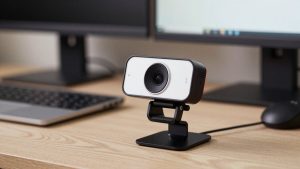
If you use a laptop for work, you already know the problem: most built-in webcams are dim, grainy, and pointed up your nose. An external webcam is the fastest way to look sharper on Zoom, Teams, and Meet without buying a new computer. You do not need to spend a lot, but you do need to pick the right resolution, microphone setup, and mount for how you actually work.
📄 In This Review
Why an external webcam still matters
Laptop makers have improved displays and speakers, but the camera module is still tiny and stuck in a thin lid. In a home office with a window behind you or an overhead light, that small sensor blows out backgrounds and turns faces muddy. An external webcam gives you a larger lens, better auto-exposure, and a proper mounting position at eye level. On MacBooks especially, where the built-in camera is locked to 1080p with aggressive noise reduction, an external camera gives you noticeably cleaner skin tones and less smearing when you move.
The other reason is placement. A laptop on a desk sits too low. Once you put it on a stand or connect to a monitor, the built-in camera is off to the side or pointing at the ceiling. A clip-on external camera lets you center yourself on a 27-inch monitor, which looks far more natural to clients and managers.
What to look for in a laptop webcam
See also: Best Monitor for MacBook Air: Two USB-C 4K Screens and Six Adapter-Dependent Alternatives • Best Monitor for MacBook Pro: Eight Listings Sorted by Cable, Sharpness and Scaling
Resolution is not the whole story. A good 1080p sensor with large pixels and solid autofocus will beat a cheap 4K sensor in a dim home office every time. Look for autofocus, not fixed focus, if you move in your chair or hold up documents. Look for a 78 to 90 degree field of view: wide enough for one person plus a whiteboard, but not so wide that you look tiny in a large room.
Check the mount. Most clip mounts are made for thick monitors but slip on thin laptop lids. A good mount has a rubberized front lip and a folding foot that actually grips. If you use a laptop stand, a standard 1/4-inch tripod thread is useful. For audio, plan to use a headset or USB mic if you can. Built-in webcam mics are fine for a quick call, but they pick up keyboard clatter and room echo in a way that annoys coworkers after 30 minutes.
For Mac users, check for UVC compliance. That means plug-and-play over USB without drivers. Most current webcams are UVC-compliant, but some business cameras with AI framing or background blur require Windows software to unlock all features. On macOS you will still get video and mic, just not the extra controls.
Quick comparison
This is how the three main categories break down for laptop-based work:
| Category | Best for | Strengths | Weaknesses |
|---|---|---|---|
| Budget 1080p | Daily Zoom/Teams, students | Cheap, plug-and-play, good in daylight | Soft in low light, narrow dynamic range, basic mic |
| Mid-range 1440p with autofocus | Home office, managers, coaches | Sharper image, better low light, wider lens options | Needs decent lighting to see full benefit, costs 2x budget |
| 4K business webcam | Presenters, creators, shared desk setups | Best detail, digital zoom without mush, good auto-framing | More CPU load, can over-sharpen, overkill on slow Wi-Fi |
Best cheap upgrade: 1080p with autofocus
For most laptop workers, the cheaper option is fine. A basic 1080p webcam for laptop with autofocus fixes 80 percent of complaints: less blur, better color, and a higher mounting position than your lid camera. It works over a single USB-A cable, draws little power from a hub, and does not strain older Intel MacBook Airs or budget Windows laptops.
Trade-offs are real. In a dark room at 6 p.m., budget sensors get noisy and drop to 15-20 fps to gather light. Backlight from a window will still wash you out. The privacy shutter is often a flimsy plastic cap that gets lost. The built-in mic will sound hollow if your laptop is more than three feet away. Who it suits: anyone doing 5-10 calls a week in a reasonably lit room who just wants to stop looking blurry. If you present to clients daily, skip this tier.
Failure mode to watch: fixed-focus budget cameras. They are sharp at exactly three feet and soft everywhere else. If you lean back or use a deep desk, you will look out of focus the whole call. Pay the extra $15-20 for autofocus.
Best for home office: 1440p with good low light
This is the sweet spot for full-time remote work. A mid-range 1440p camera gives you extra pixels for cropping, better lenses, and much cleaner performance in mixed home lighting. On a laptop docked to a monitor, you can use 2x digital zoom and still look like 1080p, which is ideal if you sit four feet back.
Hands-on, the difference shows in evening calls. Faces stay detailed instead of waxy, and auto white balance does not swing orange every time you lean near a lamp. Many models in this tier include dual noise-reducing mics that are actually usable as a backup when your headset dies. The downside is size and heat: they are bulkier on a thin laptop lid and can run warm after two hours. Some also default to an overly wide 90-degree view that makes a home office look messy – check if you can switch to 78 degrees in the app.
Who it suits: managers, therapists, tutors, and anyone on camera 3+ hours a day. If your laptop is 3-4 years old, test 1440p before committing; some older machines will throttle the resolution in Teams to save CPU.
Best for presenting: 4K with auto-framing
A 4K webcam for video calls makes sense in only two cases: you present, teach, or record, or you need to crop heavily. The sensor lets you stand up, walk to a whiteboard, or show a product on your desk while auto-framing keeps you centered. Image quality in good light is objectively better – fabric texture, glasses, text on paper all resolve cleanly.
Do not buy 4K for the number alone. On a typical office VPN with 720p Zoom output, no one will see 4K. What they will see is better processing and better lenses, but only if you have light. In a dark room, a 4K sensor can actually look noisier than 1080p because the pixels are smaller. These cameras also use more USB bandwidth and CPU. On M1/M2 MacBooks and modern Windows laptops it is fine; on older dual-core machines you may see fan noise or dropped frames.
Failure mode: over-sharpening and plastic skin. Turn sharpness down one notch in the vendor app if you look crunchy. Who it suits: creators, founders pitching investors, and people who record Loom-style videos from the same laptop they use for calls.
What Mac laptop owners should know
MacBooks work well with most USB-C webcams, but bring the right adapter. Many webcams still ship with USB-A cables that do not sit securely in cheap USB-C dongles and will disconnect if bumped. A short USB-C to C cable or a dock with powered USB-A ports solves most dropout complaints. If you use Continuity Camera with an iPhone, that is a solid free alternative for occasional calls, but it overheats on long meetings and drains battery – a dedicated Mac compatible external webcam is more reliable for daily use.
Also check your video app settings. Zoom and Teams on Mac default to HD off or to Touch Up Appearance, which softens detail. Turn on HD and turn off automatic background blur unless you need it; blur forces extra processing that can make even a good camera look stuttery on a laptop.
Setup matters more than specs
No webcam fixes bad light. Put a $20 LED panel or even a desk lamp bounced off a wall in front of you, not overhead. Raise the camera to eye level – on top of your external monitor, not on the laptop keyboard off to the side. Sit 2 to 3 feet away, keep a window to your side rather than behind you, and wipe the lens monthly. Home offices collect dust that adds haze you blame on the sensor.
FAQ
Is 1080p enough for work calls?
Yes for most people. Zoom, Meet and Teams usually transmit at 720p to 1080p anyway. Spend extra only if you need better low-light performance, zoom/crop, or recording quality.
Will an external webcam work with a laptop lid closed?
Yes, if the laptop is connected to power and an external monitor in clamshell mode on Mac or with sleep-on-lid-close disabled on Windows. Use a powered dock to avoid USB disconnects.
Do I still need a headset if the webcam has mics?
For listening, yes. Webcam speakers are tiny. For talking, a headset or USB mic is clearer, but a mid-range webcam mic is acceptable for short internal calls in a quiet room.
Why does my new webcam look worse than my phone?
Usually lighting and settings. Phones use heavy HDR processing. Add frontal light, turn off auto low-light flicker correction, and set your meeting app to HD to close the gap.
Related Reviews & Guides
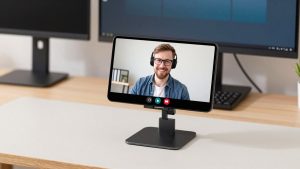
Desktop KVM Switch (2026 Guide)
Best Photo Scanner: Our Top Picks for 2026