Last Updated: October 18, 2026
If you use a Mac for Zoom, Teams, Meet, or Webex all day, you do not need the highest-spec webcam. You need one that works the second you plug it in, does not require Windows-only software, and looks good in typical home office light. Macs are picky in a specific way: many webcams will work for video, but their settings apps for focus, zoom, and firmware updates are Windows-only.
That is the main filter for this guide. We prioritize plug-and-play UVC webcams that work on macOS Sonoma and later with Apple Silicon, without drivers, and still give you manual control if you need it.
📄 In This Review
What actually matters for video conferencing on Mac
Forget the spec sheet for a minute. For calls, three things decide how you look: lens and sensor handling of mixed light, autofocus behavior, and how the webcam mounts on a Studio Display, iMac, or MacBook lid.
Resolution helps, but only up to a point. A good 1080p webcam with a larger sensor and clean processing will beat a cheap 4K webcam in a dim home office. Cheap 4K models often use heavy sharpening and aggressive auto-exposure to compensate for a small sensor. The result is noisy, waxy skin and blown-out windows behind you.
Mac compatibility means UVC compliance. That is the USB video standard macOS supports natively. If a webcam needs a driver to output video, skip it. If it needs an app only for extra features like background blur or auto-framing, that is fine as long as the basic video, mic, and autofocus work without it. Check this before you buy: look for “plug-and-play for macOS” or “driver-free for Mac” and check recent Mac App Store reviews for the companion app, not just the Amazon listing.
Should you just use the built-in Mac camera?
See also: Best Monitor for MacBook Air: Two USB-C 4K Screens and Six Adapter-Dependent Alternatives • Best Monitor for MacBook Pro: Eight Listings Sorted by Cable, Sharpness and Scaling
For many MacBook users, yes. The 1080p FaceTime cameras in recent MacBook Air, MacBook Pro, and iMac models are genuinely good for one-on-one calls in decent light. Apple’s image processing handles skin tones and backlight better than most budget USB webcams under $50.
Buy an external webcam if you hit one of these limits: you use an external monitor with the lid closed and need a camera at eye level, you present to groups and need a wider or tighter field of view, your room is dark and your built-in looks grainy, or your built-in framing cuts off a whiteboard or second person. If none of those apply, save your money and buy a $20 light instead.
The failure mode here is buying a lateral move. A lot of cheap 1080p USB webcams look worse than a 2021+ MacBook built-in. If you upgrade, upgrade for a reason: better low light, better mics, or better mounting and framing.
Best types of webcams for Mac video conferencing
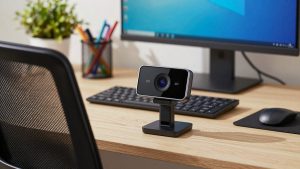
1. The safe 1080p workhorse for daily Zoom and Teams. This is the right pick for most home office workers. Look for 1080p/30 or 1080p/60, fixed or reliable autofocus, dual microphones with noise reduction, and a physical privacy shutter. You want a 78- to 90-degree field of view. Wider than that and a small home office looks cavernous and distorted.
These models usually work perfectly on Mac with Zoom and Teams, including auto-exposure and white balance. Where they fall short is low light and background handling. Expect soft detail after 6 p.m. without a lamp, and do not expect them to cleanly separate you from a messy bookshelf. Who it suits: individual contributors, managers, and students doing 2-10 calls per day. A simple 1080p plug-and-play webcam for Mac is enough here and is often more reliable than fancier options.
2. The 4K webcam for presenting and conference rooms. 4K makes sense if you crop, use digital zoom, or sit 6-10 feet away in a small conference room. Auto-framing and speaker tracking are useful here because people lean, stand up, and move to a whiteboard. On Mac, test this carefully: some auto-framing features require the vendor’s app to stay running, or reset to off every time you unplug.
Trade-offs are real. 4K files are heavier, older Intel Macs and crowded USB hubs can drop frames, and low-light performance can be worse unless you add light. You also need to plug directly into the Mac or a powered hub, not a monitor passthrough, to get stable 4K. Who it suits: trainers, founders pitching, and teams using a Mac mini in a huddle room. If that is you, look at a 4K webcam with auto-framing for Mac with on-device controls.
3. The compact travel webcam for MacBook users. If you work from cafes, co-working spaces, or client offices, size and mounting matter more than resolution. You want a small webcam that clamps securely to a thin MacBook lid, holds its angle, and does not need a tripod. A short, flexible cable or USB-C direct connection helps a lot with newer MacBooks.
Failure mode: weak clip mounts that slide off when you adjust the lid, and harsh autofocus hunting in busy backgrounds. Pick fixed focus or a model known for stable autofocus, and accept narrower 70- to 80-degree framing. Who it suits: consultants, remote workers who hot-desk, and anyone who takes calls outside the home.
Quick comparison
Use this to match your setup, not to chase specs. For Mac conferencing, light and mounting usually change your image more than moving from 1080p to 4K.
| Type | Best for | Strength on Mac | Watch out for |
|---|---|---|---|
| Mac built-in 1080p | 1:1 calls in good light | No setup, good skin tones | Bad angle with external monitor, grainy in low light |
| 1080p USB workhorse | Daily home office calls | Reliable UVC support, shutter, good mics | Lateral move if too cheap, weak low light |
| 4K with auto-framing | Presenting, huddle rooms | Crop without blur, tracking | Windows-only app, USB bandwidth issues, needs light |
| Compact travel cam | MacBook on the go | Light, secure lid mount, USB-C | Narrow view, autofocus hunting, thin audio |
Setup mistakes that make any webcam look bad on Mac
Most “bad webcam” problems on Mac are not the webcam. First is light position. Do not put your desk with a bright window behind you. Face the window or put a cheap 5000-5600K LED panel behind your monitor at 45 degrees. macOS and Zoom cannot fix a strong backlight without making your face dark or the background pure white.
Second is USB and hub overload. If video stutters, freezes, or drops to low resolution in Teams, plug the webcam directly into the Mac. Unpowered hubs, monitor USB ports, and long extension cables are common culprits, especially for 4K. On Apple Silicon Macs, also close the vendor settings app after adjusting; some keep hold of the camera and block Zoom or Meet from selecting it.
Third is audio. The webcam mic that sounds fine in a quiet room will pick up keyboard, fan, and echo in a real office. If colleagues say you sound hollow, switch to wired earbuds or a dedicated USB mic and keep the webcam for video only. A webcam with dual noise-cancelling microphones helps, but it does not replace a mic placed near your mouth.
Finally, set expectations for background blur. macOS Portrait mode and Zoom blur are convenient but can flicker around hair, glasses, and hands. If you present often, a tidy real background and a fixed camera position will look more professional than heavy blur at 4K.
What to buy, honestly
If you make standard video calls from a desk with decent light, get a midrange 1080p UVC webcam from a brand with a real Mac app and physical shutter. Do not pay extra for 4K, AI effects, or 60 fps unless you know you need them. 1080p/30 is the standard for Zoom and Teams anyway.
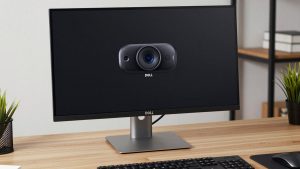
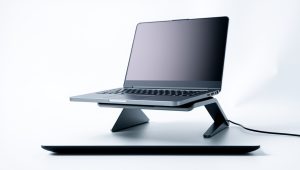
Pay more only for a specific problem: 4K and auto-framing if you move around or host small rooms, or a premium low-light model if your office is dark and you cannot add lighting. And if you use a MacBook with an external display, budget for mounting height. A webcam clipped to the top of a 27-inch monitor 8 inches above eye level will make you look distant no matter how sharp it is. A small tripod or monitor shelf at eye level fixes more than a sensor upgrade.
FAQ
Do all USB webcams work with Mac?
Almost all modern UVC webcams work for basic video and mic on macOS without drivers. What may not work are extra features like auto-framing settings, background effects, and firmware updates if the vendor only offers a Windows app. Check Mac support before buying.
Is 4K worth it for Zoom and Teams on Mac?
Usually no for 1:1 calls. Zoom and Teams compress to 720p or 1080p in most meetings, so the other person will not see full 4K. 4K helps if you digitally zoom, crop, or need tracking in a room setup, but you will also need good lighting and a direct USB connection.
Why does my webcam look worse than my MacBook camera?
Many budget USB webcams have smaller sensors and harsher processing than recent Mac built-ins. Poor overhead lighting and backlight make it worse. Try facing a window or adding a desk light first, then consider a midrange 1080p model rather than the cheapest option.
Do I need a separate mic for conferencing?
Not always, but it helps. Built-in webcam mics are fine in quiet rooms for short calls. For all-day calls, noisy rooms, or presenting, wired earbuds or a USB desk mic will sound clearer and reduce echo and keyboard noise.