Last Updated: October 18, 2026
If you use a MacBook for work, you already have a usable camera. The question is whether it’s good enough for how you meet. For internal standups in good light, it often is. For client calls, interviews, teaching, or any setup with bad lighting, an external camera makes a visible difference.
Macs add a few specific wrinkles: USB-C ports only on newer machines, macOS camera permissions, and software that doesn’t always play well with fancy webcam features. This guide covers what actually matters for Mac laptops and which type of camera to buy.
📄 In This Review
What makes Mac laptops different for webcams
Three things trip up Mac users more than Windows users. First is connection. Most MacBook Air and MacBook Pro models from the last 6-7 years have only USB-C / Thunderbolt ports. Almost every webcam still ships with USB-A. You will need a simple USB-C to USB-A adapter or a dock. It works fine, but it’s one more point of failure. If you buy a dock for a permanent desk, plug the camera directly into the dock and leave it there.
Second is macOS permissions. The first time Zoom, Teams, Meet, or Slack tries to use a new camera, macOS will ask for Camera and Microphone access. If you click Deny, you get a black screen and most people blame the camera. Go to System Settings > Privacy & Security > Camera and Microphone and confirm your meeting app is checked.
Third is software support. Many webcam makers build their best tuning app for Windows first. On Mac you usually get basic plug-and-play UVC support — the camera works in Zoom and Teams — but you may not get background blur in the vendor app, AI framing controls, or firmware updates. Check the App Store or maker site for a Mac version before you buy for a specific feature. If a feature only works in the Windows app, assume you won’t have it.
Should you just use the built-in MacBook camera?
See also: Best Monitor for MacBook Air: Two USB-C 4K Screens and Six Adapter-Dependent Alternatives • Best Monitor for MacBook Pro: Eight Listings Sorted by Cable, Sharpness and Scaling
Apple improved built-in cameras a lot. The 1080p FaceTime cameras on newer MacBook Air and MacBook Pro models are sharp enough in daylight and handle skin tones well. The image processor helps with noise. If you sit facing a window and use a laptop stand at eye level, you will look fine.
The failure modes are consistent: bad low light, wide fixed framing, and bad angle. In a dim home office at night, the built-in camera gets soft and grainy fast. It also has a wide field of view with no optical zoom, so if your laptop is far back on a desk, you look small. And if the laptop is flat on the desk, everyone sees up your nose.
Rule of thumb: keep the built-in camera if you take 2-3 calls a day in a bright room and no one has complained. Buy external if you present to clients, record, teach, live in a dark room, or want a proper eye-level setup with an external monitor where the laptop is closed or off to the side.
The 4 options that make sense for Mac users
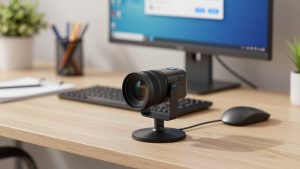
1. Basic 1080p USB webcam. This is the right buy for most home office workers. You get a sharper, brighter image than older 720p MacBook cameras, a clip that sits on top of an external monitor, and a built-in mic as backup. Look for 1080p30 or 1080p60, fixed focus or fast autofocus, and a 78-90 degree field of view. Wider than 95 degrees will show your whole room.
The trade-off is low light. A cheap sensor with small pixels still struggles at night. You fix that with a $20 desk lamp bounced off a wall, not a more expensive camera. A simple 1080p webcam for Mac on a monitor plus decent lighting beats a 4K camera in a dark room.
Who it suits: Zoom/Teams all day, customer support, remote admin, students. Failure mode: autofocus hunting if you gesture a lot, and cheap mics that pick up keyboard noise. Use AirPods or a USB headset for audio and disable the webcam mic in your meeting app.
2. 4K USB webcam. The extra resolution is less about 4K calls — almost no one meets in 4K — and more about cropping and sharpness at 1080p. You can zoom in 1.5x-2x without looking mushy, and text on a whiteboard behind you stays readable. Good models also have larger sensors and better auto-exposure for mixed lighting.
The Mac-specific catch is CPU and heat. Running 4K in Zoom or OBS on an older Intel MacBook Air will spin fans and drain battery. On Apple Silicon (M1 and later) it’s usually fine, but still set the app to 1080p output unless you are recording. Also expect to pay for features you may not control on Mac. Buy 4K only if you record courses, do demos, or want digital zoom. For normal meetings, the cheaper 1080p option is fine and lighter on your machine. Compare current 4K webcam options for MacBook carefully for Mac app support, not just specs.
3. iPhone as Continuity Camera. If you own a recent iPhone, this is often the best camera for a Mac laptop and costs nothing extra. Mount the iPhone on top of your MacBook or monitor, connect via USB cable or wireless, and select iPhone as camera in your meeting app. Image quality — especially in low light — beats almost every sub-$200 webcam.
Trade-offs are workflow, not image. Your iPhone is tied up during calls, battery drains on wireless, and Desk View / Center Stage can be gimmicky for work. Use a wired USB connection for all-day reliability and a solid MagSafe or clip mount so it doesn’t slip. This suits travelers and anyone with an external monitor who doesn’t want another gadget. Failure mode: notification sounds and calls interrupting the feed. Turn on Do Not Disturb on the iPhone before you join.
4. Mirrorless camera or camcorder as webcam. This is for creators, coaches, and anyone recording. A real camera with a clean HDMI output plus a USB capture dongle gives you shallow depth of field and excellent low-light performance that no webcam matches.
Don’t do this just for meetings. You need to power the camera continuously with a dummy battery or USB power, manage heat shutdowns on long calls, and learn exposure basics. Audio still comes from a separate mic. For most office work it’s overkill and fragile. If you go this route, search for a simple USB HDMI capture card for Mac that is UVC-compliant so it shows up in Zoom and Teams without drivers.
Quick comparison for MacBook setups
| Option | Typical image | Best for | Mac drawback to know |
|---|---|---|---|
| Built-in FaceTime camera | Good in daylight, noisy at night | Light meeting load, travel | Bad angle on desk, no placement flexibility |
| Basic 1080p USB webcam | Solid at 1080p with light | Daily Zoom/Teams on external monitor | Needs USB-C adapter; vendor app may be Windows-only |
| 4K USB webcam | Sharper, better cropping | Recording, demos, client-facing calls | Heavier CPU load; set output to 1080p |
| iPhone Continuity Camera | Best low light under $200 | Home office, travel, external monitor users | Phone is occupied; use wired + Do Not Disturb |
| Mirrorless + capture card | Professional look | Creators, courses, streaming | Power, heat, and complexity; overkill for meetings |
How to get a good image on a Mac
Placement matters more than price. Put the camera at eye level, about arm’s length away. If you use an external monitor, clip the webcam to that monitor, not to a laptop off to the side. You want to look at the lens when you look at faces.
Light your face, not your background. Sit facing a window if you can. If not, put a soft lamp behind your monitor aimed at you. Close blinds behind you that blow out to white. In Zoom and Teams on Mac, turn on HD video and turn off auto-adjust if your image pulses brighter and darker.
Keep the chain simple. Plug the camera directly into the Mac or a powered dock. Unpowered USB hubs cause freezes and dropouts. Quit Photo Booth, FaceTime, and OBS before joining a work call — macOS only lets one app hold the camera reliably. If video freezes, change the camera source away and back in the meeting app, then unplug and replug once.
FAQ
Do I need drivers for a webcam on Mac?
Usually no. Most work webcams are UVC-compliant and work plug-and-play in Zoom, Teams, Meet, and FaceTime. You only need the vendor app for zoom, framing, or firmware settings, and that app may be limited on Mac.
Why does my webcam look dark on MacBook but fine on Windows?
It’s usually auto-exposure plus permissions or app settings, not the Mac itself. Add front light, select the external camera in the meeting app (not FaceTime HD Camera), and disable low-light correction that over-smooths the image.
Is 4K worth it for Zoom and Teams on Mac?
For most people, no. Those apps transmit at 720p to 1080p anyway. Buy 4K if you record, crop in, or show detail. Otherwise put the money toward lighting and a good mic.
Can I use my iPhone as a MacBook webcam full-time?
Yes, with Continuity Camera on recent macOS and iOS. Use a wired USB connection, a sturdy mount, and Do Not Disturb on the iPhone. If you take calls all day, a dedicated 1080p webcam is less hassle because your phone stays free.
Related Reviews & Guides

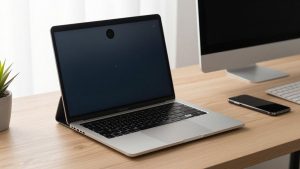
Best Webcam for MacBook Pro M1
6 Best Laptops With Docking Station Dell 2026