Last Updated: October 18, 2026
- Why people want no mic on purpose
- The reality: you have three workable paths
- Best simple approach for most desks: 1080p business cam with mic turned off
- If you need truly no microphone hardware
- Best image quality without webcam audio: use a camera + capture
- How to set it up so calls actually use the right mic
- FAQ
If you already use a USB headset, a lav mic, or a desktop condenser for work calls, a webcam microphone is not a bonus. It is a liability. Windows, macOS, Teams, and Zoom will happily select the webcam mic instead of your good mic, and you end up sounding hollow and distant until someone tells you.
True webcams with literally no microphone are rare. Almost every consumer webcam built for laptops and home offices includes at least a basic dual-mic array because manufacturers assume you have nothing else. If you want no mic on purpose – for privacy, for compliance, or just to stop the wrong input from being picked – you have to shop differently.
📄 In This Review
- Why people want no mic on purpose
- The reality: you have three workable paths
- Best simple approach for most desks: 1080p business cam with mic turned off
- If you need truly no microphone hardware
- Best image quality without webcam audio: use a camera + capture
- How to set it up so calls actually use the right mic
- FAQ
Why people want no mic on purpose
There are three good reasons. First is audio quality control. A separate mic placed near your mouth will always beat mics sitting two to three feet away on top of a monitor. Second is privacy and policy. Some offices, schools, and secure home setups do not want an always-connected mic on the desk, especially with hot-mic mistakes in Teams and Meet. Third is simplicity. If there is only one mic in the system, you cannot join a call on the wrong one.
The failure mode I see most is not bad video, it is the silent switch. You set your Yeti or headset as default, unplug it once, and your meeting app falls back to the webcam. You do not notice until a coworker says you sound like you are in a bathroom. A camera without a mic removes that trap entirely.
The reality: you have three workable paths
See also: Best Monitor for MacBook Air: Two USB-C 4K Screens and Six Adapter-Dependent Alternatives • Best Monitor for MacBook Pro: Eight Listings Sorted by Cable, Sharpness and Scaling
You can buy an industrial or conference camera that was never given a mic, you can use a normal webcam with its mic disabled at the OS level, or you can bypass webcams entirely and use a mic-less HDMI camera as a USB webcam. All three work for daily video calls, but they suit different people.
| Option | Video quality | Setup hassle | Best for | Watch out for |
|---|---|---|---|---|
| Mic-less board / industrial USB camera | Decent 1080p, often flat colors | Low, but drivers can be basic on Mac | Privacy-focused desks, shared PCs | Narrow software support, weak low light |
| Standard business webcam with mic disabled | Best overall for price, good auto-exposure | Medium – you must disable input | Most home office workers who own a good mic | OS updates can re-enable the mic |
| PTZ conference camera without audio | Very good at distance, 10x+ zoom | Medium – remote, presets | Small rooms, workshops, classrooms | Overkill and too tight for a desk |
| Camcorder / mirrorless + capture dongle | Excellent, real lens and sensor | High – power, HDMI, heat | Creators who also do calls | Cost, complexity, no auto-framing |
Best simple approach for most desks: 1080p business cam with mic turned off
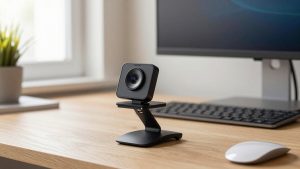
For a laptop or Mac docking setup, this is still the most reliable move. Buy a plain 1080p fixed-focus webcam from the business line – fixed focus hunts less than cheap autofocus on calls – then disable its audio device once in Windows Sound settings or macOS Audio MIDI Setup, and select your headset as input in Teams/Zoom. It is not a true no-mic camera, but functionally it is.
Trade-off: you are paying for mics you will not use, and you have to check after major OS updates. I have seen Windows re-enable a disabled webcam mic after a feature update. If your workplace requires hardware with no mic element at all for compliance, this does not count. For everyone else who just wants better audio, it is fine and the cheaper option is absolutely fine here. You do not need 4K for a 640-pixel Teams tile.
If you go this route, start by browsing 1080p business webcams for Teams and Zoom and filter for fixed-focus, tripod thread, and a physical shutter. The shutter matters more than 4K if privacy is your motive.
If you need truly no microphone hardware
Look outside the consumer webcam aisle. Small USB board cameras sold for kiosks, labs, and manufacturing inspection often have no audio endpoint at all. When you plug them in, no input appears. That is exactly what some IT departments want.
Who it suits: shared workstations, reception PCs, telehealth carts where a separate vetted mic system is used. Who it does not suit: most home offices. Image tuning is basic. Auto white balance can be jumpy under warm LEDs, low-light performance is usually a stop worse than a Logitech/Business-grade webcam, and Mac support can be generic UVC only with no settings app. Expect to add decent desk lighting.
A larger step up is a mic-less PTZ conference camera. Those are built for rooms, not desks. At six feet they look great, at two feet your face fills the frame. They also need AC power and a remote. Only buy if you are covering a table or whiteboard. You can compare the category with PTZ conference cameras without a microphone and check the specs tab for Audio: None, not just speaker: none.
Best image quality without webcam audio: use a camera + capture
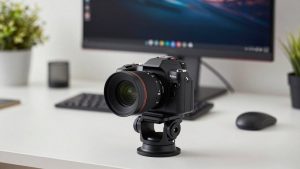
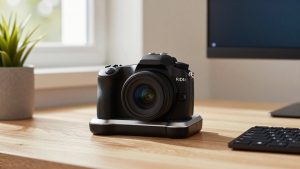
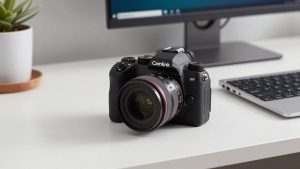
If you already own a camcorder, older mirrorless, or action camera with clean HDMI out, pair it with a USB HDMI capture dongle. There is no webcam mic in the chain, you get real optical focus and much better background blur than digital portrait modes, and you control audio separately.
The failure modes are real though. Some mirrorless bodies overheat after 40 minutes, some camcorders do not charge over USB while outputting HDMI, and autofocus can breathe during screen shares. For 30-minute standups it is superb. For all-day office hours, a simple USB webcam is more set-and-forget. Only build this if you like tinkering.
For parts, search USB HDMI capture cards for using a camera as a webcam and get a USB 3.0 model that explicitly lists UVC and 1080p60. Avoid the cheapest no-name dongles that run hot and drop to 720p.
How to set it up so calls actually use the right mic
Whether you buy mic-less hardware or disable a normal webcam, do the software part once. In Windows, go to Sound settings, find the webcam, choose Don’t Allow. In macOS, leave it alone but open Teams, Zoom, and Meet each individually and lock the microphone to your headset or USB mic. Browser-based Meet in particular will default to the last plugged device.
For laptops, also check the built-in mic array. Disabling the webcam does not disable the laptop’s internal mics, which are the next fallback. If privacy is the goal, mute at the app level and use a mic with a hardware mute button. A physical shutter on the camera plus a mute button on the mic beats any software toggle.
FAQ
Can I physically remove the microphone from a webcam?
No, do not open it. You will break focus alignment and void warranty, and the OS may still show a dead input. Either buy hardware with no audio endpoint or disable the input in the OS and lock your meeting apps to your real mic.
Will Zoom or Teams work if there is no mic connected to the camera?
Yes. They only need any valid mic in the system – headset, laptop mics, or USB mic. Just select it once in Audio settings. If you truly have no mic at all plugged in, you can still join with video and listen via speakers.
Is 4K worth it if I only do work calls?
Usually not. Most work platforms send 720p to 1080p. Good 1080p with solid exposure and a clean lens looks better than cheap 4K with noisy low light. Spend the difference on lighting or a better separate mic.
What about Mac compatibility?
Stick to UVC-compliant cameras with no driver install. Most business webcams and capture dongles are plug-and-play on macOS Sonoma and later, but advanced settings like zoom presets or background effects may require a vendor app that lags behind on Mac.