Last Updated: October 18, 2026
- What online teaching actually needs
- Quick comparison for teachers
- If you teach talk-first classes: get a solid 1080p webcam
- If you teach all day: step up to better autofocus and low light
- If you move or use a whiteboard: consider auto-framing 4K
- If you show handwriting: add an overhead view
- Setup matters more than specs
- FAQ
Teaching on camera is different from taking meetings. You talk for an hour straight, you move around, you hold things up to the lens, you write, and you need students to actually see what you are doing without squinting. A laptop’s built-in webcam can survive a Zoom call. It struggles for daily teaching.
After testing webcams in a home office that doubles as a teaching setup — whiteboard behind, desk in front, mixed window light — the pattern is clear: teachers need reliable autofocus, decent low-light handling, and a microphone that does not fall apart when you step back from the desk. Resolution matters less than most listings suggest.
📄 In This Review
- What online teaching actually needs
- Quick comparison for teachers
- If you teach talk-first classes: get a solid 1080p webcam
- If you teach all day: step up to better autofocus and low light
- If you move or use a whiteboard: consider auto-framing 4K
- If you show handwriting: add an overhead view
- Setup matters more than specs
- FAQ
What online teaching actually needs
Most product pages push 4K as the headline. For teaching, 1080p at 30fps or 60fps is enough for Zoom, Google Meet, Teams, and Outschool. Those platforms compress your video anyway. What students notice is not pixel count, it is whether your face is in focus when you lean in, whether the whiteboard behind you is blown out, and whether your audio is thin or echoing.
Three failure modes come up again and again. First, fixed-focus budget webcams that are sharp at arm’s length but blurry when you hold a worksheet closer. Second, autofocus that hunts — constantly pulsing in and out while you move. Third, bad auto-exposure. Sit with a window behind you and many cheap sensors turn your face dark to compensate. If you teach from the same spot every day, prioritize a webcam with good auto-exposure and a wide enough field of view to show your shoulders and a little desk space, around 78 to 90 degrees.
Audio is the other half. Built-in webcam mics work for a 20-minute call. For 3-4 hours of teaching, they pick up room echo, keyboard clicks, and fan noise. Plan on a separate USB mic or headset eventually. In the meantime, a webcam with dual noise-reducing mics will get you through.
Quick comparison for teachers
See also: Best Monitor for MacBook Air: Two USB-C 4K Screens and Six Adapter-Dependent Alternatives • Best Monitor for MacBook Pro: Eight Listings Sorted by Cable, Sharpness and Scaling
Think in use cases, not specs. A language tutor on a laptop has different needs than a math teacher sharing handwritten work.
| Type | Best for | Strengths | Trade-offs |
|---|---|---|---|
| Budget 1080p webcam | Tutors, ESL, coaching, part-time teaching | Cheap, plug-and-play, big upgrade over laptop camera | Narrow dynamic range, struggles with backlight, basic mics |
| Mid-range 1080p/2K with autofocus + good mics | Full-time online teachers, course creators | Sharper, better low light, steadier exposure, cleaner audio | Costs 2-3x budget models, needs decent lighting to shine |
| 4K with auto-framing / zoom | Moving around, whiteboard demos, small groups | Can crop and follow you, keeps whiteboard readable | More CPU load, auto-framing can be jumpy, overkill for Meet/Zoom |
| Webcam + overhead document camera | Math, science, art, elementary, handwriting demos | Students see your hands and paper clearly | Two devices to manage, more desk clutter, more setup |
If you teach talk-first classes: get a solid 1080p webcam
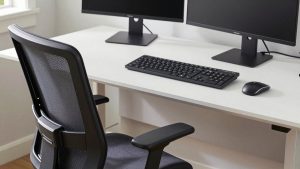
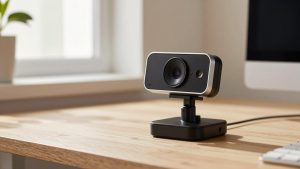
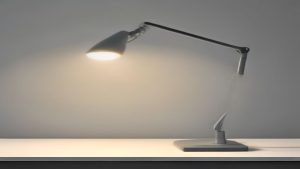
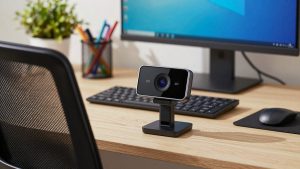
For language lessons, tutoring, music theory, business coaching — anything where you are mostly sitting and talking — a basic 1080p webcam with microphone is honestly fine. Put it on top of an external monitor at eye level, not on a laptop looking up your nose, and add a $20 desk light in front of you.
What to look for: 1080p/30fps minimum, dual microphones, autofocus if you move at all, and a physical privacy shutter. What to avoid: no-name 4K webcams under $40 that interpolate a low-res sensor up to 4K. They look worse than a good 1080p sensor and often have harsh colors and laggy exposure.
This suits you if you teach from a laptop or small desk, use Zoom or Meet’s beauty filter / touch-up, and do not need to show fine detail. The cheaper option is fine here. Spend the savings on light and a headset.
If you teach all day: step up to better autofocus and low light
Full-time teachers feel the difference by hour three. Cheaper sensors get hot, get noisy in dim rooms, and make skin look waxy. A mid-range 2K autofocus webcam with noise reduction microphone holds focus when you lean in with props, handles a basement or evening class better, and usually has a wider, more natural field of view.
Look for real optical improvements: larger sensor, f/2.0 or faster lens, autofocus (not fixed focus), and 60fps if you gesture a lot or teach young kids who watch movement. 60fps looks smoother when you wave cards or demonstrate.
Trade-off: these cameras show everything, including a messy room. Use the 78-degree mode if available instead of 90+ degrees, and sit 2-3 feet back. On Macs, check that the vendor supports macOS for firmware updates — some features like background blur and manual exposure only unlock through Windows software.
If you move or use a whiteboard: consider auto-framing 4K
If you stand, pace, or teach at a whiteboard, standard webcams punish you. You walk out of frame or become tiny. This is the one case where a 4K auto framing webcam for teaching makes sense. It uses the extra resolution to crop in and follow you without a camera operator.
In practice, auto-framing is useful but imperfect. Good implementations keep you centered smoothly. Cheap ones reframe with a hard jump every time a student unmutes or you shift weight, which is distracting. If you can, choose a model where tracking can be turned off quickly and where you can set presets — wide for whiteboard, tight for desk.
Failure mode to know: 4K + background blur + screen sharing at once can stutter older laptops, especially fanless MacBook Airs and old Chromebooks. If your laptop is 5+ years old, stick to 1080p output in the camera settings even if the camera supports 4K. Students will not see the difference after compression, but they will notice dropped frames.
If you show handwriting: add an overhead view
No front-facing webcam shows handwriting well. Holding paper up to the lens causes glare, focus hunting, and mirrored text. For math, phonics worksheets, lab demos, or art, a second overhead camera is the real upgrade.
You have two options. A dedicated document camera on a gooseneck works best — it stays in position, focuses close, and does not shake. Or mount a second webcam on a cheap overhead arm / tripod looking down at your desk. In Zoom, Teams, and Meet you can switch cameras or share the second camera as content.
This suits elementary teachers, math and science tutors, and anyone grading live. It adds clutter, but it solves the number one complaint from parents: my kid cannot read what the teacher is writing. Keep your face cam at 1080p and let the overhead cam handle detail. Good lighting from the side, not directly overhead, prevents hand shadows.
Setup matters more than specs
Before you buy up, fix placement. Camera at eye level, 2-3 feet away. Light source in front of you — window or lamp — not behind. If you must sit with a window behind you, close blinds or use a webcam with HDR/backlight compensation. Turn off overhead-only lighting that casts shadows under your eyes.
On laptops, use a stand to raise the screen so you are not looking down. On Macs, most USB webcams are plug-and-play, but disable auto exposure wrestling by locking exposure in Photo Booth or the vendor app if faces go dark. Test a full 10-minute recording, not a 10-second preview. Autofocus hunting and mic hiss only show up over time.
FAQ
Is 4K worth it for Zoom or Google Meet teaching?
Usually no. Both compress to 720p or 1080p for most viewers. 4K helps if you crop, zoom into a whiteboard, or record locally for a course. For live talk-first teaching, a good 1080p sensor with better low light will look better than a cheap 4K sensor.
Do I need 60fps?
Not required, but helpful if you demonstrate with hands, flashcards, or instruments. 30fps is fine for lecture and discussion. If your laptop is older, 1080p/30fps is the most stable choice.
Can I use my laptop camera plus a headset mic?
Yes, and for part-time tutoring that is often enough. The weak point becomes video — soft detail, bad backlight, unflattering angle. If students complain they cannot see you clearly or you teach daily, upgrade video first, then mic.
How do I show paper or a book clearly?
Do not hold it up to your face cam. Use screen share for PDFs, or add a second overhead document camera for physical paper. In Zoom and Teams you can share second camera as content so students see it large alongside your face.