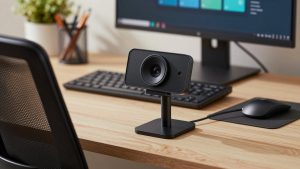
Last Updated: October 18, 2026
Zoom is unusually forgiving about cameras, which is why buying for it is confusing. A $40 webcam can look fine on Zoom, while a $200 4K webcam can look worse if your light and placement are wrong. What matters is not megapixels, but consistent focus, accurate color in office light, and a microphone setup that does not fall apart when you lean back.
I have tested webcams for daily standups, client calls, and webinars where I was speaking for an hour straight. For most Zoom work, reliability beats spec sheets. You want a camera that locks focus quickly, does not hunt in mixed light, and does not need you to open an app every morning.
📄 In This Review
What Zoom actually needs
Zoom compresses video aggressively, especially in gallery view with 10+ people. It downscales to 720p or 1080p in most meetings, even if your camera shoots 4K. That means sharpness differences between good 1080p and 4K cameras mostly disappear to other people.
What survives Zoom compression is lighting behavior: exposure stability, white balance, and noise. A cheap sensor in a bright room looks clean. An expensive sensor backlit by a window looks like a silhouette. If you can only fix one thing, fix light first — face a window or put a $25 LED panel behind your monitor — before you upgrade cameras.
Also consider framing. For Zoom, a 78 to 90-degree field of view is ideal for one person at a desk. Wider than 95 degrees pulls in your messy office and makes you look small. Narrower than 70 degrees feels cramped unless you sit far back.
Quick comparison: three practical tiers
See also: Best Monitor for MacBook Air: Two USB-C 4K Screens and Six Adapter-Dependent Alternatives • Best Monitor for MacBook Pro: Eight Listings Sorted by Cable, Sharpness and Scaling
Most buyers fall into one of three groups. This table skips exotic options like mirrorless cameras over HDMI — great quality, but overkill and fiddly for daily Zoom.
| Category | Typical resolution | Best for | Trade-off |
|---|---|---|---|
| Basic 1080p fixed-focus | 1080p / 30fps | Internal team calls, students, second computer | Soft in low light, no background blur control |
| Midrange 1080p/1440p autofocus | 1080p-1440p / 30-60fps | Client-facing work, managers, teachers | Costs more, needs decent light to shine |
| Premium 4K with software | 4K / 30fps | Presenters, coaches, small conference room | Narrow benefit on Zoom, software can be buggy on Mac |
The honest rule: if your calls are mostly internal and your room is reasonably bright, stop at tier one. If clients judge you on presence, tier two pays for itself. Tier three is only worth it if you present, record, or crop in.
When a basic 1080p webcam is enough
A basic 1080p webcam with fixed focus and dual mics handles 80% of Zoom calls. Image is slightly soft, colors are neutral enough, and there is nothing to configure. Plug it in, select it in Zoom > Settings > Video, and it works every time you open the laptop.
The failure mode is low light. In a dim bedroom at night, these cameras smear motion and turn skin orange under warm bulbs. Autofocus is not the issue — most have fixed focus from about 40cm out — noise and white balance are. If you are on calls after 7pm with only a ceiling light, add a desk lamp in front of you rather than buying a more expensive camera.
This tier suits: individual contributors, students, anyone using a desktop monitor without a good built-in camera, and IT departments buying in bulk. Look for a simple 1080p webcam for Zoom meetings with a physical privacy shutter and a tripod thread. Skip gimmicks like built-in ring lights — they create harsh hotspots on glasses.
The sweet spot for work: autofocus 1080p to 1440p
This is what I recommend for most home offices. You get faster autofocus, a larger sensor, better noise reduction, and often 60fps at 1080p which makes hand gestures and whiteboard movement look smoother. More importantly, exposure does not pump up and down when you share screen and your face gets smaller.
Concrete differences you will notice: you can lean forward to read and lean back without going blurry, glasses glare is better controlled, and skin tones stay natural under mixed daylight plus LED. Many models also include two or three field-of-view settings, which helps if you switch between solo calls and sitting with a colleague in frame.
Failure modes to watch: autofocus hunting if you gesture a lot with your hands near your face, and over-sharpening that makes stubble and fabric look crunchy on Zoom. Turn sharpness down one notch in the vendor app if available. On Macs, check that the vendor still updates its software for current macOS — some older utilities break camera controls after OS upgrades.
This suits client-facing freelancers, managers who run meetings, therapists, tutors, and realtors. A solid autofocus 1080p webcam for work from home will look professional for 3-4 years without needing replacement. If you wear headphones already, do not pay extra for a fancy mic array — you will not use it.
When 4K makes sense — and when it does not
4K webcams do not make your Zoom feed 4K. Zoom will still send 720p or 1080p to others. What 4K buys you is cropping flexibility: digital zoom, auto-framing that follows you, and the ability to record locally in higher resolution while Zoom records low.
For presenters, that matters. Auto-framing keeps you centered if you stand and pace. Desk View or wide crop modes let you show documents without a second camera. Low-light performance is usually a full step better, assuming you turn off beauty filters and auto-exposure gimmicks.
The downsides are real. These cameras run warm, need more USB bandwidth and CPU for background blur, and their companion apps can conflict with Zoom Virtual Backgrounds. I have also seen 4K models default to an ultra-wide shot that makes a home office look cavernous — you have to set it to 78 degrees and save the preset.
Buy this tier if you coach, teach, sell on video all day, or host webinars where recording quality matters. Shop for a 4K webcam with autoframing for Zoom only if you will actually use the software features weekly. Otherwise, put the $120 difference toward lighting and a wired headset — callers will rate your quality higher.
Laptop and Mac-specific advice
Modern MacBook and high-end Windows laptop cameras are now decent in good light, often better than a cheap external webcam for color. Their weakness is angle — you look down at them — and noise at night. An external camera on top of your monitor at eye level instantly looks more professional, even at the same resolution.
On Mac, prefer UVC-compliant cameras that work without drivers. Zoom recognizes them natively and you avoid background helper apps. If you use Continuity Camera with an iPhone, quality is excellent but mounting is awkward and calls drain battery; fine as a backup, annoying as a daily driver.
For laptops, cable length and mount matter more than specs. Get a camera with a sturdy clip that grips a thin laptop lid without wobbling, and a 1.5m+ USB-C or USB-A cable that reaches a dock. If your desk uses a hub, plug the webcam directly into the laptop or a powered hub — unpowered hubs cause the classic Zoom symptom: camera freezes when mic turns on.
FAQ
Do I need 4K for Zoom?
No, for most meetings. Zoom compresses to 720p or 1080p, so a good 1080p camera with proper lighting looks nearly identical to 4K to attendees. Get 4K only if you want auto-framing, digital zoom without quality loss, or better local recordings.
Why do I look dark or grainy even with a good webcam?
Usually backlight or underexposure. Close blinds behind you, face a window or lamp, and set Zoom > Settings > Video > Adjust for low light to Auto. If the image still pulses brighter and darker, turn off HDR or RightLight in the camera app.
Should I use Zoom background blur or the camera’s blur?
Use one, not both. Zoom’s blur is more consistent across Mac and Windows and uses less camera-specific processing. If your CPU is old and fans spin up, try the camera vendor’s background mode instead and turn Zoom’s off.
Is my laptop’s built-in camera good enough for client calls?
Sometimes. In daylight, recent laptop cameras are fine. For daily client work, an external 1080p autofocus camera at eye level still looks more polished and avoids the up-the-nose angle. If budget is tight, improve light first — it is a bigger upgrade than a new camera.
Related Reviews & Guides
Best Webcam for Home Office Video Conferencing
Best Video Conference Camera for Mac