Last Updated: October 18, 2026
If you work from home, people judge your setup in the first 10 seconds of a call. Not your background. Your face and your voice. If you’re blurry, dark, or echoing, you start every meeting at a disadvantage.
The good news: you don’t need a streaming rig. For most home office work, a solid $60-$120 webcam and a $50-$100 microphone beat a $300 combo. The trick is buying the right type for your room, your Mac or laptop, and how you actually meet.
📄 In This Review
The short answer
For camera: most people should get a 1080p webcam with autofocus and a decent-sized sensor. 4K sounds better but often looks worse in a dim home office because it needs more light, creates bigger files, and taxes older laptops.
For audio: most people should get a USB plug-and-play microphone on a small desk stand, or a good wired headset if your room is noisy. A separate mic almost always beats the mic built into a webcam.
If you only buy one thing, buy the microphone first. Colleagues will tolerate 720p video. They won’t tolerate crackling, echo, or cutting out for 45 minutes.
Home office camera options
See also: Best Monitor for MacBook Air: Two USB-C 4K Screens and Six Adapter-Dependent Alternatives • Best Monitor for MacBook Pro: Eight Listings Sorted by Cable, Sharpness and Scaling
There are really three tiers that matter for work, not streaming or YouTube.
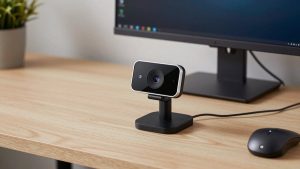
1. Basic 1080p fixed-focus webcam. This is the cheapest meaningful upgrade over a laptop camera. It sits on top of your monitor, plugs in via USB, and just works with Zoom, Teams, Meet, and Mac Photo Booth. Image is sharper than most built-in laptop cams, especially 3+ year old MacBook Airs and ThinkPads. Trade-off: fixed focus means if you lean in and out a lot, you go soft. Low-light performance is mediocre. Who it’s for: people in bright rooms who sit still and just want to look clear. Honest take: if your laptop is from the last two years and you face a window, this tier may not be worth it. Your built-in camera is fine.
Failure mode to know: cheap no-name 1080p cams lie about resolution. They upscale 480p sensors and look waxy. Stick to a well-reviewed 1080p business webcam with real reviews mentioning Teams and Mac compatibility, not just gaming.
2. Midrange 1080p/1440p autofocus webcam with better low light. This is the sweet spot for home offices. You get autofocus, auto white balance that actually handles mixed lamp + window light, and dual noise-reducing mics you can use as backup. Many include a privacy shutter and a wider field of view you can narrow to 65-78 degrees so your messy room isn’t on display. Who it’s for: anyone on calls 3+ hours a day, in a basement, north-facing room, or evening calls.
Failure mode: autofocus hunting. Some models pulse in and out if you have a busy bookshelf behind you. Look for face-tracking you can turn off and manual focus in software.
3. 4K webcam. Only worth it if you have good light and a newer machine. Benefit is not really 4K on Zoom – Zoom compresses it anyway. Benefit is sharper digital zoom and cropping. You can frame head-and-shoulders without looking pixelated. Trade-offs are real: needs USB 3.0, gets hot, and on M1 Macs and older Windows laptops can stutter if you run 4K + background blur + screen share. Who it’s for: managers, coaches, salespeople who present all day and want the cleanest image.
If you go 4K, don’t mount it far away and digitally zoom to the max. Add a $15 desk lamp in front of you first. Light matters 5x more than pixels.
Home office microphone options
Webcam mics pick up your keyboard, your HVAC, and your neighbor’s dog. They are 2-3 feet from your mouth. That’s physics you can’t fix with software.
1. USB condenser mic on desk stand. This is the best voice quality for the money for a quiet home office. You sound full and close, like a podcast. Plug-and-play on Mac and Windows, no interface needed. Get one with a headphone jack for zero-latency monitoring and a tap-to-mute button you can hit without looking. Who it’s for: individual contributors, writers, engineers in a closed room.
Failure mode: it hears everything. Keyboards, mouse clicks, reflective hardwood rooms. If your desk is in a living room or kitchen, skip this. You’ll annoy everyone. A simple USB condenser microphone for work calls works best 6-8 inches from your mouth with gain turned down, not across the desk.
2. Wired USB headset with boom mic. Less flattering voice, but far better rejection of echo and background noise. The mic is an inch from your mouth. If you share a house, have kids, take calls in an open plan, or your room echoes, this wins. Bluetooth headsets are convenient but often drop to terrible call quality on Windows and Mac because of the Hands-Free profile. For important calls, wired is still more reliable.
3. Wireless lav / clip-on USB mic. Good middle ground if you pace, use a whiteboard, or hate wearing something over your ears. Sound is consistent because it moves with you. Trade-off: batteries, pairing, and rustle if it rubs your shirt. Get one with a charging case and a receiver that plugs directly into your laptop.
What about webcam + speakerphone pucks? Fine for a huddle room, bad for a desk. They are designed to hear a whole table, so they hear your whole house.
What combination fits you
Don’t buy camera and mic in isolation. Buy for your room.
| Your situation | Best combo | Why | Watch out for |
|---|---|---|---|
| Quiet spare bedroom, laptop docked | Midrange 1080p autofocus webcam + USB desk mic | Best face and voice quality, natural on long calls | Desk clutter; need boom arm or small stand to keep mic close |
| Noisy living room / kids / roommates | Basic 1080p webcam + wired USB headset | Headset mic rejects noise, camera upgrade still helps | Cheaper option is fine here; don’t buy a sensitive condenser mic |
| MacBook on kitchen table, moves around | Autofocus webcam + wireless lav mic | Stays in focus and in volume if you stand or move | Battery dies mid-day; keep receiver firmware updated |
| Client-facing sales / teaching | 4K webcam (run at 1080p) + USB desk mic + key light | Cleanest image for recording and presenting | CPU load on older laptops; test background blur before live calls |
If budget is tight, buy in this order: $20 wired earbuds with mic first, then a real headset, then lighting, then camera, then a desk mic. A $70 headset in a well-lit room often beats a $250 camera in a dark room with a bad mic.
Setup mistakes that make good gear look bad
I see the same three problems on home office calls every week. First, camera too low. Laptop cams shoot up your nose and show ceiling. Put the external camera at eye level or slightly above. A stack of books or a $15 monitor mount fixes more than any upgrade.
Second, backlight. If a bright window is behind you, no webcam can save you. You will be a silhouette. Turn 90 degrees or face the window. Then add a soft white lamp at 10 o’clock in front of you. You don’t need a ring light that blinds you – a simple desk key light for video calls at 4000-5000K, dimmed to 30-50 percent, is enough.
Third, wrong audio input. On both Mac and Windows, Zoom and Teams love to revert to the webcam mic after updates. Check Settings – Audio before an important call. On Mac: System Settings – Sound – Input. In Zoom: Settings – Audio – Microphone. Speak at normal volume and watch the level bar hit about 70 percent. If you have to yell, gain is too low or mic is too far.
Other practical notes: use USB-A ports directly if you can. Cheap USB hubs cause mic crackle and camera disconnects. If you must use a hub for a MacBook, use a powered hub. Turn off extra camera software filters – beauty smoothing and auto-framing cause lag. And wipe the lens. It sounds silly, but a dusty lens is why half of home offices look hazy.
How to choose without overbuying
Ask three questions. How noisy is my room? How much light do I have at 3pm and at 7pm? Do I stay seated or move?
Noisy and move a lot: prioritize headset or lav, basic camera. Quiet and seated: prioritize desk mic and autofocus camera. On a laptop from 2019 or older: stay at 1080p, avoid software-heavy 4K features. On Mac: check that the vendor lists macOS support for its settings app – many Windows-only apps lock you out of field-of-view and focus controls.
Return window matters. Buy from somewhere you can return in 30 days. Test on your real platforms, not just a test recording. Do a 20-minute Teams call with screen share, check heat, fan noise, sync, and whether your voice echoes for others.
FAQ
Do I need 4K for work calls?
No, for most people. Zoom and Teams compress video heavily, so colleagues see 720p-1080p anyway. Buy better low-light and autofocus first. Only get 4K if you record, crop in, or present constantly and have good lighting and a newer computer.
Is a webcam microphone good enough?
It’s okay as backup in a quiet room if you’re close and still. For daily use, no. A headset or USB desk mic will be clearer and pick up far less keyboard and room echo. If others say you fade in and out, that’s usually the webcam mic plus noise suppression fighting each other.
Why do I look dark even with a good camera?
Usually backlight or no front light. Face your main light source, close blinds behind you, and add a small lamp in front at eye level. On Mac and Windows, also turn off HDR and auto-exposure compensation in the camera app if your face pulses bright and dark.
USB mic or headset for a noisy home?
Headset. A USB condenser mic sounds richer but hears the whole room. A boom mic an inch from your mouth rejects kids, kitchens, and echo far better. Choose comfort and a reliable mute button since you’ll wear it for hours.