Last Updated: October 18, 2026
Most HP desktop computers – Pavilion, Envy, OMEN, ProDesk, and EliteDesk towers and minis – do not have a built-in webcam. If yours came with a monitor, that monitor almost certainly does not have one either. That means for Zoom, Teams, Google Meet, or telehealth calls, you need an external USB webcam. The good news is HP desktops make this easy: you have full-size USB-A ports, plenty of power, and no battery concerns. The bad news is it is easy to overbuy and end up with a 4K camera that makes your office look worse.
📄 In This Review
What works with an HP desktop
Almost any modern USB webcam works with an HP desktop running Windows 10 or Windows 11. You plug into a USB-A port on the back or front, wait 10-20 seconds for Windows to install the UVC driver automatically, then select it in Zoom or Teams. You do not need HP-specific software. If your HP is a few years old, prefer a rear USB 3.0 port (usually blue) for more stable power, especially for higher-resolution cameras. Front ports work, but on some Pavilion and ProDesk cases they share a weak internal hub and can drop frames. If you hear other people say you sound robotic or your video freezes every few minutes, the first thing to try is a different USB port, not a new camera.
What actually matters for desk use
See also: Best Monitor for MacBook Air: Two USB-C 4K Screens and Six Adapter-Dependent Alternatives • Best Monitor for MacBook Pro: Eight Listings Sorted by Cable, Sharpness and Scaling
Resolution is overrated. For a typical home office call, a clean 1080p image with good autofocus and decent handling of backlight beats a noisy 4K image every time. What matters more is focus type, microphone setup, field of view, and low-light behavior. Fixed-focus 720p / 1080p cameras are sharp at about 2 to 5 feet and never hunt for focus, but they go soft if you lean in close to show paperwork. Autofocus cameras stay sharp if you move, but cheap ones pump in and out during calls, which is distracting. Dual microphones with noise reduction help in a quiet home office, but they will still pick up keyboard clatter, a fan behind you, or echo in a bare room. A 65 to 78-degree field of view is ideal for one person at a desk. Go to 90 degrees and your small home office looks cavernous and your face gets tiny.
Compare the three practical options
For HP desktops, the choice comes down to three categories, not dozens of models. A basic 1080p fixed-focus camera is fine if you sit still in decent light and mostly do internal check-ins. A mid-range 1080p autofocus camera with dual mics is the sweet spot for most remote workers. A 2K / 4K camera only makes sense if you present, teach, or record and you are willing to add light.
| Type | Image in typical home office | Mic and audio | Common failure mode | Best for |
|---|---|---|---|---|
| Basic 1080p fixed-focus | Good at 3 ft in daylight, grainy in evening | Single mic, picks up room echo | Soft image if mounted too high or too close; washed out with window behind | Budget buyers, kids’ schoolwork, second PC |
| Mid-range 1080p autofocus | Sharper, better color, handles mixed light | Dual mics with noise reduction | Focus hunting on budget models; over-sharpened skin | Daily Zoom / Teams workers on HP Pavilion, Envy, ProDesk |
| Premium 2K / 4K autofocus | More detail, but needs light to look good | Often better mics, still not headset quality | Lag or dropped frames on old USB ports; large file size for recording | Presenters, coaches, creators who also record |
When the cheaper option is fine
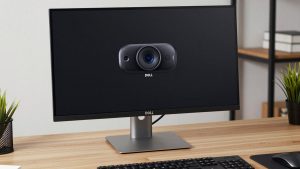
If your calls are 30 minutes a day and you have a window or ceiling light in front of you, do not overthink it. A simple 1080p webcam for desktop computer with fixed focus and a clip mount will look perfectly professional. Mount it on top of your monitor at eye level, not on the tower below your desk. Failure mode here is placement: people put the camera on the PC tower to the side and then wonder why they look like they are ignoring everyone. Keep the lens centered, wipe it once a month, and turn off any beauty filter that makes text on a whiteboard unreadable. For audio, if you already use earbuds or a headset for calls, the camera mic does not matter at all. Save the money.
Best balance for daily work calls
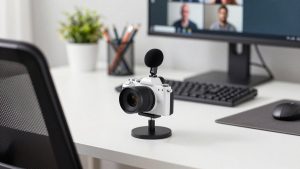
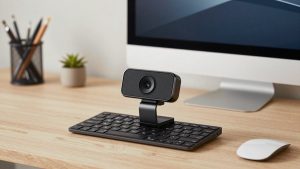
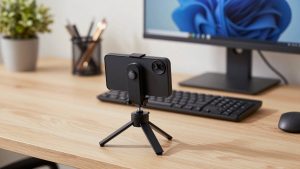
For 3 to 6 hours of calls a day from a home office, step up to an autofocus 1080p camera with dual microphones and a physical privacy shutter. Look for 1080p at 30fps or 60fps, autofocus (not fixed), USB-A plug-and-play with no driver CD, and a tripod thread in the base. That thread matters more than it sounds: on an HP desktop with a large 27 or 32-inch monitor, the clip can sit too high. Screwing the camera onto a small desk tripod and placing it just behind your keyboard often gives a much more flattering angle. A mid-range autofocus 1080p webcam with microphone and privacy shutter also handles late-afternoon light better, when a cheap sensor turns your face orange or gray. Expect trade-offs: autofocus can drift if you gesture a lot, and noise reduction can clip the start of sentences. If that happens, turn off auto-enhancements in Windows Camera settings and in Teams under Devices.
When to consider 2K or 4K
A higher-resolution camera on an HP desktop makes sense for two people: those who present to clients all day, and those who record trainings or YouTube videos from the same desk. Detail on faces, product demos, and documents is visibly better, and you can crop in slightly without falling apart. But you need light and USB bandwidth to get that benefit. Without a key light, a 4K sensor in a dim spare bedroom often looks darker and noisier than a good 1080p sensor. On older HP ProDesk or EliteDesk machines, 4K at full resolution can also stutter if you are also running screen share and a VPN. If you go this route, shop for a 4K webcam for HP desktop Windows 11 that lets you run in 1080p mode for calls and switch to full resolution only for recording. That one setting avoids 90 percent of performance complaints. Pair it with a $25 LED panel in front of you, not overhead, and use a headset mic rather than the camera mics.
Setup mistakes specific to desktops
Three issues come up constantly with HP towers. First, plugging into a monitor USB hub instead of the PC. Many Dell and HP monitors have USB ports that are not connected unless you also run a USB upstream cable. Plug directly into the tower to test. Second, privacy settings. In Windows 11 go to Settings then Privacy and security then Camera and make sure Let desktop apps access your camera is on, otherwise Zoom will show black video even though the camera light is on. Third, old HP audio drivers fighting with the webcam mic. If colleagues hear echo, in Teams or Zoom explicitly set Speaker to your headset or monitor speakers and Microphone to either the headset OR the webcam, not System Default for both. Disable Listen to this device in Sound settings. A five-minute check here fixes more calls than buying a more expensive camera.
FAQ
Do HP desktop computers have a built-in camera?
Almost never. Towers, mini PCs, and most HP monitors sold with them have no webcam or mic. A few HP all-in-ones like some Pavilion AiO models do, but if you have a separate tower and monitor, assume you need an external USB webcam.
Will any USB webcam work with Windows 10 and 11?
Yes, in almost all cases. Modern webcams use the standard UVC driver built into Windows. You should not need to install software from a disc or website. Just plug in, wait for the chime, then choose the camera in your meeting app.
Is 4K worth it for Zoom and Teams?
Usually not. Zoom and Teams compress video heavily, so callers will see little difference between good 1080p and 4K. 4K helps for recording, cropping, or showing fine detail. For normal meetings, better lighting and stable autofocus matter far more.
Why does my new webcam look dark or laggy on my HP?
Most often it is low light or a weak USB port. Add light in front of your face, switch to a rear USB 3.0 port, close extra camera apps, and in your meeting app lower the resolution to 1080p or 720p. If you sit with a bright window behind you, close blinds or move the desk – no webcam can fix strong backlight alone.