Last Updated: October 18, 2026
📄 In This Review
The short answer: PS4 only takes one camera
If you want a facecam for streaming from a PS4, Twitch overlays, or PS VR, there is effectively one option: the official Sony PlayStation Camera. The PS4 does not support generic USB webcams like the ones most remote workers use on laptops and Macs. Plug in a standard 1080p work webcam and the PS4 will usually ignore it or show it as an unsupported USB device.
This catches a lot of buyers out. On paper a good laptop webcam is better – sharper lens, better autofocus, better mics, tripod mount. On a PS4 none of that matters because the console will not use it for its Broadcast or PlayStation VR features. If your main goal is PS4 streaming, buy for compatibility first, image quality second.
Where it gets practical for readers of this site: many people want one camera that does double duty for PS4 in the evening and Zoom/Teams on a laptop during the day. That setup does not really exist. Plan on the PlayStation Camera staying plugged into the PS4, and a separate USB webcam for work. They are different tools.
What actually works with PS4
See also: Best Monitor for MacBook Air: Two USB-C 4K Screens and Six Adapter-Dependent Alternatives • Best Monitor for MacBook Pro: Eight Listings Sorted by Cable, Sharpness and Scaling
Sony released the PlayStation Camera in two versions. V1 is the long rectangular bar, V2 is the round stick-style head. Optically they are nearly identical – dual lenses for depth sensing, 1280×800 resolution at 60fps, four-microphone array. V2 has a different stand and twist-to-close privacy mechanism, but on PS4 they function the same.
Both use a proprietary AUX port, not USB. That port is on the back of every PS4, PS4 Slim, and PS4 Pro, but the plug shape is easy to miss behind cables. If you buy used, check that the AUX cable and the adjustable stand/clip are included. A lot of used listings are missing the clip, and without it the camera slides off the top of a TV.
What does not work: PlayStation 5 HD Camera, Xbox Kinect, and almost all third-party USB webcams. The PS5 camera is USB-C based and PS4 will not recognize it. Some very old USB cameras based on UVC were briefly recognized for video chat in PS4 messages years ago, but Sony removed most of that functionality. For current Broadcast, Share Play, and PS VR, assume USB webcams do not work.
| Camera type | Works on PS4 for streaming? | Works for PS VR? | Works on laptop/Mac for work calls? |
|---|---|---|---|
| Sony PlayStation Camera v1 / v2 (AUX) | Yes – full facecam, background removal | Yes – required for most VR games | No – no USB, no PC driver |
| Standard USB 1080p work webcam | No | No | Yes – plug-and-play on Windows/macOS |
| PlayStation 5 HD Camera (USB) | No | No | Limited – shows as USB camera on PC but no console features |
| Capture card + mirrorless / action cam | Yes as gameplay source, not as PS4 facecam | No | Yes, but overkill for calls |
Which PlayStation Camera to buy
Since Sony discontinued the camera, you will mostly find new-old-stock and used units. Functionally, buy whichever version is cheaper in good condition. V2 is usually preferable because the stand fits modern thin TVs better and the lens cover is less likely to get scratched in a drawer.
When shopping for PlayStation Camera for PS4, skip listings that do not show the AUX connector. Some sellers confuse it with the PS5 camera or with generic PS4-compatible webcams. If the cable ends in USB, it is not the right camera for PS4 facecam.
Expect 720p-class real detail despite the 1280×800 spec. In a well-lit living room it looks acceptable in the corner of a Twitch stream. In a dim room it gets noisy fast and background removal starts chewing around your hair and shoulders. That is normal for this sensor – it was designed in 2013. Do not pay a collector premium expecting it to match a modern 1080p work webcam.
Failure modes to check on arrival: dead microphone array (your party chat hears nothing even though video works), loose AUX plug that disconnects if the cable is tugged, and a wobbly ball joint that will not hold angle. Test all three in the first 15 minutes: Settings > Devices > PlayStation Camera > Adjust, then start a test Broadcast set to Private.
If you also need a webcam for work
Do not try to make the PlayStation Camera your Zoom camera. There is no official PC driver, and community AUX-to-USB adapters do not exist because the interface is proprietary. Keep it on the console.
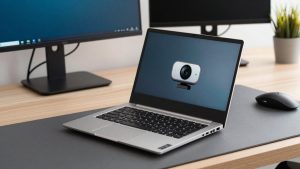
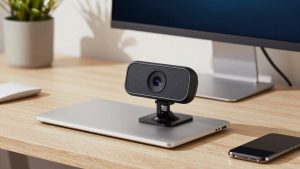
For laptop and Mac calls, a basic fixed-focus 1080p USB webcam is fine for most people. You get more improvement from a $15 desk lamp in front of your face than from jumping to a 4K sensor. Autofocus, a 78- to 90-degree field of view, and dual noise-reducing mics cover 90% of home office needs without installing extra software.
A practical two-camera setup many readers use is PlayStation Camera velcroed to the TV for PS4, plus a separate 1080p USB webcam for laptop video calls that moves between work laptop and personal Mac. Total cost is often less than chasing a single do-everything camera that does neither job well.
The only exception is if you stream via capture card. If you already capture PS4 gameplay to a PC with OBS or similar, then you can use any good PC webcam for your facecam in OBS and ignore the PlayStation Camera entirely. In that workflow the PS4 itself never sees your facecam. That is the one case where buying a better USB webcam helps your PS4 stream look better.
Setup tips that matter more than resolution
Place the PlayStation Camera centered above or below the TV, about eye height when you are seated. Too high and background removal cuts off your chin. Too low and it picks up ceiling lights as flare. About 6 to 9 feet distance is the sweet spot for full-torso framing and stable tracking.
Light yourself, not the TV. A bright TV in a dark room forces the camera to expose for the TV and leaves you as a silhouette. Put a warm white lamp behind the camera pointing at you. Turn off overhead lights directly above you if they create harsh shadows under your eyes.
In PS4 Broadcast settings, set the camera to a small corner box rather than full-side bar if you play fast shooters or sports games. Large facecam windows amplify the sensor noise and make background removal artifacts more obvious. Set Display Message to Friends Only during tests so you are not troubleshooting live to strangers.
For PS VR, calibration matters more than which version you own. Clear reflective surfaces, close curtains behind you, and re-run Adjust PlayStation Camera if you moved furniture. Tracking loss is usually room lighting or occlusion, not a defective camera.
What not to buy for PS4
Avoid any listing that says PS4-compatible USB webcam for streaming unless you plan to use it only on PC with a capture card. Those cameras will work fine on Windows and macOS, but sellers stretch compatible to mean it physically plugs into the PS4 USB port, not that the PS4 Broadcast app can use it.
Also avoid paying extra for 4K, ring lights built into the camera, or studio mics if your only use is PS4 direct streaming. The PS4 pipeline downscales and compresses your facecam heavily for Twitch and YouTube. You will not see that extra detail after compression. Save the budget for lighting or, if you do a lot of work calls, a better USB webcam for home office use where the quality actually reaches the other person.
If you are buying used, the cheaper option is fine as long as the lens is clean, the AUX pins are straight, and the seller shows it recognized in PS4 Settings. Cosmetic scuffs on the plastic housing do not affect image quality.
FAQ
Can I use my Logitech / laptop webcam directly on PS4?
No, for streaming and VR. The PS4 expects the proprietary AUX PlayStation Camera. Most USB webcams will power on but will not appear as a selectable camera in Broadcast or PS VR setup.
Does the PS5 HD Camera work on PS4?
No. It uses USB and PS4 system software does not support it as a facecam or VR tracker. Keep the PS5 camera for PS5 and the AUX PlayStation Camera for PS4.
Do I need the PlayStation Camera if I use a capture card?
No. If you capture PS4 HDMI to a PC and stream from OBS, Streamlabs, or similar, use any PC webcam as your facecam in that software. The PS4 does not need to see the camera at all.
Is the PlayStation Camera good enough for Zoom if I adapt it?
No. There is no practical AUX-to-USB adapter for PCs and Macs. Even if you got video, the microphones and controls are tuned for console distance and living-room use. Get a separate inexpensive USB webcam for work calls.