Last Updated: October 18, 2026
If you use a MacBook Pro for Zoom all day, you already know the problem: the built-in camera is usable, but it is small, fixed, and unforgiving in bad light. An external webcam will not fix a bad connection or a dark room, but the right one gives you a sharper image, better framing, and fewer “can you repeat that?” moments.
For most MacBook Pro owners, you do not need to spend a lot. Zoom caps what other people see, macOS handles most plug-and-play cameras well, and lighting and placement matter more than 4K on the box. Spend more only if you present often, record, or need a wider field of view for a standing desk.
📄 In This Review
What actually matters on a MacBook Pro
Mac compatibility is mostly simple: any UVC-compliant USB webcam should work on Apple Silicon without drivers. That covers almost everything sold as “works with Mac.” Where people run into trouble is the connection and Zoom settings, not macOS itself.
First, check your ports. Newer MacBook Pros only have USB-C / Thunderbolt. Most webcams still ship with USB-A. You will need a direct USB-C cable or a decent dock. Cheap USB-C adapters work for video, but avoid chaining a webcam through a low-power hub with an external drive and an Ethernet adapter. If Zoom freezes or the image drops to a slideshow, lack of USB bandwidth is a common cause.
Second, check macOS permissions. Go to System Settings > Privacy and Security > Camera and Microphone and make sure Zoom and your browser have access. If you switch cameras and Zoom stays black, quitting Zoom completely and re-opening it fixes it more often than unplugging the camera.
Third, decide if you even need a webcam. On recent MacBook Pros, the built-in 1080p FaceTime camera is fine for 1:1 calls in good light. Apple’s image processing is aggressive, which helps in a bright office. It falls apart when you are backlit, off-center, or want eye-level framing with the laptop on a stand. Also consider Continuity Camera: mounting your iPhone as your Mac webcam gives you excellent image quality for free, but it drains battery, heats the phone, and the mount can wobble.
What matters for Zoom, specifically
See also: Best Monitor for MacBook Air: Two USB-C 4K Screens and Six Adapter-Dependent Alternatives • Best Monitor for MacBook Pro: Eight Listings Sorted by Cable, Sharpness and Scaling
Zoom compresses video heavily. In a normal gallery view, other people see you at 360p to 720p no matter what you bought. That is why a stable 1080p image with good exposure beats a noisy 4K image.
Prioritize these three things: autofocus that does not hunt, auto-exposure that does not blow out your face, and a 65- to 78-degree field of view. Ultra-wide 90- to 120-degree cameras make you look small and show your messy office. They suit conference rooms, not a desk 2 feet from the screen.
Microphones are the other trade-off. Most webcam mics sound hollow and pick up keyboard clicks. For Zoom work, AirPods, wired earbuds, or a cheap USB headset will beat any webcam mic. Treat the webcam mic as a backup, not a reason to pay extra, unless you specifically want a speakerphone-style setup and sit still.
Common failure modes I see: autofocus pulsing every time you lean back, over-sharpening that makes skin look crunchy, and flicker under cheap LED office lights. If you wear glasses, ring lights directly behind the camera will reflect. A soft light off to the side is better.
Quick comparison: which type suits you
Think in categories, not megapixels. Here is how they break down for MacBook Pro + Zoom use:
| Type | Typical image | Best for | Watch out for |
|---|---|---|---|
| Built-in FaceTime camera | 1080p, narrow, software-smoothed | Travel, 1:1 calls in good light | Low angle on stand, bad backlight handling |
| Budget 1080p fixed-focus USB webcam | 1080p/30, decent in daylight | Students, occasional Zoom, second monitor setups | Soft in low light, weak mics, narrow dynamic range |
| Mid-range 1080p autofocus webcam | 1080p/60 or sharp 1080p/30 | Daily Zoom, teaching, client calls | Autofocus hunting, needs USB-C adapter |
| Premium 4K webcam | 4K sensor downscaled to 1080p, better lenses | Presenting, recording, cropping/in digital zoom | Price, more CPU load, Zoom rarely shows full detail |
When the cheaper option is fine
If you call from a bright room, sit 2-3 feet away, and mostly listen in, a basic budget 1080p webcam for MacBook is enough. Look for fixed focus, dual mics, a privacy shutter, and a mount that actually grips the thin MacBook Pro lid. Fixed focus is a feature here, not a flaw: nothing to hunt, nothing to pulse when you move.
The downside is low light. Under a single warm ceiling bulb, these cameras get grainy and turn your face orange. You will look better spending $25 on a small desk lamp or moving to face a window than spending $80 more on a camera. Also expect a narrower dynamic range: if you have a bright window behind you, your face goes dark. Close blinds or reposition first.
This category suits kids’ school calls, hot-desking, and anyone who wants a leave-it-in-the-bag backup. Do not buy it if you present to clients daily or record tutorials. You will notice the softness when Zoom spotlights you.
Best value for daily Zoom work
For 4-6 hours of Zoom a day, step up to a mid-range autofocus 1080p webcam for Zoom. You get faster, more accurate focus, better low-light handling, and usually a 65- to 78-degree lens that frames head-and-shoulders without distortion.
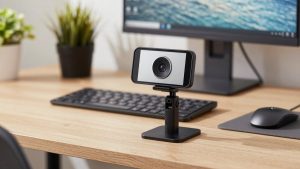
What to check before buying: macOS UVC support with no driver app required, 1080p/30 minimum with good exposure (1080p/60 is nice for hand gestures and whiteboard work but not essential), and a tripod thread. The tripod thread matters more than it sounds. Clipping a camera to a MacBook Pro on a laptop stand puts the camera too high and shaky. A tiny desk tripod or monitor mount gives you stable eye-level video.
Failure mode to test in week one: sit in your normal spot, lean in and out, and hold up a document. If focus breathes in and out or the exposure pumps when you move a white paper, turn off auto-focus or auto-exposure in Zoom or the camera’s Mac web settings app if available, then lock it. Many mid-range cameras let you disable RightLight-style auto correction, which often looks better on Mac.
When 4K is worth it
A premium 4K webcam for MacBook Pro makes sense for two people: those who present and those who crop. If you live in Zoom webinars, record in QuickTime / OBS, or want to digitally zoom without turning to mush, the larger sensor helps even when outputting 1080p. Better lenses also handle mixed office lighting with less noise.
Trade-offs are real. 4K uses more CPU and USB bandwidth, which matters on a MacBook Pro already running screen share, Slack, and Chrome. Some cameras run hot and then dim the image to cool down. And in Zoom gallery view, no one will see the difference. Buy 4K for recording and flexibility, not because Zoom will look 4x sharper.
If you go this route, get one with a wide-but-adjustable field of view (for example 65 / 78 / 90 degrees) and HDR or strong backlight compensation. Without that, you pay for detail you lose to bad exposure. Use a direct USB-C port or powered dock, not a bus-powered travel hub.
Setup that matters more than the camera
Mount the camera at eye level, about arm’s length away. If your MacBook Pro sits on a stand, do not clip the webcam to the laptop screen — it will wobble every time you type. Put the camera on your external monitor or a small tripod behind the laptop.
In Zoom, go to Settings > Video and uncheck “Touch up my appearance” if your image looks smeary, or leave it on Low if you like it. Enable HD if your connection is solid, but turn it off if you get stutter — audio stability matters more. Under Audio, turn on noise suppression on Low or Medium for home office echo; High can clip your voice.
Light yourself from the front. Face a window or put a 4000-5000K lamp 2-3 feet in front of you, slightly above eye level. Keep bright windows and overhead spots out of frame behind you. That one change improves a $40 camera more than upgrading to a $150 camera in a dark room.
FAQ
Do I need drivers for a webcam on MacBook Pro?
Usually no. Choose a UVC plug-and-play camera. Avoid anything that requires Windows-only software for basic 1080p. Some brands offer a Mac browser tool for firmware updates and field-of-view control — nice to have, not essential.
Why does my external webcam look worse than my iPhone?
Phones have much larger sensors and heavy processing. A webcam will look flatter, especially in low light. Add front light, lock exposure, and sit closer. If you need that phone look occasionally, use Continuity Camera, but keep a USB webcam for long meetings to avoid heat and battery drain.
1080p or 4K for Zoom?
Get a good 1080p camera for Zoom-only work. Zoom compresses video and most viewers watch in a small tile. Get 4K only if you record, present full-screen often, or want to crop and digitally zoom while staying sharp.
Why does Zoom not see my new webcam?
Check USB connection first — try a direct USB-C port instead of a hub. Then check System Settings > Privacy and Security > Camera, restart Zoom, and select the camera under the video caret menu. If using Chrome or Safari for Zoom in browser, grant camera permission there too.
Related Reviews & Guides
Cheap High Quality Webcam

6 Best Laptop Riser Stands 2026