Last Updated: October 18, 2026
If you spend most of your day in Microsoft Teams, your camera matters more than your microphone specs or laptop brand. Teams compresses video aggressively, crops faces for Together Mode and background blur, and punishes cameras with slow autofocus and bad low-light handling. You don’t need a creator camera. You need something that locks focus fast, holds exposure steady, and works every time you click Join without fiddling with settings.
After testing webcams in real home offices – backlit windows, cheap overhead lights, MacBook Pros and Windows laptops on docks – the pattern is clear: most people should buy a simple, reliable 1080p or 1440p webcam with good autofocus and dual mics. Only small huddle rooms and presenters need wider fields of view or 4K.
📄 In This Review
What Teams actually needs
Teams officially supports any USB UVC camera, which means almost every modern webcam works plug-and-play on Windows and Mac. The problems are practical, not compatibility checklists. Teams defaults to 720p to 1080p for most calls even if your camera shoots 4K. What you see on the other end depends far more on autofocus speed, white balance, and noise handling than on the resolution number on the box.
Three failure modes show up constantly. First, hunting autofocus: the image pulses in and out when you lean forward to type. Second, exposure pumping when you have a window behind you. Third, narrow laptop cameras that cut off whiteboards or second people. If your current setup does any of those, an external camera fixed on top of your monitor will be a bigger upgrade than going from 1080p to 4K.
The options compared
See also: Best Monitor for MacBook Air: Two USB-C 4K Screens and Six Adapter-Dependent Alternatives • Best Monitor for MacBook Pro: Eight Listings Sorted by Cable, Sharpness and Scaling
Think in use cases, not megapixels. For Teams, there are really four tiers that matter:
| Type | Best for | Field of view | Trade-off |
|---|---|---|---|
| Built-in laptop camera | Travel, backup | 70-75 degrees, tight | Small sensor, grainy in low light, low angle looks up nose |
| Basic 1080p USB webcam | Daily 1:1 Teams calls, home office | 78-90 degrees | Less detail for whiteboards, limited zoom |
| Mid-range 1440p / 4K webcam with autofocus | Managers, trainers, anyone presenting | 85-100 degrees, adjustable | Costs more, needs good USB port and light to show benefit |
| Wide-angle conference webcam / video bar | 2-6 person huddle room | 110-120 degrees | Faces look small in 1:1 calls, overkill for solo desk |
For most people: a basic 1080p business webcam is fine
If you sit 2-3 feet from your monitor, take calls with one or two other people, and use a headset or speakerphone already, stop here. A basic 1080p webcam with fixed or simple autofocus, dual noise-reducing mics, and a physical privacy shutter covers 80% of Teams workers.
What to look for: USB-A plug-and-play with no driver app required, 78 to 90 degree field of view, 30fps at 1080p, and a clip that actually grips a thin monitor or laptop lid. On Macs, avoid cameras that require a Windows-only app to turn off autofocus hunting or enable 1080p – you will be stuck with defaults. Test in Teams under Settings > Devices > Camera preview before your first meeting.
The honest trade-off: in dim rooms these look soft and a little noisy, and digital zoom falls apart fast if you try to crop in on a document. That is normal. A $35 desk lamp in front of you does more than spending $80 extra on resolution. If you already own a decent 1080p webcam for Teams calls, do not upgrade unless your autofocus hunts or your IT department requires Teams certification.
When to step up to 1440p or 4K
Upgrade if you present, record, teach, or sit in a bright room with backlight. The benefit of mid-range cameras is not 4K for its own sake – Teams will rarely send full 4K anyway. It is the larger sensor, faster autofocus, better auto-exposure, and the ability to use 2x digital zoom and still look sharp at 1080p output.
In practice, a good mid-range camera holds your face correctly exposed when a window is behind you, does not wash out when you share screen and your face goes into a small thumbnail, and handles glasses glare better. Look for phase-detect or fast contrast autofocus specifically, adjustable field of view (90, 78, 65 degrees), and HDR or backlight compensation that can be left on. For Mac users, check that those FOV and HDR toggles work in macOS, not just in a Windows utility.
Failure mode to know: many 4K webcams default to an ultra-wide 95-100 degree view that makes you look tiny and distant at a desk. You have to set it to 78-85 degrees once and leave it. They also need more USB bandwidth – plug directly into the laptop or a powered dock, not into a monitor passthrough hub with a hard drive attached, or you will get stutter at full resolution. Shoppers comparing this tier should browse a current autofocus 4K webcam for home office and filter for models that list macOS support and on-device controls.
For huddle rooms: get wide-angle, not more resolution
A solo desk camera fails in a 2- to 4-person room. People on the ends get cut off, the table looks dark, and remote participants cannot read the whiteboard. For that you need a 110-degree-plus camera that sits in the middle of the table or under the TV, ideally with auto-framing that zooms to whoever is speaking.
Do not buy this for a solo desk. Auto-framing will drift when you shift in your chair, and the wide lens distortion makes single faces look stretched at the edges. Also, room mics on these all-in-one bars sound hollow beyond 8-10 feet. In a glass-walled room, you will still want a separate speaker puck.
If you run a hybrid team room on Teams Rooms or a shared PC, look for a wide angle conference camera for Teams rooms with a remote control, tripod thread, and at least 6 feet of cable range. Test the full width with all chairs occupied – specs lie about usable field of view by 10 degrees or more.
Setup matters more than the camera
Before you return a camera for looking bad, fix light and placement. Put the camera at eye level, not looking up from a laptop on a desk. A stack of books under a monitor or a clip-mounted webcam at the top bezel is usually right. Face a window or lamp; do not sit with a bright window directly behind you unless your camera has strong HDR.
In Teams, go to Settings > Devices and turn off auto brightness adjustments in Windows if the image flickers, then set background blur to Off while testing – blur magnifies edge artifacts on cheap sensors. On MacBooks with Center Stage or Continuity Camera, disable auto-framing for desk work or Teams will slowly zoom during long calls. Keep firmware updated, but avoid leaving vendor tuning apps running in the background; they often fight Teams for exposure control and cause pulsing.
FAQ
Do I need a Teams-certified camera?
No, for personal desks. Certification mainly guarantees the mute button, LED, and plug-and-play behavior work consistently in Teams and Teams Rooms. Any UVC webcam works. It matters more for IT buying 20+ units for shared rooms where users should not troubleshoot.
Will a 4K webcam look better in Teams?
Sometimes, but not because Teams sends 4K. Most calls are 720p to 1080p. A good 4K sensor looks better because it downsamples to cleaner 1080p and allows 1.5x to 2x zoom without mush. In bad light, a good 1080p camera with a larger pixel size can beat a cheap 4K camera.
Can I just use my phone or mirrorless camera?
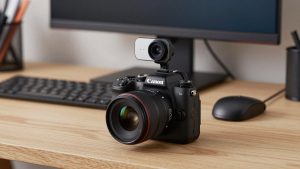
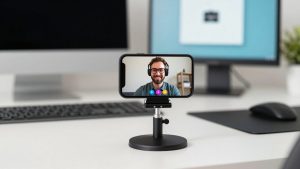
Yes as a backup, but not as a daily driver for most office workers. Phone-as-webcam over USB is sharp but drains battery, overheats on long calls, and interrupts with notifications. Mirrorless looks great but needs dummy battery power, HDMI capture, and more troubleshooting. A dedicated USB webcam you can leave plugged in wins on reliability.
Why does my video stutter only in Teams?
Usually USB bandwidth, background effects, or CPU load, not the camera itself. Plug directly into the laptop, turn off HD background blur, close the camera vendor app, and in Teams lower the camera resolution from 4K to 1080p. On older Macs and ultrabooks, running Teams, Outlook, and screen share together can throttle video before audio.
Related Reviews & Guides

Best Monitor for MacBook Pro: Eight Listings Sorted by Cable, Sharpness and Scaling
Best 4K Camera for Video Conferencing