Last Updated: October 18, 2026
Your MacBook Pro already has a camera, but if you live on Zoom, Teams, or Google Meet, you know its limits. It is fixed in place, mediocre in low light, and you cannot move it when you want a better angle or to show something on your desk. An external video camera fixes that, but Mac compatibility is where people get burned.
On macOS you do not need drivers for most modern USB webcams, but you do need to check for USB-C support, how the camera handles auto-exposure on a Mac, and whether its settings app actually runs on macOS. Many cameras advertise background blur, auto-framing, and manual controls that only work fully in Windows.
📄 In This Review
Start here: Use your iPhone before you buy anything
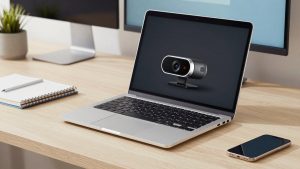
For many MacBook Pro owners, the best video camera is already in your pocket. Apple’s Continuity Camera lets you use a recent iPhone as your Mac webcam wirelessly or wired over USB. Image quality beats almost every sub-$150 webcam, especially in a home office with mixed window light.
It mounts to the top of your MacBook lid or on a small tripod, connects automatically when your iPhone is nearby, and works in Zoom, Teams, FaceTime, and OBS. You get Desk View for showing paperwork, Center Stage for auto-framing, and Portrait mode for background blur without extra software.
The trade-offs are practical. Your phone gets hot on long calls, battery drains fast if you stay wireless, and you cannot use your phone for notes while it is acting as a camera. Incoming calls interrupt video. If you take 3-4 hours of calls a day, a dedicated camera is less fiddly. For occasional calls, save your money and buy a MagSafe mount for Continuity Camera instead.
What actually matters for MacBook Pro
See also: Best Monitor for MacBook Air: Two USB-C 4K Screens and Six Adapter-Dependent Alternatives • Best Monitor for MacBook Pro: Eight Listings Sorted by Cable, Sharpness and Scaling
Ignore megapixels. For work calls, look at these four things. First, connection: MacBook Pros only have USB-C / Thunderbolt ports. A camera with a detachable USB-C to USB-C cable is ideal. If it ships with only USB-A, you will live with a dongle or dock.
Second, macOS settings support. Cheap webcams lock you at auto-exposure and auto-white-balance. That is fine in a bright office, but on a Mac you want a macOS app or browser-based controls to lock exposure, lower sharpness, and widen or narrow the field of view. Without it, you look blown out when a window is behind you.
Third, focus type. Fixed-focus 1080p cameras are more reliable for desk work because there is nothing to hunt. Autofocus models look sharper if you move around, but cheap autofocus breathes in and out during calls. That is distracting for interviewers and clients.
Fourth, microphone and mounting. You will sound better with AirPods, a USB headset, or a desk mic than with any webcam mic. Do not pay extra for a fancy mic array. Pay attention to the mount instead. A heavy camera with a weak clip will tilt forward on a thin MacBook lid, especially if you use an external monitor and have the lid at an angle.
The 3 practical options for most people
Most MacBook Pro users land in one of these buckets. This is where the cheaper option is often fine.
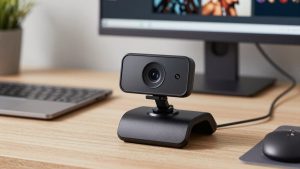
1. Basic 1080p USB webcam. This is right for students, job seekers, and anyone who mostly takes calls from a desk in decent light. Look for 1080p30, fixed or reliable autofocus, dual mics, a privacy shutter, and UVC compliance so it is plug-and-play on macOS. Failure mode: poor low-light performance and waxy skin tones if your only light is overhead. Add a $20 desk lamp in front of you and you will look better than a 4K camera in a dark room.
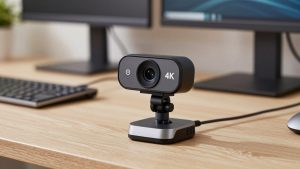
2. 4K webcam with larger sensor. Worth it if you present, teach, record Loom videos, or crop in to frame yourself tighter. The extra resolution helps less on live Zoom – Zoom compresses everything anyway – but it helps a lot for recorded video and for auto-framing without looking soft. Look for a model with a macOS settings app, tripod thread, and USB-C. When browsing, search for a 4K USB-C webcam for Mac and filter for ones that explicitly list macOS support. Failure mode: heat and USB bandwidth. Some 4K cameras run hot after 60-90 minutes and drop to 1080p if you plug them into an unpowered hub with a hard drive and headset.
3. Mirrorless or action camera as webcam. Only worth it if you already own the camera and want the best possible image for YouTube, webinars, or client-facing training. You connect over USB as a webcam or via an HDMI capture dongle. Quality is excellent with shallow depth of field, but setup is fiddly, batteries die, and some cameras overheat and shut off after 30 minutes. This is not a buy-it-for-Zoom upgrade unless video is your job.
| Option | Typical cost | Best for | Mac-specific watchout |
|---|---|---|---|
| iPhone as webcam (Continuity Camera) | $0-$30 for mount | Occasional calls, travel, best image for $0 | Phone heats up, cannot use phone during call, needs macOS Ventura or later |
| 1080p USB webcam | $40-$90 | Daily work calls, interviews, students | Check for USB-C cable; many settings apps are Windows-only |
| 4K USB webcam | $120-$200 | Presenters, teachers, creators who record | Needs direct USB-C port, not cheap hub; check macOS manual controls |
| Mirrorless / action camera + capture | $150+ if you own camera | Webinars, YouTube, high-end home studio | Overheating, battery limits, extra dongles and audio sync issues |
Setup mistakes that make a good camera look bad
Most bad MacBook video is not the camera. It is power, light, and placement. Plug the camera directly into your MacBook Pro or into a powered Thunderbolt dock. I have seen 4K cameras stutter, freeze, or drop to low resolution on bus-powered USB hubs, especially when a Time Machine drive is plugged into the same hub.
Light yourself from the front. Face a window or put a cheap daylight lamp behind your monitor. If the window is behind you, no webcam will save you – close blinds or move. Raise the camera to eye level. If you use your MacBook on a stand with an external monitor, do not leave the webcam pointing up your nose from desk level. Mount it on top of the external monitor where you actually look.
In Zoom and Teams on Mac, turn off auto-adjust and touch-up stacking. Pick one: either the camera app’s auto-framing or Zoom’s. Running both causes weird cropping where your hands disappear when you gesture. If your image looks too contrasty on Mac, lower exposure manually rather than adding brightness in Zoom, which just adds noise.
If you need to share papers, whiteboards, or demos, skip Desk View gimmicks and buy a small tripod and a longer USB-C cable. Being able to move a basic 1080p webcam with tripod mount off the laptop is more useful than 4K on the lid.
Who should buy what
Get nothing and use Continuity Camera if you take under five hours of calls a week, travel a lot, and already have an iPhone 11 or newer. Spend the money on lighting and a quiet room instead.
Buy a basic 1080p webcam if you take daily calls, interview for jobs, or work from a dim apartment. This is the sweet spot for 80 percent of home offices. Image is consistent, setup is plug-and-play, and if it breaks or walks away in a coworking space, it is cheap to replace.
Buy 4K only if you record video, teach, or present to clients and you have good light and a direct USB-C port. Do not buy 4K expecting Zoom to look 4x sharper. It will not. Buy it for flexibility to crop, better low-light sensors, and cleaner recordings.
FAQ
Do I need to install drivers on a MacBook Pro?
No, for most USB webcams. Look for UVC-compliant cameras – they show up in FaceTime, Zoom, Teams, and Photo Booth with no driver. You only need the maker’s app if you want to change field of view, autofocus, or exposure settings.
Will any USB webcam work with MacBook Pro USB-C ports?
Electrically yes with an adapter, but get a camera with a detachable USB-C cable if you can. Fixed USB-A cables plus cheap adapters are the most common cause of dropouts and cameras not waking from sleep on Macs.
Why does my external camera look worse than my iPhone?
Usually lighting and exposure. iPhones do aggressive computational processing. Webcams do not. Add front light, lock exposure if your camera app allows it, and set the camera to 1080p rather than forcing 4K over a weak hub.
Can I use two cameras at once on a Mac?
Yes in OBS, QuickTime, and many webinar apps, but Zoom and Teams generally use one camera at a time. If you need a face camera plus a document camera, plan to switch sources or use OBS Virtual Camera.