Last Updated: October 18, 2026
If your desktop doesn’t have a webcam built in, you have to choose one yourself. That’s actually an advantage. Most built-in laptop cameras are still 720p with tiny sensors and harsh processing. A decent $40-$80 external camera will look better on Zoom, Teams, and Meet, especially in a normal home office with mixed lighting.
The mistake people make is buying too much camera. 4K sounds better than 1080p, but on a desktop for work calls it often adds heat, CPU load, and autofocus problems without anyone on the other end seeing the difference. What matters more is the lens, the auto-exposure, the microphone pickup, and whether it stays put on your monitor.
📄 In This Review
What actually matters on a desktop
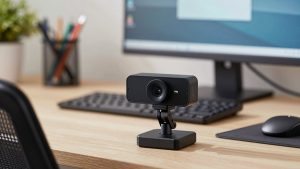
Desktops create a specific setup problem: you’re usually 2-3 feet from the screen, the monitor is large and often curved, and there’s no built-in mic or camera to fall back on. Prioritize a camera with a stable monitor clamp, a standard 1/4-inch tripod thread underneath, and a cable long enough to reach a tower on the floor — 5 to 6 feet is the practical minimum.
For image quality, look at sensor size and field of view more than the resolution number. A 1080p camera with a 1/2.8-inch sensor and good auto white balance will beat a cheap “4K” camera with a tiny sensor in a dim room. For work, 78 to 90 degrees diagonal is the sweet spot. Wider than 95 degrees and your face gets small, the room looks messy, and straight lines bend at the edges.
Autofocus is another trade-off. Fixed-focus 1080p cameras are boring but reliable: you sit down, you’re in focus, nothing hunts or pulses during a call. Autofocus models look sharper if you hold up a document or move around, but cheap autofocus is a common failure mode — it breathes in and out every time you lean back, especially under LED overheads.
The realistic options compared
See also: Best Monitor for MacBook Air: Two USB-C 4K Screens and Six Adapter-Dependent Alternatives • Best Monitor for MacBook Pro: Eight Listings Sorted by Cable, Sharpness and Scaling
Almost every office worker falls into one of these four buckets. Start here before you compare specs:
| Type | Best for | Strengths | Weaknesses |
|---|---|---|---|
| Basic 1080p fixed-focus | Daily Zoom / Teams, 4-6 hours of calls | Reliable focus, low CPU use, works on old PCs and Macs | Soft in low light, narrow dynamic range, basic mic |
| Mid-range 1080p / 1440p with good mics | Home office where webcam is your mic too | Better exposure, dual mics, privacy shutter, tripod thread | Costs more, 1440p often downscaled by meeting apps anyway |
| 4K autofocus | Presenters, coaches, creators who crop or record | Sharper recordings, digital zoom without falling apart | More heat, needs good light and USB 3.0, focus hunting on cheap models |
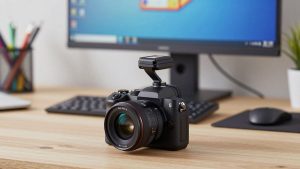
| Used DSLR / mirrorless as webcam | Perfectionists with lighting already | Best image by far | Expensive, complicated, overheats, overkill for meetings |
1080p is usually enough — here’s when it isn’t
Meeting apps compress aggressively. Zoom and Meet typically show you at 720p or 1080p even if you send 4K. For a head-and-shoulders shot from a desk, a clean 1080p webcam for desktop with solid exposure will look identical to 4K to your coworkers.
Buy up to 1440p or 4K for three reasons: you record locally and upload later, you want to crop in to hide your room, or you present and move around a whiteboard. If you do go 4K, plug it directly into a USB 3.0 port on the computer, not a cheap hub, and close other camera apps. Freezing, stuttering, and the camera going black mid-call are almost always bandwidth or power issues, not a broken camera.
Be honest about your light. No webcam fixes strong backlight from a window behind you. If your face is dark and the window is blown out, move the desk or close the blinds before you spend more. A $25 lamp in front of you does more than a $150 camera upgrade.
Mounting, placement, and the desktop annoyances
Monitor mounts look universal but aren’t. Thin gaming monitors, curved ultrawides, and monitors with no top bezel cause a lot of returns. The clamp either perches precariously or slowly tips forward during the day. Check for a folding clamp with rubber grip and a tripod thread. That thread is your escape hatch — you can put the camera on a small desktop tripod at eye level to the side, which is far more stable.
Eye level matters more than specs. Stacked on top of a 27-inch monitor, the camera often looks slightly down at you. That’s fine. What’s not fine is putting the tower PC’s USB ports three feet below and pulling the cable tight. A taut cable will slowly drag a lightweight camera off-center. Use the cable clip if one is included, and leave slack.
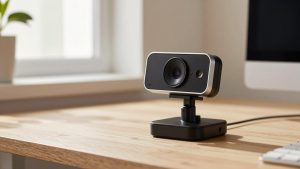
Privacy shutters are useful on a desktop because the camera always faces you. A physical sliding cover is better than a lens cap you’ll lose and better than software mute you’ll forget. The failure mode to watch: thin sliding shutters that jam with dust or snap off. A simple twist or thick slider lasts longer.
Microphone, Windows vs. Mac issues
On a desktop, the webcam is often the microphone by default. Dual mics with noise reduction are worth paying for if you don’t want a headset all day. They handle keyboard clicks and fan hum reasonably well, but they will still pick up a mechanical keyboard and an echoey room. If your room echoes, a sub-$50 USB headset will beat any webcam mic.
For Macs, stick to UVC-compliant cameras that need no driver — that’s most mainstream 1080p and 1440p models. Avoid cameras that require Windows-only software to unlock 4K, background blur, or auto-framing. You can still use the camera on a Mac, but you’ll be stuck at base settings.
For Windows desktops, background blur and auto-framing are increasingly handled by Windows Studio Effects or the meeting app itself. Don’t pay extra for a camera app that duplicates what Teams or Zoom already does, unless you’ve tested that your CPU handles it without the fan spinning up.
What to buy for a desktop
For most office work: get a 1080p fixed-focus camera with dual mics, a physical shutter, and a tripod thread. It’s the cheapest option that doesn’t cause problems, and it’s genuinely fine for 90 percent of calls. Spend the savings on light and a stable mount.
If you take calls all day and hate headsets: step up to a mid-range 1440p model known for microphone quality. Look for a 1440p webcam with microphone and privacy shutter with stereo mics and adjustable field of view, so you can tighten the shot in a shared room.
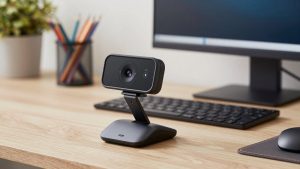
If your monitor won’t hold a clamp or you want eye-level video: buy the basic camera plus a separate short stand. A webcam with tripod stand for desktop setup avoids the most common desktop complaint — a wobbly, downward-angled image — and lets you move the camera when you switch from calls to recording.
Skip 4K unless you have a specific reason and a relatively new computer. And skip no-name 4K listings that don’t list sensor size, USB requirements, or actual frame rate at full resolution. “4K 30fps” over USB 2.0 with no brand support is where most bad reviews come from.
FAQ
Do I need 4K for a desktop computer?
No, for most video calls. Apps compress your video anyway. Get 4K only if you record locally, crop in heavily, or present on camera and need the extra detail.
Why does my new webcam look worse than my old laptop?
Usually lighting or placement. Check for a bright window behind you, clean the lens film many new cameras ship with, and set the meeting app to HD. Also try a direct USB port instead of a hub.
Can I use the webcam mic instead of a headset?
Yes for quiet rooms. For echoey rooms, loud keyboards, or back-to-back calls, a headset will sound clearer and tire you less. Webcam mics pick up everything on a desk.
Will any USB webcam work on both Mac and Windows?
Most 1080p and 1440p UVC cameras do, with no driver. Features like auto-framing or fine exposure control sometimes need Windows-only software, so check that before you buy for Mac.