Last Updated: October 18, 2026
The Mac Mini doesn’t have a built-in camera or microphone, so you start from zero. That’s actually an advantage: you’re not paying for a mediocre laptop webcam, and you can pick exactly what you need for your desk, monitor, and lighting. But it also means compatibility, mounting, and audio matter more than they do on a MacBook.
For most Mac Mini owners who do Zoom, Teams, Meet, or FaceTime from a home office, a simple plug-and-play 1080p webcam is enough. Buy more only if you present a lot, record content, or sit in a tricky lighting situation.
📄 In This Review
What makes a webcam good for Mac Mini
Mac Mini sits under or beside a monitor, often connected through a dock or hub. Look for a camera that is UVC-compliant — meaning it works with macOS without drivers. Practically every major USB webcam now is, but avoid anything that requires a Windows-only app to enable 4K, autofocus, or noise reduction. On a Mac you want those features to work in hardware or be optional.
USB connection matters more than specs sheets suggest. If you run the camera through a cheap USB hub with an external drive and Ethernet, you can get stutter or dropouts at 4K. A direct USB port on the Mini, or a powered Thunderbolt dock, fixes most of those complaints. USB-C to USB-A adapters are fine, but keep the cable short if you can.
Mounting is the other Mac Mini-specific issue. Most webcams include a clip meant for a thin laptop lid. On a thick 27- or 32-inch monitor it wobbles or slips. Look for a clip with a tripod thread underneath so you can use a small desktop tripod or monitor light-bar mount instead. If your monitor is wall-mounted or on an arm, a tripod is almost always steadier.
Which type to buy for a Mac Mini
See also: Best Monitor for MacBook Air: Two USB-C 4K Screens and Six Adapter-Dependent Alternatives • Best Monitor for MacBook Pro: Eight Listings Sorted by Cable, Sharpness and Scaling
There are really three sensible paths: a basic 1080p camera, a higher-resolution camera with better low-light handling, or using an iPhone you already own.
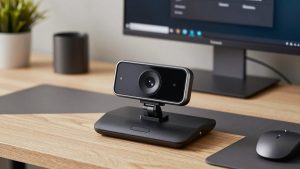
1. Basic 1080p webcam: best for most desk workers. If your calls are 30-60 minutes a day in a reasonably lit room, this is the honest sweet spot. You get 1080p/30, fixed or basic autofocus, dual mics, and a privacy shutter. Failure mode: small sensors struggle in warm evening light and backlight from a window behind you. Faces look grainy and auto-exposure pumps up and down. Fix that with a $20 desk lamp in front of you before you spend more on a camera.
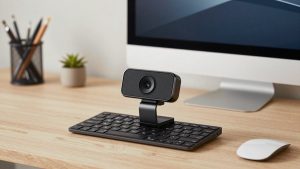
A simple 1080p webcam for Mac plugs directly into the Mini and shows up in Zoom, Teams, QuickTime, and Photo Booth with no setup. Good for: employees, students, anyone who wants calls to just work. Not good for: streaming, course creation, or very dark rooms.
2. 2K or 4K webcam with larger sensor: best for presenters. You don’t need 4K for Zoom — Zoom will compress it anyway — but the larger sensor and better lens that usually come with 4K models do help with sharpness, color, and low light. Many also offer Center Stage-like auto-framing and a wider field of view you can crop in software.
Trade-offs are real: higher resolution means more CPU load and more USB bandwidth, especially on older Intel Minis or when running through an unpowered hub. Autofocus can also hunt if you gesture a lot or have a busy bookshelf behind you. Some people prefer to lock focus and exposure manually. If you buy in this category, look for a 4K webcam with autofocus and a tripod mount so you have mounting options for a large monitor.
Good for: managers who present, coaches, sellers, creators who want one camera for calls and recording. Not worth it if: you sit in good light and rarely share video full-screen. The cheaper 1080p option will look almost identical to coworkers.
3. Use your iPhone as the webcam: best image quality if you already own one. Apple’s Continuity Camera lets a recent iPhone work as your Mac Mini’s wireless or wired webcam, with Center Stage, Portrait mode, Desk View, and Studio Light. In good light, an iPhone absolutely beats any $80-$200 webcam for detail and dynamic range.
The failure modes are workflow, not image. Your phone is tied up during calls, battery drains on wireless, and incoming calls or notifications can interrupt you. You also need a mount. A cheap clip slips; a proper MagSafe monitor mount for Continuity Camera centered on top of your display is far more stable and repeatable day to day.
Good for: occasional high-quality calls, interviews, or recording where you want the best look without buying another device. Not good for: all-day call schedules, shared family Minis, or if your iPhone is older and runs hot on wireless Continuity.
Quick comparison
| Option | Image in typical home office | Mic and audio | Biggest downside | Best for |
|---|---|---|---|---|
| 1080p USB webcam | Clean in daylight, grainy in dim rooms | Usable for calls, thin for recording | Struggles with backlight and low light | Everyday Zoom/Teams users |
| 2K/4K USB webcam | Sharper, better color and low light | Better mics, still not a headset | Needs good USB port, costs more, still compressed by apps | Presenters and creators |
| iPhone via Continuity Camera | Best detail and HDR | Use phone mics or separate USB mic | Phone is occupied, needs mount and charging | Best quality without new camera |
| 1080p camera + USB mic/headset | Same as basic, but sounds pro | Large upgrade in clarity | Two devices, more desk clutter | Home office workers on calls all day |
Don’t ignore audio and light
On a Mac Mini, audio upgrade matters more than 4K. Webcam mics sit 2-3 feet away and pick up keyboard, fan, and room echo. Coworkers will notice a $40 wired headset or a basic USB desk mic far more than a jump from 1080p to 4K. If you do eight calls a day, buy the cheap webcam and put the savings toward audio.
Lighting is second. Face a window if you can, or put a soft lamp behind the monitor aimed at your face. Avoid a bright window directly behind you — no webcam can fix that without making you a silhouette. If you can’t move desks, close blinds and use manual exposure lock in Photo Booth or your meeting app where available.
Field of view is worth checking. 65-75 degrees is flattering for one person at a desk. 90+ degrees is useful only if two people share the Mini or you want to show a whiteboard. Too wide at close distance makes your office look messy and your face small.
Setup tips for Mac Mini
Plug the camera directly into the Mini for first setup, then test it through your dock. Open FaceTime or Photo Booth to confirm video, then test mic in System Settings > Sound > Input. In Zoom and Teams, explicitly select the camera and mic — macOS sometimes defaults back to a monitor speaker or AirPods.
If video stutters at 4K, drop the app to 1080p. You lose almost nothing on a call but save a lot of bandwidth and heat. For wireless Continuity Camera, keep the iPhone plugged in with a short USB-C cable. It’s more reliable than Wi-Fi and keeps the battery full.
Privacy: pick a camera with a physical shutter or unplug when not in use. The Mini has no camera indicator of its own, so you rely on the webcam’s LED. A shutter removes doubt, especially in a shared room.
FAQ
Do I need drivers for a webcam on Mac Mini?
No, in most cases. Choose a UVC plug-and-play camera and it will work in macOS Sonoma, Sequoia, and later without extra software. Avoid cameras that need a Windows app for basic functions.
Is 4K worth it for Zoom and Teams on a Mac Mini?
Usually not for image size alone, since apps compress video. It can be worth it for better low-light performance, autofocus, and cropping flexibility, but a well-lit 1080p camera often looks the same to other people.
Can I just use my iPhone instead of buying a webcam?
Yes. Continuity Camera on a recent iPhone and Mac Mini gives excellent video with Center Stage and Desk View. Get a solid monitor mount and use a cable for long calls to avoid battery drain and dropouts.
Why does my webcam stutter on my Mac Mini?
Most often it’s the USB path. Try a direct port on the Mini instead of an unpowered hub, use the included cable, and lower resolution to 1080p. Close other high-bandwidth USB devices while testing.