Last Updated: October 18, 2026
📄 In This Review
Why Mac needs a different pick
Most webcams technically work on Mac because they use the standard UVC driver. Plug it in, open FaceTime, Zoom, or Teams, and you get video. The problem is everything around that: settings, firmware updates, auto-framing, background blur, and microphone tuning often live in Windows-only apps. On Mac you can get stuck with default settings you cannot change.
I test with MacBook Air and MacBook Pro on recent macOS versions, usually with Zoom and Teams running at the same time as Slack, Notion, and Chrome. That is where cheap webcams fall apart. Autofocus hunts, white balance drifts orange under warm home-office lights, and the mic picks up keyboard and fan noise. A good Mac webcam is not just sharp. It holds exposure steady, sounds acceptable without a separate mic, and does not require a Windows PC to set up properly.
What actually matters on Mac
See also: Best Monitor for MacBook Air: Two USB-C 4K Screens and Six Adapter-Dependent Alternatives • Best Monitor for MacBook Pro: Eight Listings Sorted by Cable, Sharpness and Scaling
First, check for real Mac support. Look for a macOS settings app or at least browser-based controls. If the manufacturer only offers .exe software, you cannot update firmware, turn off aggressive beauty filters, adjust field of view, or disable auto-focus hunting. Some cameras remember settings from Windows, but that is a poor workaround if you only own a Mac.
Second, prioritize 1080p done well over 4K done poorly. MacBook screens make softness obvious, but they also expose noise, over-sharpening, and bad low-light handling. A clean 1080p sensor with good auto-exposure will look better in a dim home office than a cheap 4K sensor that needs a lot of light. Get 4K only if you crop in for framing, want to use digital zoom without falling apart, or record local video for YouTube and courses.
Third, think about USB ports and hubs. Most modern Macs are USB-C only. Many webcams still ship with USB-A cables. That means a dongle, dock, or USB-C adapter in your daily chain. It works, but it is one more failure point. A detachable cable and standard tripod thread matter more than they sound like. Fixed cables break, and clip-only mounts wobble on thin external monitors.
Quick comparison
For work calls, there are really three lanes. Basic 1080p is fine for daily standups. Midrange 1080p to 2K with better lenses and mics suits managers, sales, and teachers who live on video. Full 4K or camera-as-webcam suits creators and anyone who records.
| Type | Typical image | Mac setup ease | Downsides | Best for |
|---|---|---|---|---|
| Basic 1080p USB webcam | Soft but clean in good light | Excellent, usually plug-and-play | Poor low light, narrow dynamic range, thin mic audio | Students, daily Zoom, second computer |
| Midrange 1080p/2K work webcam | Sharper, better color and low light | Good if macOS app exists | Costs more, features vary by brand | Home office, managers, coaches, support |
| 4K USB webcam | Detailed, allows cropping | Mixed, check Mac controls | Needs light, needs CPU, larger files | Recording, streaming, presentations |
| Mirrorless/DSLR as webcam | Best blur and low light | More setup, extra software | Expensive, heat, HDMI/USB quirks | Creators who already own camera |
Best for daily calls: a simple 1080p webcam
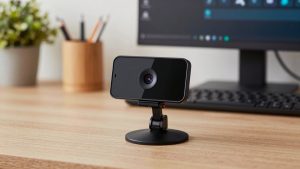
If you do 2-4 calls a day and just need to look clear, the cheaper option is fine. A basic 1080p webcam with fixed focus or simple autofocus, dual mics, and a privacy shutter covers 80 percent of office work. In daylight or with a desk lamp in front of you, you will look better than the built-in MacBook camera, especially on external monitors where you otherwise stare off to the side.
Failure mode to know: fixed-focus models are sharp at arm’s length and soft if you lean back. Cheap autofocus models do the opposite and breathe in and out during calls. Also expect the mic to sound hollow in an empty room. It is usable for work, but clients will hear echo if you are far from the camera. Sit within 2-3 feet and face a light source.
Who should buy this: students, assistants, anyone buying three for a team, or anyone who uses a MacBook with the lid closed and just needs an eye-level camera on a monitor. Shop for a basic 1080p webcam for Mac with a physical shutter and USB plug-and-play, and skip extras like AI tracking at this price. Tracking usually crops and jitters.
Best for home office: midrange 1080p or 2K with Mac controls
If video is your job — managing, selling, teaching, telehealth admin, customer calls — step up one level. The difference is not resolution on paper. It is a larger sensor, better auto-exposure, and less aggressive sharpening. Faces look natural instead of waxy, glasses do not blow out, and background windows do not turn you into a silhouette as quickly.
This is where Mac software support pays off. You want to set field of view to 65-78 degrees for a home office so the room does not show, turn off auto-framing if it wanders, and lock white balance if your office has warm bulbs. Without those controls, you live with defaults. I have seen otherwise good cameras default to 90-degree wide view on Mac, which makes you small and shows laundry, doors, and clutter.
Failure modes: noise reduction that smears motion when you gesture, mics that over-suppress and clip the start of sentences, and mounts that do not grip curved monitor backs. Look for a tripod thread so you can put it on a small desk tripod at eye level. That one change improves eye contact more than any sensor upgrade.
Who should buy this: remote workers on calls 4+ hours a day. A midrange work webcam with microphone that lists macOS in the specs is usually the sweet spot for price versus daily reliability.
Best for recording and presenting: 4K or use a real camera
Get 4K if you record Loom videos, teach courses, or present to large groups and want to crop tighter without going soft. Good 4K webcams also handle backlight a bit better and give you room to center yourself in post. The trade-off is light hunger and CPU load. On an M1/M2/M3 MacBook Air, 4K plus background blur plus screen share can heat the machine and drop frames, especially through a hub.
A common disappointment: buying 4K and leaving it in auto everything in a dark room. You get noisy, laggy 15 fps video that looks worse than 1080p at 30 fps. If you go 4K, add a $25-40 LED panel in front of you and run the camera at 1080p for live calls, saving 4K for local recording. Also confirm the camera can do firmware updates on Mac. Early 4K models shipped with focus bugs that were only fixable on Windows.
Alternative worth considering: if you already own a mirrorless camera, using it as a webcam beats any USB webcam for blur, low light, and color. But do not buy a $700 camera just for Zoom. You add batteries, heat limits, HDMI capture quirks, and another mic to manage. It is excellent for creators, overkill for standups.
Who should buy this: creators, founders recording demos, and trainers. Look at a 4K webcam for Mac with USB-C only if you have good light and a Mac with headroom, otherwise stay midrange and spend the difference on lighting.
What to avoid on Mac
Avoid any webcam where Windows-only software is required to turn off core annoyances like autofocus hunting, auto-zoom, or heavy skin smoothing. Reviews will mention it quickly. Also avoid obscure 4K cameras with no macOS mention and no detachable cable. When that cable frays, the whole camera is trash.
Do not rely on digital background blur to fix a bad sensor. On Mac, Zoom and Teams blur is good now, but it still exposes edge flicker around hair if the source is noisy. A cleaner 1080p feed with real light behind the camera keys out better than a noisy 4K feed in the dark. And if privacy matters, get a physical shutter. Software off switches in menu bar apps are easy to misread before a meeting.
For audio, assume you will upgrade later. Even good webcam mics are 2-3 feet away and pick up room echo. They are fine to start. If people ask you to repeat yourself, move closer first, then add a USB headset or desk mic before blaming the camera.
FAQ
Do I need drivers for a webcam on Mac?
Usually no. Most use UVC and work plug-and-play in FaceTime, Zoom, Teams, and Chrome. You may need the maker’s Mac app for settings and firmware updates, which is worth checking before you buy.
Why does my webcam look worse on Mac than Windows?
Often it is default settings. Without the Windows tuning app, exposure, wide field of view, and beauty filters stay on. Better front light and a camera with macOS controls usually fixes it.
Is 4K worth it for Zoom on Mac?
For live calls, usually not. Zoom compresses heavily and 1080p with good light looks cleaner with less CPU load. 4K helps if you record locally or crop in.
Can I use my iPhone as a Mac webcam?
Yes, Continuity Camera works well and often beats cheap USB webcams in detail. The trade-offs are mounting, battery drain, and occasional disconnects. For a permanent desk setup, a dedicated USB webcam is more reliable.