Last Updated: October 18, 2026
Zoom is unusually forgiving and unusually revealing at the same time. It compresses everything to 720p or 1080p for most calls, so a super-sharp sensor won’t save you. But it also holds on your face for an hour straight, so bad exposure, noisy low-light image, and stuttery frame rate get tiring fast.
For most home office workers, the right upgrade is not the most expensive webcam. It’s the one that handles your specific room, your laptop, and how you sit. Here’s how to choose without overbuying.
📄 In This Review
What Zoom actually needs
Zoom tops out at 1080p, and group gallery view is often much lower. That means lens quality, autofocus behavior, and auto-exposure matter far more than 4K on the box. A clean 1080p image at 30 fps with accurate skin tones will look better than a soft, over-sharpened 4K feed that Zoom compresses anyway.
Prioritize three things: stable focus at desk distance (about 2-3 feet), handling of backlight from windows, and a microphone that doesn’t pick up your whole room. If your calls are mostly one-on-one from a laptop at a desk, you don’t need wide-angle, auto-tracking, or a large sensor.
The most common failure mode I see is autofocus hunting. The camera looks sharp for five seconds, then pulses soft when you lean back or gesture. The second is overexposure: you sit in front of a window, your face goes dark, and no resolution upgrade fixes that. A webcam with good HDR or backlight compensation helps, but moving the light helps more.
Quick comparison: which type suits Zoom work
See also: Best Monitor for MacBook Air: Two USB-C 4K Screens and Six Adapter-Dependent Alternatives • Best Monitor for MacBook Pro: Eight Listings Sorted by Cable, Sharpness and Scaling
| Type | Best for | Strengths | Watch out for |
|---|---|---|---|
| Built-in laptop camera | Occasional calls, travel | No setup, always with you | Poor low light, low angle, fixed grainy image |
| Basic 1080p webcam | Daily Zoom from a desk | Cheap, reliable focus, better color than built-in | Struggles in dim rooms, narrow dynamic range |
| Mid-range 1080p / 2K with larger sensor | Home office, low light, Mac users | Cleaner image in evening light, better mics, USB-C options | Costs 2-3x basic, needs decent lighting to shine |
| 4K webcam | Presenting, recording, cropping | Sharper local recording, digital zoom without mush | Zoom compresses it anyway, needs good CPU and USB bandwidth |
If you just want to look normal on Zoom: get a basic 1080p webcam
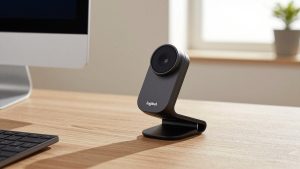
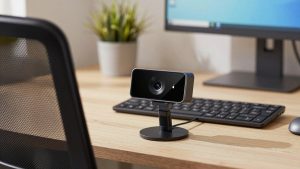
For a bright or average home office, the cheaper option is genuinely fine. A simple basic 1080p webcam for Zoom on top of your monitor will beat almost any built-in laptop camera, especially older MacBook Air and budget Windows laptops.
What you gain is eye-level framing, more natural color, and less noise. What you don’t get is miracles in a dark room. If your office is a dim corner at 7pm, a $40 camera will still look grainy. Spend the difference on a $25 LED panel behind your monitor first.
Choose fixed-focus if you sit still and want zero hunting. Choose autofocus if you move around, show documents, or lean in and out. For laptops, check the mount: clip mounts slip on thin MacBook lids, so look for a flat bottom that also sits on a tripod or monitor shelf.
Failure mode: cheap autofocus models can click or buzz audibly while refocusing. If your mic is the webcam mic, Zoom will broadcast that. Test with a 2-minute recording before an important call.
If you work from home full-time: step up to better low light
Full-time callers should buy for 4pm in winter, not 10am in summer. A mid-range camera with a larger sensor and better noise reduction holds skin tone together when the room goes warm and dim. This is also where Mac users should pay attention to compatibility.
Many mid-range cameras work plug-and-play on Mac over USB-C, but advanced features like background blur, manual focus, or firmware updates often require Windows software. If you use a MacBook for work, verify that auto-focus, auto-exposure, and mic selection work without the vendor app. Most do for basic video, but don’t assume.
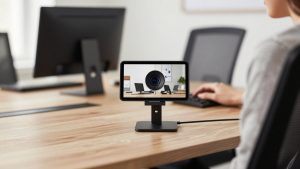
A good upgrade here is a low-light 2K webcam with USB-C that supports 1080p at 60 fps. You don’t need 60 fps for Zoom, 30 fps is smoother for screen sharing, but 60 fps helps if you gesture a lot or have shaky desk mounts.
Who this suits: managers, coaches, therapists, and anyone on camera 3+ hours a day. Who can skip it: if your room is well lit and your current image is already clear, save the money.
If you present, teach, or record: consider 4K for cropping
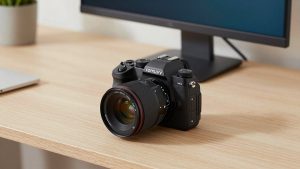
4K makes the least difference live on Zoom, but the most difference if you record locally, crop in to hide a messy room, or use digital pan-and-zoom to follow a whiteboard. In those cases, starting with more pixels gives you cleaner 1080p after the crop.
The trade-off is system load. 4K over USB needs a direct USB 3.0 port, not an old hub, and older laptops will drop frames or run fans loudly. If your laptop is 5+ years old, a clean 1080p feed will look more professional than a stuttery 4K feed.
If that fits your work, look at a 4K autofocus webcam for home office with a 75-90 degree field of view. Avoid ultra-wide 120-degree models unless you need to fit 3-4 people; for solo calls, wide angle just makes you small and shows more background.
Failure mode: aggressive digital auto-framing can crop at the wrong moment during screen share or when someone walks behind you. If you present, turn tracking off by default and only enable it when you need it.
Setup matters more than the camera
Before you return a webcam, fix these three things. First, put the camera at eye level. Stack your laptop or use a monitor mount. Looking down at a laptop camera adds double chins and ceiling fans to every call. Second, face your light source. A window or lamp behind your monitor beats any HDR mode. Third, in Zoom go to Settings – Video and uncheck Touch up my appearance if your image looks waxy, and check HD if your plan and bandwidth allow it.
For audio, don’t assume the webcam mic is best. Webcam mics sit 2-3 feet away and pick up keyboard and room echo. They are fine for quick check-ins, but for daily standups a wired earbud or USB headset will make you easier to understand. In Zoom, set Noise Suppression to Low or Auto, not High, unless you have constant background noise; High can clip the start of words.
FAQ
Do I need a 4K webcam for Zoom?
No, for most Zoom calls. Zoom typically displays you at 720p to 1080p, so a good 1080p camera with solid exposure looks the same or better live. Get 4K only if you record locally or need to crop and zoom digitally.
Why do I look dark when I sit in front of a window?
The camera exposes for the bright window, not your face. Close blinds, move 90 degrees to the window, or add a lamp behind your monitor. Backlight compensation helps, but changing the light position works better.
Will any webcam work with Mac?
Most USB webcams work for basic video and mic on Mac without drivers. What often doesn’t work is the vendor’s tuning app for effects, manual controls, and firmware updates, which may be Windows-only. Check that before you buy if you need those features.
Why does my video freeze when I share screen?
Usually CPU or USB bandwidth, not Zoom. Try a direct USB 3.0 port instead of a hub, drop the camera to 1080p30, close the vendor effects app, and turn off HD video and virtual background blur during heavy screen shares.