Last Updated: October 18, 2026
📄 In This Review
Why laptop cameras still fall short
Most built-in laptop cameras are still 720p, with tiny sensors, fixed exposure, and a lens tucked into a thin lid where there is no room for good optics. In daylight they look passable. In a home office at 8am or 5pm, they turn grainy, blow out the window behind you, and make you look washed out on Zoom, Teams, and Meet.
An external HD webcam does not need to be expensive to fix this. What you are paying for is a larger sensor, better auto-exposure, and a lens position you can control. For work calls, that matters more than chasing 4K on the box. A clean, stable 1080p image with good microphones and no dropped frames will make you look more professional than a high-resolution camera that stutters or hunts for focus.
What HD actually means for calls
See also: Best Monitor for MacBook Air: Two USB-C 4K Screens and Six Adapter-Dependent Alternatives • Best Monitor for MacBook Pro: Eight Listings Sorted by Cable, Sharpness and Scaling
Video apps compress heavily. Zoom and Teams typically show you at 720p to 1080p even if your camera can do more. That is why resolution alone is a bad way to shop.
What actually changes how you look: sensor size and low-light performance, autofocus versus fixed focus, field of view, and how the camera handles backlight. A good 1080p webcam with autofocus and decent dynamic range will beat a cheap 4K webcam in a dim room almost every time. Higher resolution helps if you crop, use digital zoom, or want sharper stills for recording, but for daily calls it is secondary.
Also check frame rate at full resolution. Many cameras do 1080p at 30fps but drop to 15fps in low light or when you switch to higher resolution. For work, 30fps at 1080p is the sweet spot. Anything below 24fps looks choppy when you gesture or turn your head.
Compare the main options
For laptop use, there are really four buckets. This is how they trade off in practice:
| Type | Best for | Strengths | Weak spots |
|---|---|---|---|
| Basic 1080p fixed-focus | Budget work calls, students | Cheap, plug-and-play, light on old laptops | Soft up close, weak in low light, narrow adjustments |
| 1080p with autofocus | Most home offices | Sharper face tracking, better exposure, good mics | Can hunt for focus if you move a lot |
| 1440p / 2K | Recording, cropping, large monitors | More detail, better digital zoom | Needs good light and USB bandwidth; often cropped by apps |
| 4K with auto-framing | Presenters, creators | Sharpest image, follows you, best mics | Pricey, heavier, can tax older laptops, overkill for Zoom |
Best value for most people: 1080p with autofocus
If you do two to six hours of calls a day from a laptop, this is where to stop looking. A mid-range 1080p autofocus webcam gives you the biggest visible jump over a built-in camera without adding setup headaches.
Autofocus matters because you move. You lean in to read, lean back to think, hold up a notebook. Fixed-focus cameras are set to be sharp at about 2-4 feet. If you sit closer with a laptop on a low desk, your face can look slightly soft all day. Autofocus keeps eyes and text sharper, though cheaper implementations can pulse in and out if you have a busy background like a bookshelf. If you fidget, sit 2-3 feet back and turn off any beauty or auto-framing effect first. That fixes most hunting.
Failure mode to know: poor low-light behavior. Many 1080p cameras boost brightness by slowing the shutter, which causes motion blur and lag. If your office is dark, add a $20 desk lamp bounced off the wall in front of you before you blame the camera. No sensor can fix a backlit silhouette from a bright window behind you.
When the cheap option is fine
If your calls are mostly internal check-ins and your lighting is decent, a basic 1080p webcam for laptop is honestly enough. The image will not be cinematic, but it will be stable, in focus at desk distance, and far less noisy than a three-year-old built-in camera.
Choose fixed-focus if you hate fiddling with settings, use an older laptop, or share the camera between family members for school calls. They use less processing power, work reliably over USB-A hubs, and have fewer drivers to go wrong. Just avoid the cheapest no-name 1080p listings that are really upscaled 720p sensors. Signs of that trick: no real brand support page, 1080p only at 15fps, and reviews mentioning very dark image or plastic mount that will not grip a thin laptop lid.
You should skip cheap if you present to clients, teach, or record. Fixed-focus softness is unforgiving when someone pins your video full-screen.
When to step up to 2K or 4K
Step up only for a specific reason: you record tutorials, you crop in to hide a messy room, or you sit farther from the laptop when using an external monitor and keyboard. A 2K 1440p webcam for home office gives you headroom to use a tighter digital zoom without turning mushy.
Trade-offs are real. 1440p and 4K need more light to look clean, more USB bandwidth, and more CPU for background blur. On a 4-5 year old laptop, especially a fanless ultrabook or older MacBook Air, you may see the fan spin up or Teams drop you to 720p anyway. If that is your machine, you are paying for resolution you will never send.
Auto-framing on higher-end 4K cameras is useful if you stand and whiteboard, but distracting for seated calls. It can slowly drift or reframe when someone walks behind you. Most office workers are better off locking the frame at 78-90 degrees and leaving it alone. Wider than 90 degrees pulls in too much room and makes you small in the frame.
Laptop fit matters more than specs
A webcam for a desktop is forgiving. A webcam for a laptop is not. Check three things before you buy.
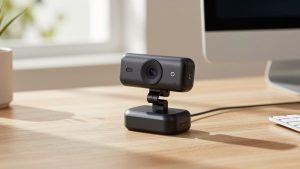
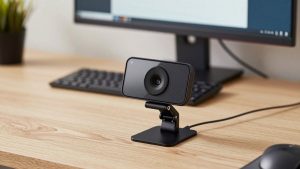
First, the mount. Thin laptop lids, especially on MacBooks and ultrabooks, need a clamp with a lip that actually hooks, not just a heavy fold that balances on top. If you use the laptop on your lap or on a wobbly kitchen table, a shallow mount will tilt down every time you type. A tripod thread is a bonus because a $12 mini tripod often gives a better angle than perching on the lid.
Second, cable length and USB type. Many laptops now only have USB-C. A short USB-A cable with no adapter means another dongle hanging off the side. Look for a 4-5 foot cable and native USB-C or an adapter in the box.
Third, Mac compatibility. Most UVC webcams work on macOS without drivers, but companion apps for zoom, exposure, and firmware updates are often Windows-only. If you are on a Mac, assume you will get plug-and-play but not the full tuning app. That is another reason to prefer a camera that looks good with defaults. Also test the mic selection in Zoom settings – macOS will sometimes keep using the MacBook mic after you plug in USB audio.
Privacy shutters, lens caps, and mute behavior also matter on a laptop you carry around. A built-in sliding shutter beats a loose cap you will lose. Mics that light up when live prevent the classic hot-mic moment in a coffee shop.
FAQ
Is 1080p enough for work calls in 2026?
Yes for almost everyone. Teams, Zoom, and Meet compress video so aggressively that a clean 1080p feed looks the same as 4K to most viewers. Spend on low-light quality and a stable mount instead of extra pixels.
Why do I look grainy even with an HD webcam?
Usually low light or backlight. Face a window or put a lamp in front of you, not behind. Close blinds behind you, move 2-3 feet from the camera, and set exposure to prioritize your face, not the background.
Do I need a 4K webcam for an external monitor setup?
Not unless you record or use heavy digital zoom. If you sit 4-5 feet from the laptop while docked, a 2K camera with a narrower field of view will frame you better than 4K with a fisheye look. Check CPU load before keeping it.
Will any USB webcam work with MacBooks?
Almost all modern webcams use UVC and work on Mac for video and mic without drivers. Advanced features like AI framing controls or firmware updates may require Windows. Buy a model that looks good out of the box if you do not want to tweak.