Last Updated: October 18, 2026
📄 In This Review
What Mac needs from a webcam
Macs are picky in a specific way. Most modern webcams will work when you plug them into a MacBook Air, MacBook Pro, Mac mini, or iMac, but working and working well are different things. macOS handles basic UVC webcams without drivers, which is good. The problems show up in the software around it: no settings app for Mac, auto-focus that hunts on Zoom, microphones that sound hollow, and 4K modes that stutter on older Intel Macs.
If you use Zoom, Teams, Meet, Webex, or FaceTime for work, prioritize three things in this order: reliable autofocus and exposure, a decent microphone with noise reduction, and a field of view that fits your room. Resolution comes fourth. A stable 1080p image with good light handling will look better to coworkers than a noisy 4K image in a dim home office.
First, try your iPhone before you buy
See also: Best Monitor for MacBook Air: Two USB-C 4K Screens and Six Adapter-Dependent Alternatives • Best Monitor for MacBook Pro: Eight Listings Sorted by Cable, Sharpness and Scaling
For many Mac users, the best camera is already in a pocket. Apple’s Continuity Camera lets you use an iPhone XR or later as a Mac webcam, wirelessly or wired, on macOS Ventura and later. In practice, it beats almost every sub-$150 webcam for sharpness, skin tones, and low-light handling.
It is not perfect. Wireless mode can drop or overheat on long calls, battery drains fast, and you need a mount to hold the phone on your MacBook lid. Desk View and Center Stage are useful, but Center Stage can crop aggressively if you move around. If you take calls all day, a dedicated webcam is less fiddly. If you take two or three calls a week, buy a $15-20 phone mount and test Continuity Camera first. You may not need anything else.
The practical pick for most people: 1080p with good autofocus
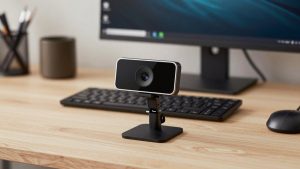
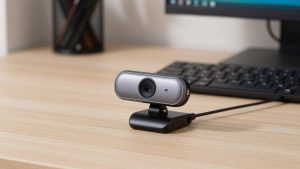
For home office work, a basic 1080p webcam with autofocus and dual microphones is enough. This is the category where the cheaper option is genuinely fine. You sit 2-3 feet from the screen, you have reasonable light, and you want to look clear without tweaking settings.
What to look for: autofocus, not fixed focus. Fixed-focus cameras are fine for a single user at a fixed distance, but if you lean back, hold up a document, or share a desk, you will go soft. Also look for a 78- to 90-degree field of view. Wider than 95 degrees will make a home office look cavernous and bend bookshelves at the edges. A privacy shutter and a tripod thread are small details you will appreciate later.
Failure modes are consistent in this price range. Cheap models overexpose windows behind you, turning you into a silhouette. Many boost sharpness too much, so hair and sweaters shimmer. Microphones pick up keyboard clatter. Test with your actual setup: sit where you work, turn on your desk lamp, and record a 30-second clip in QuickTime Player before an important call. A simple 1080p webcam for Mac with autofocus covers full-time remote workers, students, and anyone on a laptop who just wants to look presentable on Teams.
When 4K makes sense: presenters, coaches, creators
4K on Mac is useful for two reasons, neither of which is sending 4K to Zoom. Most meeting apps still deliver 720p or 1080p to other people. The benefit is better digital zoom and better downscaling. You can crop in to frame your face tightly and still look sharp, which helps if your desk is deep or you record Loom videos and courses.
The trade-offs are real. True 4K at 30fps needs good light and a recent Apple Silicon Mac to avoid dropped frames. Many cheap 4K-labeled cameras use small sensors that look worse in low light than a good 1080p sensor. Files are larger if you record locally, and autofocus hunting is more visible at higher resolution.
This suits managers who present, therapists and coaches who want a calm, detailed image, and anyone who records as well as meets. If you buy in this tier, get a model with large pixels or a stated low-light mode, and plug it directly into the Mac, not through a cheap USB hub. Look at a 4K webcam for MacBook with autofocus only if you have decent lighting or are willing to add a $25 LED panel.
| Setup | Best for | Strengths | Weaknesses |
|---|---|---|---|
| iPhone as webcam via Continuity Camera | Occasional calls, travelers, MacBook users | Best image quality for the money, great low light, no extra camera to carry | Needs mount, drains battery, can overheat on 90+ min calls |
| 1080p autofocus webcam | Daily Zoom/Teams, home office, students | Reliable, cheap, easy on older Macs, good enough mics | Struggles with backlight, no useful zoom, plastic look in dim rooms |
| 4K webcam with zoom/crop | Presenters, coaches, course creators | Tighter framing, sharper recordings, better future-proofing | Needs light and Apple Silicon for best results, costs more |
| Built-in MacBook / iMac camera | Quick FaceTime, backup option | Always there, Center Stage on newer models, fine in bright rooms | Fixed angle, weak in low light, unflattering top-down look on laptops |
Is the built-in Mac camera enough?
On newer MacBook Pro and iMac models with 1080p or 12MP Center Stage cameras, yes for casual use. In daylight, they look natural and the microphones are surprisingly good. In evening home-office light, they fall apart fast: soft detail, visible noise, and exposure that pumps when you move.
The bigger issue is angle. A laptop camera points up your nose unless you raise the MacBook to eye level. If you stay with the built-in camera, put the laptop on a stand and use an external keyboard. That $30 change improves how you look more than any camera upgrade.
Audio, lighting, and mounting matter more than specs
Every webcam test I have done ends the same way: a $70 webcam with a window in front of you and a quiet room beats a $200 webcam with a window behind you and a humming fan. Face a window or put a soft lamp behind your monitor. Do not sit with a bright window or kitchen lights directly behind your head.
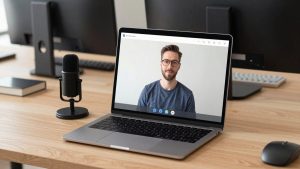
For audio, built-in webcam mics are usable for internal meetings, but they pick up room echo. If clients hear you all day, use AirPods, a USB headset, or a small desk mic. For mounting, MacBook lids are thin. Heavy webcams droop. Choose a light camera with a grippy clip, or use a mini tripod behind your laptop for an iMac or Studio Display setup. If privacy matters in a shared house, get a physical shutter. Tape works, but shutters are cleaner and remind you when you are live.
Shoppers who want that all-in-one setup should filter for a Mac compatible webcam with microphone and privacy shutter to avoid models that require Windows-only software to enable basic features.
What to avoid on Mac
Avoid any webcam that requires a Windows .exe to install firmware or unlock 4K, noise removal, or autofocus controls. Check the support page before you buy: if there is no macOS app or browser-based settings page, assume you get defaults only. Avoid 60fps 1080p claims on very cheap models; on Macs that often means high compression and worse low light. Avoid ultra-wide 120-degree action-style cameras for desk work unless you are filming a whole room. You will look tiny and distorted.
Also avoid plugging a 4K camera into an old USB 2.0 hub or a monitor passthrough along with a hard drive and Ethernet adapter. On older Intel MacBook Airs especially, that is how you get stutter and disconnects. Direct port first, hub second.
FAQ
Do I need drivers for a webcam on Mac?
No for most webcams. If it says UVC-compliant, macOS should recognize it in Zoom, Teams, Meet, and Photo Booth without drivers. You may lose access to advanced settings if the maker only offers a Windows app.
Why does my external webcam look worse than my iPhone?
Sensor size and processing. iPhones have much larger sensors and stronger image processing than most webcams. Add light in front of you, set exposure manually if you can, and sit closer. If image quality is critical, use Continuity Camera.
Is 4K worth it for Zoom and Teams?
Usually not for live calls alone, since the app compresses video anyway. It is worth it if you record videos, need to crop in, or want a sharper 1080p downscaled image. Good lighting helps more than extra pixels.
My Mac does not see the webcam. What should I check?
Try a direct USB port, not a hub. Close other apps using the camera, check System Settings Privacy and Security Camera permissions, then test in Photo Booth. If it works there but not in Chrome, allow camera access in the browser site settings.