Last Updated: October 18, 2026
If you landed here after searching for “Wirecutter computer camera,” you probably want a short, trustworthy answer: which webcam should I buy for work and not think about again? Wirecutter’s computer camera coverage has been consistent for years. They favor simple, reliable 1080p USB webcams with good auto-exposure and dual microphones, and they steer most people away from 4K unless you specifically need to crop or present.
That advice still holds up from detailed research in home offices. For Zoom, Teams, Meet, and Webex, exposure handling and microphone clarity matter far more than raw resolution. A camera that keeps your face bright without blowing out a window behind you will look better every day than a higher-resolution sensor with jumpy autofocus.
📄 In This Review
What Wirecutter gets right about computer cameras
The core Wirecutter position is practical: get a fixed, clip-on USB webcam from an established maker, plug it in directly, and leave the settings alone. That avoids the two most common failure modes we see with work webcams — software that fights with Teams or Zoom, and autofocus that hunts every time you lean forward to type.
In practice, that means a 1080p camera with a 60 to 78-degree field of view, autofocus or well-tuned fixed focus, and a physical shutter. Wider than 90 degrees sounds nice, but in a small home office it shows your laundry, your doorway, and makes you look small at the other end. Narrower looks more natural for one person at a desk.
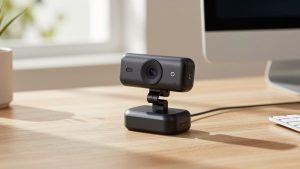
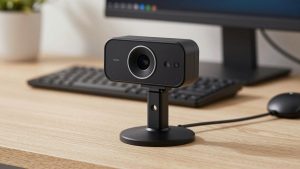
If you want the same type of pick without chasing a specific model year, start with a basic 1080p USB webcam for work and filter for a physical shutter and tripod thread. Those two details tell you a lot about whether it was designed for daily calls rather than one-time streaming.
When your built-in laptop camera is fine
See also: Best Monitor for MacBook Air: Two USB-C 4K Screens and Six Adapter-Dependent Alternatives • Best Monitor for MacBook Pro: Eight Listings Sorted by Cable, Sharpness and Scaling
The cheaper option is fine more often than webcam roundups admit. If you take two to three calls a week in a bright room, a recent MacBook, ThinkPad, XPS, or Surface camera at 1080p is good enough. Your money is better spent on light and a stable mount than on a new sensor.
Upgrade to an external camera when you have one of these problems consistently: your face is dark because a window is behind you, your image turns grainy after 4 p.m., coworkers say you cut in and out, or your laptop is docked closed in clamshell mode and you have no camera at all. Those are the situations where an external camera with a larger lens and better auto-exposure actually pays off.
Do not upgrade if your main complaint is that you look tired or washed out. That is almost always overhead lighting and white balance, not resolution. Move your desk to face a window, or add a small daylight LED panel at eye level behind your monitor, before you buy anything.
Built-in vs. 1080p vs. 4K: concrete trade-offs
Think in three buckets. Most office workers should stay in the middle bucket. The right bucket is a specialized tool, not a better version of the middle.
| Type | Best for | Strengths | Failure modes |
|---|---|---|---|
| Built-in laptop camera (720p-1080p) | Light call load, travel, hot-desking | No setup, no USB issues, always aligned | Poor low light, fixed angle, unusable when docked closed |
| External 1080p USB webcam | Daily Zoom/Teams from home office | Better exposure, better mics, shutter, works with monitor mount | Cheap models have harsh sharpening; some mics pick up keyboard |
| External 4K webcam | Presenting, training, cropping to whiteboard | Sharper crop, more detail in good light | Needs strong light and USB 3.0; can expose weak office upload; heavier CPU load |
| Mirrorless / action cam as webcam | Creators, all-day teaching | Best image and background blur | Overheating, batteries, HDMI/USB software hassles, overkill for status meetings |
For most people on a work laptop, the sweet spot is still a mid-priced 1080p camera with autofocus you can turn off. Fixed focus is underrated for desk work — if you sit 24 to 36 inches away and do not move much, it never hunts, never breathes, and never decides your bookshelf is more interesting than you.
4K only makes sense if you will use the extra pixels. That means you record tutorials and crop in post, you demo products on a desk mat and need to punch in, or you sit far from the camera in a conference corner. For a standard head-and-shoulders call, Zoom and Teams compress you to 720p or 1080p anyway. Your coworkers never see the 4K.
Mac and laptop notes that actually matter
Mac users run into two specific issues. First, some webcam utility apps are Windows-only, so features like digital pan, background blur, and firmware updates may be unavailable on macOS. If you use a Mac, choose a camera that looks correct with no app installed. Plug it in, open Photo Booth or FaceTime, and check exposure before you install anything.
Second, USB hubs cause more webcam failures than any camera model. If your image freezes, drops to low resolution, or your mic stutters, plug the camera directly into the laptop or into a powered Thunderbolt dock, not into a monitor pass-through port. This fixes a surprising number of returns.
Laptop stand users should also think about placement. A camera clipped to a 27-inch monitor at eye level looks far better than a camera staring up your nose from a laptop below. If you use a laptop on a stand plus an external monitor, put the external autofocus webcam for Mac laptop monitor use on the display where your eyes actually go. Set that display as your primary for calls so you are not looking sideways.
Setup matters more than the model
Across dozens of home office setups, the same pattern repeats: a 60 dollar webcam with good light beats a 200 dollar webcam in a dark room. Sit facing a window if you can. If you cannot, put a soft white light behind your monitor, slightly above eye level. Avoid a bright window or lamp directly behind your head.
Sound is half the purchase. External webcam mics beat laptop mics because they are closer and pointed at you, but they still pick up room echo and mechanical keyboards. If coworkers complain, move the camera within three feet, turn on noise suppression in Teams or Zoom, and type softer during screenshares. A dedicated USB headset or earbuds will still beat any webcam mic for all-day calls.
Mounting is the other hidden trade-off. Clip mounts wobble on thin laptop lids and ultra-thin monitors. If your image shakes when you type, that is the mount, not the sensor. A small tripod or a clamp mount behind the monitor solves it. Look for a standard tripod thread — that is one reason to consider a well-built 4K webcam with tripod mount privacy shutter style design even if you run it at 1080p, because the physical design is made for real desks.
Finally, be honest about maintenance. Webcam lenses collect dust and fingerprint oil quickly because you touch them to open shutters. Wipe the lens with a microfiber cloth once a month. Check once that your meeting app is actually using the external camera and mic after updates — Teams in particular likes to revert to the laptop default after a dock swap.
FAQ
Do I need 4K for work calls?
No, for most office work. 1080p with good exposure looks better on Zoom and Teams than 4K in average home light, and it uses less CPU and bandwidth. Buy 4K only if you crop, record, or present from farther away.
Why does my new webcam look worse than my laptop camera?
Usually it is light angle, USB port, or app settings. Plug directly into the laptop, face a soft light source, and set the meeting app to 1080p with auto-adjust on. Turn off beauty filters and background effects while you test.
Will any USB webcam work with Mac?
Most UVC-standard webcams work plug-and-play on macOS for video and mic, but companion apps for zoom, focus tuning, and firmware may be Windows-only. Test the default image first without extra software.
What should I check first if audio is bad?
Check distance and input selection first. Stay within three feet of the camera, confirm the meeting app is using the external mic, and enable built-in noise suppression. If echo persists in a hard room, switch to earbuds for calls.
Related Reviews & Guides

Best 4K Camera for Mac
Best USB Webcam for Zoom