Last Updated: October 18, 2026
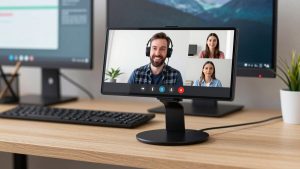
If you spend your day in Zoom, Teams, or Meet, a web conferencing camera is not about looking cinematic. It is about being seen clearly, heard without echo, and not fiddling with settings before every call. Most people overbuy here. A stable 1080p image with good exposure control beats a noisy 4K sensor in a dim home office.
There are really three different buyers for this search: solo workers at a desk, small teams in a huddle room, and offices trying to cover a larger conference room. They need completely different cameras. Buying a conference-room camera for a laptop desk is a waste of money and USB ports.
📄 In This Review
What actually matters for conferencing
Resolution gets all the marketing, but for conferencing, exposure, field of view, and audio pickup matter more. A camera that holds your face at a steady brightness when a window is behind you will look more professional than a 4K camera that blows out the background and leaves you dark. Look for auto exposure that does not pulse, and a lens in the 65 to 78 degree range for solo use. Wider than 90 degrees is only useful if you need to fit two to four people in frame.
The two most common failure modes I see are autofocus hunting and bad microphone pickup. Cheap autofocus lenses will slowly breathe in and out during a call, which is distracting. If you sit at a fixed distance, fixed focus or autofocus with face lock is more reliable. On audio, a desk webcam mic is fine for one person in a quiet room. It is terrible for a conference table. It will pick up keyboard clicks, HVAC noise, and hollow room echo. For any shared room, you need a camera designed for a 6 to 12 foot pickup distance, or a separate speakerphone.
Compatibility is the third trap, especially for Macs. Most USB webcams work plug-and-play with Mac for basic video, but advanced features like background blur controls, firmware updates, zoom presets, and noise removal often require Windows-only software. If you are on a MacBook for work, prefer cameras that store settings on-device or work fully in Teams/Zoom without a utility app.
Best for solo desk work: a simple 1080p business webcam
See also: Best Monitor for MacBook Air: Two USB-C 4K Screens and Six Adapter-Dependent Alternatives • Best Monitor for MacBook Pro: Eight Listings Sorted by Cable, Sharpness and Scaling
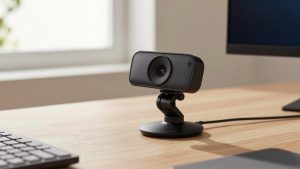
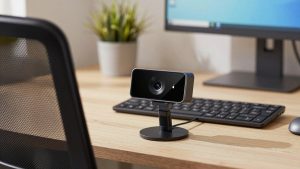
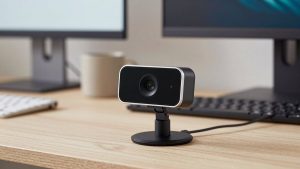
For most home office workers, the cheaper option is fine. A well-made 1080p webcam with a 1/2.8-inch or larger sensor, dual mics with noise reduction, and a physical privacy shutter will handle 90 percent of calls. You sit 2 to 3 feet away, lighting is consistent, and IT departments prefer them because there is nothing to configure.
Where 1080p falls short is low light and cropping. If your office is dark after 4pm, or you want to crop in for a tighter headshot without getting soft, a higher-quality 4K sensor helps because it can downscale to a cleaner 1080p image. That is the main reason to step up to a 4K webcam for video conferencing. Do not expect Zoom to actually show you in 4K – most platforms cap at 720p to 1080p anyway. You are paying for better sharpness, better dynamic range, and digital zoom headroom, not true 4K delivery.
This category suits: remote employees, freelancers, and laptop users who want a clip-on upgrade. Skip it if you need to cover a room. The mics are tuned for close range and the fixed wide view will make people at the far end of a table look tiny.
Best for small rooms: wide-angle conference camera with speakerphone
A huddle room with 2 to 5 people needs a different tool: a 110 to 120 degree lens, beamforming mics that can hear 8 to 10 feet away, and a built-in speaker loud enough to fill a 10×12 foot room. These usually sit on top of a TV or in the middle of the table. Many include auto-framing, which zooms slightly to keep everyone in view.
Trade-off: auto-framing can be jumpy. In my experience it works well when people stay seated, but it gets confused if someone walks behind the glass wall or gets up to whiteboard. Buy one with a remote or one-click framing off button. Also check cable length. A 6-foot USB cable is often too short to run neatly from a TV to a room laptop. You may need an active USB extension.
This suits: startups, clinics, and law offices with one or two small meeting rooms running Meet or Teams. If you already have a good Jabra-type speakerphone, you do not need the all-in-one speaker version – just get the wide-angle camera head and save money.
Best for larger conference rooms: optical zoom PTZ camera
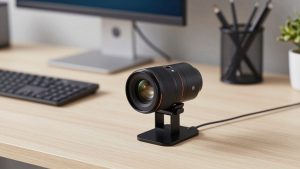
Once your table is 12 feet or longer, digital zoom is not enough. Faces become soft blobs. You need optical zoom, usually 5x to 12x, plus pan-tilt so the camera can point at whoever is speaking. These are the boxy cameras you see mounted above the display or on the back wall.
This is where failure modes get expensive. A PTZ camera without presets forces someone to drive it with a remote the whole meeting. Look for at least 3 to 6 presets and integration with Teams/Zoom Rooms so it auto-switches views. Also confirm output: USB is simplest for a room PC or laptop, while HDMI/SDI is better for long runs to an AV system. Many offices buy a USB-only PTZ and then discover they cannot run it 30 feet without dropouts.
Who it suits: offices with a dedicated 6 to 12 person boardroom and a room PC. Who should skip it: hybrid teams where everyone joins from laptops anyway. A $800 PTZ is wasted if three people in the room each stay on their own laptop cameras and create echo.
| Use case | Camera type to buy | Field of view | Audio plan | When not to buy it |
|---|---|---|---|---|
| Solo desk, laptop or Mac | 1080p business webcam | 65-78 degrees | Built-in dual mics are enough in quiet room | If room is very dark or you need tight cropped framing |
| Solo desk, poor light | 4K webcam downscaled to 1080p | 65-90 degrees | Built-in mics + consider headset for calls | If your platform caps at 720p and lighting is already good |
| Huddle room, 2-5 people | Wide-angle conference camera | 110-120 degrees | Built-in speakerphone or separate puck | If table is longer than 10 feet – faces will be too small |
| Boardroom, 6-12 people | Optical zoom PTZ camera | 70 degrees + 5x-12x optical zoom | Ceiling mics or table mics required | If no room PC or AV setup to manage presets |
Setup matters more than specs
You can make a $70 camera look better than a $250 one with placement and light. Put the camera at eye level, not looking up your nose from the laptop deck. A $20 LED panel or simply facing a window will do more for image quality than jumping from 1080p to 4K. Keep the light in front of you, not behind you.
For shared rooms, mount the camera at seated eye height, around 42 to 48 inches off the floor, not high above the TV. High mounts create a surveillance look and make eye contact impossible. Run a test call and check the far end: can they read facial expressions at the far seats? If not, you need more optical zoom, not more resolution. And if you use a MacBook to run the room, bring your adapter and test the USB conference room camera for Mac beforehand – some hubs do not pass enough power for PTZ motors.
Finally, do not mix laptop mics with room mics. Pick one audio device in Teams/Zoom settings and mute the rest. That single setting fixes most echo complaints in small offices.
FAQ
Is 4K worth it for Zoom and Teams?
Usually no for delivery, yes for image quality. Zoom and Teams typically show you at 720p to 1080p, so no one sees 4K. A good 4K sensor is still useful because it produces a sharper, less noisy 1080p image and lets you crop in without blur. If your lighting is good and you sit still, save money with 1080p.
Do I need an external microphone?
For solo calls in a quiet room, no. A business webcam mic is fine. For any shared room or noisy home, yes. Room echo and keyboard noise are microphone problems, not camera problems. A headset for solo work or a dedicated speakerphone for rooms makes a bigger difference than a camera upgrade.
Will these cameras work with MacBook?
Basic video and mic work over USB with most conferencing cameras, but companion apps for zoom presets, background effects, and firmware are often Windows-only. If you are Mac-first, choose a camera that works fully without software and check recent Mac reviews for wake-from-sleep issues.
What field of view do I need?
For one person at a desk, 65 to 78 degrees keeps you natural without showing the whole room. For 2 to 4 people around a small table, 110 to 120 degrees. For a long boardroom, do not rely on wide angle – you need optical zoom to bring distant faces close.