Last Updated: October 18, 2026
Shopping for a laptop webcam under 3000 puts you in a tight but workable range. You will not get true 4K, excellent low-light performance, or studio-level microphones here. You can get sharp 1080p for Zoom, Teams, and Meet, decent color, and a mic that is good enough if your room is quiet.
The mistake most buyers make in this budget is chasing the highest resolution number on the box. A well-tuned 720p or 1080p sensor with good exposure control will look better on a work call than a cheap sensor that claims 2K or 4K but falls apart in normal home lighting.
📄 In This Review
What 3000 actually gets you
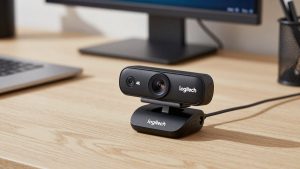
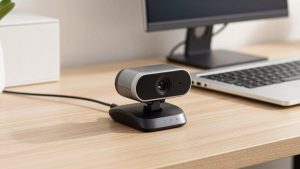
Under 3000, almost everything is a USB-A plug-and-play webcam with a clip mount for a laptop lid. Expect 720p at 30fps on the cheapest options and 1080p at 30fps if you spend closer to 2000-3000. Autofocus is rare at the bottom end. Most are fixed-focus, which is fine for desk work but less forgiving if you move around.
Microphones are the weak point. Even good budget webcams use small dual mics that pick up keyboard noise, fan noise, and room echo. For daily standups they are acceptable. For interviews, client calls, or teaching, you will sound noticeably better with laptop mics placed closer or a basic wired earphone mic.
Build quality is also basic. Hinges are plastic, cables are short at around 1-1.5 meters, and privacy shutters, if included, are often a thin slide cover. That is not a dealbreaker for a home office, but check the clip if you have a thin ultrabook or a MacBook with a narrow bezel. Some bulky clips wobble or cover part of the screen.
What to check before you buy
See also: Best Monitor for MacBook Air: Two USB-C 4K Screens and Six Adapter-Dependent Alternatives • Best Monitor for MacBook Pro: Eight Listings Sorted by Cable, Sharpness and Scaling
First, confirm compatibility. Most budget webcams work with Windows, macOS, and ChromeOS without drivers, but some manual-focus or software features only work on Windows. If you use a MacBook, look specifically for UVC-compliant plug-and-play with no app required.
Second, look at focus type. Fixed-focus is simpler and reliable for one person sitting 50-80 cm from the laptop. You sit down, you are in focus, no hunting. Autofocus is better if you present, whiteboard, hold up documents, or share the camera with two people. Cheap autofocus can hunt and pulse in low light, which is distracting.
Third, check field of view. For solo laptop calls, 65-78 degrees looks most natural and avoids showing your whole messy room. Wider 90-degree lenses are useful for a shared laptop or small huddle, but they make you look small and can add edge distortion.
Fourth, think about light more than megapixels. A north-facing window or a 30-dollar desk lamp in front of you will improve a 1500 webcam more than spending another 1500. Budget sensors have small pixels and aggressive noise reduction. In dim rooms faces get soft, waxy, and laggy. If your calls are mostly in the evening, prioritize a model advertised with low-light correction and test it immediately.
Quick comparison by use case
There is no single best pick for everyone at this price. Match the category to how you call:
| Type | Typical price | Strengths | Weaknesses | Best for |
|---|---|---|---|---|
| Basic 720p fixed-focus webcam | Lowest | Reliable, no focus hunting, works on old laptops | Softer image, poor in low light, thin audio | Students, backup camera, second laptop |
| 1080p fixed-focus with dual mics | Mid | Sharper daylight image, simple setup, stable framing | Background can stay sharp, mics pick up room noise | Daily office calls from a desk |
| 1080p autofocus with light correction | Upper end of budget | Better for movement, documents, dim rooms | Focus can hunt, colors can shift under LED lights | Teachers, interviews, evening calls |
| Wide-angle 1080p for shared laptop | Mid to high | Fits two people, good for small rooms | You look smaller solo, more distortion | Shared home laptop, couple calls, huddles |
Which type should you buy
If you do mostly solo calls from the same desk in daylight, buy a basic 1080p webcam for laptop with fixed focus and dual noise-reducing mics. This is the sweet spot under 3000. Image is sharp enough for screen sharing and facial expressions, setup is zero-fuss, and there is no autofocus to go wrong mid-meeting. It suits office workers, accountants, developers, and anyone who wants to sit down and be in focus every time.
Failure mode to know: fixed-focus budget lenses have a narrow sharp zone. If you lean far back in your chair you can drift slightly soft. Mount it at eye level, about arm’s length away, and leave it there. Do not mount it on a wobbly external monitor arm.
If your room is dim or you call at night, spend toward the top of the budget on a 1080p webcam with low light correction and autofocus. You will still get noise in very dark rooms, but faces stay brighter and less muddy than basic models. This suits teachers, night-shift support, and renters with one overhead bulb. Be honest about limits: no webcam under 3000 fixes a backlit window behind you. Face the light, do not sit with a bright window behind your head.
Failure mode to know: cheap autofocus breathes in warm LED light and low contrast. If your camera pulses in and out during calls, lock exposure by adding front light and avoiding plain white walls very close behind you.
If two people share one laptop for classes or family calls, get a wide-angle option, usually listed as 90-degree or wide wide angle webcam for laptop video calls. For solo use it is worse, not better, because you shrink in the frame. For shared use it avoids the awkward shoulder squeeze. Pair it with an external mic or earphones because you will sit farther from the laptop.
Laptop and Mac setup tips that matter more than specs
Most image complaints under 3000 are placement and settings, not hardware. Set your laptop on a stand or stack of books so the lens is at eye level. Looking slightly up at a low laptop camera exaggerates chins and ceilings. Keep the lens 60-80 cm away and crop in your meeting app rather than sitting very close.
On Windows, check the Camera settings and turn off auto HDR or auto background effects if your laptop is older. They can halve frame rate on budget webcams. On Mac, close other apps using the camera and avoid USB hubs if the image freezes. Many budget webcams want a direct USB port for stable power.
If audio is hollow, the problem is usually distance and echo, not a defective mic. Move closer, lower speaker volume to reduce echo, and turn on noise suppression in Zoom or Teams. For important calls, use your phone earphones as the mic and the webcam only for video. That hybrid setup often beats any sub-3000 webcam mic.
When the cheaper option is fine
If your laptop camera already works but is grainy, a low-cost 720p external webcam is a fine upgrade for attendance-style calls where you rarely speak. Do not pay extra for autofocus, 60fps, or claimed 2K if you only join with video on for 10 minutes a day.
Skip extras like ring lights built into the webcam, remote controls, and heavy software suites at this price. They tend to be flimsy or Windows-only. A physical privacy shutter is the one extra worth having, especially on a shared family laptop. If the model you like lacks one, a 2-dollar slide cover does the same job.
Also skip any listing that promises 4K under 3000 without naming the true sensor output. Many upscale 1080p to 4K. You get larger files, not more detail, plus higher CPU load that can make old laptops stutter during screen share.
FAQ
Is 1080p necessary for work calls under 3000?
Not always, but it is worth it if you present or stay on camera all day. For listening in with occasional video, a decent 720p webcam is fine and puts less load on older laptops.
Will these webcams work with MacBook Air and MacBook Pro?
Most USB UVC webcams do, with no driver needed for FaceTime, Zoom, and Meet. Check that focus and low-light features work without a Windows-only app, and use a direct USB-C adapter rather than an unpowered hub if you get disconnects.
Why do I look blurry even with 1080p?
Usually low light, dirty lens, or wrong distance for fixed focus. Clean the lens, add light in front of you, sit about arm’s length away, and turn off beauty filters and digital zoom that soften the image.
Should I use the webcam mic or my earphones?
Use earphones or a headset mic for interviews, teaching, and noisy homes. Use the webcam mic only for quick quiet-room calls. Distance is the deciding factor: mics close to your mouth almost always win.