Last Updated: October 18, 2026
If you use a laptop for work calls all day, you already know the problem: built-in cameras are usually grainy, dark, and unflattering. A high definition webcam for a laptop is one of the cheapest upgrades you can make to look clearer and more professional on Zoom, Teams, and Meet.
You do not need to spend a lot. For most office work, a solid 1080p external webcam fixed on top of your laptop lid will beat any built-in 720p camera, especially in a dim home office. 4K sounds better on paper, but it is often overkill and can actually create new problems with focus, bandwidth, and laptop CPU load.
📄 In This Review
What “high definition” actually means for webcams
When sellers say HD, they can mean 720p, 1080p, or 4K. For laptop video calls, here is what matters in practice:
720p (1280×720) is the minimum for work. Most older MacBook and Windows laptop built-ins are still in this range. It looks soft on a large external monitor and falls apart in low light, with noisy shadows and smeared faces.
1080p Full HD (1920×1080) is the sweet spot for 95% of laptop users. It looks sharp on a 13 to 27-inch screen, files and bandwidth stay manageable, and most conferencing apps actually transmit at 720p to 1080p anyway. A good 1080p sensor with decent low-light handling will look better than a cheap 4K sensor.
4K Ultra HD (3840×2160) is useful if you crop/zoom digitally, stream, record training videos, or want future-proofing. The trade-off: higher price, more heat, higher USB and CPU demand, and often slower autofocus. On an older laptop or thin MacBook Air, 4K can stutter unless you drop it to 1080p in software.
Built-in laptop camera vs. external HD webcam
See also: Best Monitor for MacBook Air: Two USB-C 4K Screens and Six Adapter-Dependent Alternatives • Best Monitor for MacBook Pro: Eight Listings Sorted by Cable, Sharpness and Scaling
Laptop lids are thin, so manufacturers use tiny sensors with small lenses and no room for proper autofocus or light gathering. That is why you look washed out near a window and muddy in a bedroom office at 5 p.m.
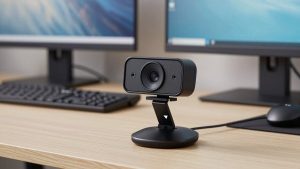
An external webcam sits higher, has a larger lens, and usually includes dual microphones with noise reduction, autofocus, and auto light correction. Even a budget external 1080p camera will give you more accurate skin tones and less blur when you move.
There are two real downsides to external. First, bulk: you add a small bump to the top of your lid, which can interfere with some laptop sleeves and docks. Look for a low-profile clip if you carry your laptop daily. Second, cable clutter: one more USB cable on a desk setup. If you have only USB-C ports, which most modern Macs and ultrabooks do, you will need a direct USB-C webcam or a short USB-A to USB-C adapter.
What to check before you buy
Resolution is not the whole story. I have tested 1080p webcams that looked worse than others at the same resolution because of poor lenses and aggressive sharpening. Prioritize these four things:
1. Autofocus vs. fixed focus: Fixed focus is fine if you sit 2-3 feet away and rarely move. It is cheap, reliable, and never hunts. Autofocus is better if you lean in to show documents, stand at a whiteboard, or move around. Cheap autofocus is a common failure mode – it pulses in and out every few seconds on patterned shirts. If you buy autofocus, check reviews specifically for focus hunting on video calls, not just photos.
2. Low-light performance and exposure: This matters more than 4K for home offices. Look for a larger sensor, a wide f/2.0 or brighter lens, and auto exposure that does not blow out your face when a window is behind you. No webcam fixes strong backlight well. You still need to face the light.
3. Field of view: 65 to 78 degrees is best for one person on a laptop – natural framing without showing your whole messy room. 90 degrees and wider is for two people sharing one laptop or a small huddle space. Too wide on solo calls makes you look tiny and distant.
4. Mics, mount, and Mac/PC compatibility: Dual mics with noise cancellation are good enough for calls in a quiet room, but they still pick up keyboard clatter. If you type while talking, use a headset. For mounting, make sure the clip grips a thin laptop lid without wobbling and has a tripod thread if you sometimes mount it on a monitor arm. Most modern webcams are plug-and-play UVC devices that work on Windows 10/11 and macOS without drivers, but shutter software and background effects are often Windows-only.
Quick comparison: which type suits laptop work?
| Type | Best for | Strengths | Weaknesses |
|---|---|---|---|
| Built-in 720p laptop camera | Travel, backup | No extra gear, always there | Soft image, poor low light, no framing control |
| Budget 1080p fixed-focus USB webcam | Daily Zoom/Teams on a budget | Cheap, light, reliable, good enough in daylight | Struggles in dim rooms, no zoom flexibility |
| Mid-range 1080p autofocus with dual mics | Home office, managers, teachers | Sharper face detail, better exposure, cleaner audio | Costs more, cheap models can have focus hunting |
| 4K autofocus webcam | Streaming, recording, heavy cropping | Detailed image, digital zoom without as much loss | Higher CPU/USB load, can stutter on older laptops |
What should you actually buy?
If you do 2-4 hours of calls per day in a reasonably lit room, the cheaper option is fine. A basic 1080p USB webcam with fixed focus will be a clear step up from built-in and you will not have to think about settings.
If you work from a dark spare bedroom, take client-facing calls, or teach, step up to a mid-range 1080p camera with autofocus and better low-light correction. Look for a model with a physical privacy shutter, auto framing you can turn off, and a 75-degree field of view. That combination keeps you centered without that distorted wide-angle look.
Buy 4K only if you have a specific reason: you record YouTube or training videos from your laptop, you like to crop in to hide your background without using software blur, or you use a large 4K monitor and want the preview to look crisp. In that case, shop for a 4K webcam with autofocus that lets you run at 1080p/60fps for calls, not just 4K/30fps. For MacBook users with only USB-C, filter for a USB-C webcam for MacBook to avoid dongles.
Common failure modes to watch for: cameras that default to beauty smoothing you cannot disable, mics that sound hollow in echoey rooms, mounts that slip off thin lids, and firmware that resets exposure every time the laptop sleeps. If you use background blur in Teams or Zoom, test it with your specific laptop – blur plus 1080p plus screen sharing can max out an older dual-core machine.
Setup tips that matter more than specs
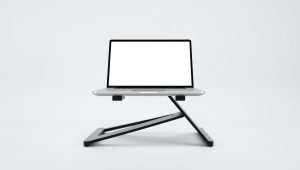
Put your laptop on a stand or stack of books so the lens is at eye level. Clip the webcam centered on the lid, about an arm’s length away. Face a window or put a cheap daylight lamp behind your monitor. Avoid a bright window or lamp directly behind your head.
In app settings, set the camera to 1080p, turn off auto-framing if it feels jumpy, and turn offRightLight or auto HDR if your face looks waxy. Test with a quick recording before an important interview – check for flicker under LED lights, which usually means you need to switch between 50Hz and 60Hz anti-flicker in the camera app.
FAQ
Will a 1080p webcam work on my MacBook or older Windows laptop?
Yes, in most cases. Almost all current HD webcams use the UVC standard, so they work plug-and-play on macOS and Windows 10/11. Just confirm you have the right plug – USB-A or USB-C – and a free port that is not running through an underpowered hub.
Do I need 4K for Zoom or Teams?
No. Zoom, Teams, and Meet typically transmit at 720p to 1080p to save bandwidth, so viewers will not see full 4K anyway. Buy 4K for recording and cropping flexibility, not for sharper live calls.
Why do I still look dark even with an HD webcam?
That is usually lighting and exposure, not resolution. Face your main light source, turn off strong backlights, and pull the exposure down slightly if the camera overexposes your forehead. A $20 desk lamp in front of you often helps more than a $150 camera upgrade.
Can I use an HD webcam with a laptop dock?
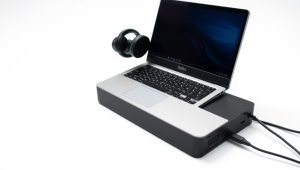
Yes, but plug it directly into the laptop or a powered dock. Unpowered USB hubs are a common cause of freezing, dropped resolution, or robotic audio, especially with 4K models.
Related Reviews & Guides
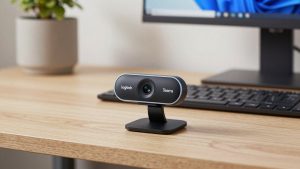
Best Logitech Webcam for Microsoft Teams
High Definition Camera for Video Conferencing