Last Updated: October 18, 2026
If you work from home and live on Zoom, Teams, or Meet, a budget 4K webcam sounds like an easy upgrade. More resolution for less than $70 sounds perfect. In practice, most budget 4K webcams do not look like true 4K once you are actually on a call, and that is fine if you buy for the right reasons.
Most video apps compress you to 720p or 1080p anyway. What you are really paying for with 4K at this price is a sharper 1080p image, better digital zoom, and a newer sensor than the old 1080p office webcam you are replacing. When the cheaper option is fine: if your laptop is from the last three years and you sit in decent light, even a basic 1080p webcam can look acceptable. Buy budget 4K when you want more cropping room, you sit a bit far from the desk, or your built-in laptop camera washes out your face.
📄 In This Review
What budget 4K actually means
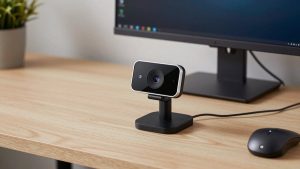
Budget 4K usually means a 1/2.5-inch to 1/3-inch sensor that can output 3840 x 2160 at 30 frames per second, often over USB 2.0 with MJPEG compression. That is very different from a $150 to $200 webcam that can do 4K with better lenses, better autofocus motors, and cleaner low-light processing. On budget models, expect soft corners, aggressive sharpening, and noise once your room gets dim. Daylight from a window helps these cameras far more than any spec on the box.
Another catch is focus. Many of the cheapest 4K models are fixed-focus, set to be sharp from about 40 cm to 2 meters. If you sit still at a desk, fixed-focus is actually more reliable. It never hunts during a call. Autofocus models in this price range can look better for showing documents or leaning in and out, but the motors are slow and you will see pulsing when you move your hands. Microphones are also an afterthought. Plan on using a headset, earbuds, or a laptop mic for important meetings. The built-in dual mics are usable for a quick check-in, but they pick up keyboard noise and room echo.
Compare the three budget 4K types worth buying
See also: Best Monitor for MacBook Air: Two USB-C 4K Screens and Six Adapter-Dependent Alternatives • Best Monitor for MacBook Pro: Eight Listings Sorted by Cable, Sharpness and Scaling
Do not shop by megapixels alone. Shop by focus type, field of view, and whether it works without extra software on your laptop or Mac. This is where most returns happen.
| Type | Best for | Strengths | Weaknesses |
|---|---|---|---|
| Fixed-focus 4K, 75-80 degree view | Desk work, daily standups | No focus hunting, sharper face at arm’s length, usually cheapest | Blurry if you hold paper close, no flexibility for whiteboard demos |
| Autofocus 4K, 80-90 degree view | Hybrid use, showing objects, moving around | Stays sharp from close to far, better for two people in frame | Focus breathing on gestures, softer in low light, costs $10-20 more |
| Wide-angle 4K with auto-framing | Small rooms, shared desk, family calls | Keeps you centered if you shift, useful for standing desks | Crop reduces real detail, tracking can lag, needs good light |
If you do one-person calls at a desk all day, get the first type. It fails less often. If you regularly hold up prototypes, notebooks, or products, get the second type and learn its focus lock shortcut if it has one. Only get auto-framing if you actually move during calls. For a static head-and-shoulders shot, it just adds another thing that can glitch.
Who should buy which
For office workers on Windows laptops: a simple fixed-focus budget 4K webcam is usually enough. Plug it in, set Teams or Zoom to 1080p, turn off beauty filters and auto low-light boost, and add a $20 desk lamp bounced off a wall. That setup beats a more expensive camera in a dark room. Look for a physical privacy shutter, tripod thread, and a clip that actually grips a thin laptop lid without tipping backward.
For Mac users: compatibility matters more than resolution. Many budget cameras are UVC compliant and work in FaceTime, Zoom, and QuickTime with no driver, but their settings apps are Windows-only. That means exposure, field of view, and zoom get stuck on defaults on macOS. If you use a MacBook with only USB-C, also check cable length and whether it ships with a USB-C adapter. A short, stiff USB-A cable with a loose adapter is a common failure point that causes disconnects mid-call. When in doubt, choose a model that advertises Mac support and on-camera controls rather than software-only controls.
For shared home offices and standing desks: consider an autofocus 4K webcam with autofocus with a 90-degree view or a light auto-framing mode you can turn off. You get room to sit back without looking tiny, and autofocus saves you when a partner leans in. The trade-off is you need more light. At 60 to 70 cm farther back, these small sensors lose detail fast. If your room is dark, you will look softer than a closer fixed-focus camera.
How to make a cheap 4K camera look expensive
Resolution helps less than light and placement. Put the camera at eye level, about an arm’s length away, with a window or lamp in front of you, not behind you. Backlight from a window is the number one reason budget 4K looks washed out. Close blinds behind you or turn your desk 90 degrees. Set exposure manually if you can. Auto-exposure on cheap firmware will pump up and down every time you share a white slide or move a white mug.
Use 4K strategically. Record in 4K if you make Loom videos or training clips, because you can crop in editing and still export clean 1080p. For live calls, stay at 1080p30. It uses less CPU, drops fewer frames on older laptops, and avoids the MJPEG stutter some budget cameras show at full 4K. If your fan spins up on calls, drop to 720p in the app. No one can tell in a small meeting tile, and your audio will stay in sync.
Failure modes to check in the first week
Test these before your return window closes. First, focus consistency. Record a two-minute clip where you talk, lean forward, lean back, and wave your hand. If autofocus pulses more than once or twice, return it or lock focus. Second, low-light noise. Join a test call at night with only your normal desk lamp. If your face smears when you move, you need more light or a different sensor, not a different resolution. Third, audio sync and heat. Run a 30-minute call. Some budget housings get hot and drop frames after 20 minutes. If the image freezes but audio continues, try a different USB port directly on the laptop, not a cheap hub.
Also check mount and shutter. A surprising number of budget clips slide on MacBook Air lids or ultrawide monitors. Shake your desk lightly. If it wobbles, your video will look shaky even with stabilization. A model with a 4K webcam with privacy shutter and a standard tripod thread is worth a few dollars extra, because you can put it on a mini tripod behind your laptop and stop fiddling with the monitor clip entirely.
FAQ
Is budget 4K better than a good 1080p webcam?
Sometimes, but not always. A well-tuned 1080p camera with a larger sensor and good autofocus can beat a cheap 4K sensor in low light. Buy budget 4K if you want digital zoom headroom and a sharper 1080p downscale in good light. Keep a good 1080p camera if you mostly take night calls in a dim room.
Will I actually stream in 4K on Zoom or Teams?
Usually no. Most work calls run at 720p or 1080p to save bandwidth. You still benefit because the camera downscales from a higher-resolution sensor, which can look cleaner than native 1080p, but do not expect others to see full 4K detail.
Do these work with Macs and USB-C laptops?
Most do as plug-and-play UVC cameras, but advanced settings may be Windows-only. Check for Mac support, on-device buttons, and included USB-C adapters. Use a port directly on the computer for long calls to avoid hub power issues.
Do I need to upgrade my microphone too?
For daily work, yes. Budget 4K mics are thin and pick up room echo. A basic wired headset or earbuds will improve how professional you sound far more than moving from 1080p to 4K will improve how you look.