Last Updated: October 18, 2026
The Logitech C920 HD Pro has been the default work webcam for almost a decade, and for most desk workers it still is. Not because it’s the best on paper, but because it gets the three things that matter for calls right: sharp 1080p face detail in decent light, reliable autofocus, and Works-with-everything compatibility on Windows and Mac without drivers.
I’ve used the C920 on Zoom, Teams, Google Meet, and Webex on both a ThinkPad and a MacBook Air. It won’t make a dark spare bedroom look like a studio, but if you want to stop looking blurry on your laptop’s 720p camera, it’s still the cheapest reliable fix. The trick is knowing which version you’re buying — C920, C920s, and C920e are sold side by side and they’re not identical.
📄 In This Review
What you get in the box
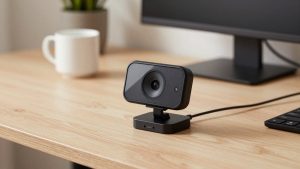
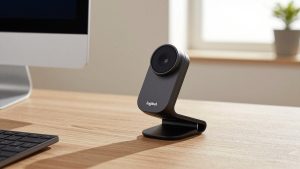
The base C920 HD Pro is a chunky black bar with a glass lens, dual front mics, and a folding foot that sits on top of a monitor or screws onto a tripod with a standard 1/4-inch thread. In the box you get the camera with a fixed 5-foot USB-A cable and a short setup guide. No remote, no privacy cap on the original version.
The C920s adds a physical privacy shutter and is otherwise the same optics. The C920e is the business version certified for Teams and Zoom, with slightly tweaked firmware that defaults to a tighter 78-degree field of view and usually ships without the tripod-ready clip extras. Image quality across all three is essentially the same. If you work in an open office or handle sensitive work, get the S or E for the shutter alone — sticking tape on the original gets old fast.
Image and audio on real calls
See also: Best Monitor for MacBook Air: Two USB-C 4K Screens and Six Adapter-Dependent Alternatives • Best Monitor for MacBook Pro: Eight Listings Sorted by Cable, Sharpness and Scaling
In daylight or a decent overhead light at your desk, the C920 delivers true 1080p at 30fps with good skin tones and readable text on a whiteboard behind you. Autofocus locks in about 1-2 seconds and holds unless you wave your hands in front of the lens. The 78-degree field of view fits one person with a little office background, not your whole kitchen, which most managers prefer.
Low light is where you see the age. In a lamp-only home office at night it drops shutter speed to stay bright, so motion smears and shadows go noisy. It’s still far cleaner than any built-in MacBook or Dell XPS camera, but it’s not magic. A $20 desk lamp in front of you does more for this camera than upgrading to a $200 4K model.
The built-in stereo mics are usable for backup only. They pick up keyboards, HVAC, and room echo, and sound thin compared to even cheap earbuds. Fine if your headset dies mid-call, not something to rely on all day. Logitech’s RightLight 2 auto-exposure helps prevent blown-out faces when you sit in front of a window, but you’ll still look better with blinds half-closed.
Setup on Windows, Mac, and laptops
Plug-and-play is the C920’s strength. Windows 10/11, macOS 13 and newer, and ChromeOS all recognize it as a standard UVC device — no Logitech software required for Zoom or Teams. That also means it works through most work laptop docks without admin rights.
For fine tuning you’ll want Logi Tune (formerly Logi Capture / G Hub). On Windows it lets you turn off autofocus, adjust zoom, and disable auto white balance flicker under office fluorescents. On Mac, Tune works but is more limited and occasionally forgets settings after reboot — a common complaint. If you need manual control on Mac, plan to lock exposure once before calls and leave it.
One practical catch: it’s USB-A only. Newer MacBooks and many ultrabooks are USB-C only, so you’ll need a dock or a simple USB-C to USB-A adapter at your desk. The cable is also non-detachable. If the cable frays or your monitor is far from your tower, you can’t just swap a longer cable — you need an active USB extension.
Common problems and failure modes
Three issues come up repeatedly after months of daily use. First, autofocus hunting. With default settings it will pulse in and out if you lean back and forth or have a busy background like bookshelves. Turning off continuous autofocus in Logi Tune and using fixed focus solves it.
Second, wobbly mount on thin monitors. The universal clip was designed for thick 2014-era monitors. On a thin iMac, external Dell UltraSharp, or laptop lid it can tilt forward. It stays put once set, but don’t bump your desk if it’s perched on a laptop screen — it will slide.
Third, Teams/Zoom defaulting to the wrong mic. Because the C920 presents both camera and microphone to the OS, conferencing apps often auto-switch to “HD Pro Webcam C920” audio instead of your headset. Set your preferred mic/speaker in the app once and lock it, or disable the C920 mic in Windows Sound settings.
C920 vs. the alternatives
Don’t buy the C920 on nostalgia alone. Here’s how it stacks up to what most shoppers actually cross-shop:
| Model | Resolution / FOV | Key advantage | Trade-off |
|---|---|---|---|
| Logitech C920 / C920s | 1080p30 / 78 deg | Best value, proven compatibility | No 60fps, no USB-C, mics are thin |
| Logitech C920e | 1080p30 / 78 deg | Privacy shutter, Teams/Zoom certified | Often $20-30 more for same sensor |
| Logitech C922 Pro Stream | 1080p30 / 60fps at 720p | Smoother motion, better for demos | More compression artifacts, needs light |
| Logitech Brio 100 / 500 series | 1080p to 4K | Sharper, wider framing, USB-C options | Costs 1.5-2x, needs good CPU for 4K |
If you just need to look clear on daily standups, the cheaper C920 is still fine — you can check current listings for the Logitech C920 HD Pro and pick the S version if the price gap is under $15. Pay extra for the Brio-level models only if you present all day, need auto-framing, or sit in a very dark room where the larger sensor helps. And if your laptop never leaves your desk, consider browsing newer 4K webcams for home office use before you decide — they’re overkill for most calls, but the better low-light handling is real.
Who should buy it, and who shouldn’t
Buy it if you work from home 2-5 days a week, live on Zoom and Teams, use a Windows laptop or Intel/Apple-silicon Mac, and want one camera that just works without troubleshooting drivers. It’s also ideal as a second camera for a desktop setup where your laptop lid is closed.
Skip it if you stream, record courses, or need 60fps smooth hand movements for demos — get a C922 or mirrorless-style cam instead. Skip it if you need Windows Hello face login (the C920 doesn’t support IR) or if you only take one call a week from a bright office — your built-in camera is probably good enough and the money is better spent on lighting and a headset.
FAQ
Is the Logitech C920 good for Mac?
Yes for basic calls. It works plug-and-play with FaceTime, Zoom, and Teams on Mac without drivers. Just note you’ll need a USB-C adapter and Logi Tune on Mac has fewer manual controls than on Windows.
What’s the difference between C920, C920s, and C920e?
Same 1080p sensor and lens. The C920s adds a privacy shutter. The C920e adds a shutter plus business certifications and slightly different firmware. Buy whichever is cheapest unless you need the shutter.
Does the C920 work with Teams and Zoom?
Yes. All versions work as a standard USB camera. The C920e is officially certified, but the regular C920 and C920s connect the same way and are widely used in both apps.
Why does my C920 look blurry or grainy?
Usually low light or autofocus hunting. Add a light in front of you, wipe the lens, turn off RightLight auto-exposure pulsing, and in Logi Tune switch to fixed focus at your sitting distance. That fixes 90% of complaints.