Last Updated: October 18, 2026
If you spend your day in Microsoft Teams, your camera matters more than you think. Teams compresses video aggressively, struggles in low light, and punishes bad microphones and autofocus. You do not need a creator camera. You need something that locks exposure quickly, keeps your face sharp when you lean back, and does not drop frames when Teams is also sharing your screen.
After testing webcams in real home offices – spare bedrooms, basement desks, bright windows behind monitors – the pattern is clear: a reliable 1080p webcam beats a finicky 4K one for most Teams users. Resolution is rarely the bottleneck. Light handling, focus stability, and field-of-view control are.
📄 In This Review
What Teams actually needs from a camera
Teams tops out around 1080p for most calls, and often runs at 720p in gallery view or on weak connections. A 4K sensor does not make you look sharper to coworkers if Teams downscales you anyway. Where a better sensor helps is in processing: cleaner image before compression, less noise in a dim room, and better digital zoom if you crop in.
More important for daily use: autofocus that does not hunt, auto-exposure that does not blow out your face when a window is behind you, and a microphone that does not pick up your keyboard like a drum. Teams has noise suppression built in, but it cannot fix a thin, echoey mic placed three feet away. If you are on calls 4+ hours a day, prioritize a camera with a decent dual mic and a 65-78 degree field of view. Wider than 90 degrees makes you look small and shows your messy room. Narrower looks more professional on a laptop desk 2-3 feet away.
Mac users have one extra wrinkle: some business webcams ship with Windows-only software for zoom, tracking, and firmware updates. The camera will still work on macOS as a standard UVC device in Teams, but you may not be able to turn off auto-framing or adjust the field of view without borrowing a Windows PC once for setup.
The three types worth buying, compared
See also: Best Monitor for MacBook Air: Two USB-C 4K Screens and Six Adapter-Dependent Alternatives • Best Monitor for MacBook Pro: Eight Listings Sorted by Cable, Sharpness and Scaling
For Teams work, ignore ring lights with cameras, novelty 8K claims, and no-name 4K sticks with no reviews. The market breaks into three useful buckets. Most office workers should stay in the first two.
| Type | Best for | Strengths | Weaknesses |
|---|---|---|---|
| Basic 1080p fixed-focus or simple autofocus | Daily Teams meetings, laptop replacement | Cheap, plug-and-play, reliable on Teams, works on Mac | Soft in low light, narrow dynamic range, basic mic |
| Mid-range 1440p / QHD with larger sensor | Home office main camera, 3-6 hours of calls daily | Better low light, more stable exposure, improved mics, adjustable field of view | Needs good USB port and light to look its best, costs 2-3x basic |
| 4K business webcam with AI framing | Presenters, managers, shared desk that doubles as meeting space | Sharp crop/zoom, auto-framing for moving around, best mics | Auto-framing can drift in Teams, heavier CPU use, overkill if you sit still |
The failure mode to watch: mid-range and 4K cameras often default to 4K or maximum field of view out of the box. In Teams that can mean stutter on an older laptop, or you look tiny at your desk. Install the maker’s app once, set it to 1080p and 65-78 degrees, turn off auto-tracking unless you actually present standing up, then quit the app.
Which one to buy for Teams
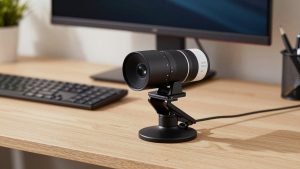
If you want simple and cheap: Get a well-reviewed 1080p webcam for Teams calls. This is fine for 80 percent of office workers. Look for 1080p30, dual microphones, a physical privacy shutter, and a clip that actually grips a monitor. Fixed focus is underrated here – nothing to hunt or blur when you reach for coffee. The trade-off is low-light performance. In a basement office at 5pm, you will look grainy. A $25 desk lamp bounced off the wall fixes more than spending $80 extra on a sensor.
If Teams is your job: Step up to a QHD 1440p webcam with microphone for work. You get a larger sensor, better noise handling, and usually a 3-5 foot mic pickup that sounds fuller without a headset. This suits recruiters, sales, support, teachers, and anyone who stays on camera all day. Trade-off: these cameras are pickier about USB. Plug directly into your laptop or a powered dock, not into a monitor hub daisy-chained to a keyboard. If Teams shows lag when you share screen, drop the camera to 1080p in settings – you will still look better than a cheap 1080p cam because the downscale starts cleaner.
If you present or move around: Consider a business-class 4K business webcam for Teams. The useful part is not 4K itself, it is lossless-feeling 2x zoom and framing that keeps you centered if you stand at a whiteboard. Who it suits: team leads running standups, trainers, and hybrid workers who use the same desk for 1:1s and small-room presentations. Who should skip it: if you sit 24 inches from your monitor and never stand, turn tracking off or you will pay for a feature that slowly pans to your bookshelf.
Laptop-specific note: if your work laptop already has a decent 1080p camera (many newer business laptops do), test it in Teams first with a colleague. If they say you look washed out or soft, an external camera mounted on top of the lid, slightly above eye level, is a bigger upgrade than more pixels. External mics also beat laptop mics because they are closer and face you. Even so, for interviews or all-hands, wear earbuds. No webcam mic beats a dedicated headset for echo control.
Setup that matters more than the model
Mount the camera at eye level or just above. Stack your monitor on books if needed. Put your key light in front of you, not overhead – a window in front or a cheap 5000K bulb in a desk lamp works. Do not sit with a bright window directly behind you unless your camera has good HDR; Teams will silhouette you.
In Teams, go to Settings – Devices and select the external camera explicitly. Teams sometimes reverts to the laptop camera after updates. Turn on Background Blur sparingly. It hides clutter but taxes older CPUs and creates flicker around hair and glasses. A tidy background or simple virtual background without blur often looks cleaner and runs smoother.
Check bandwidth too. If coworkers say you freeze when sharing slides, it is usually your upload or CPU, not the camera. Close the camera utility after configuring it, turn off 60fps and 4K output for meetings, and use 30fps. For Teams, stable 1080p30 with good light always beats jittery 4K.
FAQ
Do I need a Teams-certified camera?
No, for most home office use. Certification mainly matters for meeting rooms and IT-managed deployments. Any standard USB UVC webcam will work in Teams on Windows and Mac. Focus on focus stability, exposure, and mic quality instead of the badge.
Is 4K worth it for Teams?
Usually not for normal seated calls, because Teams compresses to 1080p or lower. Buy 4K only if you want better digital zoom, plan to crop in for a head-and-shoulders framing, or present standing and moving. Otherwise a good 1080p or 1440p camera with better low light is the smarter buy.
Why do I look blurry or laggy in Teams but fine in the camera app?
Teams lowers resolution to preserve call stability, especially in gallery view, screen share, or low bandwidth. Try switching to 1080p30 output, plugging directly into USB 3.0, closing background apps, and adding front light. That fixes most cases.
Will these webcams work on MacBook for Teams?
Yes. Modern webcams work plug-and-play in Teams for macOS. The catch is advanced features like field-of-view presets, auto-framing on/off, and firmware updates often require the maker’s Windows app. Set them once on a Windows PC if needed, the settings usually stick on the camera.