Last Updated: October 18, 2026
Zoom is forgiving about resolution and brutal about everything else. Exposure that blows out your face, autofocus that breathes in and out, and a mic that picks up your keyboard more than your voice will make you look bad even at 1080p. For most work calls, a simple USB webcam that gets exposure, framing, and drivers right beats a high-spec camera on paper.
📄 In This Review
What Zoom actually needs
Zoom caps most group calls at 720p, and 1080p only kicks in reliably for 1:1 calls or Zoom’s higher tiers with good bandwidth. That means sensor quality, lens, and processing matter more than a 4K label. What you want is clean 1080p30 with good auto-exposure, natural color, and a mic you can turn off in favor of a headset when needed.
USB-A versus USB-C matters less than cable length and port power. Almost every work webcam still ships with USB-A and a short 4-5 foot cable. If you use a MacBook with only USB-C, plan on a dock or a solid USB-C adapter. Avoid chaining through an unpowered monitor hub if you also run an external drive — that is a common source of freezes and dropped frames.
The other Zoom-specific point: plug-and-play UVC support. Zoom on Windows and Mac works best with standard UVC webcams that need no special driver. If a camera requires a background app to unlock 1080p, autofocus, or noise removal, you will eventually join a call where that app did not launch or needs an update.
Quick comparison: the three types worth buying
See also: Best Monitor for MacBook Air: Two USB-C 4K Screens and Six Adapter-Dependent Alternatives • Best Monitor for MacBook Pro: Eight Listings Sorted by Cable, Sharpness and Scaling
| Type | What you get | Best for | Watch out for |
|---|---|---|---|
| Basic 1080p fixed-focus | 1080p30, 65-78 degree field, dual mics, privacy shutter | Daily Zoom, Teams, Meet on a laptop dock | Worse low light, no zoom/framing controls |
| Mid-range 1080p autofocus | 1080p60 or improved 1080p30, larger sensor, better low light, USB-C option | Home office, poor lighting, glasses wearers | Autofocus hunting if you gesture a lot |
| Premium 4K with auto-framing | 4K sensor downscaled to 1080p, digital zoom, follow-you framing | Presenters, small rooms, whiteboard demos | Costs more, needs good CPU/USB bandwidth, framing can misfire |
If you only look at one spec, look at field of view and focus type, not megapixels. A 78-degree fixed-focus camera keeps you sharp at arm’s length with no hunting. A 90-degree autofocus camera shows more of a messy room and will refocus every time you lean forward with coffee.
For most people: basic 1080p fixed-focus
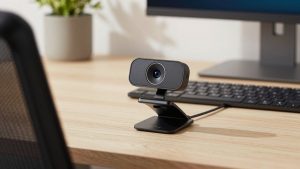
This is the honest sweet spot for Zoom work. A basic 1080p USB webcam for Zoom calls sits on top of a monitor, stays in focus from about 2 to 6 feet, and does not need software. Put it at eye level, face a window or a cheap daylight bulb, and you will look better than 80 percent of people on the call.
Trade-offs are straightforward. Low light gets noisy fast, backgrounds blow out if a bright window is behind you, and the built-in mics are usable but thin. Failure mode: people mount it too low on a laptop and get the up-the-nose angle, then blame resolution. Raise the laptop or use a monitor mount. Who suits: anyone doing 3-6 hours of meetings a day who wants reliability over features. The cheaper option is fine here — do not pay double for 4K you will never send over Zoom.
For MacBooks and dim home offices: mid-range 1080p autofocus
Mac users run into two specific issues: aggressive exposure compensation in FaceTime-style lighting, and USB-C dongle roulette. A mid-range autofocus 1080p webcam that works well with Mac usually has a larger sensor and better backlight handling, which helps when your desk is in a corner with one overhead light.
Concrete difference you will see: skin tones stay even when you share screen and your face goes small, and glasses have less white glare. Autofocus helps if you stand, pace, or show paperwork. But it can hunt. If you talk with your hands, some models will pulse focus every 10 seconds. Fix it by locking focus in the vendor app or switching to fixed focus if offered.
Failure modes to know: 1080p60 sounds better but doubles USB and CPU load and Zoom often drops it to 30 anyway. Some noise-reduction modes smear detail and make text on a shirt unreadable. Who suits: home office workers with no window light, evening callers, and anyone on an M-series Mac who wants a camera that behaves without weekly driver fiddling.
For presenters and tiny meeting corners: premium 4K with framing
A premium 4K USB webcam with auto-framing for Zoom makes sense in exactly two cases: you present and move, or one camera covers two people at a small desk. The 4K sensor is mostly used to crop and digitally zoom without turning to mush, then output clean 1080p to Zoom.
Do not buy this for a static head-and-shoulders call hoping to look sharper. On typical office broadband, Zoom will compress away the difference. You are paying for auto-framing, wider zoom range, and better mics with some echo control. Auto-framing fails when a second person walks behind you, when a monitor flicker confuses tracking, or when you want to stay off-center to show slides. Buy one with a remote or app toggle so you can turn tracking off mid-call.
Also check mounting. Heavier 4K heads slip on thin laptop lids. They belong on an external monitor or tripod. And they run warm — that is normal, but a camera that gets very hot then drops to 720p is throttling due to a weak USB port. Plug direct, not through a keyboard passthrough.
Setup matters more than the camera
Before you upgrade, fix three things. First, light your face, not your background. Face the brightest source. If a window is behind you, close blinds and put a $20 daylight LED in front. Second, set Zoom correctly: Settings then Video then enable HD, turn off “Touch up my appearance” past low, and uncheck “Adjust for low light” on Auto if you look waxy. Third, audio: built-in webcam mics pick up room echo at 6-8 feet. For daily calls, a wired earbud mic or headset beats any webcam mic.
Common failure modes we see repeatedly: privacy shutters left half-open causing dark corners, mounting on a second monitor off to the side so you never make eye contact, and running the vendor effects app plus Zoom virtual backgrounds at once, which tanks frame rate on older laptops. Pick one — either camera framing or Zoom background, not both.
FAQ
Is 4K worth it for Zoom?
Usually no for 1:1 desk calls. Zoom rarely sends full 4K in meetings, so a good 1080p camera with better low light will look cleaner than a cheap 4K sensor. Buy 4K only if you need digital zoom or auto-framing for presenting.
Why does my USB webcam freeze or go black on calls?
Most often USB power or bandwidth. Plug directly into the laptop or a powered dock, avoid long extension cables, close the vendor camera app when using Zoom, and try 1080p30 instead of 60 or 4K.
Do I need a separate mic?
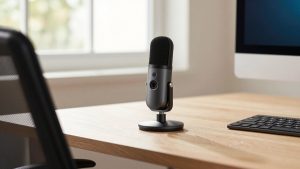
For occasional calls, no. For all-day Zoom, yes — even cheap wired earbuds reduce echo and keyboard noise dramatically compared to a webcam mic 2-3 feet away.
What field of view should I pick?
65 to 78 degrees for solo desk calls, 85 to 95 degrees if two people share one camera. Wider than that shows too much room and makes you small unless you crop in.