Last Updated: October 18, 2026
If you are buying a webcam for work, you want two things to work without thinking about them: your face looks clear, and your voice sounds clear. Most product pages obsess over 4K and autofocus and bury the microphone specs. That is backwards for video calls. People will tolerate slightly soft video. They will not tolerate hearing you from inside a fish tank.
After using a lot of these in real home offices – on laptops, on Macs, on monitors with bad USB placement – the pattern is consistent. A good webcam with mic is about mic placement, noise handling, and easy exposure, not maximum resolution. Here is how to pick one without overpaying.
📄 In This Review
What actually matters in a webcam with mic
Resolution is the least important number once you hit 1080p. For Zoom, Teams, and Google Meet, 1080p at 30fps is enough because those platforms compress you anyway. What matters more is the lens and auto-exposure. A cheap 4K sensor with a tiny lens and slow exposure will look darker and grainier in a dim home office than a good 1080p webcam.
For the mic, look for dual microphones and some form of noise reduction. Almost every modern webcam with a mic has two mics for stereo pickup and beamforming, which basically means it tries to focus on the voice in front of it. The difference is how aggressive the noise reduction is. Some cut out keyboard clicks well but also clip the start of words. Others let more room noise through but sound more natural. If you work in a quiet room, natural is better. If you have kids, a fan, or a mechanical keyboard, aggressive is better.
Also check pickup distance. Most built-in mics are tuned for 3 to 6 feet. Sit farther than that in a large room and you will sound distant no matter what you buy. That is a failure mode no spec sheet fixes. If your desk is deep or you present standing up, plan on a separate USB mic or headset.
The three types worth buying
See also: Best Monitor for MacBook Air: Two USB-C 4K Screens and Six Adapter-Dependent Alternatives • Best Monitor for MacBook Pro: Eight Listings Sorted by Cable, Sharpness and Scaling
There are really only three categories that make sense for work calls. Everything else is either too stripped down or overkill for compressed video.
| Type | Video | Mic | Best for | Watch out for |
|---|---|---|---|---|
| Basic 1080p workhorse | 1080p / 30fps, fixed focus | Dual mic, basic noise reduction | Laptop workers, daily standups, students | Narrow field of view can feel tight; poor low light on cheapest units |
| Mid-range 1080p/1440p with better mics | 1080p or 1440p, autofocus, better low light | Dual mic with stronger noise cancellation | Home office, managers on calls all day, Mac users | Autofocus can hunt if you move a lot; privacy shutter adds bulk |
| 4K with intelligent framing | 4K sensor, usually cropped to 1080p for calls | Dual or triple mic, AI noise removal | Presenters, small group rooms, creators who also record | Needs good USB port and CPU; can look oversharpened on Zoom |
Best for most people: a simple 1080p webcam with dual mics
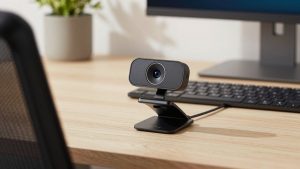
For 80 percent of office work, the cheaper option is fine. A basic 1080p webcam with dual microphone will beat any laptop built-in camera and mic, especially on older Windows laptops and MacBook Airs where the mic picks up fan noise.
Who it suits: if you do 1-3 hours of calls per day, sit at arm’s length, and have decent light from a window or lamp. Fixed focus is actually a plus here – nothing to hunt or blur when you lean in. Plug it in, select it in Zoom once, and forget it.
Trade-offs: fixed focus means papers held up close will be soft. Low-light performance varies a lot. The cheapest units get noisy and dark after 5pm in winter. Mics in this tier handle voice fine but do not isolate you well. If someone is on a call behind you, they will be heard. Failure mode to know: many ultra-cheap models default to harsh auto-exposure that blows out windows behind you. Sit facing the light, not with a bright window behind you.
Best for all-day calls: mid-range with better audio processing
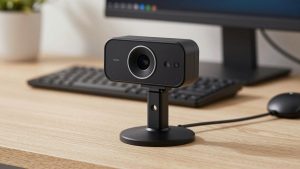
If you live on calls, step up one tier to a autofocus webcam with noise cancelling microphone. You are paying mostly for better low-light handling, wider dynamic range, and smarter mic processing.
Who it suits: home office workers, recruiters, sales, teachers, and anyone on a Mac Mini or desktop Mac with no built-in camera. Mac users should specifically check for UVC compliance – meaning no driver required. Almost all current models are plug-and-play on macOS Sonoma and later, but some framing and noise-removal features only adjust via a Windows app. If you use a Mac, buy one where the default settings are already sane without software.
Trade-offs: autofocus is nice if you move, but on some models it pulses every few seconds. If that bothers you, look for a model with fast, single autofocus or a way to lock focus. Mics are clearer but can sound processed. Colleagues may notice your voice gets slightly robotic when a truck passes or you type loudly. That is normal for aggressive noise suppression. Failure mode: USB hubs. These mics stutter more often through an unpowered hub or long extension. Plug directly into the laptop or a powered dock.
When 4K with mic makes sense – and when it does not
A 4K webcam with microphone for video conferencing makes sense for two people: those who also record video, and those who want auto-framing for moving around. The 4K sensor is not really about sending 4K to Zoom – Zoom will not – it is about cropping without looking terrible.
Who it suits: presenters who stand, whiteboard, or move, and small huddle rooms where two people share one camera. Auto-framing that follows you can be genuinely useful. Mics in this tier are often longer-range and better at rejecting echo, which helps in a room.
Trade-offs: they run hotter, use more CPU, and need USB 3.0 to hit full resolution. On older laptops they can drop frames. Image can look over-processed, with waxy skin and too much sharpening. Failure mode: buying 4K to fix a dark room. A 4K sensor in bad light often looks worse than 1080p because of noise. A 30 dollar lamp in front of you will improve your image more than spending 150 dollars extra on resolution.
Setup matters more than specs
Almost every bad-sounding webcam mic I have heard was a placement problem, not a product problem. Keep the webcam centered on top of your monitor, 20 to 30 inches from your face. Do not put it off to the side on a tripod 6 feet away for daily calls – you will sound far away and look disengaged.
Turn off competing mics. On Windows and Mac, your laptop mic can stay selected even after you plug in the webcam. Check audio input in Zoom or Teams once. Set input volume to about 70-80 percent and test. If colleagues say you fade in and out, your noise removal is too aggressive or you are too far.
For laptop users: if your desk setup forces the camera to look up your nose, raise the laptop on a stand and use an external keyboard. For Mac users with Studio Display or external monitor quirks, test in Photo Booth or QuickTime first to confirm both video and mic are recognized before a live meeting.
And be honest about your room. If you are regularly on calls in a noisy kitchen, no built-in mic will match a 30 dollar wired headset. The built-in mic is for convenience. A headset is for control.
FAQ
Is a webcam mic good enough for work meetings?
Yes, if you sit close and your room is reasonably quiet. For daily Zoom and Teams at a desk, a dual-mic webcam is fine. If you present to clients, record, or work in noise, get a dedicated USB mic or headset.
Why do I sound echoey on my new webcam?
Usually the mic is too far, speakers are too loud, or two mics are active at once. Move within 3 feet, lower speaker volume or use earbuds, and make sure only the webcam mic is selected in your meeting app.
Do I need 4K for Zoom or Teams?
No. Both compress video heavily, so most people will see you in 720p or 1080p at best. Buy 4K only if you want auto-framing or you also record local video. Otherwise put the money toward lighting or a mid-range 1080p with better mics.
Will these webcams work with Mac without software?
Most current UVC webcams work plug-and-play on Mac for video and mic. Advanced features like framing modes or mic tuning sometimes need a vendor app that may be Windows-only. If you are Mac-only, choose one that sounds and looks good with defaults.