Last Updated: September 12, 2026
- Why Monitor Position Matters So Much
- The Three Pillars: Height, Distance, and Angle
- Getting the Height Right
- Setting the Right Distance
- Dialing In the Tilt and Avoiding Glare
- Dual Monitors and Special Cases
- Pulling It All Together With Good Posture
- How Monitor Position Affects Your Eyes, Not Just Your Neck
- Adjusting Monitor Position for Glasses and Bifocals
- Top-Rated Picks
- Frequently Asked Questions
- Conclusion
- Related Articles
⚡ Key Takeaways
- Your head weighs roughly 10 to 12 pounds.
- Monitor ergonomics comes down to three measurements.
- The single most important rule is height.
- Your monitor should sit roughly an arm's length away, generally between 20 and 30 inches from your eyes.
Getting your screen position right is one of the most powerful and most overlooked upgrades you can make to your workspace, and it costs almost nothing. Proper monitor ergonomics determines whether you spend your day with a relaxed, neutral neck or a constant low-grade strain that builds into headaches and upper-back tension. Most people place their monitor wherever it happens to land on the desk, then wonder why their neck aches by mid-afternoon. The truth is that monitor height, distance, and angle follow clear, research-backed guidelines that anyone can apply in a few minutes. This guide explains exactly where your screen should sit and how to get there with any setup.
Related: best standing desks with storage.
🛒 Best Price Today on Amazon
Prime members get fast, free shipping on everything above, plus member-only deals. New members get a 30-day free trial — cancel anytime.
📄 In This Review
- Why Monitor Position Matters So Much
- The Three Pillars: Height, Distance, and Angle
- Getting the Height Right
- Setting the Right Distance
- Dialing In the Tilt and Avoiding Glare
- Dual Monitors and Special Cases
- Pulling It All Together With Good Posture
- How Monitor Position Affects Your Eyes, Not Just Your Neck
- Adjusting Monitor Position for Glasses and Bifocals
- Top-Rated Picks
- Frequently Asked Questions
- Conclusion
- Related Articles
Why Monitor Position Matters So Much
Your head weighs roughly 10 to 12 pounds. When it sits balanced directly over your spine, your neck muscles barely work. But every inch your head tilts forward dramatically increases the effective load on your neck and upper back. A screen that is too low pulls your head down and forward for hours at a time, and that is the root of most desk-related neck pain. Correct monitor placement keeps your head balanced and your gaze slightly downward, which is the most relaxed position for your eyes and neck.
The Three Pillars: Height, Distance, and Angle
See also: Best Monitor Under 300: Eight Listings Compared by Refresh Claims, Panel Type and Pixel Load • Best Adjustable Standing Desk Converters for Dual Monitors: Width, Weight and Fit Compared
Monitor ergonomics comes down to three measurements. Get all three right and your screen works with your body instead of against it.
| Factor | Target | Why It Matters |
|---|---|---|
| Height | Top of screen at or just below eye level | Keeps head balanced, avoids looking down |
| Distance | About an arm’s length (20-30 inches) | Reduces eye strain and squinting |
| Angle | Tilted back 10-20 degrees | Faces the screen squarely to your eyes |
Getting the Height Right
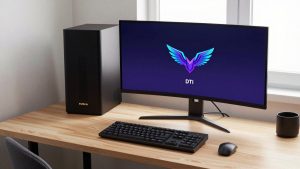
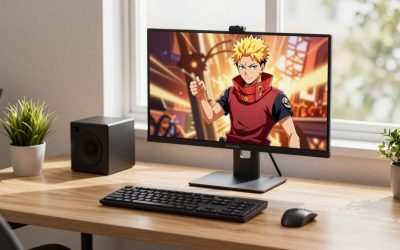
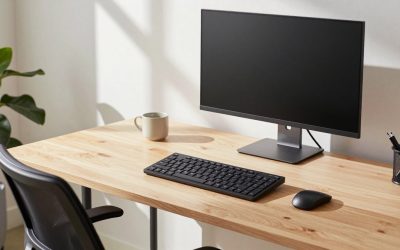
The single most important rule is height. The top edge of your screen should sit at or slightly below your eye level when you are sitting upright and looking straight ahead. Your natural resting gaze actually points slightly downward, so the center of the screen ends up a comfortable few inches below eye level. This lets you scan the whole display by lowering your eyes rather than tilting your head.
To set it, sit in your normal working posture, close your eyes, then open them looking straight ahead. Your gaze should land near the top third of the screen. If you are looking at the middle or bottom, the monitor is too low.
How to Raise a Monitor That Sits Too Low
Many monitors do not rise high enough on their factory stands, and almost every laptop screen sits far too low. To fix it:
- Use a monitor arm or riser to lift a standalone display to the correct height.
- For laptops, place the screen on a laptop stand and add an external keyboard and mouse, since you cannot type comfortably on a raised laptop.
- In a pinch, a stack of sturdy books works, but a dedicated stand is more stable and adjustable.
Setting the Right Distance
Your monitor should sit roughly an arm’s length away, generally between 20 and 30 inches from your eyes. Too close forces your eyes to overwork on focusing, while too far makes you lean in and squint, which drags your posture forward. Larger and higher-resolution screens can sit a little farther back. A simple test: extend your arm toward the screen, and your fingertips should just about reach it.
Dialing In the Tilt and Avoiding Glare
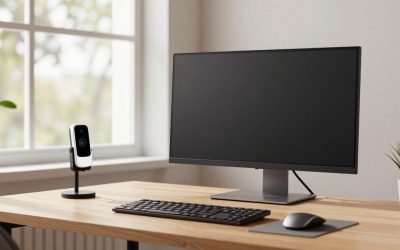
Tilt the screen back slightly, about 10 to 20 degrees, so its surface faces your eyes squarely rather than reflecting the ceiling lights into your face. Position the monitor perpendicular to windows rather than facing or backing onto them, which cuts glare and silhouetting. If reflections persist, adjust your room lighting or lower the screen brightness to match the surrounding room.
Dual Monitors and Special Cases
Multi-monitor setups need a little extra thought:
- Equal use of both screens: Place them side by side with the inner edges meeting directly in front of you, angled slightly inward like a shallow curve.
- One primary screen: Center the main monitor in front of you and place the secondary screen to the side.
- Laptop plus external monitor: Make the external display your primary screen at eye level, and raise the laptop on a stand so the two screens line up in height.
Pulling It All Together With Good Posture
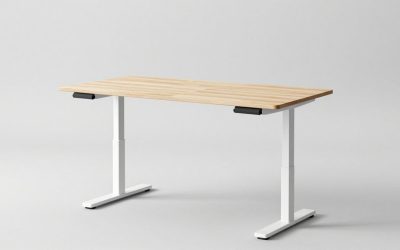
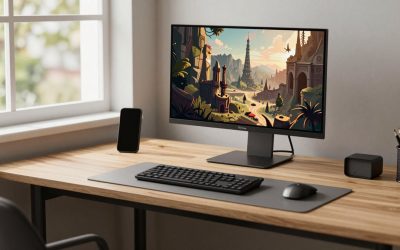
Monitor placement only works alongside the rest of your ergonomics. Your chair, desk height, and foot support all influence where your eyes end up. If your feet dangle, your whole posture shifts and your eye line drops, so a footrest can indirectly improve how you see your screen. A clean, organized surface helps too, and a quality desk mat keeps your keyboard and mouse positioned consistently in front of the screen. If you alternate between sitting and standing, remember to reset your monitor height for each position, which is easy with a standing desk converter that raises the whole setup together.
How Monitor Position Affects Your Eyes, Not Just Your Neck
Most discussions of monitor ergonomics focus on the neck, but screen placement has just as much influence on your eyes. When you look slightly downward at a properly positioned screen, your eyelids cover more of the eye surface, which slows the evaporation of your tear film. A screen placed too high forces you to look upward with wide-open eyes, exposing more surface to the air and accelerating dryness. This is one reason a too-high monitor often leaves people with tired, gritty eyes by the afternoon.
Distance matters for eye comfort too. When a screen sits too close, your eye muscles must contract continuously to maintain focus, a sustained effort that contributes to the fatigue and headaches lumped together as digital eye strain. Placing the screen at roughly an arm’s length gives those focusing muscles a more relaxed working distance. Pairing correct distance with the 20-20-20 habit, looking at something 20 feet away for 20 seconds every 20 minutes, gives your eyes regular recovery breaks that further reduce strain.
Screen brightness and contrast round out the picture. A monitor that glows much brighter than the surrounding room forces your eyes to constantly readjust as your gaze moves between the screen and your environment. Matching the screen’s brightness to the ambient light, and keeping text large enough to read without leaning in, lets your eyes settle into a comfortable, sustainable working state for hours at a time.
Adjusting Monitor Position for Glasses and Bifocals
If you wear progressive or bifocal lenses, standard monitor advice needs a tweak. Those lenses place the reading portion at the bottom, so a screen at normal height forces you to tilt your head back to view it through the lower part of your glasses, straining your neck in the process. People who wear progressives generally benefit from a monitor positioned a little lower than the usual eye-level rule, so they can read comfortably through the bottom of their lenses with their head in a neutral position. If you find yourself constantly chin-up to see the screen, lowering the monitor by an inch or two often solves both the eye and the neck problem at once. The right position is always the one that keeps your head balanced and your eyes relaxed, so let comfort be the final judge.
Top-Rated Picks


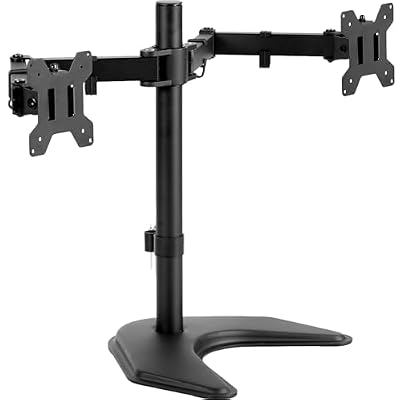
| Product | Brand | Rating | Reviews | Price |
|---|---|---|---|---|
| VIVO Dual Monitor Desk Mount, Holds 2 Computer Screen… | — | ★ 4.6 | 60.6k | $34.99 |
| HUANUO Dual Monitor Stand – Full Adjustable Monitor D… | HUANUO | ★ 4.6 | 34.2k | $69.99 |
| VIVO Single 13 to 38 inch Ultrawide Monitor Arm Desk … | — | ★ 4.5 | 20.2k | $34.99 |
| ErGear Dual Monitor Stand, Heavy Duty Adjustable Moni… | ErGear | ★ 4.4 | 22.5k | $28.99 |
| VIVO STAND-V002F Dual LED LCD Monitor Free-Standing D… | — | ★ 4.5 | 16k | $34.99 |
Frequently Asked Questions
How high should my monitor be?
The top of the screen should sit at or just below your eye level when you are sitting upright. Your natural gaze tilts slightly downward, so the center of the screen lands a few inches below eye level, which is the most comfortable position for your neck and eyes.
How far away should my monitor be?
About an arm’s length, generally 20 to 30 inches from your eyes. Larger or higher-resolution screens can sit slightly farther back. If you find yourself leaning in to read, move the screen closer or increase the text size.
Should my monitor be tilted?
Yes, tilt it back about 10 to 20 degrees so the screen faces your eyes squarely. This reduces glare from overhead lighting and means you are looking at the display head-on rather than at an angle.
Is it bad to look down at a laptop screen?
Looking down at a low laptop screen for long periods is a leading cause of neck and upper-back pain. Raise the screen to eye level with a stand and use a separate keyboard and mouse so you can type comfortably.
How do I set up two monitors ergonomically?
If you use both equally, place them side by side with the inner edges centered in front of you and angled slightly inward. If one is primary, center that one and put the secondary screen to the side.
Conclusion
Good monitor ergonomics rests on three simple targets: top of screen at eye level, an arm’s length away, tilted back slightly. Nail those and you keep your head balanced over your spine, which prevents the forward-lean strain that causes so much neck and upper-back discomfort. It takes only a few minutes and often nothing more than a stand or riser, yet the payoff in daily comfort is one of the best returns in your entire workspace.
Related Reviews & Guides

7 Days to Die 2.0 Update Guide
How to Find the Sketchy Salesman in 99 Nights in the Forest