Last Updated: October 18, 2026
- How to Set Up an Ergonomic Workspace: The 60-Second Version
- Why Ergonomics Matters More at Home
- How to Set Up a Home Office: Step by Step Setting Up a Desk in the Right Order
- Step 1: Start With Your Chair
- Step 2: Set Your Desk and Keyboard Height
- Step 3: Position Your Monitor
- Step 4: Optimize Lighting and Screen Glare
- Step 5: Build In Movement
- Ergonomic Home Office Settings: Dual Monitors, Sit-Stand and Screen Settings
- Quick Reference Checklist
- Common Home Office Ergonomic Mistakes
- Setting Up on a Budget vs Investing in Gear
- Adapting Your Setup Through the Day
- Ergonomic Home Office Setup by Budget Tier
- Small Ergonomic Upgrades Worth Buying First
- Standing Desk Picks
- Ergonomic Pain Troubleshooting: Symptom, Cause and Fix
- More Ergonomic Workspace Questions
- Frequently Asked Questions
- Conclusion
- Related Guides
⚡ Key Takeaways
- Office workplaces are often set up by professionals who follow standardized guidelines.
- Your chair is the foundation, so set it first and let everything else follow.
- With the chair set, your desk should let your forearms rest parallel to the floor while you type, keeping your elbows near 90 degrees.
- Monitor placement is where most home setups fall apart, especially for laptop users.
Building an ergonomic home office setup is one of the highest-value investments you can make if you work from home, because the right arrangement protects your body from the slow, cumulative strain that leads to neck pain, sore wrists, and an aching lower back. The good news is that you do not need a designer chair or an expensive sit-stand desk to get most of the benefit. Ergonomics is mostly about angles, distances, and positioning, and almost all of it can be dialed in with what you already own. This step-by-step guide walks you through setting up each part of your workstation in the right order, from your chair to your screen to your lighting.
Related: best standing desks with storage.
Updated October 2026 — To set up an ergonomic workspace at home, put your feet flat on the floor, keep your elbows near 90 to 110 degrees with forearms level, place the top of your screen at or just below eye level about an arm’s length away, and stand up every 30 minutes. That ergonomic home office setup works with a plain table, a laptop and a few stacked books if you do not have special gear.
📄 In This Review
- How to Set Up an Ergonomic Workspace: The 60-Second Version
- Why Ergonomics Matters More at Home
- How to Set Up a Home Office: Step by Step Setting Up a Desk in the Right Order
- Step 1: Start With Your Chair
- Step 2: Set Your Desk and Keyboard Height
- Step 3: Position Your Monitor
- Step 4: Optimize Lighting and Screen Glare
- Step 5: Build In Movement
- Ergonomic Home Office Settings: Dual Monitors, Sit-Stand and Screen Settings
- Quick Reference Checklist
- Common Home Office Ergonomic Mistakes
- Setting Up on a Budget vs Investing in Gear
- Adapting Your Setup Through the Day
- Ergonomic Home Office Setup by Budget Tier
- Small Ergonomic Upgrades Worth Buying First
- Standing Desk Picks
- Ergonomic Pain Troubleshooting: Symptom, Cause and Fix
- More Ergonomic Workspace Questions
- Frequently Asked Questions
- Conclusion
- Related Guides
How to Set Up an Ergonomic Workspace: The 60-Second Version
| Body area | Target | Quick fix if it is off |
|---|---|---|
| Feet and knees | Feet flat; knees about level with hips, 2 to 3 finger widths of space behind the knee | Footrest or a sturdy box |
| Lower back | Supported in its natural curve | Lumbar cushion or a rolled towel |
| Elbows and wrists | Elbows 90 to 110 degrees, wrists straight, forearms level | Raise the chair or lower the keyboard |
| Screen height | Top edge at or just below eye level | Monitor riser or laptop stand |
| Screen distance | About 20 to 30 inches (50 to 76 cm), roughly an arm’s length | Slide the monitor back or increase text size |
| Light | Windows to the side, task light on the opposite side of your writing hand | Turn the desk 90 degrees or add a lamp |
| Movement | Change position every 30 minutes | Timer on your phone or a standing call |
Top three picks for fixing most ergonomic problems on a budget, in order of impact: a laptop stand with a separate keyboard and mouse, a lumbar-supporting chair, and a footrest if your feet do not reach the floor. The step-by-step sections below explain each one, in the order you should set them up.
Why Ergonomics Matters More at Home
See also: Best Monitor Under 300: Eight Listings Compared by Refresh Claims, Panel Type and Pixel Load • Best Adjustable Standing Desk Converters for Dual Monitors: Width, Weight and Fit Compared
Office workplaces are often set up by professionals who follow standardized guidelines. At home, people improvise. They work from kitchen tables, couches, and beds, using laptops perched at the wrong height. Over weeks and months, these small misalignments compound into real discomfort and even injury. A deliberate setup reverses that trend, and the time you spend getting it right pays off every single working day.
How to Set Up a Home Office: Step by Step Setting Up a Desk in the Right Order
Most people buy gear first and adjust later. The order below saves money because each step tells you whether the next purchase is needed.
- Pick the spot. Choose a place with a stable surface, an outlet within reach and a window on your side, not behind the screen. Avoid beds and sofas for anything longer than a quick email.
- Measure your seated elbow height. Sit in your chair with feet flat and relax your shoulders. The distance from floor to the bent elbow is your target keyboard height. Standard desks sit about 29 to 30 inches off the floor, which suits a person around 5 ft 10 in. Shorter users usually need a higher chair plus a footrest; taller users may need to raise the desk.
- Set the chair first. Seat height, lumbar support and armrests come next. Do not adjust the desk or monitor until the chair is right.
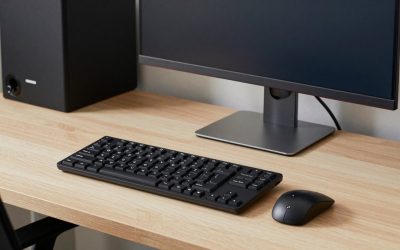
- Place the keyboard and mouse. Put the keyboard directly in front, close enough to keep your upper arms near your sides. Keep the mouse on the same plane and within reach without stretching your shoulder.
- Position the main screen. Center it with your body, tilt it back 10 to 20 degrees, and set its top edge at or just below eye level.
- Add light. Position windows to the side. Put a task lamp on the side opposite your writing hand to avoid shadows.
- Try it for 20 minutes. Sit and work normally. Note any shoulder shrug, wrist bend, neck tilt or squinting, then adjust one variable at a time.
Ergonomic setup for home office use: laptop-only vs desktop
A laptop forces a trade-off: the screen and keyboard are attached, so you cannot position both correctly. Use a stand to raise the display and add a separate keyboard and mouse. If you cannot buy a stand, stack a ream of paper or a few sturdy books under the laptop until the top of the screen reaches eye level. If you use a desktop with an external monitor, you already have the flexibility, so the most useful upgrade is usually a monitor arm or riser.
Ergonomic setup for a shared or small space
- At a dining table, use a chair with a firm cushion and add a footrest if your feet do not reach the floor.
- A fold-away laptop stand and a compact keyboard take seconds to set up and put away.
- Keep a small basket for your mouse, headset and stand so the setup is repeatable each day.
Step 1: Start With Your Chair
Your chair is the foundation, so set it first and let everything else follow. A well-adjusted chair keeps your spine in its natural S-curve and your feet supported.
- Adjust the seat height so your thighs are roughly parallel to the floor and your feet rest flat.
- Sit all the way back so your lower back contacts the backrest. Use the lumbar support, or add a small cushion if there is none.
- Set the armrests so your shoulders relax and your elbows rest at about 90 degrees.
- Leave a two-to-three finger gap between the back of your knees and the seat edge.
If your feet dangle even at the correct elbow height, a footrest restores support and takes pressure off the backs of your thighs.
Step 2: Set Your Desk and Keyboard Height
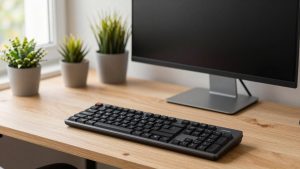
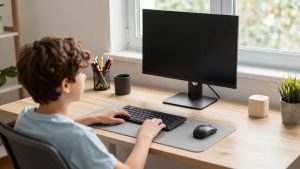
With the chair set, your desk should let your forearms rest parallel to the floor while you type, keeping your elbows near 90 degrees. Position the keyboard and mouse close together so you are not reaching, and keep your wrists straight rather than bent up or down. A soft surface under your wrists helps; a quality desk mat provides a smooth, padded area for both keyboard and mouse.
Step 3: Position Your Monitor
Monitor placement is where most home setups fall apart, especially for laptop users. Aim for these targets:
- Height: The top of the screen should sit at or slightly below eye level so you look very slightly downward.
- Distance: Place the screen about an arm’s length away, roughly 20 to 30 inches.
- Angle: Tilt the screen back 10 to 20 degrees so it faces your eyes squarely.
If you work on a laptop, the attached screen is almost always too low. Raising it with a laptop stand and adding an external keyboard and mouse is the single biggest ergonomic upgrade most remote workers can make.
Step 4: Optimize Lighting and Screen Glare
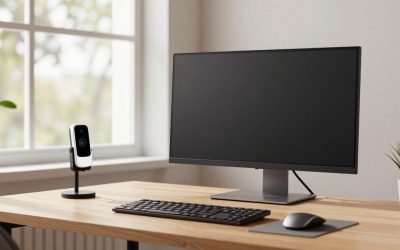
Poor lighting forces you to lean toward the screen or squint, which strains both your eyes and your neck. Position your main light source to the side rather than directly behind or in front of the monitor to avoid glare and silhouetting. Natural light is ideal, but a desk lamp with adjustable brightness fills the gaps on dark days. Reduce screen brightness until it roughly matches the surrounding room rather than glowing far brighter.
Step 5: Build In Movement
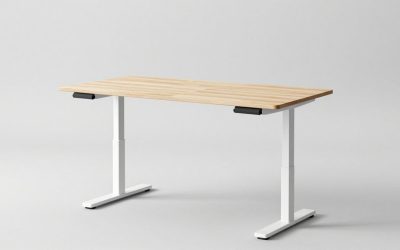
Even a perfect static posture becomes uncomfortable over hours. The healthiest setup encourages position changes. Stand up to stretch every 30 to 60 minutes, take calls on your feet, and consider alternating between sitting and standing if your desk allows it. A standing desk converter is an affordable way to add a standing option without replacing your desk.
Ergonomic Home Office Settings: Dual Monitors, Sit-Stand and Screen Settings
Dual monitor placement
- One main screen, one secondary: center the main monitor directly in front of you and place the second to the side at a slight angle.
- Two screens used equally: put them edge to edge in a shallow V with the seam centered on your nose, so you turn your head the same amount each way.
- Heights: match the top edges at or just below eye level. Use monitor arms if the stands differ.
Sit-stand schedule that works
Standing all day is no better than sitting all day. A practical starting schedule is 30 minutes sitting, 10 to 15 minutes standing, then repeat. Stand for calls or reading, sit for focused typing. Wear supportive shoes or use a mat if you stand for more than 15 minutes. Set the standing desk height so your elbows are again near 90 to 110 degrees, and recheck the monitor height after each change.
Screen and software settings that reduce strain
- Match screen brightness to the room. If the display looks like a lamp, lower it.
- Increase text scaling to 125 percent or more so you do not lean forward to read.
- Use the 20-20-20 rule: every 20 minutes, look at something 20 feet away for 20 seconds.
- Turn on a warm night color mode in the evening to reduce glare in a dim room.
- Keep a document holder beside the monitor if you copy from paper, so you do not look down repeatedly.
Posture checks that take 10 seconds
- Are my shoulders down and relaxed, not hunched toward my ears?
- Is my chin level, not poking toward the screen?
- Are my wrists in line with my forearms?
- Can I touch my back to the backrest while typing?
- Are my feet flat and supported?
Set a recurring reminder for these checks until correct posture becomes automatic.
Quick Reference Checklist
| Body Area | Target Position | Common Mistake |
|---|---|---|
| Feet | Flat on floor or footrest | Dangling or tucked under chair |
| Knees | Roughly 90 degrees | Higher than hips |
| Elbows | Near 90 degrees, relaxed shoulders | Reaching up to keyboard |
| Wrists | Straight and neutral | Bent up while typing |
| Eyes | Level with top of screen | Looking down at a laptop |
| Back | Supported natural curve | Slumped or leaning forward |
Common Home Office Ergonomic Mistakes
Even people who try to set things up well tend to repeat a handful of errors. Watch out for these:
- Working on a laptop on the couch or bed, which guarantees a hunched neck.
- Crossing legs or sitting on one foot, which twists the pelvis and spine.
- Holding the phone between ear and shoulder during calls.
- Placing the mouse far from the keyboard, forcing repeated reaching.
- Leaving the monitor too low because no stand is available.
Setting Up on a Budget vs Investing in Gear
One of the most reassuring truths about ergonomics is that the principles cost nothing. The angles, distances, and positions your body prefers do not care whether you achieve them with a premium chair or a stack of books. That said, dedicated gear makes the right positions easier to hold and more comfortable over long sessions, so it helps to know where spending makes the biggest difference.
If you have no budget at all, you can still build a sound setup. A rolled towel placed behind your lower back restores lumbar support. A sturdy box or ream of paper raises a laptop screen toward eye level. A firm cushion on a too-deep seat improves your posture, and a footrest can be improvised from any stable object of the right height. These makeshift solutions are not pretty, but they deliver the same biomechanical benefits as their store-bought counterparts.
When you do decide to invest, prioritize the items that touch your body for the most hours. A supportive chair is usually the highest-value purchase because you sit in it all day and a poor one undermines everything else. After that, a way to raise your screen and a separate keyboard transform laptop ergonomics dramatically. Comfort accessories like a padded desk mat and a contoured footrest come next, refining a setup that is already fundamentally sound. Spending in that order means every dollar improves the parts of your day that matter most.
Adapting Your Setup Through the Day
A truly ergonomic workspace is not a fixed monument you build once and never touch. The healthiest setup flexes with your tasks and your energy. During focused work that demands precision, you might lower into a well-supported seated position. For calls, reading, or brainstorming, standing or perching keeps you alert and moving. Treating your workstation as something you adjust throughout the day, rather than a single locked configuration, is what separates a setup that merely looks correct from one that genuinely keeps you comfortable and productive from morning to evening.
Ergonomic Home Office Setup by Budget Tier
Spend in the order that changes your posture most. Each tier below lists what to expect.
Free or nearly free
- Books or a ream of paper under the laptop, a rolled towel for lumbar support and a box as a footrest.
- Rearrange the desk so light comes from the side.
- Set movement reminders and enable text scaling.
What to expect: relief for neck and lower back is common if the monitor height and chair position were the main problems.
Budget tier
- A proper laptop stand, an external keyboard and mouse, a footrest, and a monitor light bar.
- A vertical or split design if wrist pain is your main problem.
What to expect: your wrists and shoulders should feel better, and the laptop becomes a real workstation.
Mid-range tier
- A supportive chair with adjustable lumbar and armrests, or a monitor arm plus a larger monitor.
What to expect: a chair upgrade changes how long you can sit comfortably, which is the single biggest comfort gain at this tier.
Premium tier
- A sit-stand desk, a premium task chair or both.
What to expect: flexibility to alternate positions all day, but only if you use it. A sit-stand desk you never raise does not fix anything.
Small Ergonomic Upgrades Worth Buying First
Nulaxy Ergonomic Adjustable Laptop Stand — Best for raising a laptop screen

Nulaxy Ergonomic Adjustable Laptop Stand for Desk, Dual Foldable Computer Riser with Advanced Heat-Vent, Heavy-Duty Portable Notebook Holder for Posture Correction, Compatible with Mac 10-16" Laptops
Included for 'How to Set Up an Ergonomic Home Office' as a representative home product in this roundup; selection reflects the product set returned for this topic.
View on AmazonKey specs: adjustable height and angle · foldable for storage · heat-venting design. Skip it if you already use an external monitor at the right height.
Logitech Lift Vertical Ergonomic Mouse — Best for wrist and forearm strain
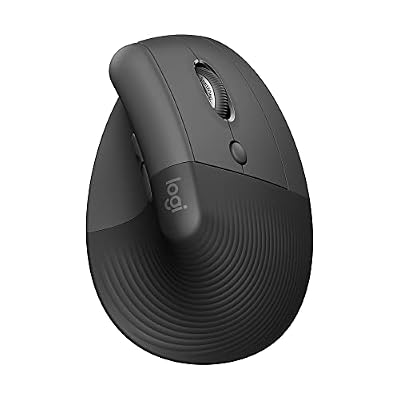
Logitech Lift Vertical Ergonomic Wireless Mouse - Graphite | Connect via Bluetooth or included Logi Bolt USB-A receiver, quiet clicks, 4 of 6 buttons customizable, Windows Mac compatible
Included for 'How to Set Up an Ergonomic Home Office' as a representative home product in this roundup; selection reflects the product set returned for this topic.
View on AmazonKey specs: vertical grip around 57 degrees · Bluetooth or Logi Bolt receiver · designed for small to medium hands. Skip it if you have large hands or need a left-handed model without checking the available versions.
Mind Reader Under-Desk Foot Rest — Best for feet that do not reach the floor

Mind Reader Foot Rest, Under Desk at Work, Ergonomic, Height Adjustable, Office, Plastic, 17"L x 13"W x 6.25"H, Black
Included for 'How to Set Up an Ergonomic Home Office' as a representative home product in this roundup; selection reflects the product set returned for this topic.
View on AmazonKey specs: height-adjustable plastic platform · about 17 by 13 inches · fits under most desks. Skip it if your feet already rest flat with the seat at elbow height.
Standing Desk Picks


| Product | Brand | Price |
|---|---|---|
| FLEXISPOT EN1 One-Piece Standing Desk, Electric Adjus… | FLEXISPOT | Check price |
| ErGear Height Adjustable Electric Standing Desk, 48 x… | ErGear | Check price |
| FEZIBO Standing Desk, 48 × 24 Inches Electric Height … | FEZIBO | Check price |
| Desktronic HomeOne Standing Desk 48×24 — Ergonomic Si… | Desktronic | Check price |
Ergonomic Pain Troubleshooting: Symptom, Cause and Fix
| Symptom | Likely cause | Fix |
|---|---|---|
| Neck ache | Screen too low or too far | Raise the screen to eye level and bring it to arm’s length |
| Shoulder tension | Armrests too high or keyboard too high | Lower the armrests; set the keyboard at elbow height |
| Wrist pain | Wrists bent upward or resting on a hard edge | Keep wrists level and use a wrist rest only during pauses |
| Lower back pain | No lumbar support or sitting too long | Add lumbar support; stand every 30 minutes |
| Eye strain and headaches | Glare, small text or too little blinking | Move the screen away from windows, enlarge text and use the 20-20-20 rule |
| Numb feet or tight thighs | Seat too deep or feet unsupported | Shorten the seat depth or add a footrest |
If pain lasts more than a couple of weeks or includes numbness or tingling, see a doctor or a physical therapist. Ergonomics reduces strain but is not a treatment.
More Ergonomic Workspace Questions
How do I set up a home office ergonomically on a small budget?
Start with chair height, screen height and a separate keyboard. These three changes cost almost nothing and fix most problems. Add a footrest and a lumbar cushion next, and delay bigger purchases until you know what is still uncomfortable.
How high should my monitor be for an ergonomic setup?
The top edge should be at or slightly below eye level. Sit upright, close your eyes, open them and look straight ahead; the screen should start about where your gaze lands. Tilt the screen back 10 to 20 degrees.
How far should my screen be from my eyes?
About an arm’s length, or 20 to 30 inches (50 to 76 cm). If you must lean in to read, increase the text size instead of moving closer.
What is the best position for a keyboard and mouse?
Put them at elbow height, close to your body, with wrists straight. Your elbows should stay near your sides at 90 to 110 degrees, and the mouse should sit beside the keyboard with no reaching.
Do I need a standing desk for an ergonomic home office?
No. A well-adjusted chair and desk can be ergonomic on its own. A standing desk adds variety if you use it for short, regular standing periods, but it is not required.
How can I set up a home office ergonomically with a laptop only?
Raise the laptop on a stand or books so the top of the screen is at eye level, then add an external keyboard and mouse. Without that pair, you will have to choose between a good neck position and a good wrist position.
Frequently Asked Questions
What is the most important part of an ergonomic setup?
If you can only fix one thing, raise your screen to eye level and use a separate keyboard. Looking down at a low screen for hours is the most common cause of neck and upper-back pain in home offices.
Can I make my setup ergonomic without spending much money?
Yes. Books or a sturdy box can raise a monitor, a rolled towel can add lumbar support, and a footrest can be improvised. The principles matter more than the price tags, though dedicated accessories are more comfortable and stable.
How often should I take breaks?
Aim to change position or stand up every 30 to 60 minutes. A common approach is the 20-20-20 rule for eyes: every 20 minutes, look at something 20 feet away for 20 seconds.
Is a standing desk necessary for good ergonomics?
No. A standing desk is helpful for adding movement, but a well-adjusted seated setup is perfectly healthy. The key is varying your posture rather than holding any single position all day.
Why do my wrists hurt even with a good chair?
Wrist pain usually comes from typing with bent wrists or a keyboard that is too high. Keep your wrists straight, lower the keyboard to elbow height, and use a padded surface to support them while typing.
Conclusion
An ergonomic home office setup comes together when you work from the ground up: chair first, then desk and keyboard, then monitor, then lighting, and finally movement. None of it requires a big budget, just attention to the angles and distances your body prefers. Set it up once with care, revisit it occasionally, and your future self will thank you with fewer aches and more comfortable, productive workdays.
Related Reviews & Guides
Baldurs Gate 3 Best Paladin Class Build Guide
Keyboard Tray Benefits: Why You Might Need One