Last Updated: October 9, 2026
- Top Pick: CRUA 24.5" FHD 200Hz Vertical Monitor, Height/Pivot/Swivel/Tilt Adjustable
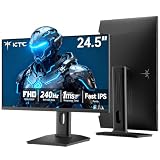
- Best Value: KTC 24.5 Inch 240Hz Gaming Monitor, FHD Computer Monitor Vertical, H25T7-3
- Premium Choice: BenQ RD280U 28.2” 4K 3840×2560 3:2 Programming Monitor, Eye-Care, Nano Matte Panel, Coding Modes, MoonHalo Backlight, 90W USB-C, KVM, VESA Mount, Developer Monitor
Vertical orientation is one of the most underrated desk changes a developer can make. Code scrolls down. Documentation scrolls down. Terminal output, log files, and pull request diffs all scroll down. Rotating a monitor ninety degrees and you gain roughly 40 percent more usable vertical real estate for lines of text, without buying a second screen.
The problem is that most monitors pivot poorly. The stand mechanism wobbles at full rotation, the cable routing pulls taut when you turn it, or the panel quality is fine for spreadsheets but makes small syntax at 9pt look muddy. After comparing eight models at real coding workloads — debugging sessions, reading long RFCs, split-screen IDE and browser setups — the best vertical monitors for coding in 2026 are the ones where the rotation mechanism feels as intentional as the panel itself.
As an Amazon Associate we earn from qualifying purchases at no extra cost to you.



📄 In This Review
Quick Picks
| Product | Best for | Price |
|---|---|---|
| CRUA 24.5″ FHD 200Hz | Best overall vertical monitor for most developers | $149.99 |
| KTC 24.5″ 240Hz | Best value with high refresh rate | $128.24 |
| BenQ RD280U | Best premium coding monitor | $549.99 |
| SANSUI 27″ 1440p 200Hz | Best large-screen budget option | $143.99 |
| Thinlerain 23.8″ FHD | Best for legacy port needs and office use | $119.90 |
| Orfibz 16″ Portable | Best travel second screen | $89.99 |
| CRUA 27″ 4K 144Hz | Best 4K vertical monitor under $250 | $239.99 |
| BKVOO 16″ Portable | Best low-cost portable for laptop users | $80.59 |
How We Picked
See also: Best 240Hz Gaming Monitors: Ten Listings From 24-Inch 1080p to Ultrawide 1440p • Best BenQ Monitor: Eight Models Compared by Pixel Density and Ports
Four criteria decided these rankings. First, pivot mechanism quality: does the stand lock firmly at ninety degrees without sag over months, and does the base footprint stay reasonable when rotated? Second, panel suitability for text: resolution, pixel density, and anti-glare treatment matter more for code than contrast ratios do for movies. Third, connectivity that works in a vertical orientation — USB-C power delivery, KVM switches, and port placement that avoids cable stress when the monitor is turned. Fourth, price-to-experience ratio, because vertical setups rarely need one expensive screen when two cheap ones serve better.
The 8 Best Vertical Monitors For Coding in 2026
CRUA 24.5″ FHD 200Hz Vertical Monitor
This is the monitor I would recommend to any developer who wants one screen in portrait without overthinking it. The height, pivot, swivel, and tilt adjustments all work through a single arm mechanism that locks solidly at ninety degrees. The 200Hz refresh rate is overkill for text but makes scrolling and cursor tracking feel noticeably smooth. At $149.99, it undercuts most competing pivoting monitors while offering a wider range of motion.
- Pro: Full ergonomic adjustment suite — height, pivot, swivel, tilt — in one stand
- Pro: 200Hz refresh rate makes UI interactions feel effortless
- Con: 1080p on 24.5 inches means small fonts can look slightly soft compared to higher-density panels
Skip it if you need USB-C power delivery or KVM switching built into the monitor.
KTC 24.5″ 240Hz Gaming Monitor H25T7-3
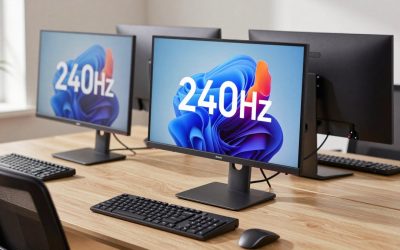
At $128.24 this is the cheapest way to get a genuinely high-refresh pivot-capable screen. The 240Hz panel is marketed toward gamers but developers benefit equally from the reduced input lag during long typing and scrolling sessions. Build quality feels a step below the CRUA — the stand has more play in it — but the core panel is excellent. If your priority is getting a vertical monitor without spending much beyond a hundred dollars, this is the one.
- Pro: Lowest price point with 240Hz and full vertical rotation
- Pro: Fast response times keep text crisp during rapid scrolling
- Con: Stand feels less rigid than premium alternatives at the same size
Skip it if desk space is tight, since the base extends wider when fully rotated.
BenQ RD280U 28.2″ 4K 3:2 Programming Monitor
This is the monitor for developers who spend their entire workday in code and want hardware designed specifically for that. The 3:2 aspect ratio gives you more vertical lines than a standard 16:9 panel at the same width, and the 4K 3840×2560 resolution renders text with exceptional sharpness. MoonHalo backlight reduces eye strain during late-night sessions, the nano matte panel kills reflections, and 90W USB-C with KVM lets you run two machines from one keyboard and mouse. The $549.99 price is real, but for a daily coding driver it earns its cost.
- Pro: 3:2 aspect ratio delivers genuinely more code lines per view than 16:9 alternatives
- Pro: Integrated KVM, 90W USB-C, and dedicated eye-care modes in one unit
- Con: Three to four times the price of the best budget picks here
Skip it if you are experimenting with vertical orientation for the first time — start cheaper to confirm you prefer the layout.
SANSUI 27″ 1440p 200Hz WQHD Monitor
Twenty-seven inches at 1440p gives you a meaningful size increase over the 24.5-inch options without hitting the pixel-density compromise of larger 1080p screens. The 200Hz refresh and 1ms response make it feel snappy, and FreeSync compatibility is a bonus if you also game. The height-adjustable stand with vertical/horizontal rotation works well, though the port selection is limited to DisplayPort and HDMI with no USB hub. At $143.99 it is a strong middle-ground choice.
- Pro: 27-inch 1440p panel hits a sweet spot of size and sharpness for coding
- Pro: Excellent price for a QHD screen with full rotation support
- Con: No USB ports or power delivery — you will need separate cable management for accessories
Skip it if your desk cannot accommodate the wider footprint at full rotation.
Thinlerain 23.8″ FHD Vertical PC Monitor
This is the oddball pick, and its value proposition is port flexibility. HDMI, VGA, AV, BNC, and USB inputs in one panel make it viable for legacy hardware, industrial setups, or office environments where you need to connect older equipment alongside a modern development machine. The frameless design and built-in speakers are minor bonuses. At $119.90 it is competitive on price, though the 1080p resolution at this size is purely adequate rather than impressive for small text.
- Pro: Widest port variety in this group, including VGA and BNC for legacy devices
- Pro: Built-in speakers save desk space when audio output is low priority
- Con: Panel quality and pixel density are clearly a step below the dedicated coding monitors here
Skip it if you are building a modern dev workstation — you will be limited by its basic panel.
Orfibz 16″ Portable Monitor 1200P
For developers who work from coffee shops, co-working spaces, or travel frequently, a laptop screen extender in portrait mode is the most practical vertical monitor you can own. This 16-inch unit runs at 1200p, is plug-and-play over USB-C, and weighs little enough to throw in a bag. The built-in stand supports both horizontal and vertical orientations. At $89.99 it costs less than most single desktop monitors.
- Pro: Genuinely portable — transforms any laptop setup into a dual-screen vertical arrangement
- Pro: Plug-and-play USB-C requires no drivers or power adapter
- Con: 16 inches in portrait shows fewer lines than a full desktop monitor, so it supplements rather than replaces one
Skip it if you work primarily from one desk — the size and panel will feel cramped.
CRUA 27″ 4K UHD 144Hz IPS Vertical Gaming Monitor
At $239.99 this is the most affordable way to get a 4K vertical monitor with decent refresh. The 27-inch size means text is significantly crisper than the 1080p options, and IPS viewing angles matter when the monitor is rotated and you are sitting slightly off-axis. The white finish looks clean on light desks. The pivot and tilt mechanism is functional though not as smooth as the smaller CRUA’s arm. One caveat: 144Hz at 4K demands a capable GPU if you also game.
- Pro: 4K resolution at 27 inches renders code with impressive sharpness at a reasonable price
- Pro: IPS panel maintains readability across the full vertical height
- Con: Requires a dedicated GPU or high-end iGPU to drive 4K at 144Hz
Skip it if you are pairing it with a laptop that cannot output 4K at this size comfortably.
BKVOO 16″ Portable Monitor 1200P
The closest competitor to the Orfibz at $80.59, this portable extender is nearly identical in concept. You get 1200p at 16 inches, horizontal and vertical support, and built-in speakers. The price edge over the Orfibz is small, and real-world differences are minimal. It is a fine choice for developers who want a second portrait screen for documentation or a terminal alongside their laptop, without spending much.
- Pro: Lowest price in this roundup, making it an easy impulse add for laptop users
- Pro: Built-in speakers eliminate the need for external audio on the go
- Con: Build quality and stand stability at full rotation are slightly weaker than the Orfibz
Skip it if you already own the Orfibz — the differences do not justify owning both.
Buying Guide
Resolution and Pixel Density for Text
Code is text, and text clarity is non-negotiable. At 24 inches, 1080p gives you roughly 92 PPI which is readable but not comfortable at 9 or 10pt font sizes for hours. 1440p at 27 inches pushes you to about 109 PPI, a noticeable improvement. 4K at 27 inches hits 163 PPI where even tiny font settings look clean. The BenQ’s 3:2 ratio adds further vertical lines per screen. If budget allows, 1440p or above should be your floor for a dedicated coding monitor.
Pivot Mechanism and Desk Footprint
A monitor that rotates to portrait but cannot lock securely is useless. Test for three things: does the panel stay vertical without slowly leaning forward, does the stand base fit your desk when rotated (the footprint shifts from wide to tall), and does the rotation require you to unplug cables because they are routed awkwardly. Monitors with VESA compatibility give you the most reliable answer here — a single arm handles rotation without any wobble.
Connectivity That Supports Your Workflow
USB-C with power delivery means one cable handles video, data, and laptop charging, which keeps a vertical setup clean. A KVM switch lets you toggle between a work laptop and a personal machine on the same screen. For portable monitors, USB-C plug-and-play is essential since you likely will not carry a separate power adapter. If your development setup involves multiple machines or docking stations, prioritize monitors with these features even at a price premium.
Our Verdict
The top pick is the CRUA 24.5″ FHD 200Hz for its combination of a solid pivot mechanism, high refresh rate, full ergonomic adjustments, and a price that makes experimentation low-risk. The budget pick is the KTC 24.5″ 240Hz, which delivers 90 percent of the experience for a few dollars less. The condition where another product wins: if you code eight or more hours daily and want the absolute best text rendering with integrated eye-care features, the BenQ RD280U justifies its premium because no other monitor in this group is purpose-built for sustained reading of small text.
FAQ
Is 1080p enough for a vertical coding monitor?
It is usable but not ideal. A 24.5-inch 1080p panel in portrait shows more lines than landscape, but individual characters are smaller and less crisp than on a 1440p or 4K screen. If you are on a strict budget or adding a secondary monitor for documentation, 1080p works fine.
Do I need VESA mount for a vertical monitor?
You do not strictly need one, but a VESA arm provides the most stable and precise rotation with zero wobble over time. Most monitors in this roundup include VESA compatibility as an option, which means you can start with the included stand and upgrade later without replacing the monitor.
Can a portable monitor serve as a primary coding screen?
Not comfortably at 16 inches. Portable monitors work best as secondary screens for terminals, documentation, or Slack while your laptop or a desktop monitor handles the main IDE. For a primary vertical coding display, go with at least a 24-inch desktop monitor.
Does a higher refresh rate matter for coding?
More than you might expect. At 60Hz, scrolling through thousands of lines of code produces visible judder and makes it harder to track your position. At 144Hz or above, scrolling feels fluid and the cursor leaves no trailing artifacts. It is not essential, but once you experience high refresh for text work, going back is genuinely unpleasant.
Related Reviews & Guides


Best Gas Spring Monitor Arm for Heavy Screens in 2026: Compared and Ranked
Best 5K Monitors in 2026: Compared and Ranked