Last Updated: September 18, 2026
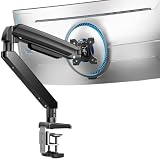
- Top Pick: ErGear Heavy Duty Monitor Arm for 13-49″ Ultrawide Screens, 37.4 lbs Capacity, Full Motion Monitor Desk Mount, Rock-Solid Support, Dual C-Clamp & Grommet Mount, VESA 75×75/100x100mm
- Best Value: WALI Heavy Duty Monitor Arm for 13-49 inch 1000R Curved Screen, up to 44lbs
- Premium Choice: HUANUO TitanLift Heavy Duty Monitor Arm for Screens up to 49", Holds 44 lbs, Aluminum Ultrawide Screen Monitor Mount, Fully Adjustable Single Gaming Desk Mount with Dual C-Clamp, Max VESA 100x100mm
Choosing the right monitor arm is less about screen size than the relationship between your monitor’s weight, VESA pattern, desk thickness, and the arm’s adjustment range. A 27-inch display may be too heavy for a basic arm, while a lightweight 34-inch monitor may work comfortably on a mid-range mount. This monitor arm weight capacity explained guide covers the measurements that matter before you buy, with practical size ranges and examples for home offices, gaming setups, and multi-monitor desks.
📄 In This Review
The Short Answer
Choose a monitor arm with a stated weight capacity at least 20% higher than your monitor’s weight, excluding the original stand. For example, a 16-pound monitor should use an arm rated for at least 19.2 pounds; a 30-pound ultrawide should have a capacity of at least 36 pounds.
As an Amazon Associate we earn from qualifying purchases at no extra cost to you.



Also confirm four measurements:
- Monitor weight: Use the weight without the factory stand when possible.
- VESA pattern: Most displays use 75 x 75 mm or 100 x 100 mm mounting holes.
- Desk thickness: Check the arm’s clamp range, commonly about 0.4 to 3.3 inches (1 to 8.4 cm).
- Arm reach: Make sure the arm can place the screen where you want it without hitting a wall or desk edge.
Capacity ratings are maximum supported loads, not ideal operating weights. A mount rated for 44 pounds may hold a 44-pound screen, but it will generally be easier to adjust and more stable when used below its limit.
Standard Sizes
See also: Best 240Hz Gaming Monitors: Ten Listings From 24-Inch 1080p to Ultrawide 1440p • Best BenQ Monitor: Eight Models Compared by Pixel Density and Ports
The table below uses common display dimensions. Screen measurements are approximate visible panel sizes and do not include bezels or the stand. Actual monitors vary by aspect ratio, curvature, and bezel thickness.
| Monitor type | Typical diagonal | Approx. screen width | Approx. screen height | Common monitor weight | Recommended arm capacity |
|---|---|---|---|---|---|
| Compact office monitor | 21.5–24 in (54.6–61 cm) | 18.8–20.9 in (47.8–53.1 cm) | 10.6–11.8 in (26.9–30 cm) | 6–12 lb (2.7–5.4 kg) | At least 14 lb (6.4 kg) |
| Standard monitor | 27 in (68.6 cm) | 23.5 in (59.8 cm) | 13.2 in (33.6 cm) | 10–18 lb (4.5–8.2 kg) | At least 22 lb (10 kg) |
| Large 16:9 monitor | 32 in (81.3 cm) | 27.9 in (70.9 cm) | 15.7 in (39.9 cm) | 14–25 lb (6.4–11.3 kg) | At least 30 lb (13.6 kg) |
| 34-inch ultrawide | 34 in (86.4 cm) | 31.3 in (79.5 cm) | 13.1 in (33.3 cm) | 15–25 lb (6.8–11.3 kg) | At least 30 lb (13.6 kg) |
| 38-inch ultrawide | 38 in (96.5 cm) | 35.1 in (89.2 cm) | 14.8 in (37.6 cm) | 20–35 lb (9.1–15.9 kg) | At least 42 lb (19.1 kg) |
| 49-inch super ultrawide | 49 in (124.5 cm) | 47.1 in (119.6 cm) | 13.2 in (33.6 cm) | 25–40 lb (11.3–18.1 kg) | At least 48 lb (21.8 kg) |
For reference, heavy-duty single-monitor arms in this category often support about 37 to 44 pounds (16.8 to 20 kg). The ErGear Heavy Duty arm is listed at 37.4 pounds and is designed for screens from 13 to 49 inches. The WALI Heavy Duty and HUANUO TitanLift models are each listed for up to 44 pounds and support screens up to 49 inches. Listed prices for these examples range from about $39.99 to $97.99. A dual ErGear arm for 13- to 32-inch monitors is listed at 19.8 pounds per supported load specification and costs about $34.99.
Do not use the diagonal measurement alone to select an arm. A 49-inch curved monitor can place more leverage on the arm than a smaller, shallow display, especially when the screen is extended toward the front of the desk.
How to Measure Your Space
- Measure the monitor without its stand. Record the weight in pounds and kilograms. If the manufacturer lists separate weights, use the monitor-only figure. Add the weight of a webcam, light bar, or other equipment attached directly to the screen.
- Inspect the rear mounting holes. Measure the horizontal and vertical distance between the centers of the holes. The most common patterns are 75 x 75 mm and 100 x 100 mm, or approximately 3 x 3 inches and 3.9 x 3.9 inches. Do not measure the outside of the plastic housing.
- Measure desk thickness. Measure the desktop at the exact point where the clamp will sit. A top that is 1.5 inches (3.8 cm) thick may work with many clamps, but a desk with a thick apron underneath can prevent the clamp from opening fully.
- Check the rear clearance. Leave enough room for the clamp, tightening handle, and cables. Plan for at least 2 to 4 inches (5 to 10 cm) behind the desk unless the arm specifically supports a close-to-wall installation.
- Measure desired screen depth. From the rear edge of the desk, measure to the position where you want the display. Compare this distance with the arm’s horizontal reach. A short arm may not pull a deep monitor far enough forward, while a long arm can create more wobble when fully extended.
- Mark the height range. Sit in your normal position and measure from the desktop to your eye level. The top bezel usually works best near eye height, though the correct position depends on screen size, prescription glasses, and viewing preference.
- Plan movement for more than one screen. For dual monitors, measure the combined width and allow space for inward angles. Two 27-inch monitors side by side require about 47 inches (119 cm) before accounting for gaps or an angled arrangement.
By Room or Use Case
Home office
A 24- or 27-inch monitor usually works well with a light or standard arm rated around 14 to 22 pounds. Prioritize a clamp that fits the desk and a cable channel that keeps power and display cables from hanging into your workspace. If the desk is against a wall, choose an arm with enough vertical adjustment but avoid unnecessary reach, which can increase movement.
Gaming setup
Gaming monitors often have larger stands, curved panels, and accessories such as light bars. For a 27- to 32-inch display, a capacity of 22 to 30 pounds is a practical starting point. For a 34-inch or larger curved screen, move to a heavy-duty arm rated for at least 30 pounds. Check that the VESA plate can rotate and tilt without the curved housing contacting the arm.
Ultrawide workstation
Ultrawides need more than a generous diagonal-size rating. Their width creates leverage, particularly when the arm is extended. A 34-inch model commonly fits a 30-pound-capacity arm, while a 38- or 49-inch screen may justify a 42- to 48-pound rating. Keep the display close to the pole and tighten all joints evenly.
Dual-monitor desk
Two lighter monitors can be a better match for a dual arm than one very heavy screen. A pair of 24-inch displays may fall within a 19.8-pound-per-screen rating, but two large 32-inch monitors can exceed the practical capacity of many compact dual mounts. Confirm whether the manufacturer’s load figure applies per arm or to the entire assembly.
Small or shallow desk
Use a compact arm with a short reach and a clamp that does not project too far behind the desk. Measure the desk depth from front to back; a 20-inch (50.8 cm) desk may not leave enough room for a deep base, especially if the monitor must sit several inches forward of the wall.
Common Sizing Mistakes
- Counting the factory stand weight: The arm supports the screen, not the removed stand. Use the monitor-only number.
- Matching capacity exactly: A 20-pound monitor on a 20-pound arm leaves no useful margin for accessories or adjustment.
- Ignoring leverage: A wide or deep curved display puts more strain on joints when extended.
- Confusing screen size with compatibility: A 32-inch rating does not guarantee that the arm supports your monitor’s weight or VESA pattern.
- Forgetting the desk structure: A clamp can fit the desktop thickness but still hit a rear apron, cable tray, or metal support.
- Assuming every load rating is per monitor: On dual arms, read the specification carefully to determine whether the number applies to each side or the whole mount.
- Overtightening the clamp: Excessive force can damage a particleboard or glass desk. Use a reinforcement plate where recommended and follow the manufacturer’s instructions.
FAQ
How much weight should a monitor arm support?
Choose a rating at least 20% above the monitor-only weight. For a 25-pound display, look for at least 30 pounds of capacity. Heavy ultrawides may benefit from an even larger margin because their width increases leverage.
Is a 44-pound arm enough for a 49-inch monitor?
It can be, if the monitor weighs less than the arm’s limit, uses a compatible VESA pattern, and the arm is specifically rated for that screen size. A 49-inch display near the maximum load should remain close to the mounting post rather than fully extended.
What VESA size do most monitors use?
Most desktop monitors use 75 x 75 mm or 100 x 100 mm VESA mounting holes. Some larger or specialty displays use different patterns, so check the monitor manual before purchasing an arm.
Can a monitor arm damage a desk?
It can if the desktop is weak, too thin, made of unsupported glass, or clamped over a hollow section. Measure the desk, use a reinforcement plate when appropriate, and tighten the clamp firmly without forcing it. A grommet mount may be a better choice when the desk has a suitable cable hole.
Related Reviews & Guides



6 Best Dual Arm Monitors 2026

6 Best Dell Monitor Stand Lock Release Buttons 2026