Last Updated: September 18, 2026
📄 In This Review
The Short Answer
Yes—if your monitor is VESA-compatible and your desk can securely support a clamp or grommet mount. A monitor arm is worth it when you want more desk space, better screen positioning, or a cleaner setup. It is not automatically an upgrade for everyone: a basic monitor stand costs less, takes less time to install, and can be steadier.
For many people, the value comes from flexibility rather than height alone. An arm lets you move a screen forward, backward, sideways, or vertically, then clear it from the desk when you need room. In 2026, inexpensive single-monitor arms commonly cost about $25 to $60, so the decision is relatively low-risk—but only if the arm matches your monitor’s size and weight.
As an Amazon Associate we earn from qualifying purchases at no extra cost to you.


What You Actually Get
See also: Best 240Hz Gaming Monitors: Ten Listings From 24-Inch 1080p to Ultrawide 1440p • Best BenQ Monitor: Eight Models Compared by Pixel Density and Ports
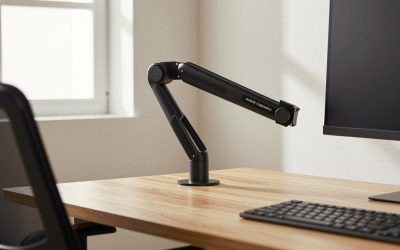
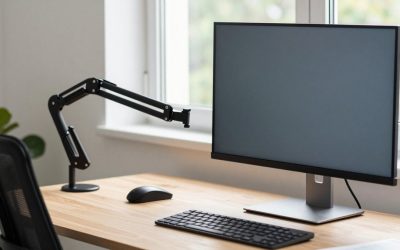
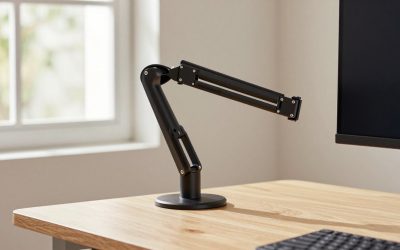
A monitor arm replaces the stand included with your display. Most single-monitor models attach to the rear of the desk with either a C-clamp or a grommet mount. The monitor connects to a VESA plate, usually using a 75-by-75-millimeter or 100-by-100-millimeter hole pattern. You will need to remove the original stand, attach the plate, and adjust the arm’s tension to balance the screen.
The practical result is a larger usable work surface. The arm’s base occupies a small area at the rear edge of the desk instead of taking up the monitor’s entire footprint. You can place a keyboard, notebook, speakers, or a charging pad under the display, although the exact amount of clearance depends on the arm’s height and reach.
Most arms offer some combination of height adjustment, tilt, swivel, and screen rotation. A typical single arm may move roughly 10 to 20 inches vertically and extend about 15 to 20 inches from its mounting point, but ranges vary widely. Some models use a gas spring for smooth movement; others use mechanical joints that are better suited to monitors you rarely reposition.
Weight capacity matters more than the screen’s advertised size. A 34-inch ultrawide can weigh substantially more than a 27-inch office monitor, and the listed capacity usually applies to the display without its factory stand. For example, the ErGear Single Monitor Arm is listed for 13- to 34-inch screens and up to 19.8 pounds, while the WALI Adjustable Single Monitor Arm is listed for the same screen-size range and up to 26.4 pounds. Their listed prices—about $26.99 and $25.49, respectively—show how inexpensive basic arms can be.
Keep at least a small safety margin below the maximum weight. A monitor near the top of an arm’s rating may sag, drift, or require frequent tension adjustments, particularly when the screen is extended far from the desk.
Pros
- More usable desk space: The base replaces the wide footprint of a standard monitor stand, freeing the area directly beneath the screen.
- Better ergonomic positioning: You can place the top of the display near eye level and keep the screen about 20 to 30 inches from your face, depending on your eyesight and screen size.
- Easy viewing-angle changes: Swivel and tilt are useful when you alternate between sitting upright, reclining, and showing the screen to someone nearby.
- Cleaner appearance: Built-in cable channels can route display, power, webcam, and USB cables along the arm instead of letting them spread across the desk.
- Useful for small desks: A monitor arm can make a 36- to 48-inch-wide desk feel less crowded, especially when paired with a laptop or writing area.
- Supports occasional repositioning: You can pull a display closer for detailed work or push it back when you need space for paperwork.
Cons
- Installation takes effort: You may need a screwdriver, a second person for a heavy monitor, and time to route cables and balance the spring tension.
- Desk compatibility is not guaranteed: A clamp may not fit a desk with a thick rear lip, metal support bar, glass top, or very thin particleboard. Common clamp ranges are roughly 0.4 to 2.4 inches, but you must check the specific model.
- Movement can cause wobble: Budget arms may shake when you type, particularly on lightweight desks or when the arm is fully extended.
- VESA mounting is required: Some monitors have no VESA holes, while others require a separate adapter. An adapter can add cost and may reduce the arm’s practical weight capacity.
- It can be less stable than the original stand: A wide factory base often feels more solid for a screen that stays in one position.
- Cable slack becomes important: If cables are too short or tightly routed, moving the monitor can pull on ports or disconnect devices.
- Cheap arms have limits: A low-priced arm may be perfectly adequate for a lightweight 24- or 27-inch monitor but less suitable for a large curved ultrawide.
Who Should Buy It
Buy a monitor arm if your screen is VESA-compatible, your desk is sturdy, and you regularly need to adjust the display. It is particularly useful for people who work from a compact desk, switch between a laptop and desktop, use a sit-stand workstation, or want to place a monitor above a laptop.
It also makes sense if you care about an uncluttered setup. A single-arm mount can be a meaningful improvement when the factory stand blocks a notebook, drawing tablet, or speakers. If you plan to add a second monitor later, check whether the desk has enough depth and whether a dual-arm upgrade would be more practical than buying two separate single arms.
Before buying, weigh your monitor with its stand removed if possible, confirm the VESA pattern, measure the desk thickness, and check the arm’s stated range. Leave room behind the desk for the clamp and make sure the screen will not hit a wall, shelf, or nearby lamp as it moves.
Who Should Skip It
Skip a monitor arm if you never change your screen’s position and already have a stable, comfortable stand. A $25 to $60 arm will not improve picture quality, refresh rate, color accuracy, or connectivity. It only changes how the monitor is supported and positioned.
You should also be cautious with glass desks, hollow-core desks, very thin desktops, and desks with fragile or rounded edges. Clamping pressure can damage an unsuitable surface. Renters or anyone who cannot drill a grommet hole should choose a clamp model only after checking that the rear edge is accessible.
Finally, avoid a budget arm for an unusually heavy display unless its capacity leaves a comfortable margin. A 34-inch ultrawide weighing 20 to 25 pounds may exceed the useful range of an entry-level model even when the advertised screen-size limit says 34 inches.
Cheaper Alternatives
| Option | Cost | Trade-off |
|---|---|---|
| Keep the included monitor stand | $0 | Most stable and simplest option, but uses more desk space and may offer limited height adjustment. |
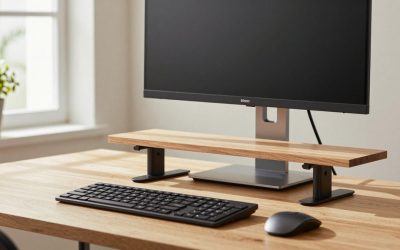
| Monitor riser or shelf | $10–$35 | Raises the screen and creates storage underneath, but does not provide side-to-side movement or easy rotation. |
| Wooden or metal monitor stand | $15–$40 | Usually steadier than a low-cost arm and easy to install, but the height is fixed or adjusted in large steps. |
| Laptop stand plus monitor stand | $20–$50 total | Can improve a dual-screen setup without clamping to the desk, though it uses more surface area. |
| Basic single monitor arm | $25–$60 | Best value for adjustability, but may introduce wobble and requires VESA compatibility and careful installation. |
FAQ
Is a monitor arm better than a monitor stand?
It is better for adjustability and desk space, but not necessarily for stability. An arm wins when you need to move the screen or clear room underneath it. A standard stand is usually the better choice when the monitor stays in one place and you want the simplest setup.
How much weight should a monitor arm hold?
Choose an arm rated comfortably above your monitor’s weight without its original stand. If the display weighs 15 pounds, an arm rated for 19.8 pounds may work, but a higher-capacity model provides more margin. Weight distribution, arm extension, and screen depth also affect stability.
Do all monitors fit a monitor arm?
No. Most modern monitors with 75-by-75-millimeter or 100-by-100-millimeter VESA holes will fit compatible arms, but some displays have a recessed mount, unusual pattern, or no mounting holes. Check the monitor manual and the arm’s included screw sizes before ordering.
Are inexpensive monitor arms worth buying?
They can be, especially for a lightweight 24- or 27-inch monitor used on a solid desk. Low-cost models around $25 to $35 can deliver height, tilt, and swivel adjustment, but expect less damping and potentially more wobble than with a premium arm. For a heavy ultrawide or frequent repositioning, spending more for a stronger design is usually worthwhile.
Related Reviews & Guides




6 Best Monitor Privacy Screen Filters for Open Offices (2026…

Single Arm Monitor Mount