Last Updated: September 18, 2026
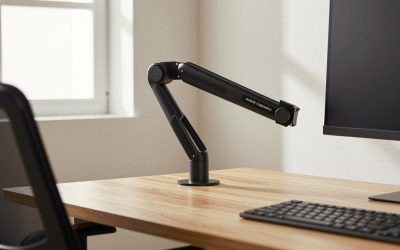
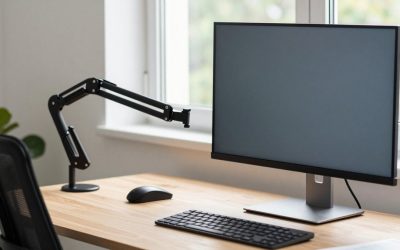
- Top Pick: ErGear Single Monitor Arm, Fully Adjustable Monitor Mount for 13–34 Inch Screens, Fast Install Computer Monitor Stand with Tool-Free VESA Mount, Cable Management, Holds 19.8 lbs
- Best Value: WALI Adjustable Single Monitor Arm for 13-34 inch Screens, up to 26.4 lbs
- Premium Choice: HUANUO FlowLift™ Dual Monitor Stand, Fully Adjustable Gaming Monitor Desk Mount for 13–32″ Computer Screens, Full Motion VESA 75×75/100×100 with C-Clamp & Grommet Base, Each Arm Holds 4.4 to 19.8 lbs
A monitor arm can clear valuable desk space, improve screen positioning, and make a workstation feel considerably less cramped. It can also become an expensive source of wobble, sag, and frustration if you buy by screen size alone. The most common mistake is assuming that a mount rated for a “34-inch monitor” will automatically support every 34-inch display. Weight, VESA pattern, desk thickness, adjustment range, and the monitor’s center of gravity matter just as much.
Another frequent error is choosing a dual arm before checking whether the desk is deep and sturdy enough for two screens. Buyers also overlook the difference between a clamp and a grommet mount, or assume that “tool-free” means every step of installation requires no tools. Use the guide below to compare the specifications that actually determine fit, stability, and everyday comfort in 2026.
As an Amazon Associate we earn from qualifying purchases at no extra cost to you.




📄 In This Review
Decide These 3 Things First
- How many monitors will you mount? A single-arm mount is simpler, lighter, and usually less expensive. A dual mount saves space but needs more desk capacity and careful balancing.
- What does each monitor weigh without its stand? Remove the factory stand and check the display’s manual or specification label. Compare the bare-monitor weight with the arm’s weight range, not just its maximum capacity.
- How will the arm attach to the desk? A C-clamp works on an open desk edge, while a grommet base passes through a hole in the desktop. Neither is ideal for every surface, particularly glass, hollow-core, or very thin desks.
Size and Weight Capacity
See also: Best 240Hz Gaming Monitors: Ten Listings From 24-Inch 1080p to Ultrawide 1440p • Best BenQ Monitor: Eight Models Compared by Pixel Density and Ports
Screen size is a starting point, not a compatibility guarantee. Many arms cover monitors from 13 to 32 or 34 inches, but the more important figures are the supported weight and VESA pattern. Common VESA layouts are 75 by 75 millimeters and 100 by 100 millimeters. Some larger or specialty monitors use different patterns, so confirm before ordering.
Stay inside the arm’s stated weight range with a margin where possible. For example, if a single arm supports 4.4 to 19.8 pounds, a 17-pound monitor is technically compatible, but it leaves less adjustment headroom than a 10-pound monitor. A dual arm rated for 4.4 to 19.8 pounds per arm should be evaluated separately for each display; the total combined weight is not the only consideration.
Also measure the monitor’s depth. A thick display or an ultrawide with a rear bulge places more leverage on the arm than a slim screen. For a 34-inch ultrawide, look for a robust arm with a clearly stated capacity of at least 20 pounds, and verify that its tilt hinge is designed for the screen’s actual weight.
Material and Desk Compatibility
Most dependable monitor arms combine steel at the clamp, VESA plate, and primary joints with aluminum or reinforced composite components elsewhere. Steel generally provides the rigidity needed at the desk connection, while aluminum can reduce weight in the arm sections. A light arm is not automatically weak, but a very thin clamp or narrow mounting plate deserves scrutiny.
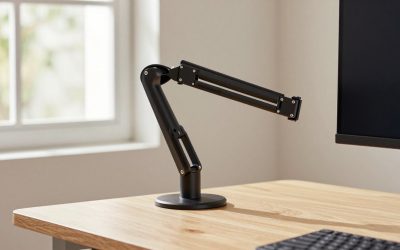
Measure the desktop before buying. Many C-clamps fit surfaces roughly 0.4 to 3.3 inches thick, though exact ranges vary. A desk thinner than the minimum can allow movement; a desk thicker than the maximum may prevent the clamp from closing securely. Leave at least 2 to 3 inches of unobstructed space at the back edge so the clamp can sit flat.
Protective pads help prevent scratches, but they cannot compensate for a weak desktop. Avoid mounting a heavy monitor arm to glass, particleboard with a damaged edge, or a hollow desktop without reinforcement. If the top flexes when you press down firmly, use a reinforcement plate or choose a lighter monitor setup.
Construction and Adjustment Range
Look for a broad, rigid clamp base and a VESA plate that can be installed without removing the entire arm. A quick-release or tool-free VESA attachment can save time, but check that it includes a locking screw or other secondary retainer. The plate should sit flush against the monitor and should not twist under normal use.
Adjustment range determines whether the arm works with your actual desk, not just whether it moves in a product photograph. For most seated workstations, useful specifications include approximately 10 to 20 inches of height adjustment, at least 15 inches of forward reach, and 90 degrees of rotation for portrait orientation. Some arms rotate 180 degrees or more at the joints, but the practical range depends on desk placement and monitor width.
For two screens, check the arm span and collision risk. Two 27-inch monitors placed side by side need roughly 47 to 50 inches of horizontal space before accounting for angle and bezels. A dual arm may technically support two 32-inch displays but still be a poor choice on a 48-inch desk.
Comfort and Performance
The best position places the top edge of the display near eye level, with your eyes roughly 20 to 30 inches from the screen. The exact distance depends on screen size, resolution, and personal preference, but an arm should let you pull the monitor closer for detailed work and push it back when you need more desk space.
Gas-spring arms typically offer smoother height changes than basic mechanical arms, especially when the monitor is frequently repositioned. They require correct tension adjustment, however. If the screen rises on its own, drifts downward, or feels difficult to move, the tension is not matched to the monitor’s weight.
Check the specified tilt range, commonly about 45 degrees forward and backward, plus swivel and rotation. A portrait mode is useful for coding, reading, and long documents, but make sure your monitor’s cables have enough slack to rotate safely. Cable channels or clips should accommodate at least the power lead and video cable without sharply bending either one.
USB ports are optional rather than essential. If an arm includes USB pass-through or charging, confirm whether it is USB 2.0, USB 3.x, or a powered charging connection. A monitor arm itself generally has no meaningful wattage requirement unless it includes powered USB features; do not pay extra for ports you will not use.
Price Tiers
Budget: $25 to $45. This tier includes many single arms for 13- to 34-inch screens with 75-by-75 and 100-by-100 VESA support. The ErGear single arm, listed at $26.99, and the WALI single arm, listed at $25.49, illustrate the category. Expect basic cable management, a C-clamp, limited finish options, and more manual adjustment. These mounts can be excellent for a lightweight 24- or 27-inch display when the desk is solid.
Midrange: $45 to $90. Midrange arms commonly add smoother gas-spring movement, stronger joints, quick-release VESA plates, grommet hardware, and better adjustment range. A dual mount such as the HUANUO FlowLift dual model, listed at $59.99, fits this general category and supports two 13- to 32-inch displays within its stated per-arm range. This is usually the sensible level for frequent repositioning or two moderate-weight monitors.
Premium: $90 to $250 or more. Premium mounts may provide heavier-duty construction, longer warranties, modular accessories, a wider reach, and more refined cable routing. They make the most sense for large ultrawides, heavy professional displays, sit-stand desks, or users who adjust screens repeatedly throughout the day. A higher price does not override an incompatible VESA pattern or weak desk.
A single arm such as the HUANUO FlowLift single model, listed at $35.99, sits near the upper end of the budget range while adding both clamp and grommet installation options. Treat listed prices as snapshots: sales, bundles, and finish variations can move products between tiers.
Warranty and Customer Support
Look for at least a one-year warranty covering defects in the arm, clamp, joints, and hardware. Two- to five-year coverage is more reassuring for a gas-spring model because tension mechanisms and hinges experience repeated movement. Read the exclusions: some warranties cover only the original purchaser, require registration, or exclude damage caused by exceeding the weight limit.
Support quality matters when the arm sags or a screw is missing. Before purchase, confirm that replacement VESA screws, clamp pads, and tension tools are available. The product page should identify supported screw sizes, often M4 screws for the monitor connection, but always use the length specified by the monitor manufacturer.
Delivery and Assembly
Confirm what arrives in the box: C-clamp, grommet plate, VESA hardware, cable clips, hex keys, and instructions. A typical single arm may take 15 to 30 minutes to assemble, while a dual arm can take 30 to 60 minutes, particularly when two monitors require alignment.
Installation is safer with two people when mounting a display larger than 27 inches or heavier than about 15 pounds. Tighten the desk clamp evenly, attach the monitor before making fine tension adjustments, and never lift a heavy screen by its panel. After installation, test the arm at full reach and at its highest position. If the desk flexes or the monitor slowly drops, stop and correct the issue before routing cables.
Spec Checklist
| Spec | Budget | Mid | Premium |
|---|---|---|---|
| Typical price | $25–$45 | $45–$90 | $90–$250+ |
| Monitor size | 13–34 inches | 13–34 inches | Up to 49 inches, model-dependent |
| Weight capacity | Up to about 20–26 pounds | About 20–30 pounds per arm | 30 pounds or more, model-dependent |
| VESA support | 75 × 75 and 100 × 100 mm | 75 × 75 and 100 × 100 mm | Standard plus wider patterns on some models |
| Desk thickness | About 0.4–3.3 inches | About 0.4–3.5 inches | Varies; often includes reinforcement options |
| Mounting choices | Usually C-clamp | C-clamp and often grommet | C-clamp, grommet, or bolt-through systems |
| Adjustment | Tilt, swivel, and height adjustment | Gas spring, rotation, and wider reach | Heavy-duty movement and specialized ranges |
Red Flags
- The listing gives a maximum screen size but no weight range.
- “Dual monitor capacity” is stated without clarifying the weight limit for each arm.
- The clamp’s minimum and maximum desk thickness are missing.
- There is no mention of VESA dimensions or included screw hardware.
- The arm has a tall, narrow base that may twist under a heavy monitor.
- Customer photos show sagging screens, cracked plastic joints, or a clamp lifting off the desk.
- The warranty excludes the gas spring or provides no replacement-parts process.
- A very heavy or wide display is paired with an arm intended for lightweight office monitors.
FAQ
How do I know whether a monitor arm will fit my monitor?
Check three measurements: the monitor’s weight without its stand, the VESA hole pattern, and the screen size. The arm must support the monitor’s weight range and match a 75-by-75 or 100-by-100 millimeter pattern, unless it includes an appropriate adapter. Also confirm that the monitor’s rear housing does not block the VESA plate.
Is a monitor arm better than a monitor stand?
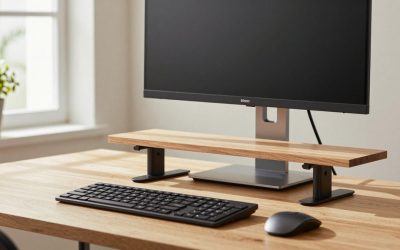
An arm is better when you want height adjustment, a clear desk surface, portrait rotation, or the ability to pull the screen closer. A factory stand is often simpler and more stable on a weak or glass desk. If you rarely adjust the monitor and have plenty of desk space, an arm may not provide enough benefit to justify its cost.
Can one monitor arm hold an ultrawide monitor?
Yes, but only if the arm’s weight limit, VESA support, and reach are suitable. A 34-inch ultrawide can weigh substantially more than a 24-inch monitor, and its width creates extra leverage when extended. Prefer a heavy-duty arm with a broad clamp and keep the screen close to the desk’s rear edge.
Should I choose a clamp or grommet mount?
Choose a clamp if you need a reversible installation and have an accessible rear desk edge. Choose a grommet mount if your desk has a suitable cable hole and you want the mounting force distributed through the desktop. In either case, verify the desk thickness and reinforce a weak, hollow, or easily flexed surface before installation.
Related Reviews & Guides


CRUA 24 5 FHD 200Hz Vertical vs KTC 24 5 Inch 240Hz Gaming: Which Should You Buy?
5 Best Docking Station Laptop Multiple Monitors 2026