Last Updated: September 7, 2026
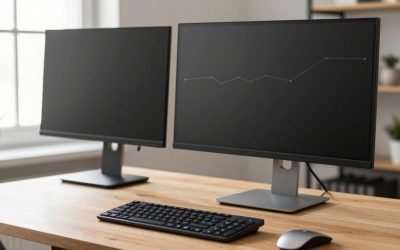
Flipping a display into portrait orientation has become a standard practice for modern developers seeking to read long files, trace stack dumps, or monitor continuous integration pipelines without constant scrolling. However, turning a standard widescreen display 90 degrees fundamentally alters its optical performance, spatial demands, and ergonomics. A panel that looks vibrant and sharp horizontally can quickly become unusable when rotated if its core technical characteristics are mismatched with portrait viewing.
Making the right choice in 2026 requires looking beyond marketing buzzwords and focusing on the physical and visual realities of portrait computing. Subpixel layouts, viewing angles, panel geometry, and mounting physics all behave differently in vertical orientations. This guide breaks down the essential factors you need to evaluate to build an efficient, comfortable, and productive vertical coding setup.
As an Amazon Associate we earn from qualifying purchases at no extra cost to you.

📄 In This Review
Panel Type and the Viewing Angle Challenge
The single most critical hardware specification for a vertical monitor is the panel technology. In standard horizontal usage, horizontal viewing angles are naturally wide on most modern displays, while vertical viewing angles can be more restrictive. When you rotate a screen 90 degrees, these axes swap. What was once the vertical viewing angle now spans the horizontal plane of your field of view.
For this reason, In-Plane Switching (IPS) panels are virtually mandatory for vertical coding displays. Standard Twisted Nematic (TN) panels will suffer from severe gamma shifts and color inversion across your left and right eyes, leading to rapid eye strain and headaches. While modern Vertical Alignment (VA) panels offer superior static contrast ratios, many budget-to-midrange variants still exhibit noticeable color and contrast shifting at the outer edges when viewed from a standard desk distance in portrait mode. Stick to quality IPS panels to ensure consistent text legibility from edge to edge.
Resolution, Aspect Ratio, and Vertical Height
See also: Best 240Hz Gaming Monitors: Ten Listings From 24-Inch 1080p to Ultrawide 1440p • Best BenQ Monitor: Eight Models Compared by Pixel Density and Ports
A frequent mistake when setting up a portrait screen is choosing a display that is simply too tall. A standard 16:9 aspect ratio panel at 27 or 32 inches becomes an enormous vertical tower when rotated. This forces you into extreme neck extension to read lines near the top of the file, completely undermining healthy desk ergonomics.
To optimize vertical space without inducing neck strain, consider the following dimension rules:
- 24-inch 16:9 or 16:10 Panels: Generally considered the ergonomic sweet spot for portrait orientation. A 24-inch 16:10 display provides extra horizontal breathing room for long lines of code while keeping the top edge within natural eye level.
- 27-inch Panels: Usable, but requires a lower desk mount or a slight backward tilt to prevent upward neck strain. 1440p (QHD) or 4K resolution is essential at this size to maintain crisp text rendering.
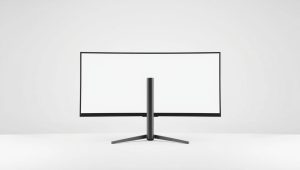
- Ultra-tall Displays (21:9 or 32:9): Completely impractical for standard vertical coding setups, as the top third of the screen sits far outside any comfortable viewing zone.
Pixel Density and Font Rendering Mechanics
Reading thousands of lines of syntax demands exceptional text clarity. In portrait orientation, low pixel density becomes far more noticeable because your eyes scan vertically across line numbers and indentation markers. Aim for a pixel density of at least 110 pixels per inch (PPI), though 140 to 160 PPI or higher is ideal for rendering fine monospace typefaces cleanly without aggressive font smoothing artifacts.
Additionally, operating system subpixel rendering algorithms (such as ClearType in Windows) are engineered primarily for horizontal RGB stripe subpixel layouts. When a screen is rotated 90 degrees, subpixel smoothing can occasionally cause color fringing on black-and-white text. Using a higher native resolution (such as 4K scaled at 150% or 200%) bypasses the limitations of subpixel anti-aliasing entirely by relying on raw pixel density for razor-sharp typography.
Stand Flexibility versus Dedicated VESA Arms
Many monitors advertise a “pivot” feature, but integrated manufacturer stands often introduce several practical limitations. Many factory stands lack sufficient height adjustment to rotate the panel without physically colliding with the desk surface, or they fail to provide bidirectional rotation, forcing you to rotate only clockwise or counterclockwise.
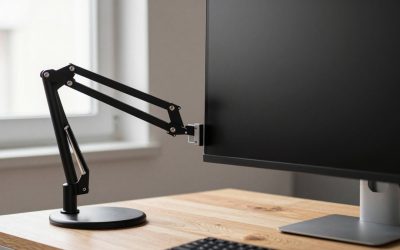
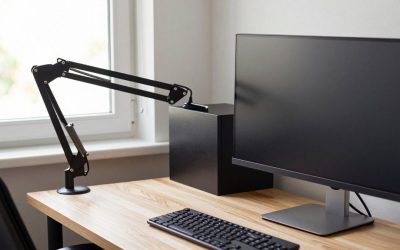
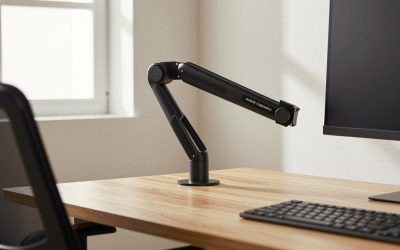
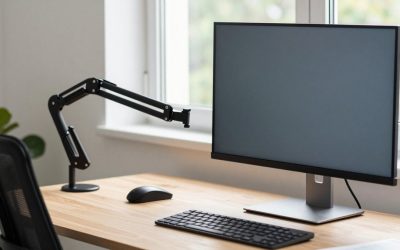
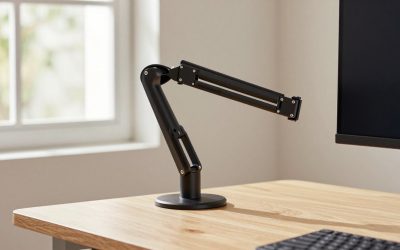
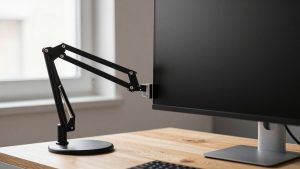
Investing in a sturdy, gas-spring VESA monitor arm (compatible with standard 75x75mm or 100x100mm mounting patterns) is almost always superior to relying on an included stand. A dedicated arm allows you to:
- Fine-tune the height so the primary working zone of the vertical screen aligns perfectly with your horizontal main display.
- Introduce a slight upward tilt, which significantly improves viewing comfort across the entire vertical span.
- Easily route cables that would otherwise be strained or bent during rotation.
Cable Clearance and Port Ergonomics
Port placement and orientation on the back of the monitor are rarely considered until the screen is mounted vertically. When a display is turned 90 degrees, downward-facing ports suddenly face directly into the mounting arm or stick out awkwardly to the side, potentially exposing cables to excessive bending or visual clutter.
Before purchasing, check the rear I/O layout. Look for monitors with recessed ports or ensure you budget for 90-degree right-angle DisplayPort, HDMI, or USB-C adapters. Furthermore, ensure your display cables have at least an extra foot of slack compared to standard horizontal setups to allow clean routing down the mounting arm without placing strain on the display’s internal circuit board connectors.
When to Spend More on Premium Features
While a secondary coding screen does not always require high-end gaming or color-grading features, certain premium capabilities provide tangible productivity gains:
- Single-Cable USB-C with Power Delivery: If you work from a laptop, a portrait monitor featuring 65W to 90W Power Delivery and an integrated USB hub eliminates the clutter of separate charging bricks and peripheral docks.
- High Refresh Rates (90Hz to 144Hz): While not mandatory for static text, a higher refresh rate dramatically improves code readability while fast-scrolling through massive log files or documentation.
- Ambient Light Sensors: Automated brightness adjustment ensures your secondary display does not overpower your peripheral vision when working in varying light conditions throughout the day.
Related Guides
If you are ready to evaluate specific displays that meet these technical and ergonomic criteria, explore our comprehensive breakdown of the best vertical monitors for coding in 2026 to find the ideal panel for your programming workflow.
FAQ
Do I need a 4K resolution monitor for a vertical coding setup?
While 4K is not strictly mandatory, it provides a noticeable benefit for text rendering, especially on 27-inch panels. At 24 inches, a 1440p or 1080p panel can suffice, but higher resolutions eliminate font fringing issues caused by rotated subpixel layouts.
Can any standard monitor be turned vertically?
Physically, any monitor with standard VESA mounting holes can be mounted in portrait mode on an aftermarket arm. However, panels with poor viewing angles (such as budget TN panels) will suffer from severe visual distortion when rotated, making them impractical for coding.
Why do my fonts look blurry or have colored edges after rotating my display?
Operating systems often optimize text rendering for standard horizontal RGB subpixel layouts. When rotated, subpixel anti-aliasing can cause subtle color fringing. You can fix this by rerunning your operating system’s font calibration wizard or switching to a higher-DPI display with integer scaling.
Is a curved monitor suitable for portrait orientation?
No, curved monitors should generally be avoided for vertical coding setups. Rotating a curved display creates an unnatural vertical inward bow that distorts line geometry and introduces awkward glare reflections across the top and bottom edges.
Related Reviews & Guides


Quick Picks: Best Monitor Risers and Desk Platforms
How to Tighten a Loose Monitor Arm (2026): Step-by-Step