Last Updated: September 9, 2026
- Quick Comparison
- Top Calibration Colorimeters at a Glance
- Colorimeter Specifications Explained
- How Monitor Calibration Works: Step by Step
- Who Needs Monitor Calibration (and Who Doesn’t)
- Multi-Monitor Calibration: Matching Two Displays
- FAQ: Monitor Calibration Colorimeters
- Frequently Asked Questions
- About the Author
- Related Articles
- Top Pick: datacolor SpyderPro Monitor Calibrator & Screen Color Calibration Tool
- Best Value: Datacolor Spyder4Pro S4P100 Colorimeter for Display Calibration
- Premium Choice: Datacolor Spyder X Pro – Monitor Calibrator. Color Calibration Tool for Monitor Display. Ensures accurate color for photographic images. Ideal for first-time users
As an Amazon Associate we earn from qualifying purchases at no extra cost to you.




Monitor Calibration Colorimeter Guide: Get Accurate Color on Your Home Office Display
Quick Answer / TL;DR
A monitor calibration colorimeter (ASIN: B0FXFB9XS7) brings your display’s color accuracy from factory defaults (often 10–20% off target) to within 1–3 Delta-E of true sRGB or AdobeRGB. Essential for photo editing, video color grading, print design, and remote work where color-accurate screen sharing matters. Consumer-grade colorimeters pay for themselves on the first professional project.
Every monitor ships with a color profile that’s a rough approximation of the target color space. Backlight variation, panel aging, and manufacturing tolerances mean two monitors from the same production batch can display noticeably different colors. If you’re making creative decisions based on what you see on screen — photo retouching, video grading, brand color work — you need a calibrated display.
A monitor calibration device measures your actual display output against reference values and generates a correction profile (ICC profile) your OS applies automatically. This guide covers how colorimeters work, what the specs mean, and how to get the most out of a calibration session.
🛒 Best Price Today on Amazon
Prime members get fast, free shipping on everything above, plus member-only deals. New members get a 30-day free trial — cancel anytime.
Start 30-Day Prime Free Trial →See Today’s Amazon Deals📄 In This Review
- Quick Comparison
- Top Calibration Colorimeters at a Glance
- Colorimeter Specifications Explained
- How Monitor Calibration Works: Step by Step
- Who Needs Monitor Calibration (and Who Doesn't)
- Multi-Monitor Calibration: Matching Two Displays
- FAQ: Monitor Calibration Colorimeters
- Frequently Asked Questions
- About the Author
- Related Articles
Quick Comparison
| Product | Brand | Price | Rating |
|---|---|---|---|
| ASUS ProArt CaliContrO MCA02 3-in-1 Colorimeter – Profe… | — | $249 | — |
| Datacolor Spyder X Pro – Monitor Calibrator. Color Cali… | Datacolor | $169.99 | 4.4/5 |
| Datacolor Spyder X Elite – Monitor Calibration Designed… | Datacolor | — | — |
| Datacolor Spyder4Pro S4P100 Colorimeter for Display Cal… | Datacolor | $103.04 | 4.2/5 |
| Nix Mini 3 Color Sensor Colorimeter – Portable Color Ma… | NixSensor | $129 | 4.2/5 |
Top Calibration Colorimeters at a Glance
See also: How to Clean a Monitor Arm (2026): Step-by-Step • How to Tighten a Loose Monitor Arm (2026): Step-by-Step
Colorimeter Specifications Explained
| Spec | What It Means | Target Value |
|---|---|---|
| Delta-E accuracy | Average color error vs. reference standard | dE < 2 = excellent; dE < 1 = professional |
| Color space support | sRGB, DCI-P3, AdobeRGB coverage | Matches your display’s gamut |
| White point targets | Color temperature (6500K = D65 standard) | 6500K for most work; 5000K for print |
| Luminance range | Min/max brightness the device measures | 0.01–1000 cd/m² covers most monitors |
| HDR support | Can profile high-brightness HDR panels | Needed only for HDR editing workflows |
| Measurement speed | Time per color patch measurement | Under 8ms per patch is comfortable |
| OS compatibility | Windows/macOS ICC profile generation | Both required for cross-platform work |
How Monitor Calibration Works: Step by Step
Calibration takes 5–15 minutes per monitor depending on the number of test patches. Here’s the typical workflow:
- Warm up the display. Run it at target brightness for 30 minutes before calibrating. Cold panels read differently than operating-temperature panels.
- Set ambient light. Close blinds or calibrate under the same lighting conditions you work in. Room light affects perceived color even after calibration.
- Launch calibration software. Most colorimeters bundle software (Spyder X Pro, X-Rite’s i1Profiler, etc.).
- Set targets. Typical: White point D65 (6500K), Luminance 120 cd/m², Gamma 2.2 for sRGB work. DCI-P3 targets: D65, Gamma 2.6.
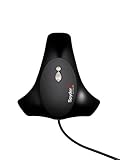
- Attach colorimeter to screen. The device hangs on the panel face with a counterweight — no suction cups, no adhesives.
- Run measurement sequence. Software flashes color patches; device reads each. 50–150 patches takes 5–12 minutes.
- Generate and install ICC profile. Software writes the profile to your OS color management system automatically.
- Recalibrate periodically. Every 4–8 weeks for critical color work; every 3–6 months for general use. Panel backlight shifts over time.
Your existing standing desk setup should have the monitor positioned at arm’s length, screen tilted 15° back, top third at eye level — calibration is most useful when the viewing angle is consistent.
Who Needs Monitor Calibration (and Who Doesn’t)
High priority: Photo editors, video colorists, graphic designers, brand managers reviewing print proofs on screen, architects reviewing rendering colors, anyone working with external clients who need color-accurate deliverables.
Medium priority: Remote workers on video calls (calibrated displays show more accurate skin tones), content creators for social platforms (sRGB accuracy matters for Instagram/YouTube color rendering), and anyone who’s noticed their prints look different from their screen.
Low priority: Writers, developers, spreadsheet users, and anyone whose work is purely text-based. For these users, factory color settings are sufficient. The investment in a colorimeter is best justified by visual creative work.
Multi-Monitor Calibration: Matching Two Displays
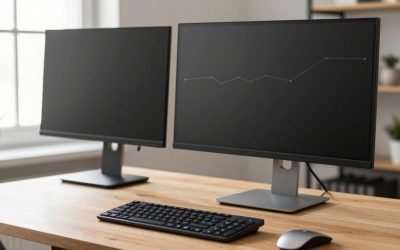
Calibrating two monitors to the same target profile makes them appear perceptually identical — critical for dual-screen creative workflows. Without calibration, two monitors from the same brand and model can differ by 8–15 Delta-E, which is perceptible enough to cause editing errors when moving windows between screens.
For dual monitor setups, calibrate both displays to the same white point and luminance target. For the physical setup, see our dual monitor ergonomics guide — screen distance and angle consistency is as important as color matching for extended session accuracy.
FAQ: Monitor Calibration Colorimeters
How often should I calibrate my monitor?
Every 4–6 weeks for professional photo/video work. Every 3–4 months for general design work. Every 6 months for casual creative use. Monitor backlights shift gradually — IPS panels typically drift less than VA panels over the same period. New monitors should be calibrated after a 100-hour break-in period, as backlight output stabilizes during initial use.
Can I calibrate an HDR monitor with a consumer colorimeter?
Basic HDR calibration (profiling the SDR portion of an HDR panel) yes. Full HDR gamut profiling requires a device rated for 1000+ cd/m² measurements — standard consumer colorimeters max out at 120–400 cd/m². For HDR color work, the X-Rite i1Display Pro Plus or Calman-compatible hardware is required.
Does monitor calibration help with eye strain?
Indirectly. Calibration reduces the need to mentally compensate for color casts (which causes cognitive fatigue). Setting an appropriate luminance target (80–120 cd/m² for dim rooms, 150–200 for bright office environments) is the more direct eye strain intervention. Combine calibration with a monitor light bar for ambient bias lighting to further reduce contrast between display and surroundings.
What’s the difference between hardware calibration and software calibration?
Software calibration (ICC profiles) adjusts the color signal after the GPU renders it — it’s what consumer colorimeters produce. Hardware calibration writes correction data directly to the monitor’s internal LUT (look-up table), bypassing the GPU entirely. Hardware calibration requires a monitor with a built-in 3D LUT and compatible software. It produces better shadow detail and more precise control, but costs significantly more and requires a premium display. For most home office users, software calibration via ICC profiles is sufficient.
Will a colorimeter work on a laptop screen?
Yes — all major colorimeters support laptop panels. Laptop calibration is especially valuable for MacBook Pro users working with P3 panels, since the wide gamut means uncalibrated displays over-saturate colors vs. sRGB content. Calibration process is identical to desktop monitors. Warm the laptop display to operating temperature first, and ensure the fan isn’t blowing heat at the colorimeter during measurement.
Frequently Asked Questions
How often should I recalibrate my monitor?
Most colorimeters recommend recalibrating every two to four weeks, since LED backlights drift as they age and warm up differently over time. If you do critical color work like photo retouching or print proofing, monthly is the safe minimum. Many calibration apps can schedule reminders so you do not have to track it manually.
What is a good Delta-E value after calibration?
A Delta-E below 2 means color differences are essentially invisible to the human eye, and that is the target most calibrated displays reach. Out of the box, many monitors sit at a Delta-E of 5 or higher, which is clearly visible. Anything under 1 is considered reference quality and is rarely necessary outside professional color grading.
Can a colorimeter calibrate a laptop screen too?
Yes, colorimeters work on laptop panels exactly the same way they do on desktop monitors, including wide-gamut P3 displays on MacBook Pros. Let the screen warm up for at least 20 to 30 minutes first, and keep the laptop’s exhaust fan from blowing warm air across the sensor during measurement. Wide-gamut laptops especially benefit because they tend to over-saturate uncalibrated.
Do I need a colorimeter or a spectrophotometer?
For home office and most photo or video work, a colorimeter is the right tool and is far more affordable. Spectrophotometers measure across the full light spectrum and are better suited to calibrating projectors, printers, and very wide-gamut professional displays. Unless you are matching screen output to physical prints regularly, a colorimeter handles the job.
Related Reviews & Guides
How to Tighten a Loose Monitor Arm (2026): Step-by-Step

6 Best Dual Monitor Stand Mounts 2026