Last Updated: September 7, 2026
- Why Dual Monitor Ergonomics Is Different From Single Screen
- The Two Configurations: Which One Fits Your Workflow
- Height, Distance, and Tilt: The Exact Numbers
- Top Picks at a Glance
- Monitor Arms: The Upgrade That Changes Everything
- Desk Height and Standing Integration
- Cable Management and Desk Clutter
- Lighting Calibration for Dual Screens
- Footrest and Lower Body Ergonomics
- Frequently Asked Questions
- Complete Dual Monitor Ergonomics Checklist
- About the Author
- Related Articles
- Top Pick: Kado Dual Monitor 2-Pack 24" Curved 1500R 1920×1080 75Hz Computer Monitor
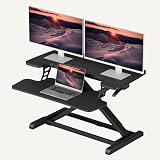
- Best Value: HUANUO 17-32 Inch Dual Monitor Stand, Stacked Monitor Mount, Monitor Arms for 2 Monitors, Ergonomic Adjustable Tilt/Swivel/Rotate, Weight Max 19.8 lbs, VESA 75/100mm
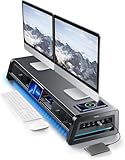
- Premium Choice: Vaydeer All-in-One Dual Monitor Stand Riser with 2 Drawers, 8USB Ports and Wireless Charging Pad with LED Light Strip for 2 Monitors , Desk Organizer for PC, iMac (Metal, 39.3 inches)-Black

TL;DR: A proper dual monitor setup ergonomics approach prevents neck strain, eye fatigue, and shoulder pain. Key rules: both screens at eye level, primary monitor directly in front, arm’s-length distance, matching brightness. This guide covers exact positioning, gear picks, and common mistakes most home-office workers make.
Dual Monitor Setup Ergonomics: The Complete Guide to Pain-Free Productivity
Two monitors should double your output — not your chiropractor bills. Yet most dual-monitor setups cause chronic neck pain within months. The culprit is almost always position, not the hardware itself. This guide breaks down exact placement, height calibration, and the gear that makes it effortless.
As an Amazon Associate we earn from qualifying purchases at no extra cost to you.





🛒 Best Price Today on Amazon
Prime members get fast, free shipping on everything above, plus member-only deals. New members get a 30-day free trial — cancel anytime.
Start 30-Day Prime Free Trial →See Today’s Amazon Deals📄 In This Review
- Why Dual Monitor Ergonomics Is Different From Single Screen
- The Two Configurations: Which One Fits Your Workflow
- Height, Distance, and Tilt: The Exact Numbers
- Top Picks at a Glance
- Monitor Arms: The Upgrade That Changes Everything
- Desk Height and Standing Integration
- Cable Management and Desk Clutter
- Lighting Calibration for Dual Screens
- Footrest and Lower Body Ergonomics
- Frequently Asked Questions
- Complete Dual Monitor Ergonomics Checklist
- About the Author
- Related Articles
Why Dual Monitor Ergonomics Is Different From Single Screen
Single-monitor ergonomics is straightforward: center it, raise it, done. Dual monitors introduce a rotation problem. Every time you shift your gaze between screens, your head and neck rotate. Over 8 hours, that rotation adds up to hundreds of micro-movements — each one placing torque on cervical vertebrae.
The fix depends entirely on how you use the two screens. Primary/secondary setups call for a different configuration than true dual-equal workflows. Get this distinction wrong and you’ll build an ergonomic trap.
The Two Configurations: Which One Fits Your Workflow
See also: Good Height for a Desk: Seated and Standing Numbers by Body Height • Best Desks for Posture: Height, Depth and Sit-Stand Options
Primary + Secondary (80/20 Split)
If one screen holds your main work (code editor, document, design canvas) and the other holds reference material, email, or chat — you have a primary/secondary setup. Position the primary screen directly in front of you, centered on your nose. The secondary screen goes to your dominant-hand side at a 30-45 degree angle. This keeps neck rotation minimal since you glance at secondary content briefly.
True Dual Equal (50/50 Split)
Video editors, traders, and developers comparing codebases use both screens equally. Here, center both monitors so the bezel junction sits directly in front of your nose. Each screen angles inward 15-20 degrees. You’ll still rotate your neck, but symmetrically — avoiding asymmetric muscle fatigue.
Height, Distance, and Tilt: The Exact Numbers
Vague advice like “monitors at eye level” misses the precision needed. Here are the actual measurements ergonomists recommend:
| Parameter | Recommended Value | Why It Matters |
|---|---|---|
| Top of screen height | At or slightly below eye level | Prevents upward gaze that strains neck extensors |
| Distance from eyes | 20–28 inches (arm’s length) | Reduces accommodation effort; follows 20-20-20 rule |
| Screen tilt | 10–20 degrees backward | Perpendicular to line of sight when head is slightly downward |
| Secondary angle | 30–45 degrees from primary (primary/secondary) | Limits neck rotation to comfortable range |
| Secondary angle | 15–20 degrees inward (equal dual) | Symmetric rotation, reduces one-sided strain |
| Vertical alignment | Both screens at identical height | Prevents head bobbing between screens |
Top Picks at a Glance


As an Amazon Associate we earn from qualifying purchases. Product prices and availability are accurate as of the date/time indicated.




As an Amazon Associate we earn from qualifying purchases. Product prices and availability are accurate as of the date/time indicated.





As an Amazon Associate we earn from qualifying purchases. Product prices and availability are accurate as of the date/time indicated.
Monitor Arms: The Upgrade That Changes Everything
Built-in monitor stands are the enemy of dual-monitor ergonomics. They have one height setting, no angle adjustment, and eat desk real estate. A dual monitor arm like the monTEK Dual Monitor Arm (B0FSRFN6CX, $104.99) lets you position each screen independently with gas-spring resistance — one-finger height adjustment even mid-day.
For a full breakdown, see our montek dual monitor arm review and our comparison guide on monitor arm vs monitor stand.
Desk Height and Standing Integration
Monitor position is only half the equation. Your desk height determines whether your arms form the correct 90-degree angle at the keyboard, which in turn affects shoulder position, which affects neck position. It’s a chain.
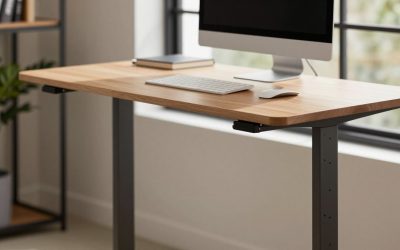
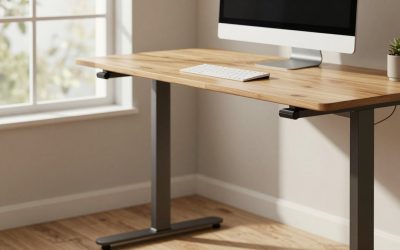
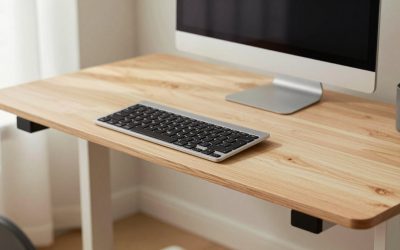
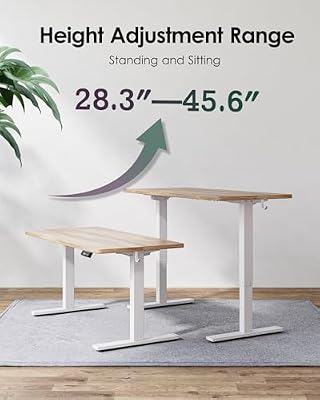
For seated work: desk surface should put your elbows at 90-100 degrees with shoulders relaxed. For standing: same rule applies — most people set standing height too low or too high. A sit-stand desk like the TIQLAB Standing Desk (B0D4YYY6ZR, $119.99) stores height presets so you don’t lose your calibrated position every time you transition. See our full best-in-class standing desks for more options.
Cable Management and Desk Clutter
Two monitors mean two power cables, two display cables, and possibly a USB hub daisy chain. Loose cables on a shared desk surface create visual clutter that increases cognitive load — and they get tangled in monitor arm joints. Route cables through the arm’s cable management channels, then use under-desk trays for the rest. Our cable management under-desk guide covers the full system.
Lighting Calibration for Dual Screens
Two screens of different brightness create a constant adaptation cycle for your eyes — the iris contracts and dilates as gaze shifts. Match brightness and color temperature across both monitors. Use a calibration tool or simply run both through the same display settings menu. Aim for 200–250 nits in a typical office environment and 6500K color temperature.
If you experience eye strain even with matched brightness, consider the angle of ambient light hitting each screen independently — a window to one side will reflect off only one screen, creating uneven glare. Reposition or add bias lighting behind both monitors.
Footrest and Lower Body Ergonomics
Neck and eye ergonomics get all the attention in dual-monitor discussions, but lower body position affects the whole chain. If your feet dangle or your chair height is wrong to compensate for a non-adjustable desk, your pelvis tilts, your lumbar loses its curve, your thoracic spine rounds, and your head creeps forward — adding effective weight to cervical vertebrae. A footrest keeps this chain intact. See our footrest under desk guide for picks.
Frequently Asked Questions
Should both monitors be the same size for ergonomic setups?
Not required, but strongly recommended. Mismatched sizes force different viewing distances and create uneven head tilt. If mixing sizes, use the larger screen as primary and position its center at eye level — let the secondary sit slightly lower if needed.
Is it better to stack monitors vertically or side by side?
Side by side for primary/secondary workflows; stacked only works if the secondary screen is used very rarely (reference material you scroll to occasionally). Stacked setups force the problematic upward gaze if the top screen is too high, or uncomfortable downward lean if it’s too low.
How far apart should dual monitors be?
Bezels should touch or be within 1–2 inches of each other. Wide gaps force exaggerated neck rotation to move gaze between screens. If monitors are far apart, you compensate by turning your whole upper body — which is worse than neck rotation alone.
Does dual monitor ergonomics change when using a laptop plus external monitor?
Yes significantly. The laptop screen is almost always too low. Use a laptop stand or arm to raise it to match the external monitor height, and add an external keyboard so your arms stay at the correct angle. A laptop stand comparison can help narrow down the right riser height.
How often should I take breaks with a dual monitor setup?
The 20-20-20 rule applies: every 20 minutes, look at something 20 feet away for 20 seconds. For neck rotation, add deliberate counter-rotation stretches every hour — slowly turn your head opposite to your dominant-screen direction and hold for 10 seconds. This offsets asymmetric muscle loading.
Complete Dual Monitor Ergonomics Checklist
- Primary monitor centered on nose (primary/secondary) or bezel junction centered (equal dual)
- Top of both screens at or just below eye level
- Both screens at arm’s length (20–28 inches)
- Screens tilted 10–20 degrees backward
- Both monitors at identical vertical height
- Secondary screen angled 30–45 degrees (primary/secondary) or 15–20 degrees (equal dual)
- Brightness and color temperature matched across both screens
- Desk height set for 90-degree elbow angle
- Cables routed through monitor arm channels
- 20-20-20 break rule active
For the full home office build, see our home office setup on a $1,500 budget — dual monitor ergonomics covered alongside chair, desk, and peripheral recommendations in one complete guide.
Related Reviews & Guides




Best Multi Color 3d Printer in 2026: Compared and Ranked

6 Best Smart Light Bulbs for Desk and Office