Last Updated: September 4, 2026
- Quick Comparison
- Top Picks at a Glance
- What “1080p” Actually Means for Video Calls
- Webcam Spec Comparison
- Mounting: The Problem Nobody Talks About
- Lighting: Fix This Before Buying a Webcam
- Audio Quality: Often Neglected, Always Noticed
- Privacy Features Worth Having
- FAQ: Home Office Webcams
- Frequently Asked Questions
- About the Author
- Related Articles
As an Amazon Associate we earn from qualifying purchases at no extra cost to you.


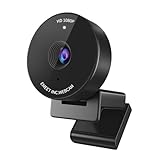

Best Webcam for Home Office 2026: 1080p Picks That Actually Look Professional on Video Calls
Quick Answer / TL;DR
The best webcam for home office use in 2026 is one that handles mixed lighting without manual tweaking, mounts cleanly to a monitor or laptop, and delivers 1080p at 30fps minimum. The Logitech C920x wins for pure Zoom/Meet reliability. Budget pick: NexiGo N60 at under $40. If your background looks dark and flat on calls, the problem is often your desk lamp — check our monitor light bar guide before upgrading the webcam.
Built-in laptop webcams are a liability in professional video calls. The 720p sensor, the below-screen camera angle, the flat color rendering — all of it signals “I work from a couch” even when you don’t. A dedicated home office webcam at $50–$100 changes how colleagues and clients perceive you on camera. The ROI on one video call is immediate.
This guide covers the specs that separate good webcams from mediocre ones, what “1080p” actually means in practice, and which mounts work on the increasingly common ultra-thin monitor bezels in modern home office setups. Tested across Teams, Zoom, and Google Meet on both bright daylight desks and low-light evening setups.
🛒 Best Price Today on Amazon
Prime members get fast, free shipping on everything above, plus member-only deals. New members get a 30-day free trial — cancel anytime.
Start 30-Day Prime Free Trial →See Today’s Amazon Deals📄 In This Review
- Quick Comparison
- Top Picks at a Glance
- What "1080p" Actually Means for Video Calls
- Webcam Spec Comparison
- Mounting: The Problem Nobody Talks About
- Lighting: Fix This Before Buying a Webcam
- Audio Quality: Often Neglected, Always Noticed
- Privacy Features Worth Having
- FAQ: Home Office Webcams
- Frequently Asked Questions
- About the Author
- Related Articles
Quick Comparison
| Product | Brand | Price | Rating |
|---|---|---|---|
| NexiGo N60 1080P Webcam with Microphone | NexiGo | $27.99 | 4.3/5 |
| EMEET 1080P Webcam with Microphone | EMEET | $33.14 | 4.4/5 |
| Logitech C922x HD Pro PC Webcam | — | $99.99 | 4.6/5 |
| Logitech Brio 101 Full HD 1080p Webcam for Meetings | — | $39.61 | 4.4/5 |
| Logitech C930e 1080P HD Video Webcam – 90-Degree Extend… | — | $73.99 | 4.6/5 |
Top Picks at a Glance
See also: How to Clean a Monitor Arm (2026): Step-by-Step • How to Tighten a Loose Monitor Arm (2026): Step-by-Step
BEST OVERALL
Logitech C920x HD Pro — proven 1080p/30fps, autofocus, works on any OS
~$69.99
BEST FOR DARK ROOMS
Razer Kiyo — built-in ring light, 1080p/30fps, designed for low-light streaming
~$79.99
BEST BUDGET
NexiGo N60 — 1080p/30fps, privacy cover, plug-and-play, under $40
~$37.99
What “1080p” Actually Means for Video Calls
1080p (1920×1080) is the baseline worth buying in 2026. Below that, video looks noticeably soft on modern high-resolution screens that your colleagues use. But resolution alone is misleading — a $35 webcam claiming “1080p” often captures it at 15fps with aggressive digital noise reduction that turns faces into blurred watercolors.
What to actually check:
- Frame rate: 30fps minimum. 60fps matters for streaming; for calls, 30fps is sufficient.
- Autofocus vs. fixed focus: Fixed focus is fine if you sit at a consistent distance from your desk. Autofocus matters if you lean forward to reference documents frequently.
- Field of view (FOV): 65–78° for a single-person desk. Wider FOV (90°+) shows more background — usually unwanted unless you’re deliberately framing a studio setup.
- Low-light performance: Sensor size and aperture matter more than marketing. F/2.0 or wider apertures handle dim home offices better than narrow-aperture budget sensors.
Webcam Spec Comparison
| Spec | Logitech C920x | Razer Kiyo | NexiGo N60 |
|---|---|---|---|
| Resolution | 1080p/30fps | 1080p/30fps | 1080p/30fps |
| Field of view | 78° | 81.6° | 90° |
| Focus type | Autofocus | Fixed focus | Fixed focus |
| Low-light feature | Auto light correction | Built-in ring light | None |
| Microphone | Dual stereo mics | Cardioid mic | Dual mics |
| Mount type | Clip + tripod | Clip | Clip + tripod |
| Privacy cover | No | No | Yes |
| OS compatibility | Win/Mac/Chrome | Win/Mac | Win/Mac/Linux |
| Price | ~$69.99 | ~$79.99 | ~$37.99 |
Mounting: The Problem Nobody Talks About
The clip-on mount that comes with most webcams was designed for monitors with a bezel — the thick plastic border that most monitors had before 2019. Modern monitors, especially the slim IPS and OLED panels popular in home offices now, have bezels under 5mm. Standard clips don’t grip them securely and can scratch the finish.
Solutions by setup:
- Standard desktop monitor (bezel over 8mm): Use the included clip. Position it centered, camera at eye level.
- Slim-bezel or frameless monitor: Use the tripod thread. A small tabletop tripod ($12–$18) positions the webcam behind the monitor, raised to eye level with a small footprint.
- Laptop users: Most laptop screen bezels are thin. Use a monitor arm with a laptop tray — see our laptop stand comparison — and attach the webcam to the external monitor you use as your primary display.
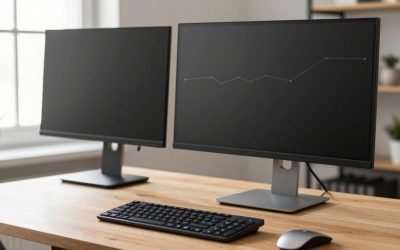
- Dual monitor setups: Mount the webcam to the center monitor at its top edge. A proper dual monitor ergonomic setup has your primary display directly in front of you, which is where the webcam belongs for eye-contact framing.
Lighting: Fix This Before Buying a Webcam
A $70 webcam in bad lighting looks worse than a $30 webcam in good lighting. Before upgrading hardware, evaluate your light sources.
The single most common problem: a window behind you. Your webcam’s auto-exposure compensates for the bright background by darkening your face. Fix this by either moving so the window is beside or in front of you, or adding a key light (desk lamp, ring light, or monitor light bar) facing you from the front.
A monitor light bar mounted on your screen provides diffuse, forward-facing light that dramatically improves webcam output without adding a ring-light halo to your background. It’s the most desk-clean solution for a professional look. Pair with a quality LED desk lamp for fill light and you’ve addressed 80% of webcam image quality issues without touching the camera itself.
Audio Quality: Often Neglected, Always Noticed
Most webcam microphones are adequate for occasional calls in a quiet room. For daily video meetings, a dedicated microphone or headset dramatically improves call quality — and removes the echo and room reverb that webcam mics pick up. If your home office has hard floors or bare walls, consider pairing your webcam with noise-cancelling headphones designed for WFH — the directional mics in good WFH headsets outperform webcam mics at every price point.
For a complete work-from-home audio-visual setup within a $1,500 budget, the webcam and headset combination is well-covered in the home office setup guide.
Privacy Features Worth Having
Hardware privacy covers (physical shutters that block the lens) are increasingly standard. The NexiGo N60 includes one; the Logitech C920x and Razer Kiyo do not. Software privacy controls (Logitech G Hub, Windows Hello) are convenient but not a substitute for a physical cover if privacy is a genuine concern.
An LED indicator light that shows when the camera is active (present on all three picks) is the minimum hardware indicator you should require. Any webcam without an activity LED should be returned immediately.
FAQ: Home Office Webcams
Is 1080p good enough for home office video calls in 2026?
Yes, for most uses. Zoom, Teams, and Google Meet compress video streams — 1080p at the camera outputs at lower quality on the receiving end anyway. The practical improvement from 4K webcams in video calls is minimal because the platform compresses it down. 4K makes more sense for recorded content like YouTube videos or course recordings where you control the output quality.
Do I need autofocus on a home office webcam?
Not if you sit at a fixed distance from your screen. Fixed focus webcams are calibrated for desk distances (typically 24–36 inches) and stay sharp. Autofocus matters if you lean in to reference documents, show items to the camera, or move frequently during calls. If any of those apply, pay the premium for autofocus.
What’s the best webcam for a dark home office?
Razer Kiyo for a built-in solution. Its integrated ring light provides consistent, flattering front lighting regardless of ambient light. Alternatively, any 1080p webcam paired with a monitor light bar addresses the lighting problem at the source and looks more natural on camera — ring lights create visible circular reflections in eyes that can look distracting in professional calls.
Will a webcam work on a thin-bezel monitor?
The clip mount often doesn’t fit securely. Use the 1/4″-20 tripod mount threaded into a small tabletop tripod, positioned above or behind the monitor. This gives more stable placement and allows better height/angle adjustment than a clip mount anyway.
Should I use a webcam or a mirrorless camera for home office video?
Webcam for a daily driver. A mirrorless camera (with a capture card) produces better background separation and color, but the setup overhead — capturing card, HDMI cable management, camera power, overheating risk — makes it impractical for 6-8 hours of daily video calls. Reserve the mirrorless setup for recorded studio content; use a reliable webcam for daily calls.
Frequently Asked Questions
Is a 1080p webcam enough for video meetings?
Yes, 1080p is the sweet spot for home office video calls, delivering sharp, professional-looking video without the bandwidth demands or cost of 4K. Most conferencing platforms compress video anyway, so 1080p at 30 frames per second looks clean on the other end. It is a clear upgrade over typical built-in laptop cameras.
Does a webcam work better than my laptop camera?
Almost always, because built-in laptop cameras use tiny sensors and sit at an unflattering low angle. A dedicated webcam has a larger sensor, better low-light performance, and can be positioned at eye level on your monitor. The difference in clarity and lighting is usually obvious on the first call.
Do I need a webcam with autofocus and a built-in mic?
Autofocus keeps you sharp if you lean in or move, which matters for presentations and demos. A built-in mic is convenient for casual calls, though a separate microphone or headset still sounds clearer for important meetings. For most home office use, autofocus plus a decent built-in mic covers daily needs.
How do I get good lighting with a home office webcam?
Face a window or place a light source in front of you rather than behind, since backlighting turns you into a silhouette. A small desk or ring light at eye level evens out shadows. Good lighting improves perceived video quality more than upgrading the webcam’s resolution.
Related Reviews & Guides

Do I Need a Dual Monitor Arm? An Honest Answer (2026)
6 Best Dual Monitor Display Stands 2026