Last Updated: November 23, 2026
A desk microphone either makes a call effortless or turns every meeting into a small struggle with volume, distance and background noise. The real decision is whether the microphone sits close enough to the speaker, whether it can be muted quickly when the room gets loud, and whether it connects without drivers. A USB microphone with a flexible neck and a mute button answers all three.
This guide serves remote workers, students, gamers and anyone who talks on a computer every day and wants a dedicated desk microphone instead of a laptop’s built-in one. The JOUNIVO JV-601 below was chosen from its name and specifications on the Amazon product page, where the listing states a 360-degree adjustable gooseneck, a mute button with an LED indicator, plug-and-play USB connection and compatibility with Windows and macOS. The sections that follow run the checks a buyer would make before adding a microphone to a desk that already has a monitor, a keyboard and not much free space.
📄 In This Review
Quick Picks
As an Amazon Associate we earn from qualifying purchases
| Product | Best for | Key spec from title |
|---|---|---|
| JOUNIVO USB Microphone (JV-601) | Desk calls and voice chat | 360-degree adjustable gooseneck |
How to Choose
See also: 1 Best Aluminum Laptop Stand Ergonomic (November 2026) • Best Kinesis Advantage360 Split Keyboard (November 2026)
Gooseneck reach and where the microphone ends up
A desk microphone sounds its best when it sits close to the speaker’s mouth, and a rigid microphone on a fixed base cannot always get there. The JV-601 uses a gooseneck that bends a full 360 degrees, so the capsule can be aimed at the speaker whether it sits beside a keyboard, behind a monitor or at a desk corner. That flexibility matters in a shared room, where the microphone may move between two people during a call. Before ordering, look at the desk and picture where the base will sit, then check the neck can reach from that spot to the mouth without pulling the base off the surface.
Mute control and the LED that confirms it
Nothing embarrasses a caller like speaking for a minute before realising the microphone was live, or staying silent for a minute because it was muted. The JV-601 carries a mute button with an LED indicator, so one press silences the microphone and the light shows which state it is in. That visible confirmation matters during a long call, when a glance at the microphone answers the question without opening a settings menu. A buyer should test the button on arrival and learn where it sits by touch, so muting becomes a reflex rather than a hunt across the desk.
Plug-and-play USB and the devices it supports
A microphone that needs a driver download before the first call wastes the morning it was meant to save. The JV-601 connects through USB-A and works without a driver, so it is ready as soon as it is plugged in. It is compatible with Windows 7, 8, 10 and 11 and with macOS, which covers the computers most remote workers use. It does not work with Xbox, Raspberry Pi or Android devices, so a buyer who plans to use it with a console or a phone should choose a different microphone rather than expecting an adapter to fix the gap.
Pickup pattern and the room around the desk
A microphone’s pickup pattern decides how much of the room joins the call, and this listing is not perfectly clear on that point. The feature table on the listing describes an omnidirectional condenser capsule, which picks up sound from all directions, while the specification text on the same listing describes a cardioid pattern instead. Most sources, including the listing’s feature table, say omnidirectional, so a buyer should expect the microphone to hear the room as well as the speaker. That suits a quiet room and a speaker who sits close, and a group gathered around one desk, but it is the wrong choice for a noisy shared space.
The 1 Best Option
JOUNIVO USB Microphone (JV-601)
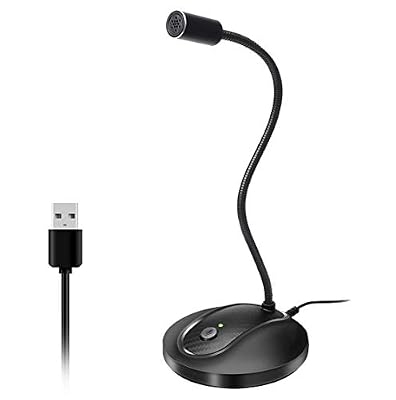
The JOUNIVO JV-601 fits a remote worker, student or gamer who needs a simple desk microphone for calls, voice chat and dictation, and who wants it working within a minute of opening the box. Its 360-degree gooseneck bends the capsule toward the speaker, its mute button and LED indicator keep call privacy under control, and its USB-A connection works without a driver on Windows and macOS. A signal-to-noise ratio of 76 dB and a frequency range of 20 Hz to 20 kHz give it a clear voice signal for everyday calls, and the metal gooseneck and heavy ABS base keep it steady on the desk.
Specs
- Gooseneck design, bends 360 degrees for positioning
- Omnidirectional condenser capsule, picks up sound from all directions
- Mute button with LED indicator
- Noise-canceling technology as a listing claim; the listing does not define it
- Plug and play via USB-A, no driver required
- Compatible with Windows 7, 8, 10 and 11 and with macOS; not compatible with Xbox, Raspberry Pi or Android
- Metal gooseneck pipe with ABS base and heavy base
- Signal-to-noise ratio 76 dB; frequency range 20 Hz to 20 kHz
- In the box: 1 microphone and user manual
- For PC gaming, voice chat, dictation, calls and online meetings
Best for: A remote worker or student who needs a plug-and-play desk microphone for calls and voice chat on Windows or macOS.
Watch out for: The listing disagrees with itself on the pickup pattern, with the feature table saying omnidirectional and the specification text saying cardioid, so expect it to hear the room and keep the desk quiet. Published figures for the cable length and the body size also conflict across sources, so do not plan a setup around a precise cable length or exact dimensions. Check the cable that arrives in the box before planning the desk layout.
Which One Fits Your Situation
Working from home on video calls all day
A remote worker on video calls all day needs a microphone ready when the first meeting begins and easy to mute when a delivery arrives. The JV-601 meets that need with plug-and-play USB, a mute button with an LED indicator, and a gooseneck that aims at the speaker without a separate arm. At home, the omnidirectional pickup hears the speaker clearly, and the heavy base keeps it steady through a long day.
A student joining online classes
A student joining online classes needs a microphone a teacher can hear clearly without the student leaning toward the laptop. The JV-601 sits on the desk at mouth height once the gooseneck is bent into place, and the mute button lets the student silence it during a lesson without hunting through software. It works on Windows and macOS, which covers the laptops most students use, and it needs no driver before the first class.
Gaming and voice chat with friends
A gamer talking with friends needs a microphone that picks up the voice clearly while leaving hands free for the keyboard and mouse. The JV-601 does that from its desk base, with the gooseneck aimed at the speaker and the mute button close at hand. The USB connection works with a gaming PC without extra equipment, and the listing’s noise-canceling claim is worth treating as a claim rather than a measured result.
Dictation and voice notes at the desk
A writer or researcher dictating notes needs a microphone that captures speech accurately without a headset pressing on the ears. The JV-601 suits that job, because it sits on the desk and hears the speaker from a short distance, and its frequency range covers the full range of a speaking voice. The mute button pauses dictation cleanly, and the microphone’s simple setup means dictation can begin as soon as the computer is on.
Common Mistakes
- Expecting the microphone to work with a console or a phone, when the listing states it is not compatible with Xbox, Raspberry Pi or Android devices, which means a buyer who plans to use it with a console should choose a different microphone rather than expecting an adapter to fix a compatibility gap that the listing states plainly.
- Assuming the pickup pattern is cardioid from one part of the listing, when the feature table says omnidirectional and the microphone will hear the room, so a buyer in a noisy shared space should plan for that behaviour or choose a directional microphone instead of being surprised by background noise on the first call.
- Placing the base too far from the speaker and leaving the gooseneck bent at its limit, which pulls the microphone away from the mouth and weakens the voice, when moving the base a few inches closer would give a clearer signal without any extra equipment.
- Treating the listing’s noise-canceling claim as a measured result, when the listing never defines what the technology does or how it was tested, so the buyer should judge the microphone on its gooseneck, mute button and USB connection rather than on a claim with no explanation behind it.
- Planning the cable run around a precise length, when published cable figures for this model disagree across sources and the exact length is not settled, and forgetting to check the LED after pressing mute, then speaking for a minute before noticing the microphone was still live.
Frequently Asked Questions
Does the JV-601 need a driver to work?
No, it does not need a driver. The microphone connects through USB-A and works as a plug-and-play device, so it is ready as soon as it is plugged into a Windows or macOS computer. That makes it quick to set up for a first call or class, and it means there is no software to install or update before using it.
Will it work with my game console?
No, it will not work with a game console. The listing states that the microphone is not compatible with Xbox, Raspberry Pi or Android devices, and it is built for Windows and macOS computers. A buyer who wants a microphone for console chat should choose a model that lists console compatibility in its specifications, so check the compatibility list before ordering.
Is the microphone omnidirectional or cardioid?
The listing disagrees with itself on this point. Its feature table describes an omnidirectional condenser capsule, while its specification text describes a cardioid pattern, and most sources follow the feature table. A buyer should expect the microphone to pick up sound from all directions, which suits a quiet room and a speaker who sits close to the capsule.
How do I know when the microphone is muted?
The microphone has a mute button with an LED indicator, so pressing the button silences the microphone and the light shows its state. A glance at the LED during a call confirms whether the microphone is live, which is more reliable than checking a software setting. Learn the button’s position by touch so muting becomes a reflex during a meeting.
Related Reviews & Guides
Best USB Camera for Laptop
ACEMAGIC M1 Mini PC Review (2026)