Last Updated: November 27, 2026
A dual monitor desk gives you twice the canvas, but it also doubles the ways a wallpaper can go wrong: a scene stretched across the bezel at the wrong resolution, two unrelated images fighting for attention, or an animated background quietly eating GPU power while you work. Wallpaper Engine handles multi-monitor setups well, yet the result depends on choices you make before you download anything.
This guide is for dual monitor users who want a desktop that looks deliberate instead of accidental. It covers the decision between one spanning image and separate wallpapers per screen, the combined resolutions you should search for, the scene styles that hold up across a bezel, and the performance trade-offs between static, video, web, and application wallpapers.
As an Amazon Associate we earn from qualifying purchases
📄 In This Review
How to Choose
Decide Between Spanning and Per-Monitor Layouts
Wallpaper Engine offers two basic layouts. A spanning wallpaper treats both screens as one wide canvas, so a single scene flows across the bezel. Separate wallpapers assign an independent image or animation to each display. Spanning looks dramatic with landscapes and city scenes, but it demands artwork at your combined resolution and it hides the seam only when both monitors match in size and height. Per-monitor layouts are more forgiving: each screen keeps its native aspect ratio, you can run a calm scene on your work display and something livelier on the side screen, and mismatched monitors stop being a problem.
Match the Combined Resolution When You Span
A spanning wallpaper must cover the full pixel width of both displays. Two 1080p monitors need artwork at 3840×1080, two 1440p monitors need 5120×1440, and a 4K screen beside a 1440p screen needs a canvas as wide as both combined, with vertical alignment handled by the display settings in Wallpaper Engine. Searching the Workshop with these exact numbers in the title or tags filters out most undersized uploads. An image below your combined resolution will be upscaled and softened, which is especially visible on text-free scenic scenes. When a favorite scene only exists smaller, use it on one monitor instead of spanning it.
Pick a Style That Survives the Bezel
The bezel sits in the middle of a spanning scene, so composition matters more than subject alone. Wide landscapes, starfields, ocean horizons, and abstract gradients tolerate a vertical split because no single focal point gets cut in half. Scenes with a centered character, a face, or a logo often land exactly on the seam and look broken. Symmetrical architecture and mirrored abstract pieces are a safer middle ground. For per-monitor layouts, the rule relaxes: each screen can carry its own focal point, so character art, game scenes, and detailed illustrations work well as long as the pair shares a similar palette or lighting mood.
Set a Performance Budget Before You Browse
Wallpaper Engine wallpapers come in four types with very different costs. Static scenes are nearly free. Video wallpapers decode a looping file and use modest GPU power. Web wallpapers run a small browser page, so interactive clocks, visualizers, and widgets cost more CPU and memory. Application wallpapers are small programs and cost the most. On a work machine, a static or video scene on the main screen plus a lightweight second wallpaper is a sensible budget. Wallpaper Engine can also pause or stop playback when a window is maximized or a game runs full screen, which you should configure before blaming a wallpaper for frame drops.
Wallpaper Styles That Work Across Two Screens
See also: Best UGREEN Webcams for PC: Five Listings Sorted by Resolution, Autofocus and Desk Fit • Best UGREEN USB Switches for Sharing a Keyboard, Mouse and Drives Between Two Computers
Ultrawide Landscapes and City Scenes
Scenic artwork is the natural fit for spanning because it is already composed wide. Mountain ranges, coastlines, forests, and night city skylines keep their depth across two panels, and the horizon line gives your eyes a continuous reference even with a bezel in the middle. In the Workshop, search terms such as dual monitor, multi monitor, 5120×1440, or 3840×1080 surface scenes uploaded at spanning resolutions, and the resolution filter in the browse sidebar narrows results to your exact canvas. Slow Ken Burns style pans and gentle animated water or clouds add life without demanding attention, which makes this category the default recommendation for people who work in front of their wallpapers all day.
Abstract, Gradient, and Audio Visualizer Scenes
Abstract scenes solve the bezel problem by having no subject to cut. Flowing gradients, particle fields, geometric patterns, and low-poly waves look intentional at almost any combined width, and many are published as web or application wallpapers that react to your music through an audio visualizer. A visualizer stretched across both screens turns the whole desk into a subtle light show, though it belongs to the heavier performance tier and should be paired with the pause-on-fullscreen setting. Abstract pieces also mix well in per-monitor layouts: run the animated version on your secondary screen and a matching static frame beside it for a coordinated pair with half the cost.
Anime and Game Art With Off-Center Composition
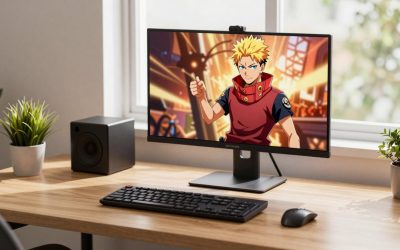
Anime and game artwork is plentiful in the Workshop, but spanning it takes care. The scenes that work place the character to one side, leaving scenery, sky, or architecture to cross the bezel. Wide establishing shots from anime backgrounds and open-world game vistas behave like landscapes and span cleanly, while close-up character portraits are better assigned to a single monitor. Many anime scenes are published as video wallpapers with animated rain, hair, or lighting effects at common dual resolutions. If your two monitors differ in size, skip spanning for this category entirely and give each screen its own scene from the same series or artist for a matched look.
Clocks, Widgets, and Information Scenes
A second monitor is prime space for information, and web wallpapers turn it into a live panel: a large clock, a calendar, a system monitor showing CPU and GPU load, or a weather readout. These scenes are usually built for one display rather than a span, so assign them to the secondary screen and keep the primary screen simple. Because web wallpapers run continuously, they draw more power than static art, and some include always-updating elements you may want to tone down in the wallpaper’s own settings panel. Wallpaper Engine exposes per-wallpaper properties such as clock format, color scheme, and update behavior, so open the properties before deciding a widget scene is too busy.
How to Set Up Spanning or Separate Wallpapers
Open Wallpaper Engine and look at the monitor diagram at the top of the main window. To span one scene, choose the option that treats the displays as a single combined screen, then browse and apply the wallpaper once; it will stretch across the full combined resolution. To run different wallpapers, select one monitor in the diagram, apply a scene, then select the other monitor and apply its own. Each display keeps its own playlist and settings this way. Finish by opening the performance settings and choosing how playback behaves when other windows are maximized or full screen, and set a playlist change interval only if you actually want rotation, since constant switching is its own distraction.
Which One Fits Your Situation
Two Identical Monitors Side by Side
Identical panels are the ideal spanning setup: same resolution, same height, no alignment fiddling. Search the Workshop at your exact combined resolution, favor ultrawide landscapes or symmetrical abstract scenes, and let one image carry the whole desk. A video scene with slow motion reads as premium here and costs little because both halves share one file.
One Landscape and One Portrait Monitor
A rotated side monitor breaks spanning, because the combined canvas becomes an awkward shape no scene is drawn for. Go per-monitor instead: a calm static or slow video scene on the landscape screen, and a tall-format image, a clock, or a widget panel on the portrait screen. Match the color temperature of the pair so the desk still feels like one setup.
A Modest PC or a Laptop Dock
Limited GPU and memory argue for discipline. Use static scenes on both screens, or one lightweight video wallpaper on the main display only. Turn on the setting that pauses playback when a window is maximized, and avoid web and application wallpapers with visualizers or live data. Your desktop will still look designed, and the machine keeps its resources for actual work.
You Want a Living Desk With Widgets
Give the secondary monitor the job. Assign a web wallpaper with a clock, calendar, or system readout to that screen, and keep a quiet static or video scene on the primary display where your windows live. Check the widget’s properties to slow its update rate and dim its colors after dark, so the information stays readable without glowing at you all evening.
Common Mistakes
- Downloading a single-monitor wallpaper and spanning it anyway, which stretches the scene and softens every detail.
- Ignoring the combined resolution, then blaming Wallpaper Engine for blur that was baked into an undersized image.
- Centering a character or logo exactly where the bezel splits the scene in half.
- Running two heavy web or application wallpapers at once and leaving playback active during full-screen games.
- Building a playlist that changes every minute, which turns a calm desk into a constant distraction.
Frequently Asked Questions
What resolution should I search for with two 1440p monitors?
Search for 5120×1440, which is the combined width of two 2560×1440 displays side by side. Use that number in the Workshop search box and in the resolution filter. For two 1080p screens the equivalent is 3840×1080. A scene at exactly your combined resolution spans without upscaling, so text-free landscapes and abstract pieces stay sharp across both panels.
Can each monitor show a different wallpaper in Wallpaper Engine?
Yes. Select one monitor in the diagram at the top of the Wallpaper Engine window, apply a wallpaper, then select the second monitor and apply a different one. Each display keeps its own scene, playlist, and playback settings. This per-monitor layout is the better choice when your screens differ in size, resolution, or orientation, because nothing has to stretch to fit an uneven canvas.
Does Wallpaper Engine slow down games on a dual monitor setup?
It can if playback keeps running, but the built-in performance settings prevent most of it. Set Wallpaper Engine to pause or stop wallpapers when a window is maximized or an application runs full screen, and playback also stops on the covered display. Video scenes cost little, while web and application wallpapers with visualizers cost more, so the pause rule matters most for those types.
Why does my spanning wallpaper look blurry or cut off?
Blurriness almost always means the scene is smaller than your combined resolution and is being upscaled. Cut-off edges usually mean the aspect ratio of the artwork does not match your combined canvas, or the two monitors are offset vertically in your system display settings. Realign the displays so their top edges match, then pick a scene published at your exact combined width and height.
Related Reviews & Guides

Anime Hunters Trial Update Guide: New Codes and More

How to Set Up an Ergonomic Home Office