Last Updated: October 9, 2026
- Watch: How to Create a Dual Monitor Setup for Maximum Efficiency 2026 — Video Review
- Match the Monitor to the Desk, Not the Other Way Around
- Choose Resolution Based on What You Actually Do
- Desktop Dual Monitors vs. Laptop Screen Extenders
- Get the Ports and Cables Right Before You Buy
- Set Up Windows and Positioning for Real Efficiency
- Tips
- Frequently Asked Questions
- Conclusion
- Related Articles
- Related Guides
- Top Pick: Wixzet Laptop Screen Extender, 15.6" FHD 1080P IPS Laptop Monitor Extender for 13" – 17.3" Laptops, Detachable & 4-in-1 Modes Dual Monitor, Plug-Play Travel Monitor for Wins/Mac/Dex/Chrome
- Best Value: ViewSonic VA2256-MHD_H2 22 Inch 1080p Dual Pack Head-Only Monitors, IPS Display with FreeSync for Dual-Screen Home and Office Setups, HDMI, DisplayPort, and VGA Inputs
- Premium Choice: HP P27v G4 27 Inch IPS LED Backlit Monitor 2-Pack Bundle with FHD 1920 x 1080, Blue Light Filter, HDMI, VGA, Desk Mount Monitor Stand
Two monitors change how you work. Instead of alt-tabbing between a spreadsheet and an email draft, or a code editor and a browser, you see both at once. Studies on knowledge worker productivity consistently point to gains of 20-30% on tasks involving reference material or multi-step workflows, and once you’ve worked across two screens, going back to one feels cramped.
Building the right setup in 2026 comes down to three decisions: how much desk space you have, whether you need a fixed desktop pair or a portable rig for a laptop, and what resolution actually matches your work. Below is a practical walkthrough, plus a shortlist of monitor and screen-extender options worth considering.
As an Amazon Associate we earn from qualifying purchases at no extra cost to you.



⚡ Save on Your Next PC — Amazon Prime
Prime members get fast free shipping on the systems above, plus early access to Prime Day & Black Friday PC deals. New members get a 30-day free trial.
📄 In This Review
- Watch: How to Create a Dual Monitor Setup for Maximum Efficiency 2026 — Video Review
- Match the Monitor to the Desk, Not the Other Way Around
- Choose Resolution Based on What You Actually Do
- Desktop Dual Monitors vs. Laptop Screen Extenders
- Get the Ports and Cables Right Before You Buy
- Set Up Windows and Positioning for Real Efficiency
- Tips
- Frequently Asked Questions
- Conclusion
- Related Articles
- Related Guides
Watch: How to Create a Dual Monitor Setup for Maximum Efficiency 2026 — Video Review
Match the Monitor to the Desk, Not the Other Way Around
See also: Best Air Purifier For Bedroom Allergies • Desk Top Air Purifier
Before buying anything, measure your desk depth and width. A pair of 27-inch monitors typically needs at least 46-48 inches of desk width to sit side by side without crowding your keyboard tray. If you’re tight on space, 22-24 inch panels are the more realistic choice.
- Desk under 42 inches wide: pair of 22-24 inch monitors, like the ViewSonic VA2256-MHD_H2 22 Inch models
- Desk 46 inches or wider: 27-inch pairs, such as the HP P27v G4 or HP Z27q G3 bundles, give you more usable screen real estate per panel
- No extra desk space at all: a laptop screen extender adds a second display without taking up any additional footprint
Choose Resolution Based on What You Actually Do
Resolution decides how much you can fit on screen before things get too small to read comfortably. 1080p is fine for browsing, email, and general office work. 1440p (QHD) gives noticeably more room for code, spreadsheets, and multi-pane design tools without shrinking text to an uncomfortable size.
- 1080p pairs (ViewSonic VA2456A-MHD_H2, ViewSonic VA2256-MHD_H2, HP P27v G4): good for everyday multitasking, video calls, and document work
- 1440p pairs (HP Z27q G3): better for developers, analysts, and designers who need finer detail and more on-screen workspace at 27 inches
- Match both monitors to the same resolution and refresh rate so window dragging and color don’t feel inconsistent
Desktop Dual Monitors vs. Laptop Screen Extenders
If you work from a fixed desk, a matched monitor pair on stands or an arm is the more stable, ergonomic long-term choice. If you travel or move between a desk and a couch, a laptop screen extender like the Wixzet Laptop Screen Extender or the 15.6″ One-Cable Laptop Screen Extender clips onto your existing laptop and adds a second (or third) display without carrying separate monitors.
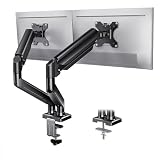
- Fixed desk, daily use: buy a dual monitor pack with its own stand or VESA mount
- Hybrid or travel work: a detachable screen extender that connects via USB-C or USB-A is lighter and packs into a laptop bag
- Extenders with 4-in-1 modes let you run mirrored, extended, or triple-screen configurations depending on the task
Get the Ports and Cables Right Before You Buy
Port mismatches are the most common reason a dual monitor setup underperforms. Check your computer’s outputs before ordering.
- HDMI and DisplayPort are standard on desktop monitors like the HP P27v G4 and HP Z27q G3; DisplayPort is preferable for driving 1440p at higher refresh rates
- VGA inputs, included on the ViewSonic pairs, are useful if you’re connecting an older office PC
- Laptop screen extenders that use a single USB-C cable for both video and power simplify cabling significantly, but confirm your laptop’s USB-C port supports video output (DisplayPort Alt Mode)
- Some extenders note “driver required” for certain operating systems, so check compatibility with your specific laptop before purchase
Set Up Windows and Positioning for Real Efficiency
Hardware is half the job. How you arrange and configure the screens determines whether the setup actually saves time.
- Place your primary monitor directly in front of you and the secondary slightly angled, not flat side by side, to reduce neck turning
- In Windows, use Settings > System > Display to set the correct arrangement and scaling for each monitor individually
- On Mac, System Settings > Displays lets you drag the menu bar to whichever screen you use most as primary
- Use window-snapping shortcuts (Windows key + arrow, or third-party tools like Rectangle on Mac) to quickly dock apps to each screen
Tips
- Set both monitors to the same height, with the top of the screen roughly at eye level, to avoid neck strain during long sessions
- Enable each monitor’s blue light filter for evening work; both HP bundles include this built in
- If using an extender, secure the clamp firmly on your laptop lid before adjusting the screen angle, loose mounts are the top cause of wobble complaints
- Label or color-code your cables at the monitor end, it saves time when troubleshooting a “no signal” issue later
Frequently Asked Questions
Do I need a graphics card upgrade to run two monitors?
Most modern laptops and desktops, including integrated graphics from the last several years, can drive two 1080p or even two 1440p displays without issue. Check your GPU’s specified maximum resolution and refresh rate if you’re pushing 1440p at 120Hz or higher on both screens simultaneously.
Can I mix monitor sizes or brands in a dual setup?
Yes, but matching size, resolution, and refresh rate makes the experience far smoother. Mismatched panels can cause visible differences in color, brightness, and cursor speed when dragging windows between them.
Is a laptop screen extender as good as a second monitor?
For portability, yes. For daily desk use, a dedicated monitor on a stand offers better ergonomics, since extenders are fixed to the laptop’s position and angle. Many people use both: an extender for travel, a monitor pair at their main desk.
What’s the difference between a “head-only” monitor and a standard one?
A head-only monitor, like the ViewSonic dual packs, ships without its own stand or with a minimal stand, intended for use with a VESA mount or monitor arm. It typically costs less than a version bundled with a full-height stand, which is useful if you already own a mount.
Conclusion
A dual monitor setup pays for itself quickly in reduced task-switching and better organization of your work. Start by measuring your desk and identifying whether you need a fixed pair or a portable extender, then match resolution and ports to your actual workload rather than buying the highest spec available. Get the physical arrangement and display settings right, and the efficiency gains show up almost immediately.
Related Reviews & Guides

How to Build a Standing Desk on a Budget 2026

Mechanical Keyboard Switches Explained: Cherry MX vs Gateron vs Kailh 2026