Last Updated: September 12, 2026
- Top Pick: USB C Docking Station Dual Monitor for HP,Laptop Docking Station 3 Monitors
- Best Value: Docking Station Dual Monitor for Dell/HP/Lenovo/Mac Laptop, USB C Laptop Docking Station Dual Monitor, Dual HDMI Adapter for 2 Monitors, 8 in 1 USB C Hub Multiport Adapter with HDMI/USB/PD/SD/TF
- Premium Choice: MonMount Dual LCD Monitor, Desk Mount Stand Arm Holds up to Two 27" Screens, Black (LCD-194B)


🛒 Best Price Today on Amazon
Prime members get fast, free shipping on everything above, plus member-only deals. New members get a 30-day free trial — cancel anytime.
As an Amazon Associate we earn from qualifying purchases.


📄 In This Review
Quick Comparison
| Product | Brand | Price | Rating |
|---|---|---|---|
| Ergotron – Upgraded LX Pro Premium Monitor Arm | — | $199 | 4.1/5 |
| Ergotron – Upgraded LX Pro Premium Monitor Arm | — | $199 | 4.2/5 |
| Ergotron – Upgraded LX Pro Premium Dual Monitor Arm | — | $429.14 | 4.6/5 |
Build the Perfect Dual Monitor Setup
See also: Good Height for a Desk: Seated and Standing Numbers by Body Height • Best Desks for Posture: Height, Depth and Sit-Stand Options
A dual monitor setup is one of the highest-productivity upgrades you can make to a home office or workstation. Research consistently shows that two screens reduce task-switching time and allow more complex workflows — from coding side-by-side to referencing documents while writing. But a great dual-monitor setup isn’t just two screens; it’s the right combination of monitors, mounting, and accessories. Here’s what to look for.
1. LG 27UL500-W 27-inch 4K IPS Monitor (Pair)
Two LG 27UL500-W monitors make a popular entry-level 4K dual setup. Each panel is a 27-inch IPS with 99% sRGB coverage, HDR400 support, and AMD FreeSync. Text and image quality are sharp and consistent edge-to-edge, which matters when you’re reading documents or comparing design work across two screens. The thin bezels minimize the visual gap between panels. VESA-compatible for use with a dual monitor arm, which is the recommended mounting solution for any dual setup.
34
Prime
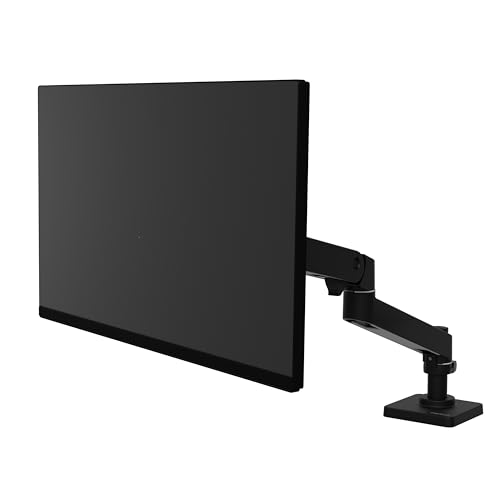
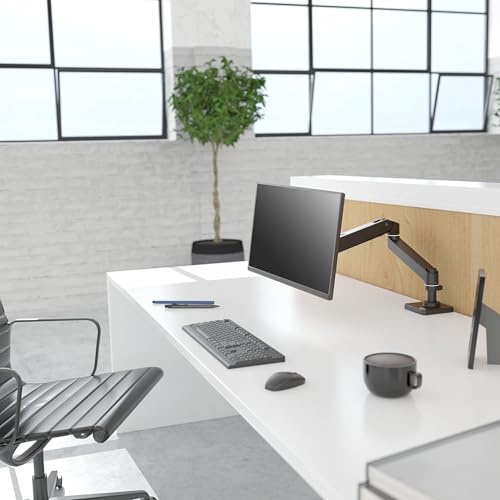
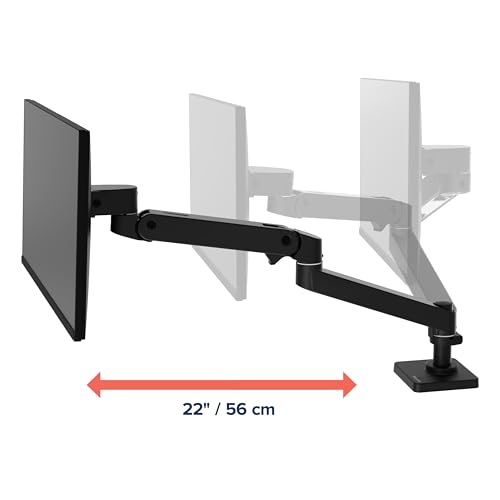
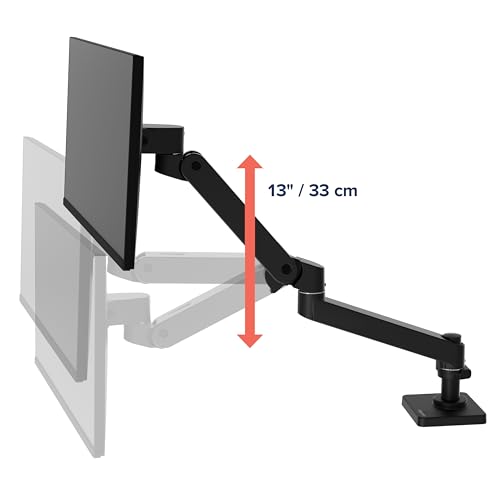
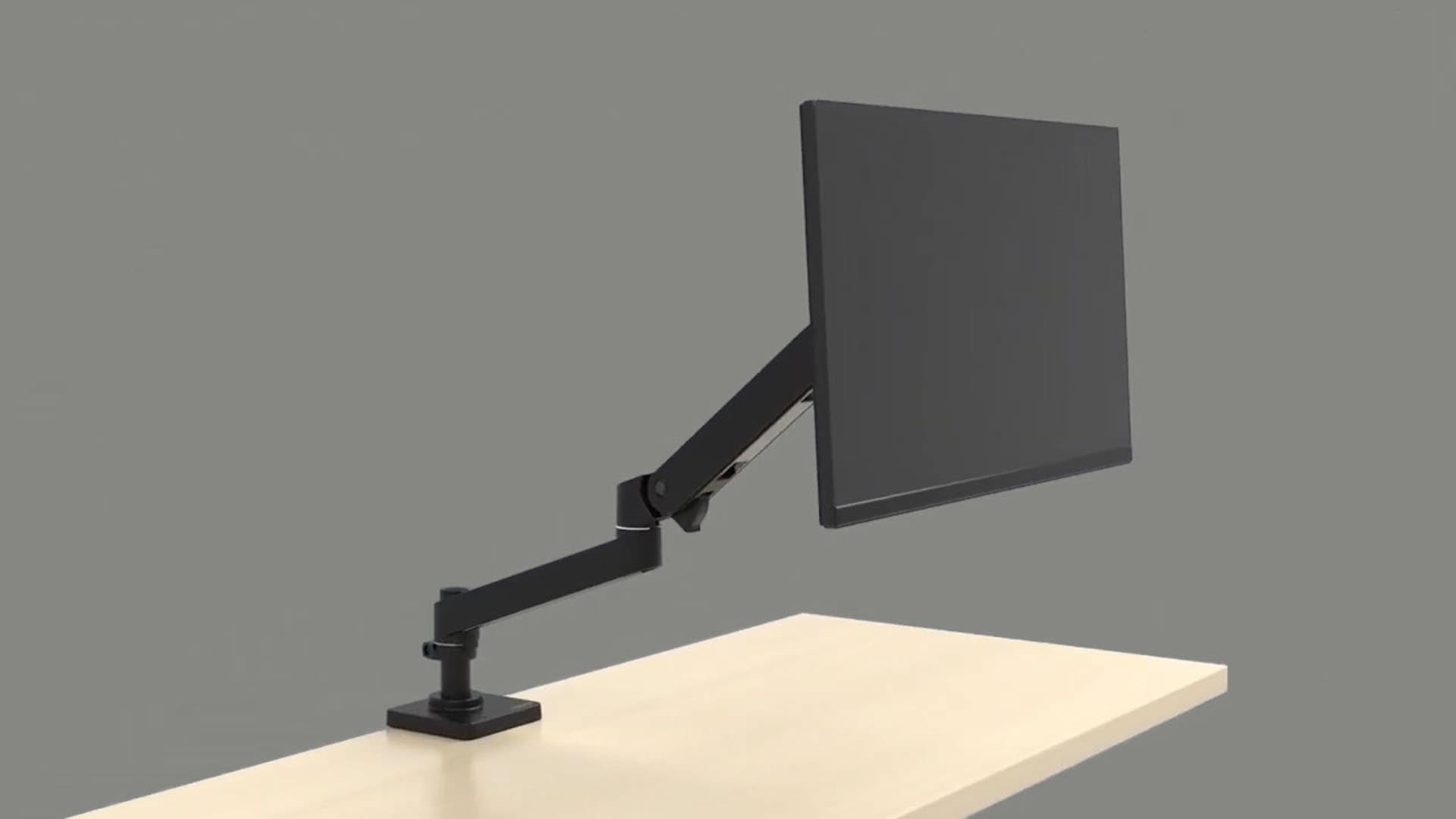
Ergotron – Upgraded LX Pro Premium Monitor Arm, Single Monitor Desk Mount – fits Flat Curved Ultrawide Computer Monitors up to 34 Inches, 4 to 22 lbs, VESA 75x75mm or 100x100mm – Matte Black
In Stock





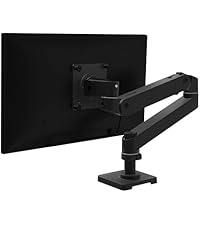
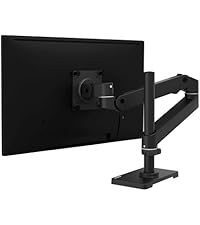

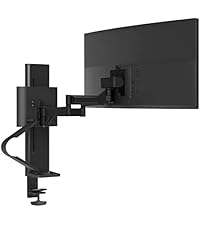



As an Amazon Associate we earn from qualifying purchases. Product prices and availability are accurate as of the date/time indicated.
2. Dell UltraSharp U2723QE (Matched Pair)
The Dell UltraSharp U2723QE is a 27-inch 4K IPS Black panel that offers near-black contrast levels previously impossible in IPS technology. Colors are factory-calibrated to Delta-E < 2, making them ideal for design, photo editing, or any color-sensitive work. USB-C with 90W Power Delivery means each monitor can power a connected laptop directly. Two of these mounted side by side creates a workspace-grade dual setup that’s genuinely impressive for professional use.
33
Prime
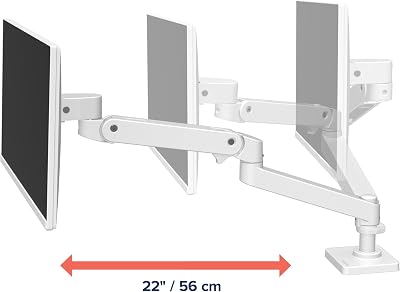
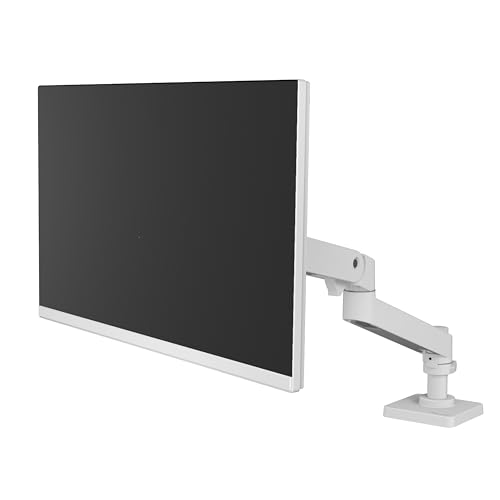
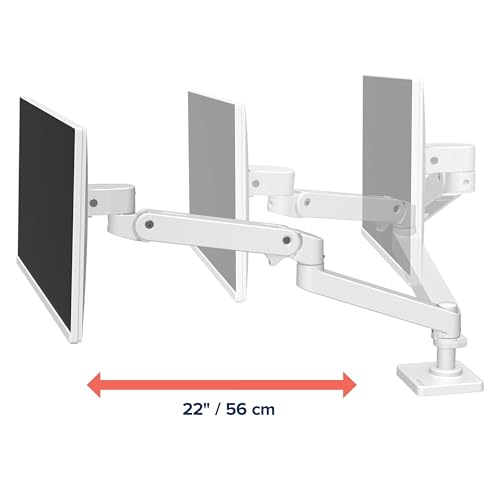
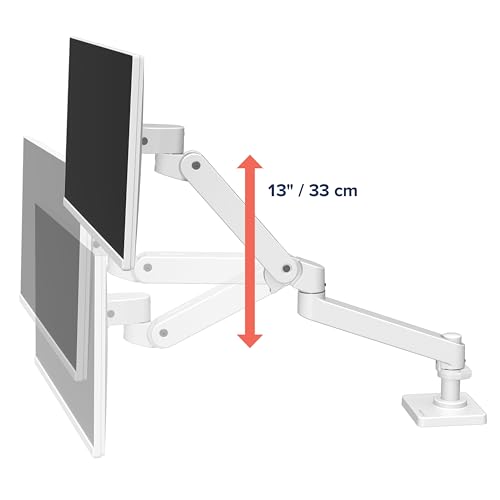
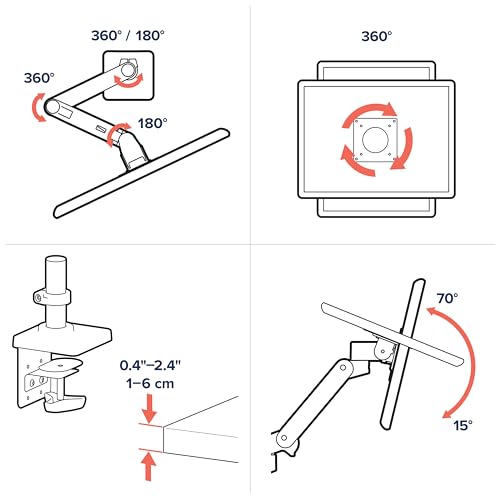
Ergotron – Upgraded LX Pro Premium Monitor Arm, Single Monitor Desk Mount – fits Flat Curved Ultrawide Computer Monitors up to 34 Inches, 4 to 22 lbs, VESA 75x75mm or 100x100mm – White
In Stock





As an Amazon Associate we earn from qualifying purchases. Product prices and availability are accurate as of the date/time indicated.
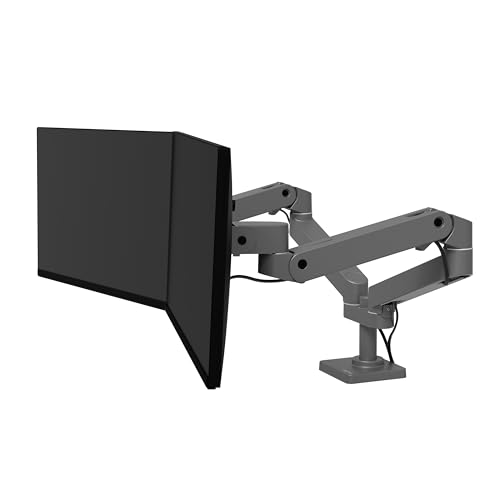
3. Ergotron LX Dual Monitor Arm
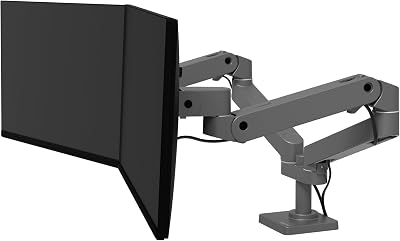
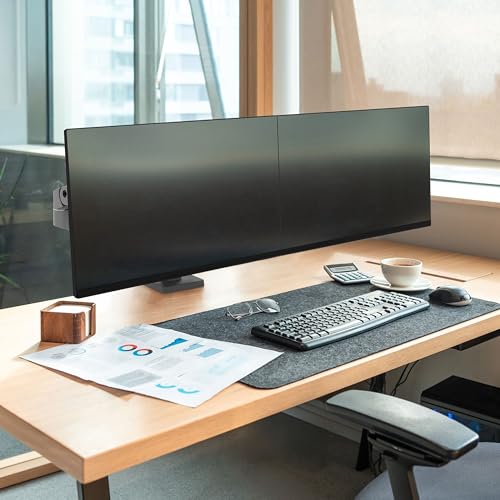
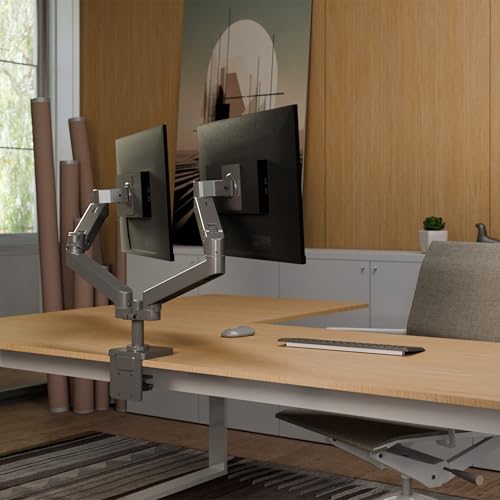
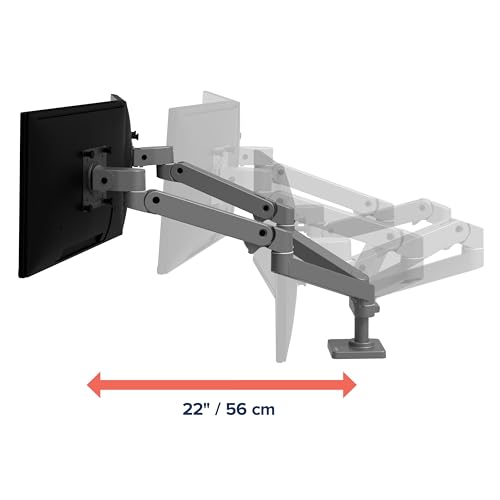
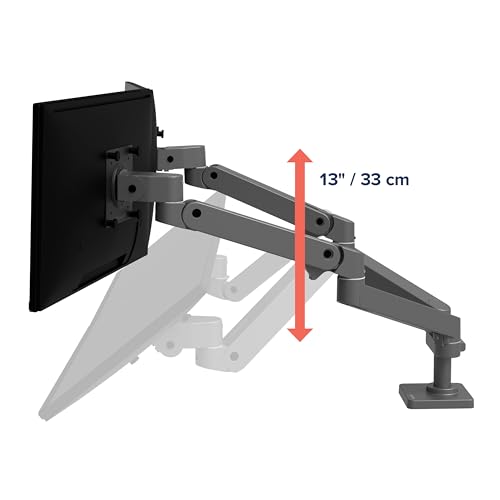
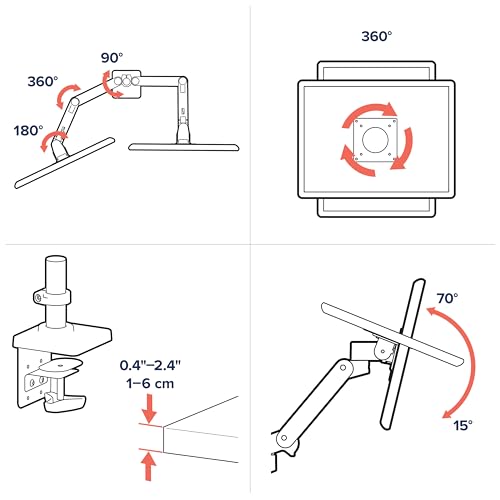
No dual monitor setup is complete without a proper dual monitor arm. The Ergotron LX Dual is the most recommended arm at this price point: smooth gas-spring articulation, stable at all positions, and VESA-compatible with most monitors up to 9kg per arm. It keeps your monitors at eye height regardless of desk surface, frees up the desk surface beneath, and allows easy repositioning when you want to focus on one screen or rotate for a portrait view. Built-in cable management keeps the look clean.
32
Ergotron – Upgraded LX Pro Premium Dual Monitor Arm, VESA Desk Mount – for 2 Monitors Up to 27 Inches, 4 to 20 lbs Each – Dark Grey
In Stock


As an Amazon Associate we earn from qualifying purchases. Product prices and availability are accurate as of the date/time indicated.
Dual Monitor Setup Buying Guide
- Match your monitors: Identical panels eliminate color and brightness mismatches — your eye constantly compares the two screens.
- Resolution: 1440p or 4K at 27 inches offers crisp text; 1080p at 27 inches can look soft at normal viewing distances.
- Use a monitor arm: VESA-mounted monitors on an arm allow precise height and angle adjustment impossible with stock stands.
- GPU output: Confirm your laptop or desktop has two video outputs or a hub capable of driving two displays.
- Bezel size: Thin bezels minimize the visual interruption between screens — important for continuity of work.
- Arrangement: Side-by-side at slight inward angles is most common; one landscape plus one portrait suits coding or reference workflows.
Final Thoughts
Building a dual monitor setup is simpler than it looks: pick a matched pair of quality panels, add a dual monitor arm for ergonomic positioning, confirm your GPU can drive both, and enjoy the productivity gains. The LG 27UL500-W pair offers great value, the Dell UltraSharp U2723QE is the professional choice, and the Ergotron LX arm completes any setup elegantly.
Frequently Asked Questions
What do I need to set up dual monitors?
You need two monitors, the right cables for your computer’s video outputs, and a graphics setup that supports two displays, which nearly all modern laptops and desktops do. A monitor arm or dual stand helps you align them at a comfortable height. From there, your operating system handles extending the desktop across both screens.
Should my two monitors be the same size and resolution?
Matching monitors gives the cleanest experience because the displays line up in height and your cursor and windows move smoothly between them. Mismatched panels still work but can create awkward gaps and scaling differences. If you mix sizes, try to match the resolution and adjust scaling so text looks consistent across both.
How should I arrange dual monitors ergonomically?
Place your primary monitor directly in front of you at eye level and angle the second one beside it so you turn your head only slightly to use it. If you split work evenly across both, center the gap in front of you instead. Keeping both screens at the same height prevents constant neck tilting.
Can I run dual monitors from a laptop?
Yes, most laptops support at least one external display through HDMI or USB-C, and many can drive two with a docking station or USB-C hub. Check how many independent outputs your laptop’s graphics support before buying. A dock also simplifies your setup by connecting both monitors, power, and peripherals through one cable.
How to Choose the Right Dual Monitor Setup
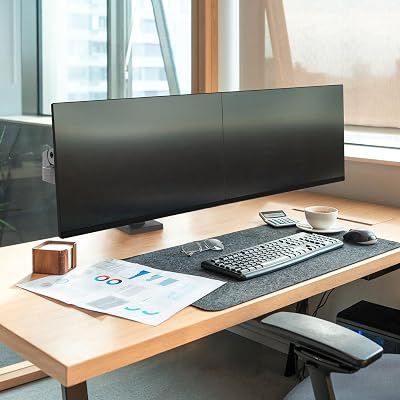
A dual monitor setup multiplies your workspace, but two screens only help if they match each other and sit at the right height and angle. Plan the panels, the mount, and the desk together so the pair feels like one continuous workspace.
- Matching panels — Use two monitors of the same size and resolution so windows line up across the seam and your eyes do not refocus when moving between them.
- Primary and secondary layout — Decide which screen is your main focus and angle the second inward so glancing over does not twist your neck repeatedly.
- Dual monitor arm or stand — A dual arm aligns both screens at the same height and frees desk space, which a pair of factory feet rarely manages.
- Graphics output and cables — Confirm your computer has two video outputs of the right type, and budget for the correct cables or an adapter before assembling.
Common Mistakes to Avoid
A frequent mistake is centering one monitor and pushing the other off to the side, then living with a constant neck twist. If you split attention evenly, center the seam between the two screens in front of you; if one screen dominates your work, place it directly ahead and angle the secondary monitor inward as a glance-over reference.
People also forget to match the height of the two displays. Mismatched feet leave one screen higher than the other, so your eyes and neck adjust every time you switch focus. Align the tops of both panels at eye level using a dual arm or stand, and set both to the same brightness so moving between them never feels like a jolt.
Related Reviews & Guides

Logitech MX Master Mouse: Best Versions Compared for 2026

Laptop Stand Cooling Pad Review