Last Updated: September 7, 2026
- Watch: How to Set Up a Productivity-Boosting Desk Layout 2026 — Video Review
- Zone Your Desk Into Three Areas
- Automate Repetitive Actions With a Macro Pad
- Upgrade to Ergonomic Input Devices
- Keep Shortcuts Visible, Not Memorized
- Build a Daily Planning Ritual
- Tips for a Setup That Actually Sticks
- Frequently Asked Questions
- Conclusion
- Related Articles
- Related Guides
- Top Pick: VSDINSIDE Macro Pad, Streaming Deck Stream Controller Soundboard Keypad, Programmable Keys USB Shortcut Keyboard for Gamer Streamer, Audio Mixer for OBS, YouTube, Office Desk Setup, PC, Mac
- Best Value: ProtoArc EKM01 Plus Wireless Ergonomic Keyboard Mouse Combo – Gray Black
- Premium Choice: LUX PRO A5 – Daily Planner & appointment diary 2024 – Gratitude journal, wellness journal & Undated weekly planners and organisers – Desk journals for women & men – LUX Productivity (Brown – Walnut)
A productivity-boosting desk layout isn’t about buying more gadgets — it’s about arranging the right tools so your hands never have to leave your primary work zone. In 2026, with hybrid work and multi-app workflows now the norm, the desks that perform best combine ergonomic input devices, quick-access controls, and a low-friction planning system.
Below we break down the five components of a high-output desk setup, plus the specific gear worth adding if you’re rebuilding your workspace from scratch this year.
As an Amazon Associate we earn from qualifying purchases at no extra cost to you.




⚡ Save on Your Next PC — Amazon Prime
Prime members get fast free shipping on the systems above, plus early access to Prime Day & Black Friday PC deals. New members get a 30-day free trial.
📄 In This Review
- Watch: How to Set Up a Productivity-Boosting Desk Layout 2026 — Video Review
- Zone Your Desk Into Three Areas
- Automate Repetitive Actions With a Macro Pad
- Upgrade to Ergonomic Input Devices
- Keep Shortcuts Visible, Not Memorized
- Build a Daily Planning Ritual
- Tips for a Setup That Actually Sticks
- Frequently Asked Questions
- Conclusion
- Related Articles
- Related Guides
Watch: How to Set Up a Productivity-Boosting Desk Layout 2026 — Video Review
Zone Your Desk Into Three Areas
See also: Best Air Purifier For Bedroom Allergies • Desk Top Air Purifier
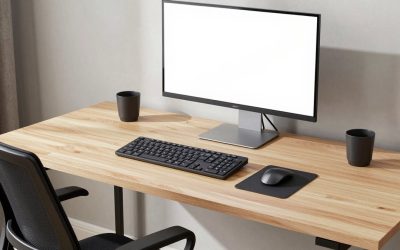
Most desks fail not because they lack gear, but because everything competes for the same 24 inches of space directly in front of the monitor. Split your desk into three zones and productivity gains follow almost automatically.
- Primary zone (0-12 inches from your chest): keyboard, mouse, and any macro pad or shortcut device you touch every few minutes.
- Reference zone (12-20 inches): monitor, notebook or planner, and a document holder if you work from source material.
- Peripheral zone (20+ inches or side surfaces): chargers, drink, secondary devices, and anything you touch fewer than five times a day.
Automate Repetitive Actions With a Macro Pad
Every extra click to switch scenes, mute a mic, or trigger a shortcut adds up. A dedicated macro pad like the VSDINSIDE Streaming Deck Stream Controller Soundboard Keypad removes that friction by putting programmable keys within thumb’s reach of your keyboard. It’s built for streamers running OBS or YouTube, but the same logic applies to any desk worker juggling more than three applications a day — assign it to launch apps, paste boilerplate text, or control audio levels without touching a mouse.
- Place it to the left of your keyboard if you’re right-handed, so your dominant hand stays on the mouse.
- Start with 6-8 mapped actions; more than that and you’ll forget the layout.
- Pair it with a soundboard profile for calls if you host meetings or streams regularly.
Upgrade to Ergonomic Input Devices
Wrist strain is still the number one reason people abandon a “productive” setup within a month. A low-profile, ergonomically curved combo like the ProtoArc EKM01 Plus Wireless Ergonomic Keyboard Mouse Combo reduces ulnar deviation (the outward wrist bend that causes fatigue) during long typing sessions. Wireless combos also clear cable clutter from your primary zone, which matters more than it sounds — every cable crossing your typing path is a micro-interruption.
- Set keyboard height so your elbows sit at roughly 90 degrees.
- Use the mouse on your dominant side, angled 10-15 degrees inward to match natural wrist position.
- Check battery life specs before buying — anything under 6 months on standard batteries means more desk-drawer maintenance than it’s worth.
Keep Shortcuts Visible, Not Memorized
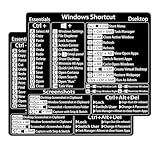
Keyboard shortcuts save an estimated 8-10 minutes per hour for heavy computer users, but only if you actually remember them. Windows Keyboard Shortcut Stickers placed along the top row of your keyboard turn abstract commands into a visual cheat sheet for Windows 11/10, Word, and Excel. This matters most in the first two weeks of a new setup, when muscle memory hasn’t formed yet.
- Apply stickers only to function and modifier keys you don’t already know.
- Remove them once a shortcut becomes automatic — clutter defeats the purpose.
- Combine with your macro pad for shortcuts that are used constantly but hard to remember.
Build a Daily Planning Ritual
Digital calendars are good at reminders and bad at reflection. A physical desk planner, such as the LUX PRO A5 Daily Planner with its undated weekly layout and built-in gratitude journal pages, gives you a five-minute morning ritual that a screen can’t replicate — writing top priorities by hand improves recall by a measurable margin compared to typing them. Keep it in your reference zone, open to today’s page, as a visual anchor throughout the day.
- Fill it out at the same time each morning, ideally before opening email.
- Limit your daily list to 3 must-do tasks; everything else goes on a separate backlog page.
- Undated formats mean you can start any week of 2026 without wasting pages.
Tips for a Setup That Actually Sticks
- Run a two-week trial before rearranging further — most layout complaints are habit issues, not design flaws.
- Route all cables (keyboard, macro pad, monitor) along the same edge of the desk to keep your primary zone clear.
- Reassess your macro pad mappings monthly; workflows shift and unused shortcuts just add confusion.
- Keep only one analog tool (planner or notebook) on the desk at a time — multiple paper systems compete for attention just like apps do.
Frequently Asked Questions
Do I need both a macro pad and keyboard shortcuts?
They solve different problems. A macro pad handles multi-step or app-specific actions (switching OBS scenes, muting audio), while native shortcuts handle single-key commands built into your OS or apps. Most desks benefit from both, but start with shortcut stickers since they cost less and require no setup.
How much desk space does an ergonomic keyboard combo actually need?
Ergonomic combos like the ProtoArc EKM01 Plus typically require about the same footprint as a standard keyboard and mouse, since the ergonomic benefit comes from key curvature and split angling rather than added size. Measure your desk’s primary zone before buying if it’s under 40 inches wide.
Is a paper planner still worth it with digital task managers everywhere?
Yes, for prioritization specifically. Digital tools excel at recurring reminders and shared calendars; a planner like the LUX PRO A5 is better for the daily act of deciding what matters most, which research consistently links to handwriting over typing.
What’s the single highest-impact change for an existing desk setup in 2026?
Removing cable clutter from your primary zone. It’s the cheapest fix, takes under 30 minutes, and immediately reduces the small frictions that break focus dozens of times a day.
Conclusion
A productivity-boosting desk isn’t built in one purchase — it’s built by zoning your space, reducing repetitive motion, keeping shortcuts visible, and giving yourself a low-tech planning ritual to anchor the day. Start with whichever gap costs you the most friction right now, whether that’s wrist strain, forgotten shortcuts, or a cluttered primary zone, and build outward from there.
Related Reviews & Guides
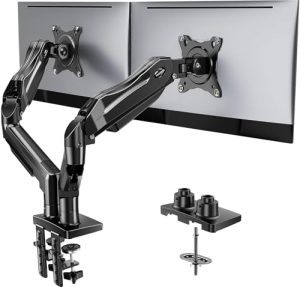
8 Best Monitor Mounts for Dual Monitor Workstations 2026
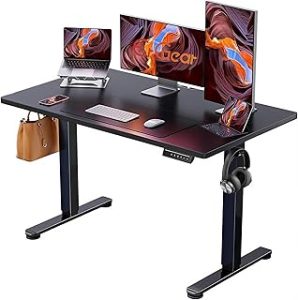
How to Elevate Your Desk Setup with Smart Home Devices 2026