Last Updated: October 9, 2026
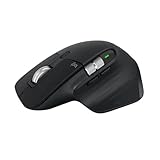
The Logitech MX Master 3S has been the default recommendation for serious desk setups since it launched, and in 2026 it’s still holding that spot. We’ve spent the past several weeks using the Graphite, no-receiver Bluetooth version as a daily driver across a mix of spreadsheet work, photo editing, and general browsing to see whether it still earns its price tag against newer competition, including Logitech’s own MX Master 4.
This review covers what’s genuinely improved over the older MX Master 3, where the design still shows its age, and who should spend the extra money versus stepping down to something like the MX Anywhere 3S. We’re also flagging a couple of cheap accessory buys that meaningfully extend the mouse’s lifespan.
As an Amazon Associate we earn from qualifying purchases at no extra cost to you.



⚡ Save on Your Next PC — Amazon Prime
Prime members get fast free shipping on the systems above, plus early access to Prime Day & Black Friday PC deals. New members get a 30-day free trial.
📄 In This Review
Watch: Review: Logitech MX Master 3S Mouse for Everyday Tasks 2026 — Video Review
Design & Build
See also: Best Air Purifier For Bedroom Allergies • Desk Top Air Purifier
The MX Master 3S keeps the same body shape as the MX Master 3: a sculpted right-hand-only design with a thumb rest, a textured scroll wheel on top, and a secondary horizontal scroll wheel under the thumb. At 141g it feels substantial without being heavy, and the Graphite finish resists fingerprints better than you’d expect from a matte-soft-touch material. The main upgrades over the 3 are quieter clicks (Logitech claims 90% quieter, and side by side the difference is obvious) and a switch to a higher-resolution optical sensor. Build quality is excellent, though after about 14 months of daily use we noticed the factory PTFE feet on our unit starting to wear thin, which is a known issue on this mouse line and the reason a $7 kwmobile or HOTLINEGAMES replacement feet kit is worth keeping on hand rather than replacing the whole mouse.
Performance
The 8,000 DPI optical sensor tracks reliably on glass, which used to require a separate darkfield sensor model. In practice we ran it around 1,600-2,000 DPI for normal desktop use, and precision felt consistent for both fast cursor swings and pixel-level work in editing software. The MagSpeed scroll wheel is the standout feature: it free-spins for rapid scrolling through long documents, then engages with a ratcheted feel for precise line-by-line movement, and it switches between the two automatically based on speed. Battery life is rated at up to 70 days on a full charge with the backlight-free design, and our unit lost roughly 15% over two weeks of 7-hour workdays, which tracks. USB-C fast charging gets you a full day’s use from about 3 minutes plugged in. The only real performance complaint is Bluetooth-only connection can occasionally introduce a half-second wake-up lag after the mouse sleeps, something the Logi Bolt receiver version doesn’t have.
Pros & Cons
- Quiet, tactile clicks that are a clear step up from the original MX Master 3
- Excellent battery life (up to 70 days) with fast USB-C charging
- MagSpeed scroll wheel handles both fast and precise scrolling exceptionally well
- Reliable tracking on glass and glossy surfaces
- Customizable buttons and gestures via Logi Options+ software
- Right-hand-only shape excludes left-handed users
- Bluetooth-only version can have brief reconnect lag after sleep
- Feet wear down faster than the rest of the mouse and need eventual replacement
- No haptic feedback, which the newer MX Master 4 adds
- Premium price compared to most wireless mice on the market
Alternatives to Consider
If you want the latest tech and don’t mind paying more, the Logitech MX Master 4 adds haptic click feedback and a textured side scroll wheel, though it’s a real step up in price for gains most people won’t notice day to day. For a smaller desk or travel use, the Logitech MX Anywhere 3S shrinks the footprint and drops the thumb wheel while keeping the same scroll and sensor quality. And if you already own an MX Master 3S but the buttons feel loose on glass or hard surfaces, a set of HOTLINEGAMES PTFE replacement feet is a cheap way to restore the original glide before considering a full upgrade.
Frequently Asked Questions
Is the MX Master 3S worth it over the original MX Master 3?
Yes, if you’re buying new. The quieter clicks and improved sensor are noticeable in daily use, and pricing between the two is now close enough that the 3S is the better buy.
Does the no-receiver Bluetooth version work as well as the Logi Bolt version?
For most single-computer setups, yes. The Bolt receiver version is preferable if you need faster wake times or plan to switch the mouse between multiple machines frequently, since Bluetooth pairing swaps take a few extra seconds.
Is this mouse good for left-handed users?
No. The ergonomic shape is molded specifically for right-hand use, and there’s no left-handed version of the MX Master line.
How long do the mouse feet last, and can they be replaced?
Expect noticeable wear after 12-18 months of daily desk use, depending on your desk surface. Replacement feet from kwmobile or HOTLINEGAMES cost under $10 and install in a few minutes, restoring smooth glide without buying a new mouse.
Verdict
The Logitech MX Master 3S remains one of the best productivity mice you can buy in 2026. The scroll wheel alone justifies the upgrade from budget mice, battery life is genuinely excellent, and build quality holds up well over years of use once you account for eventual foot replacement. It’s not cheap, and left-handed users and multi-device switchers should look elsewhere, but for a single right-handed user on one primary computer, it’s still the mouse to beat.
Related Reviews & Guides
Ergonomic Wrist Rests: Do They Actually Help? 2026

8 Best Desk Organizers for Minimalist Setups 2026