Last Updated: September 26, 2026
Any USB webcam works in Microsoft Teams, but the webcams that work best are those designed around how Teams handles video: modest resolution, heavy use of background effects, and IT-managed rollouts. Microsoft runs a “Certified for Microsoft Teams” programme that tests peripherals for consistent video and audio behaviour. This guide explains what certification means, which Teams-focused features matter, and which well-known webcams suit Teams users.
📄 In This Review
How Teams handles video
Teams adapts resolution to network conditions and meeting size. One-on-one calls on a good connection can reach 1080p; larger meetings usually drop to 720p or lower per participant. Teams also applies its own background blur, background replacement and, on supported devices, AI effects. A webcam with clean edges and good light handling makes those effects look far better, because background segmentation struggles with noisy, low-contrast video.
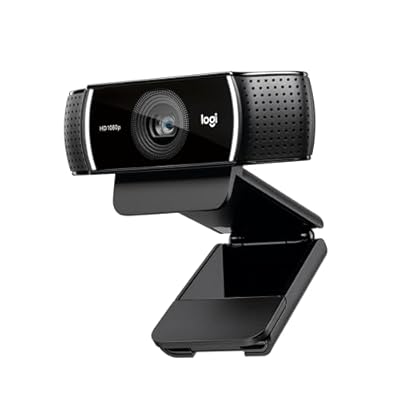
Logitech C922x HD Pro PC Webcam, Full HD 1080p/30fps or 720p/60fps Video, HD Light Correction, Works with Microsoft Teams, Google Meet, Zoom, Nintendo Switch 2’s new GameChat mode, Mac/Tablet- Black
Included for 'Best webcam for Microsoft Teams' because the listing specifies Full HD 1080p/30fps or 720p/60fps Video and HD Light Correction, details this guide uses to compare options.
View on Amazon
NexiGo N60 1080P Webcam with Microphone, Software Control & Privacy Cover, USB HD Computer Web Camera, Plug and Play, for Zoom/Skype/Teams, Conferencing and Video Calling
Included for 'Best webcam for Microsoft Teams' because the listing specifies Software Control & Privacy Cover and USB HD Computer Web Camera, details this guide uses to compare options.
View on AmazonWhat “Certified for Microsoft Teams” means
See also: Best Reclining Chairs: Nine Recliner Listings Compared by Mechanism, Fabric and Space Needs • Best Roku Streaming Deals Reviewed
Certified webcams have been tested by Microsoft for video quality, colour, latency and compatibility with Teams. For individuals, certification is a reassurance rather than a requirement. For companies, it simplifies support: IT teams know certified devices behave predictably and can be managed consistently. Microsoft publishes its certified device list; check it for current models, as certifications can apply to specific business SKUs rather than consumer versions.
Webcams well suited to Teams
| Webcam | Resolution | Teams-relevant strengths | Typical price tier |
|---|---|---|---|
| Microsoft Modern Webcam | 1080p30 | Teams certified, HDR, 78-degree FOV, privacy shutter | $50-$70 |
| Poly Studio P5 | 1080p30 | Teams and Zoom certified, shutter doubles as on/off switch | $70-$130 |
| Logitech Brio 500 series (business SKUs) | 1080p30 | RightLight 4, auto-framing, privacy shutter | $100-$130 |
| Logitech Brio (4K) | 4K30, 1080p60 | HDR, Windows Hello IR, sharp oversampled 1080p | $130-$200 |
| Jabra PanaCast 20 | 4K30 | AI framing, business-focused, privacy cover | $200-$300 |
Features that matter most for Teams users
Good exposure for background effects
Background blur and replacement look cleaner when your face is well exposed and separated from the background. HDR webcams handle backlit rooms better, so segmentation has fewer artefacts around hair and shoulders.
Privacy shutter
Many organisations prefer a physical shutter. The Microsoft Modern Webcam and Poly Studio P5 build it in.
Windows Hello
The Logitech Brio’s infrared sensor enables face sign-in on Windows, convenient on docked laptops with the lid closed.
Auto-framing
Teams can use camera-side auto-framing to keep you centred; webcams with framing built in, such as Logitech’s Brio 500 series and Jabra’s PanaCast 20, do this without extra CPU load.
Teams settings to check
- In Teams, open Settings, Devices, and select the webcam; preview it there.
- Choose background effects before joining a meeting to test edge quality.
- If your camera supports HDR or low-light modes in its own app, enable one or the other, not stacked with Teams’ own brightness adjustments.
- Use Ethernet or strong Wi-Fi so Teams can hold 1080p on one-on-one calls.
Teams on Windows vs Mac
On Windows, Teams can take advantage of Windows Studio Effects on laptops with a neural processing unit, adding background blur, eye contact correction and automatic framing at the system level. Those effects work best with a clean, well-exposed camera feed and are applied to supported cameras, so check your laptop’s compatibility. On macOS, Teams uses macOS camera handling and can combine with Apple’s own video effects like Center Stage and portrait mode for supported cameras. In both cases, the webcam’s native quality sets the ceiling for what effects can achieve.
Budget guide for Teams users
Under $70, the Microsoft Modern Webcam is the natural choice, since it was designed with Teams in mind and includes a shutter that turns Teams video on and off. From $70-$130, the Poly Studio P5 and Logitech’s Brio 500 series add better light handling and management tools. Above $130, the Logitech Brio and Jabra PanaCast 20 bring 4K sharpness, face login or AI framing.
FAQ
Do I need a Teams-certified webcam?
No. Any standard USB webcam works in Teams. Certification matters mainly for companies that want predictable behaviour and centralized support across many users.
Is 4K useful in Teams?
Teams will not send 4K, but a 4K webcam’s oversampled 1080p looks sharper and gives digital zoom room. For most Teams users, a good 1080p webcam with HDR is enough.
Bottom line
For most Teams users, a certified 1080p webcam with HDR and a privacy shutter, such as the Microsoft Modern Webcam or Poly Studio P5, is the practical choice. Step up to the Logitech Brio for Windows Hello and sharper video, or the Jabra PanaCast 20 for AI framing in client-facing roles.
Related Reviews & Guides


Best Ergonomic Office Chair for Remote Workers

Autonomous SmartDesk Pro Review